Why Manual Email Management Fails
The average professional receives 121 emails daily. Even at just 2 minutes per email (reading, deciding what to do, taking action), that’s 4 hours daily on email alone. Traditional Gmail management relies on you manually:
- ⚠️ Reading every email to determine importance
- ⚠️ Deciding which need immediate response vs later
- ⚠️ Extracting action items and adding to task manager
- ⚠️ Remembering to follow up on sent emails
- ⚠️ Writing similar responses repeatedly
- ⚠️ Searching for information buried in threads
Gmail’s built-in tools help minimally. Filters work only on static criteria (sender, subject keywords). Labels require manual application. Priority Inbox uses basic signals but can’t understand context like “this is urgent even though sender isn’t VIP.”
Using gmail ai automation fundamentally changes this equation. AI reads email content (not just metadata), understands context and urgency, learns your patterns, and takes action automatically using automate gmail with ai tools systematically.
The Gmail AI Automation Landscape
Available Tools and Platforms
| Tool | Best For | Key Features | Price |
|---|---|---|---|
| Zapier + ChatGPT | Custom workflows | Unlimited flexibility, connects everything | $20-100/mo |
| Make.com + Claude | Complex automation | Visual workflow builder, powerful logic | $10-50/mo |
| SaneBox | Smart inbox sorting | AI learns your patterns, simple setup | $7-36/mo |
| Superhuman | Speed-focused email | AI triage, snippets, follow-up reminders | $30/mo |
| EmailTree.ai | Customer support | Auto-categorize, suggest responses | $49+/mo |
| Google Apps Script | Free automation | Native to Gmail, requires coding | Free |
For most users, Zapier + ChatGPT API offers the best balance of power and accessibility. This guide focuses on this combination using smart email workflows using chatgpt principles.
Core Automation Workflows
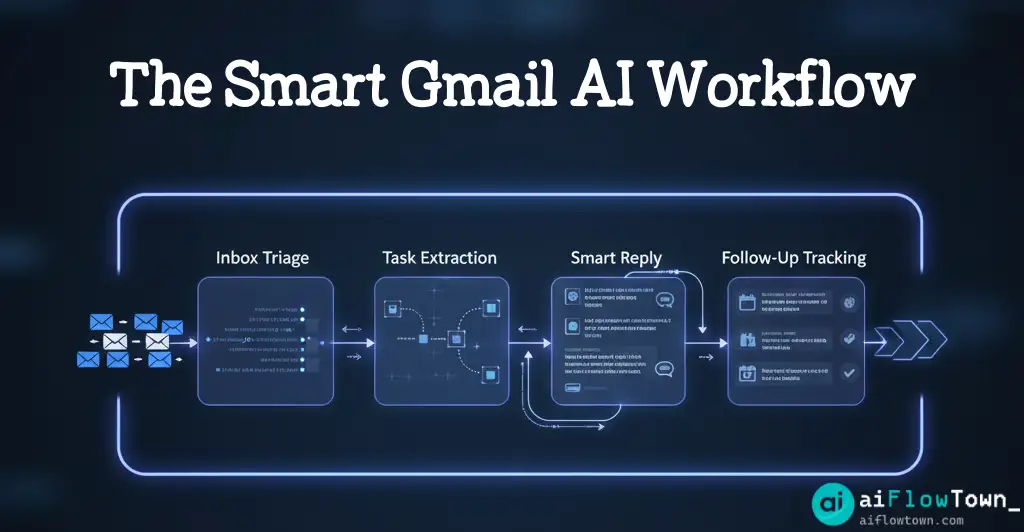
Workflow 1: Intelligent Inbox Triage
Trigger: New email arrives in Gmail
AI Analysis: ChatGPT reads subject + body
Classification Logic:
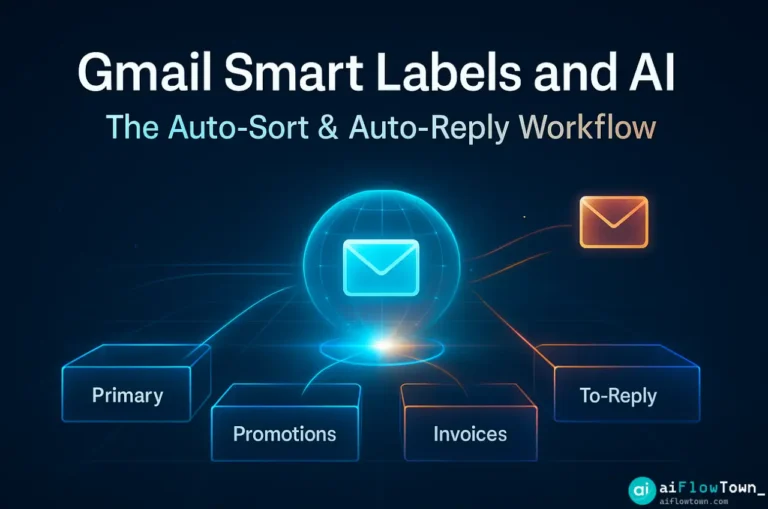
  - From VIP sender + contains question → Label: " Urgent Response Needed"
  - Contains deadline within 48 hours → Label: "⏰ Time-Sensitive"
  - Newsletter/marketing indicators → Label: " Read Later" + Archive
  - Contains "approve" or "review" → Label: "✅ Needs Decision"
  - No action required → Label: "ℹ️ FYI" + Archive
Action: Apply label, move to appropriate folder, notify if urgent
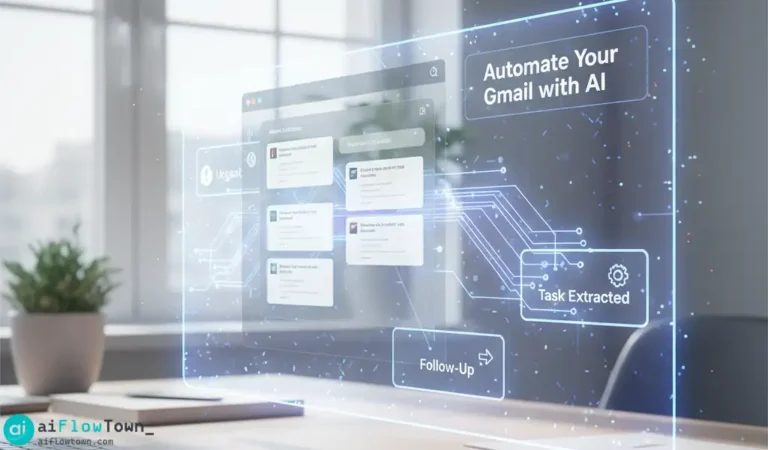
Workflow 2: Task Extraction Pipeline
Trigger: Email labeled "Response Needed" or "Decision"
AI Extraction: Identify action items, deadlines, dependencies
Task Creation: Add to Todoist/Asana with:
  - Task description from email context
  - Deadline if mentioned
  - Link back to original email
  - Priority based on urgency signals
Email Action: Apply " Task Extracted" label
Workflow 3: Smart Reply Drafting
Trigger: Email needing response + matches pattern
AI Generation: Create draft reply based on content + your style
Output: Draft saved to Gmail for quick review
You decide: Edit and send, or discard if not relevant
Workflow 4: Follow-Up Tracking
Trigger: You send an email requiring response
Tracking: Monitor for reply for 3 business days (configurable)
If no reply: AI drafts a polite follow-up and notifies you
Auto-Sorting and Prioritization
Beyond Simple Filters
Traditional Gmail filters are static. AI sorting considers:
- ✅ Sender importance (boss, client, stakeholder)
- ✅ Content urgency (deadline language)
- ✅ Action requirement (respond/decide/review/FYI)
- ✅ Thread context (ongoing vs new)
- ✅ Your patterns (what you usually answer fast)
The AI Sorting Prompt
"Classify this email's priority and required action.

From: {{sender_email}}
Subject: {{subject}}
Body: {{email_body}}
Thread history: {{previous_messages}}

My context:
- VIP senders: [boss email, key client domains]
- My role: [job title]
- Current projects: [list]

Return JSON with: priority (1-4), requires_response, deadline, action_type, reasoning"
Automatic Task Extraction
Why Manual Task Logging Fails
Emails often hide multiple action items. Without automation, tasks get lost in the inbox.
The Extraction System
| Step | What Happens | Time Saved |
|---|---|---|
| Email arrives | AI scans for action items | — |
| AI identifies tasks | Extracts what/when/who | 5 min |
| Create tasks | Add to Todoist/Asana with context | 3 min |
| Link back | Task links to email | 2 min |
| Set reminders | Based on urgency | 1 min |
| Total | Fully automated | ~11 min |
Task Extraction Prompt
"Extract action items from this email.

Email content: {{email_body}}
From: {{sender}} | Date: {{date}}

Return JSON with: task, deadline, priority, owner, context, estimated_time

Ignore FYI/automated messages; be specific in task wording."
AI Reply Generation
Types of Emails AI Can Draft
Great for information requests, scheduling, status updates, confirmations, and resource sharing.
The Reply Draft Workflow
Trigger: Email labeled "Needs Response"
Filter: Exclude VIPs
Action: ChatGPT drafts concise, friendly reply
Output: Save as Gmail draft → you review & send
Learning from Your Style
Periodically analyze 15–20 of your sent emails to tune tone, length, and phrasing so drafts sound like you.
Smart Follow-Up Systems
Automated Follow-Up Tracking
When you send mail needing a reply:
1) Track thread for N business days
2) If no reply → generate gentle follow-up
3) Notify you to review & send
Tone: empathetic, assumes recipient is busy, offers easy next step.
Integration with Google Workspace
Connecting Gmail to Your Ecosystem
| Tool | Integration | Benefit |
|---|---|---|
| Calendar | Create events from emails | Instant scheduling |
| Drive | Save attachments by rule | Centralized docs |
| Sheets | Log email metrics | Response SLAs, accuracy |
| Docs | Convert threads to notes | Faster prep |
| Google Tasks | Sync action items | Native task list |
Advanced Workflows
Email Threading and Context
Analyze entire threads to summarize decisions, open items, and propose the next response that moves the conversation forward.
Smart Batching
Group similar emails (meeting requests, questions, FYIs) into a single batch report to process in focused blocks.
VIP Email Handling
- Instant Slack alert on arrival
- Never auto-respond
- Always extract tasks (High priority)
- Follow up within 4 hours
- Separate VIP log for monthly review
Step-by-Step Setup Guide
Phase 1: Foundation (Week 1)
Create accounts (ChatGPT API, Zapier/Make).
Connect Gmail → build first classification flow.
Define labels: Urgent, Today, This Week, ⚪ FYI, Newsletter, ️ Noise.
Phase 2: Task Extraction (Week 2)
Integrate Todoist/Asana → auto-create tasks from priority labels.
Refine extraction rules; add approval step if needed.
Phase 3: Reply Drafting (Week 3)
Enable draft generation (exclude VIP).
Build response library to match your style.
Phase 4: Follow-Up Tracking (Week 4)
Track outgoing emails that need replies; set 3-day checks.
Measure accuracy & time saved; tune prompts monthly.
Real Implementation: Marketing Agency
Before Automation
- ❌ 2–3 hours/day per person on email
- ❌ Missed client requests
- ❌ Inconsistent follow-ups & manual task entry
- ❌ 30% noise
After Gmail AI Automation
- ✅ 45 minutes/day email processing
- ✅ Response time: 6h → 90m
- ✅ Follow-up consistency: 40% → 95%
- ✅ Noise auto-archived
❓ FAQ
Is it safe to give AI access to my Gmail?
OAuth access; paid ChatGPT API doesn’t train on your data. Exclude highly sensitive threads or use on-prem options.
What’s the realistic total cost?
$50–$180/mo depending on volume; pays for itself with a few hours saved.
⚡ How long does setup take?
2–3 hours for triage; 8–12 hours over 4 weeks for full system.
What if AI makes mistakes?
Start in draft/approval mode. Auto-execute only low-risk actions (labeling). Keep sending replies manual.
Final Thoughts
Email isn’t going away. Use gmail ai automation to reduce inbox time while improving responsiveness. Start with auto-sorting this week, then add task extraction, reply drafts, and follow-up tracking. Build gradually and measure the hours you reclaim.
⚠️ Reminder: Even the smartest tools / AI can miss small details or make mistakes. Always double-check your work before presenting or publishing it - a quick review can save hours later.