Let AI Clean Your Inbox — Not Just Hide the Mess
“Inbox Zero” is a myth. For most of us, it’s a hamster wheel that wastes energy. The real problem isn’t just spam; it’s the “gray mail”—the endless tide of newsletters, updates, notifications, and low-priority CCs that bury the few emails that actually matter. Gmail’s built-in tabs (Promotions, Updates) are a good first step, but they just hide the mess. They don’t clean it. This is where combining gmail smart labels and ai logic comes in. You can build a system that doesn’t just hide noise, but actively sorts, summarizes, and even replies to it.
What Are Gmail Smart Labels (And Why Aren’t They Enough)?
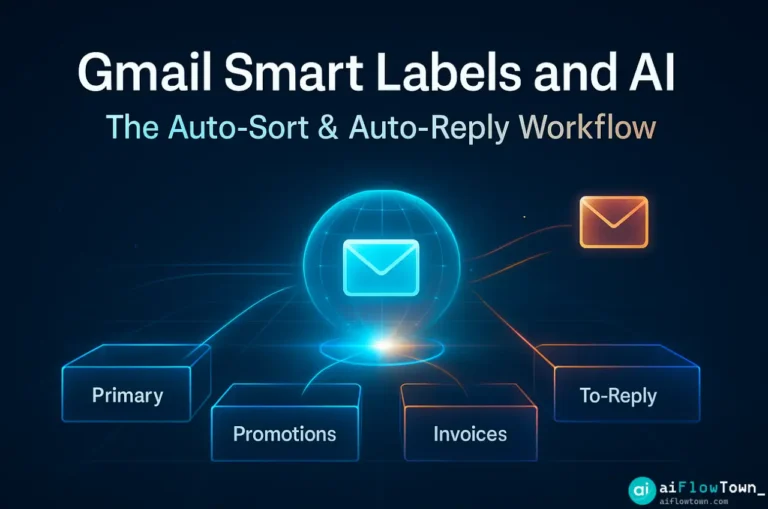
Gmail’s “smart labels” are the category tabs you already see: Primary, Promotions, Social, Updates, and Forums. Google uses its own AI to pre-sort your email into these buckets.
This is helpful, but it has one major flaw: it’s a passive system. An email in your “Updates” tab is just… an email in your “Updates” tab. You still have to manually open that tab, read the emails, and decide what to do. It’s just a slightly neater pile of work.
True productivity comes from action, not just sorting. The goal is to create an active system that uses AI to do work for you based on what those labels catch.
The 2-Step AI Workflow for Your Inbox
We will build a simple but powerful workflow. This system has two parts. First, we use AI to do super-intelligent sorting. Second, we use AI to handle common replies.
Step 1: The AI “Auto-Sort” (Beyond Simple Filters)
A standard Gmail filter is dumb. It can only check simple things like “From: boss@company.com” or “Subject: Urgent.”
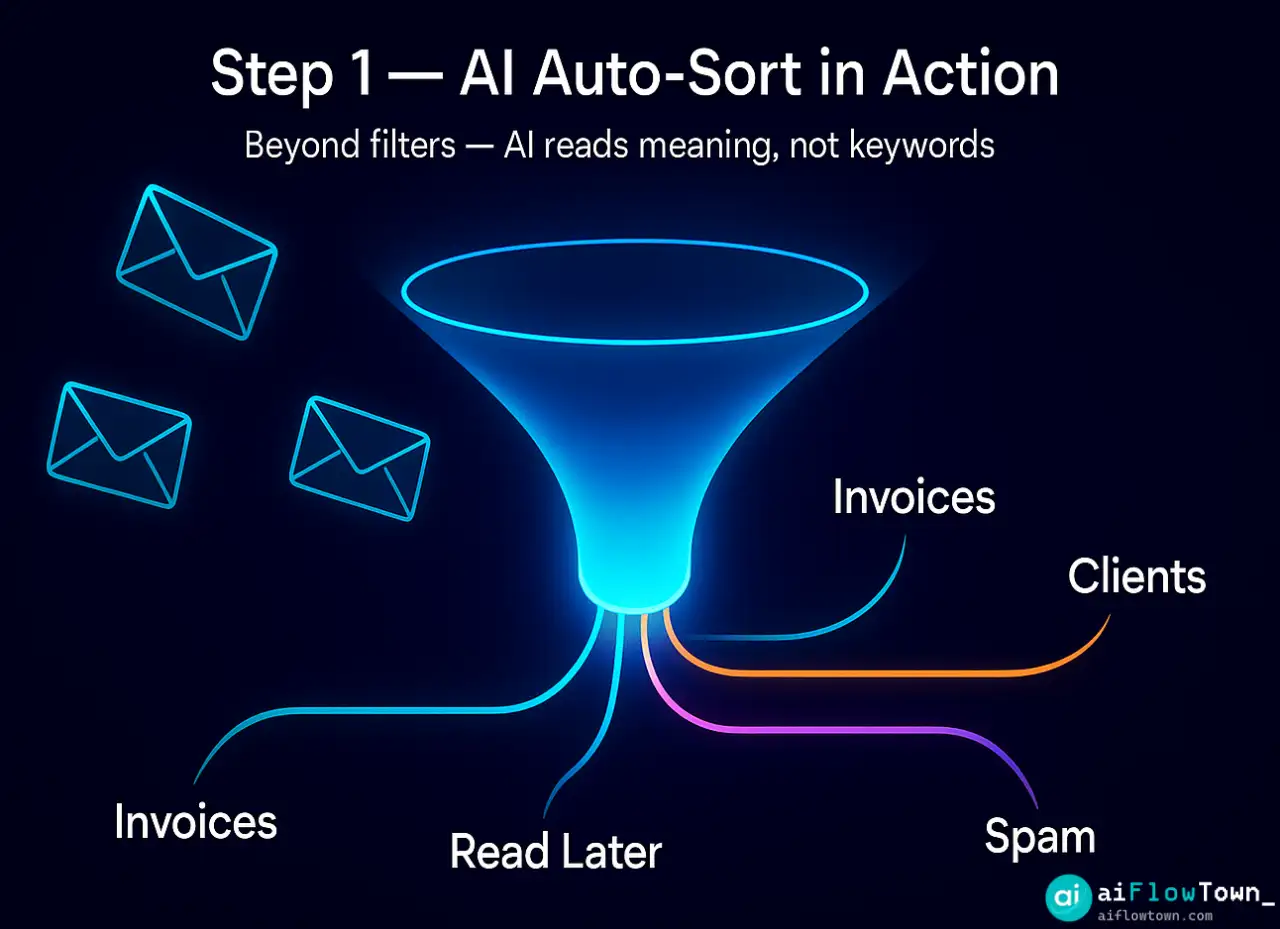
An AI-powered filter is smart. It can read the content of an email and understand its intent. This lets you build rules like:
- Rule 1: IF an email lands in “Updates” AND the AI detects the content is an “invoice,” THEN move it to my “To-Pay” folder.
- Rule 2: IF an email lands in “Promotions” AND the AI detects it’s a “personal newsletter” I like, THEN move it to my “Read Later” folder.
- Rule 3: IF an email lands in “Primary” AND the AI detects it’s “a client asking for a meeting,” THEN add it to my “Needs Reply” folder.
This is the power of combining gmail smart labels ai logic. The smart labels catch the emails, and the AI figures out what they’re actually about.
Step 2: The AI “Auto-Reply” (Drafts, Not Sends)
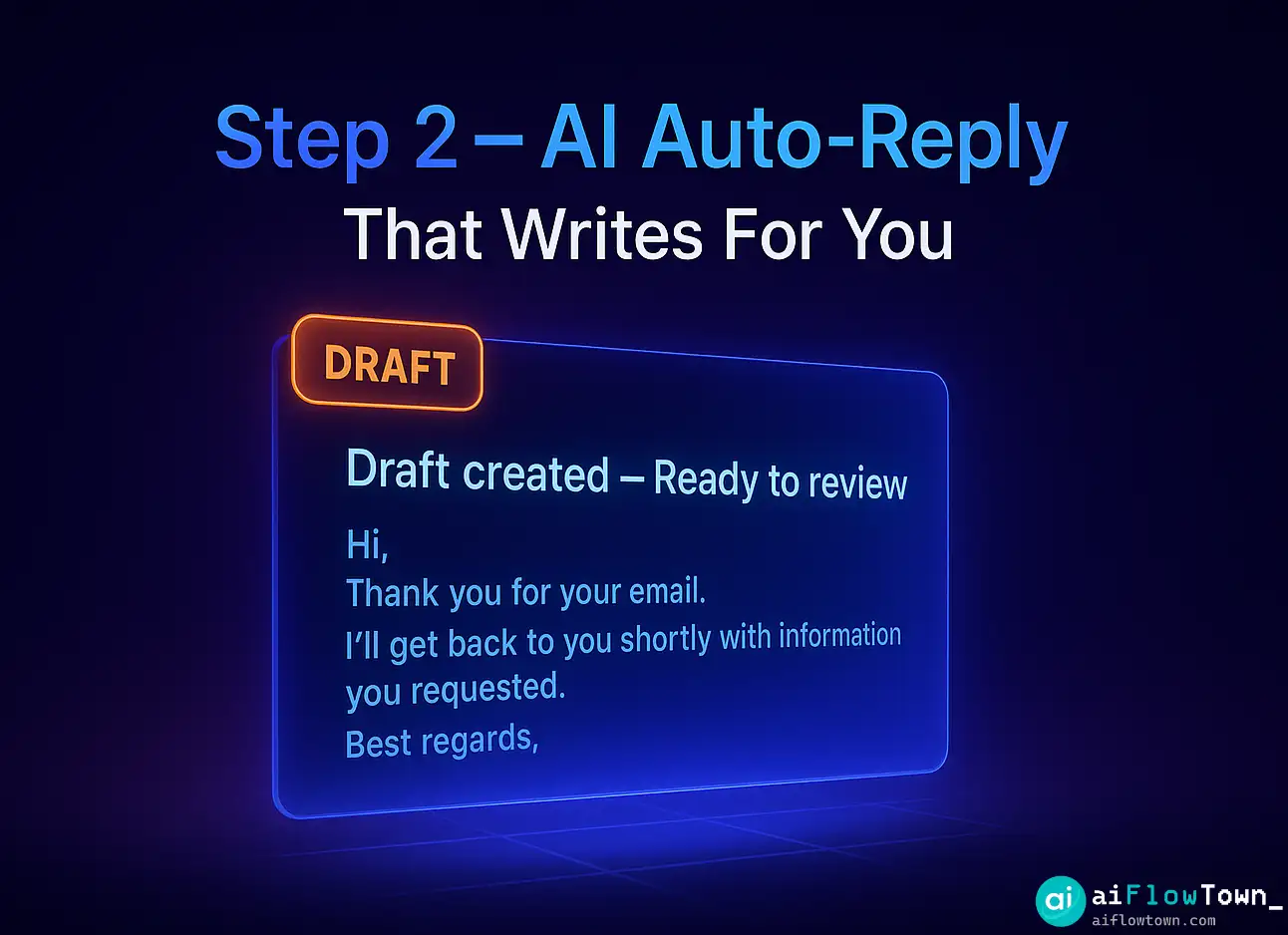
This is the next level. Some emails don’t just need sorting; they need a reply. We can use AI to handle the 80% of replies that are boring and repetitive.
Important: For safety, you should always have your AI “Create a Draft” for you to review, not “Send Email” automatically.
Here are the rules:
- Rule 1: IF an email is in “Needs Reply” (from Step 1) AND the question is “Can we meet next week?,” THEN use AI to draft a reply that says “I’m open to it. Here is my calendar link: [Your Link].”
- Rule 2: IF an email is from “New Lead” AND the question is “What are your prices?,” THEN use AI to draft a reply with your standard pricing info and FAQ link.
How AI Filters Beat Old Gmail Filters
The difference is about context. Old filters only see the envelope; AI reads the letter inside.
| Task | Old Gmail Filter | AI-Powered Filter |
|---|---|---|
| Finds Invoices | Only if “invoice” is in the subject or from a specific sender. | ✅ Reads the content of any email and identifies it as an invoice. |
| Handles Client Questions | Can’t understand the question. Can only filter by sender. | ✅ Reads the email, understands the intent (e.g., “asking for time”), and drafts a reply. |
| Sorts Newsletters | Can only filter “from: newsletter@site.com”. | ✅ Can tell the difference between a “marketing” newsletter and a “personal” one you value. |
Example AI Prompts for Your Workflow
You can build these workflows in tools like Zapier or Make.com. You’ll connect Gmail to an AI model (like ChatGPT or Claude). Here are the prompts to use.
Prompt 1: The AI Sorter
Feed the email body into this prompt.
**System Prompt:**
You are an email sorting assistant. Read the email and return ONLY one of these category labels based on its content:
- "Invoice" (any bill, receipt, or request for payment)
- "Meeting Request" (any request for a call, demo, or meeting)
- "Personal" (a newsletter or update I've subscribed to)
- "Spam" (unsolicited marketing)
- "Other" (if it doesn't fit)

**User Prompt:**
[Paste the full email body here]
Your automation tool can then use the AI’s output (“Invoice”) to move the file to the right folder.
Prompt 2: The AI Reply Drafter
Use this after your first prompt has identified an email as a “Meeting Request”. For more templates, see our AI productivity prompts.
**System Prompt:**
You are an assistant. Read the email and draft a polite, professional reply. The goal is to accept the meeting and direct them to my calendar link.

My calendar link is: https://example.com/calendar

**User Prompt:**
[Paste the full email body here]
Your automation then takes this output and creates a new draft in your Gmail. This is a huge time-saver and a core part of building AI workflows that manage your communication.
Common Mistakes to Avoid
Building this system is easy, but there are two common traps.
Warning: Never Auto-Send Replies
Do not give an AI permission to send email on your behalf. Always set your workflow to “Create Draft.” This gives you a 10-second chance to review the email, add a personal touch, and hit “Send” yourself. This prevents an AI from sending a weird or wrong reply to an important client.
Insight: Don’t Over-Automate
Don’t try to create 50 rules on day one. Start with one, simple rule. My first one was: “IF an email is an ‘Update’ and contains ‘invoice’, tag it ‘Finance’.” Let that run for a week. See if it works. Once it’s solid, build your next rule. Slow automation is successful automation.
❓ FAQ
How is this different from normal Gmail filters?
Normal filters can only read “From,” “Subject,” and “Has the words.” AI filters can read the entire email and understand its intent or sentiment. An AI can tell if a “request” is angry, happy, or urgent, while a filter cannot.
What tools do I need for this?
You need your Gmail account and an automation tool (often called “iPaaS”) like Zapier, Make.com, or Pipedream. These tools act as the “glue” that connects your Gmail inbox to an AI model like ChatGPT. Many offer free tiers to get started. You can see some options in our guide to AI automation tools for beginners.
⏰ Is this hard to set up?
No. If you’ve ever set up a simple Gmail filter, you can do this. The process is visual (drag-and-drop) in tools like Zapier. You set a “trigger” (New Email in Gmail) and an “action” (Send to AI), then another “action” (Create Draft). It takes about 20 minutes to build your first workflow.
Final Thoughts
Your inbox doesn’t have to be a source of stress. By moving beyond passive sorting and into active automation, you can reclaim your focus. This isn’t about reaching “Inbox Zero.” It’s about achieving “Inbox Zen”—a state where you trust your system to handle the noise.
Using a gmail smart labels and ai workflow means you only spend your brainpower on the emails that truly require your unique human touch. Everything else is handled for you, quietly and efficiently, in the background.
Want a deeper dive into this specific topic? Check out our complete pillar guide on how to automate your Gmail with AI from start to finish.
⚠️ Reminder: Even the smartest tools / AI can miss small details or make mistakes. Always double-check your work before presenting or publishing it - a quick review can save hours later.