Introduction
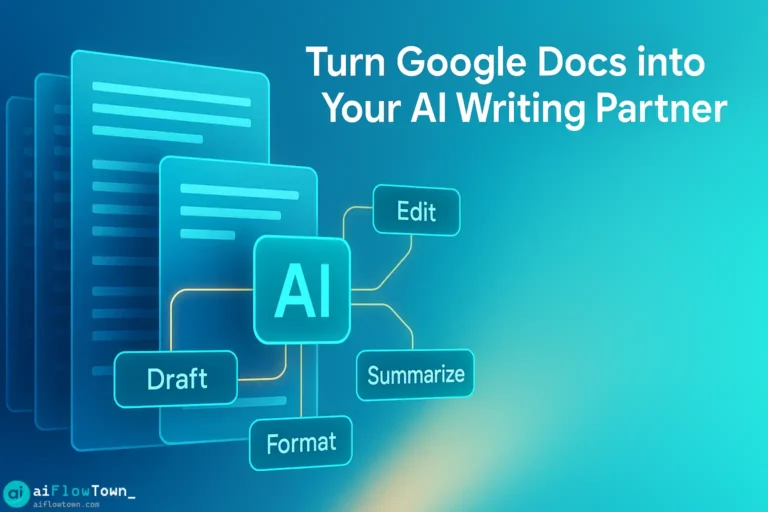
You’re writing in Google Docs. You need AI help. So you switch to ChatGPT, copy text, paste prompts, copy results, paste back, format again. The context switching kills flow. What if AI lived inside your document? Google Docs AI integration makes this possible—and it’s simpler than you think.
Why Google Docs Needs AI
Google Docs is where work happens. Proposals, reports, articles, briefs—if you write professionally, you’re probably in Docs daily. But native features stop at spell-check and basic suggestions.
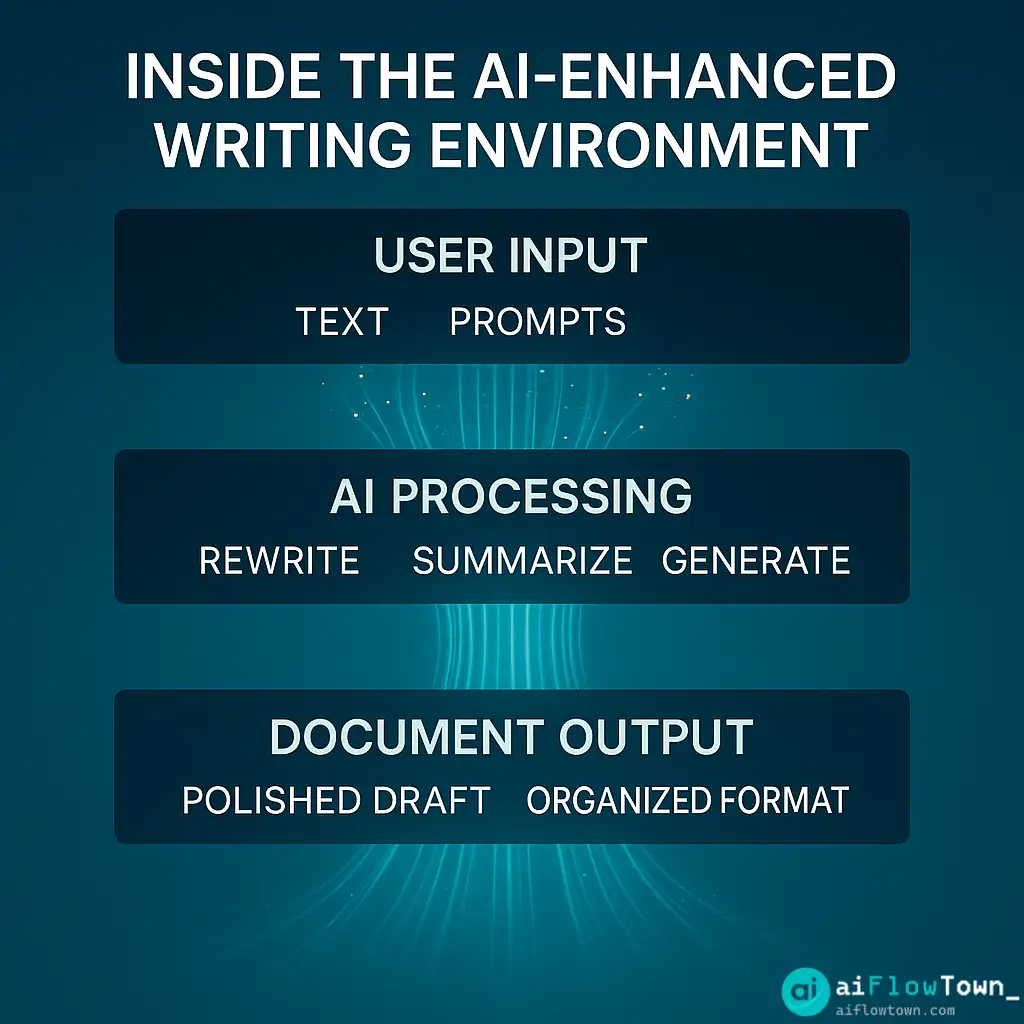
Google Docs AI transforms your document into an intelligent workspace. Draft, edit, research, summarize, and refine without leaving the page. Your writing environment becomes your thinking environment.
Three Ways to Add AI to Google Docs
Method 1: Google Duet AI (Built-In)
Google’s native AI assistant works directly in Docs. Type naturally, and it helps you write, rewrite, and format.
How to enable: Available in Google Workspace Business and Enterprise plans. Look for “Help me write” button in new documents.
What it does: Generates drafts, rewrites existing text, changes tone, creates outlines, summarizes content.
Limitations: Requires paid workspace plan. Less powerful than ChatGPT or Claude for complex tasks.
Method 2: AI Extensions (ChatGPT, Claude)
Install extensions that bring external AI into your Docs sidebar or context menu.
Popular options:
- GPT for Sheets and Docs (free + paid)
- Wordtune (writing assistant)
- ProWritingAid (editing focus)
- AI Writing Assistant (multiple models)
How it works: Highlight text, right-click, select AI action. Or use sidebar to generate content that inserts directly into your document.
Method 3: Custom Workflow Integration
Build your own integration using Google Apps Script or Zapier to connect Docs with AI APIs.
Why bother: Complete control over prompts, models, and workflows. Can build custom functions specific to your use case.
Skill required: Basic coding or no-code automation experience.
For automation strategies, explore our AI automation tools for beginners guide.
Setting Up Your AI-Powered Google Docs
Step 1: Install Your Preferred Extension
Go to Google Workspace Marketplace. Search “AI writing assistant” or “ChatGPT for Docs.” Install with one click. Grant necessary permissions.
Recommended starter: GPT for Sheets and Docs (works with free ChatGPT accounts).
Step 2: Configure Your Settings
Set your preferred AI model, response length, and tone defaults. Configure keyboard shortcuts if available. These save seconds per use—which compounds to hours monthly.
Step 3: Create Custom Prompts
Most extensions let you save frequently-used prompts. Create shortcuts for:
- “Make this more concise”
- “Add examples to this section”
- “Write a compelling intro for this topic”
- “Turn bullet points into paragraph”
Save these as one-click actions.
Step 4: Test the Workflow
Open a real document. Try each function. Make sure AI outputs insert cleanly without formatting issues. Adjust settings as needed.
Total setup time: 15 minutes. Saves 30+ minutes daily once mastered.
Practical Google Docs AI Workflows
| Task | Without AI | With Google Docs AI |
|---|---|---|
| First draft | 45 min from blank page | 15 min with AI outline + expansion |
| Editing pass | 20 min reading and revising | 8 min with AI suggestions + review |
| Tone adjustment | 15 min rewriting manually | 2 min AI tone shift + tweaks |
| Research citations | 30 min finding sources | 10 min AI-assisted research + verify |
| Format consistency | 10 min manual checking | 3 min AI structure review |
Real-World Use Cases
Writing Blog Posts
Start with AI-generated outline based on topic and keywords. Expand each section with AI drafts. Add your expertise and examples. Use AI for intros and conclusions. Final edit for voice.
Time saved: 60-90 minutes per post.
Client Proposals
Use AI to generate executive summary from bullet points. Expand service descriptions with AI, then customize. AI creates pricing tables and terms sections. You focus on strategy and relationship elements.
Time saved: 2-3 hours per proposal.
Meeting Notes to Reports
Paste raw meeting notes. AI structures them into sections. Generates action items automatically. Creates executive summary. You review and add context AI missed.
Time saved: 45 minutes per report.
Collaborative Editing
Team members suggest edits. AI consolidates suggestions into clean versions. Resolves conflicting feedback by generating options. Everyone reviews final draft instead of debating word choices.
Time saved: 1-2 hours per collaborative document.
For more workflow strategies, check out our AI workflows collection.
Advanced Google Docs AI Techniques
Prompt Chaining
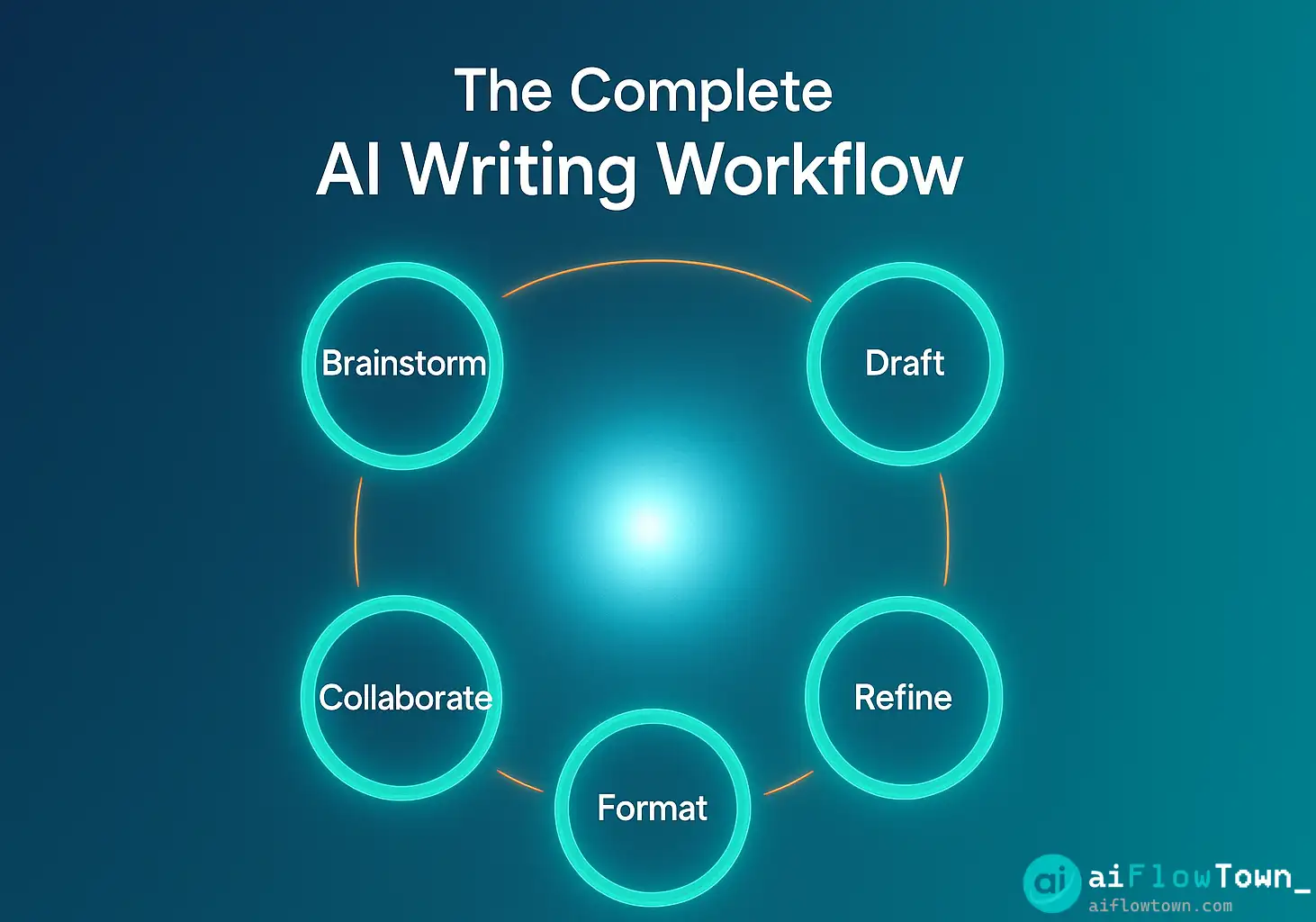
Use one AI response as input for the next prompt. Example: AI generates outline → expand section 1 → refine tone → add examples → final polish. Each step builds on previous output.
Style Consistency
Feed AI a sample of your writing style. Tell it to match that tone for all outputs. Maintains voice across documents without manual rewriting.
Research Integration
Use AI to summarize research sources while writing. Paste excerpts, get summaries, insert relevant points. Keeps research and writing in one place.
Template Automation
Create document templates with AI-fillable sections. Input key details, AI populates entire document structure. Customize templates for proposals, reports, briefs, articles.
What Google Docs AI Does Well
Eliminates blank page syndrome. AI generates starting points when you’re stuck. Even bad AI drafts are better than staring at nothing.
Speeds up repetitive writing. Sections that follow patterns (intros, transitions, summaries) happen in seconds instead of minutes.
Maintains focus. No switching between apps means no context loss. Your thinking stays in the document.
Enables real-time collaboration. Team members see AI suggestions in-document. Faster decision-making on content direction.
Scales your voice. Train AI on your style once, apply to all documents. Consistent voice without constant manual editing.
What Google Docs AI Doesn’t Do
Replace expertise. AI generates generic content. Your knowledge, insights, and unique perspective make it valuable.
Understand nuance. Sarcasm, industry-specific context, and subtle tone shifts require human judgment.
Create perfect first drafts. AI outputs need review, refinement, and often significant editing. It’s a starting point, not a finish line.
Verify facts. AI confidently states things that aren’t true. Always fact-check claims, statistics, and specific details.
Make strategic decisions. What to write, why it matters, and who it’s for—these remain human choices.
Common Integration Issues (And Fixes)
Formatting breaks when pasting AI output. Use “paste without formatting” then reapply styles. Or set AI to match current document formatting.
AI responses too generic. Add context to every prompt. Include target audience, tone, purpose, and examples.
Extension slows down Docs. Disable auto-suggestions and use manual triggers only. Or switch to lighter-weight extensions.
Team members can’t access AI features. Some extensions require individual licenses. Budget accordingly or choose team-license options.
Version history cluttered with AI attempts. Make AI edits in scratch doc first, then copy clean final version to main document.
Pros and Cons
| Pros | Cons |
|---|---|
| ✅ No context switching between tools | ❌ Setup required for each document type |
| ✅ Real-time collaboration with AI | ❌ Extension quality varies widely |
| ✅ Version history tracks AI changes | ❌ May slow down Docs performance |
| ✅ Works offline (some extensions) | ❌ Requires API keys or subscriptions |
| ✅ Integrates with existing Docs workflow | ❌ Not all features work on mobile |
Best Practices for Google Docs AI
Always review before sending. AI makes mistakes. Catch them before clients or colleagues see them.
Use AI for structure, add humanity for substance. Let AI build the skeleton, you add the meat.
Save your best prompts. When you find a prompt that produces great results, document it. Build your personal prompt library.
Set clear boundaries with AI. Define what AI drafts versus what you write from scratch. Technical accuracy, personal stories, and strategic insights should always be human-created.
For more prompt strategies, explore our ultimate AI prompt library.
Security and Privacy Considerations
Check extension permissions. Some require broad access to all documents. Only grant necessary permissions.
Don’t feed AI confidential information. Client data, financial details, personal information—keep these out of AI tools unless you’re using enterprise-grade privacy protection.
Use workspace admin controls. IT admins can restrict which extensions install. Work with your team to approve safe options.
Read privacy policies. Understand if your data trains AI models or gets stored externally.
❓ FAQ
Do I need to pay for Google Docs AI features?
Google Duet AI requires paid Workspace plans. Third-party extensions vary—some are free, others require subscriptions. GPT for Sheets and Docs has a capable free tier.
Does Google Docs AI work on mobile?
Most extensions work on desktop only. Google Duet AI has limited mobile support. For serious writing with AI assistance, stick to desktop or laptop.
Can I use ChatGPT Plus with Google Docs?
Yes, through extensions like GPT for Sheets and Docs. Connect your OpenAI API key to access GPT-4 models directly in Docs. Requires API credits beyond ChatGPT Plus subscription.
⚠️ Will AI replace my writing?
No. AI accelerates drafting and editing but can’t replicate your expertise, voice, or judgment. Think of it as a very fast first-draft generator that still needs human refinement.
Which extension should I start with?
GPT for Sheets and Docs if you want full control and don’t mind setup. Wordtune if you want simple, polished editing. Google Duet if you’re already on Workspace Business/Enterprise.
Final Thoughts
Google Docs AI integration isn’t about letting machines write for you—it’s about removing friction from your writing process. Less time wrestling with structure means more time for the thinking that actually matters.
Start small. Install one extension. Use it on one type of document. Master that workflow before expanding. The goal isn’t to AI-generate everything—it’s to speed up the parts that don’t require your unique expertise.
The best writing partnership is human creativity plus AI speed. You provide the strategy, insights, and voice. AI provides the structure, variations, and first drafts. Together, you produce more, better, faster.
Your Google Docs already lives in the cloud. Adding AI just makes that cloud smarter.
Ready to build a complete AI-powered writing system? Discover how Google Docs AI fits into your workflow with our guide to the 15 best AI productivity tools that work seamlessly together.
⚠️ Reminder: Even the smartest tools / AI can miss small details or make mistakes. Always double-check your work before presenting or publishing it - a quick review can save hours later.