Introduction
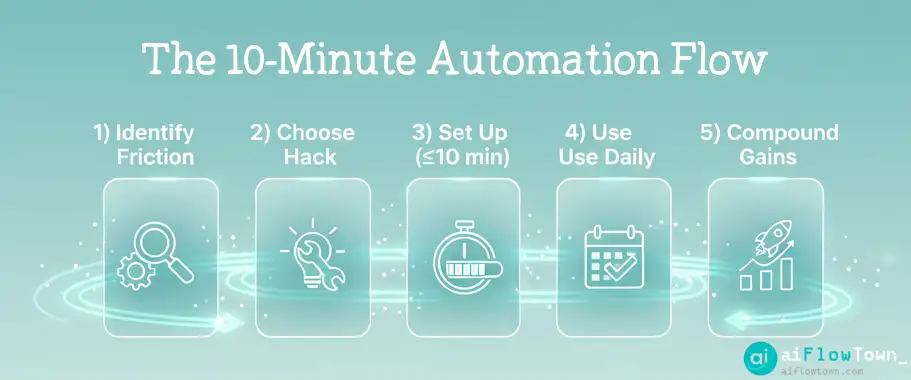
You know automation saves time, but every guide requires “just a few hours of setup.” You don’t have a few hours. You need wins today—small improvements that take 10 minutes to implement but compound daily. These workflow hacks aren’t comprehensive systems. They’re surgical strikes: quick setups that immediately reduce friction in your most repetitive tasks, giving you momentum to tackle bigger automation later.
Why Quick Wins Matter
Most productivity advice assumes you have time to overhaul your entire workflow. Reality: you’re already overwhelmed, which is exactly why you need productivity help. It’s a catch-22. Quick workflow hacks break this cycle by delivering immediate value with minimal investment.
The psychology matters. One 10-minute hack that saves you 15 minutes daily proves automation works. That success motivates the next hack, then the next. Six months later, you’ve built a sophisticated system—but you started with something you could finish before your next meeting.
These mini workflow tips target the highest-ROI improvements: repetitive tasks you do multiple times daily, decisions you make the same way every time, information you search for repeatedly. Small friction, massive frequency equals big cumulative waste.
The 10-Minute Workflow Hacks
Hack 1: Text Expansion for Common Responses
Time to setup: 8 minutes
Daily time saved: 10-15 minutes
Tool: TextExpander, Alfred (Mac), or PhraseExpress (Windows)
You type the same phrases dozens of times daily: email signatures, common responses, meeting links, support replies. Text expansion turns “;meeting” into your full Zoom link, “;thanks” into a professional thank-you paragraph.
Quick setup:
- Install TextExpander (free trial)
- Create 5 snippets for things you type most:
- Email signature
- Meeting scheduler link
- “Thanks for reaching out” response
- Common question answers
- Your address/phone (for forms)
- Use shortcuts that don’t conflict (start with semicolon)
This is one of the fastest quick productivity hacks you can implement today. You’ll use it immediately and wonder why you typed things manually for years.
Hack 2: Gmail Smart Labels (No Zapier Required)
Time to setup: 10 minutes
Daily time saved: 20 minutes
Tool: Gmail filters + Labels
You don’t need AI to get 80% of inbox organization benefits. Gmail’s built-in filters handle most predictable patterns:
Filter 1: Auto-archive newsletters
Match: has words "unsubscribe" + not from important domains
Action: Skip inbox, apply label " Newsletters", mark as read

Filter 2: Priority clients
Match: from @keyclient.com
Action: Star, apply label " VIP", never send to spam

Filter 3: Auto-file receipts
Match: subject "receipt" OR "invoice" OR "payment confirmation"
Action: Skip inbox, apply label " Receipts"

Filter 4: Social notifications
Match: from *@*.linkedin.com OR *@facebookmail.com
Action: Skip inbox, apply label " Social"
Create these 4 filters in 10 minutes. Your inbox immediately becomes 60% cleaner using 10-minute workflow automation setup with native tools.
Hack 3: Browser Tab Groups for Context Switching
Time to setup: 5 minutes
Daily time saved: 8 minutes
Tool: Chrome/Edge tab groups (built-in)
You have 47 tabs open. Finding the right one wastes time. Tab groups create instant context switching:
| Tab Group | Contents | When to Use |
|---|---|---|
| Work | Gmail, calendar, project tools | Focus mode |
| Research | Articles, docs, reference materials | Learning/planning |
| Personal | Banking, shopping, personal email | Breaks |
| Meeting | Video call, agenda, notes doc | During calls |
Right-click tabs → “Add to new group.” Name and color-code. Collapse groups when not in use. Instant visual organization with simple ai workflow improvements mindset (even without AI).
Hack 4: Keyboard Shortcuts for Your Top 5 Apps
Time to setup: 10 minutes
Daily time saved: 5 minutes
Tool: Built-in keyboard shortcuts
You switch between the same 5 apps constantly. Mouse navigation wastes seconds per switch, dozens of times daily. Learn just the app-switching shortcuts:
- ⌘/Ctrl + Tab: Switch browser tabs
- ⌘/Ctrl + Space: Spotlight/Windows search (launch apps instantly)
- ⌘/Ctrl + W: Close tab/window
- ⌘/Ctrl + T: New tab
- ⌘/Ctrl + Shift + T: Reopen closed tab
Practice for 10 minutes. Set a timer, force yourself to use keyboard-only. By day 3, it’s muscle memory. For more productivity strategies, visit quick tips and flow hacks.
Hack 5: Default “No” Calendar
Time to setup: 3 minutes
Daily time saved: 30 minutes (reclaimed focus time)
Tool: Google Calendar settings
Your calendar shows you as “available” by default, inviting constant meeting requests. Flip this:
Google Calendar → Settings:
1. Working hours: Set actual focus time (e.g., 9am-12pm, 2-5pm)
2. Default event duration: 25 min (not 30) or 50 min (not 60)
3. Speedy meetings: ON (ends 5 min early for breaks)
4. Decline new meeting requests: Optional setting
Block 2-hour “Focus” blocks on your calendar as recurring events. These appear as “busy” to others. Meeting requests automatically avoid these times.
Hack 6: The 2-Minute Email Rule (Automated)
Time to setup: 5 minutes
Daily time saved: 12 minutes
Tool: Gmail + keyboard shortcuts
If an email takes under 2 minutes to handle, do it immediately. But navigating menus wastes that time. Use keyboard shortcuts:
- E: Archive (remove from inbox)
- R: Reply
- #: Delete
- !: Mark as spam
- L: Apply label
- J/K: Next/previous email
Enable keyboard shortcuts in Gmail settings. Practice on 20 emails. You’ll process inbox 3x faster using fast productivity wins with minimal effort approach.
Hack 7: The Friday Brain Dump Template
Time to setup: 8 minutes
Daily time saved: 15 minutes (on Monday mornings)
Tool: Google Doc or Notion
Monday mornings suck because you forgot your Friday context. Create a template you fill every Friday at 4pm (10 minutes):
Week of [Date] - Brain Dump

Completed this week:
- [Major wins]
- [Tasks finished]

In progress (where I left off):
- [Project A: specific next step]
- [Project B: specific next step]

Blockers/waiting on:
- [What you're waiting for from others]

Monday priorities:
1. [Most important task]
2. [Second priority]
3. [Third priority]

Things to remember:
- [Context that will help Monday-you]
Monday morning: read this before checking email. You have instant context about what matters. For more templates, check templates and resources.
Hack 8: Bookmark Bar as Quick Launcher
Time to setup: 6 minutes
Daily time saved: 5 minutes
Tool: Browser bookmarks
You visit the same 10 sites dozens of times daily. Typing URLs or searching bookmarks is slow. Organize bookmark bar:
Bookmark bar folders (max 8 items for visual scan):
Email | Cal | Tasks | Slack | Analytics | Drive | [Your main tool] | [Second tool]Use emoji + short name. One-click access to everything. Remove bookmark names entirely—just emoji—to fit more.
– Optimized Bookmark Bar –
Hack 9: Phone Do Not Disturb Schedule
Time to setup: 4 minutes
Daily time saved: 20 minutes (reclaimed focus)
Tool: iPhone Focus modes or Android DND
Phone notifications destroy focus. But manually toggling DND fails—you forget. Automate it:
iPhone Focus Modes:
- Work mode (9am-5pm M-F): Only calls from favorites, silence all apps except calendar reminders
- Deep Work (when calendar shows "Focus"): Silence everything except emergencies
- Evening (after 8pm): No work apps

Android DND:
- Schedule: Weekdays 9am-12pm and 2-5pm
- Allow: Starred contacts only
- Apps: No notifications except reminders
Set once, runs forever. Your phone stops interrupting during important work using instant automation hacks for busy professionals.
Hack 10: The 3-Question Daily Standup (For Yourself)
Time to setup: 2 minutes
Daily time saved: 10 minutes (clarity reduces wasted effort)
Tool: Sticky note or phone reminder
You start days reactively—opening email and responding to whatever appears. Instead, 5-minute morning standup with yourself:
- What’s the ONE thing that matters today? (Your true priority)
- What’s blocking that? (Remove obstacles first)
- What can I ignore today? (Permission to defer non-critical items)
Set a 9am phone reminder with these three questions. Answer them before checking email. Your day becomes intentional, not reactive. For more mindset strategies, visit mindset and focus.

Implementation Strategy
Don’t Do All 10 Today
Pick ONE hack that addresses your biggest pain point. Implement it. Use it for 3 days. Then add the next one. Trying to do everything at once means nothing sticks.
The Compounding Effect
| Week | Hacks Implemented | Daily Time Saved | Weekly Savings |
|---|---|---|---|
| 1 | Text expansion + Gmail filters | 30 min | 2.5 hours |
| 2 | + Tab groups + shortcuts | 43 min | 3.6 hours |
| 3 | + Calendar + 2-min rule | 68 min | 5.7 hours |
| 4 | + Brain dump + bookmarks | 79 min | 6.6 hours |
| 5 | + Phone DND + standup | 89 min | 7.4 hours |
After 5 weeks of 10-minute implementations, you’ve reclaimed nearly 8 hours weekly. None required complex setup. All deliver immediate value.
❓ FAQ
⏰ Which hack should I start with?
Start with the one that addresses your biggest daily frustration. If email overwhelms you, do Gmail filters first. If you waste time typing, do text expansion. If context-switching kills you, do tab groups. Pick based on pain, not arbitrary order.
Do I need paid tools?
No. 7 of these 10 hacks use free built-in features (Gmail filters, browser tab groups, keyboard shortcuts, calendar settings, phone DND, bookmarks, daily standup). TextExpander has free alternatives. Only advanced users need paid versions.
How do I measure if hacks actually help?
Before implementing, estimate: “I spend X minutes daily on this task.” After one week, check: did it actually reduce time? Most noticeable improvement: less friction and frustration. You’ll feel it before you measure it.
What if a hack doesn’t work for me?
Drop it and try the next one. Not every hack fits every workflow. Text expansion might not help if you don’t type repetitive content. Tab groups might not help if you only use 5 tabs. That’s fine—pick what matches your actual work patterns.
What comes after these quick wins?
Once you’ve proven automation works with quick hacks, invest time in comprehensive systems: full Gmail automation, task extraction workflows, AI-powered tools. Quick wins build momentum and confidence for bigger projects.
Final Thoughts
Productivity improvement doesn’t require overhauling your entire system. These mini workflow tips prove that small, targeted changes compound into significant time savings. Ten minutes of setup each delivers days of reduced friction.
Pick one hack this week. Just one. Implement it before your next meeting. Use it for three days. Then add another. In a month, you’ll have a collection of micro-optimizations that together create a dramatically smoother workflow.
The best productivity system isn’t the most comprehensive—it’s the one you actually implement. Start small, win fast, build momentum.
Next: Ready to go deeper? Explore our complete guide to AI automation tools for beginners with step-by-step workflows that build on these quick wins.
⚠️ Reminder: Even the smartest tools / AI can miss small details or make mistakes. Always double-check your work before presenting or publishing it - a quick review can save hours later.