AI Automation Tools That Give You Your Time Back
You don’t need more hours; you need leverage. That leverage now comes from AI automation tools that quietly turn repetitive clicks into background processes. In two or three small wins, your calendar opens up, stress dips, and your attention returns to the work only you can do. This guide is a practical path from zero to your first operating system of automations—lean, understandable, and built to grow with you.
Think of automation like a conveyor belt you design once and benefit from forever. You choose the stations, decide the quality bar, and let the belt move without you watching it all day.
What “AI Automation” Really Means (Without the Buzzwords)
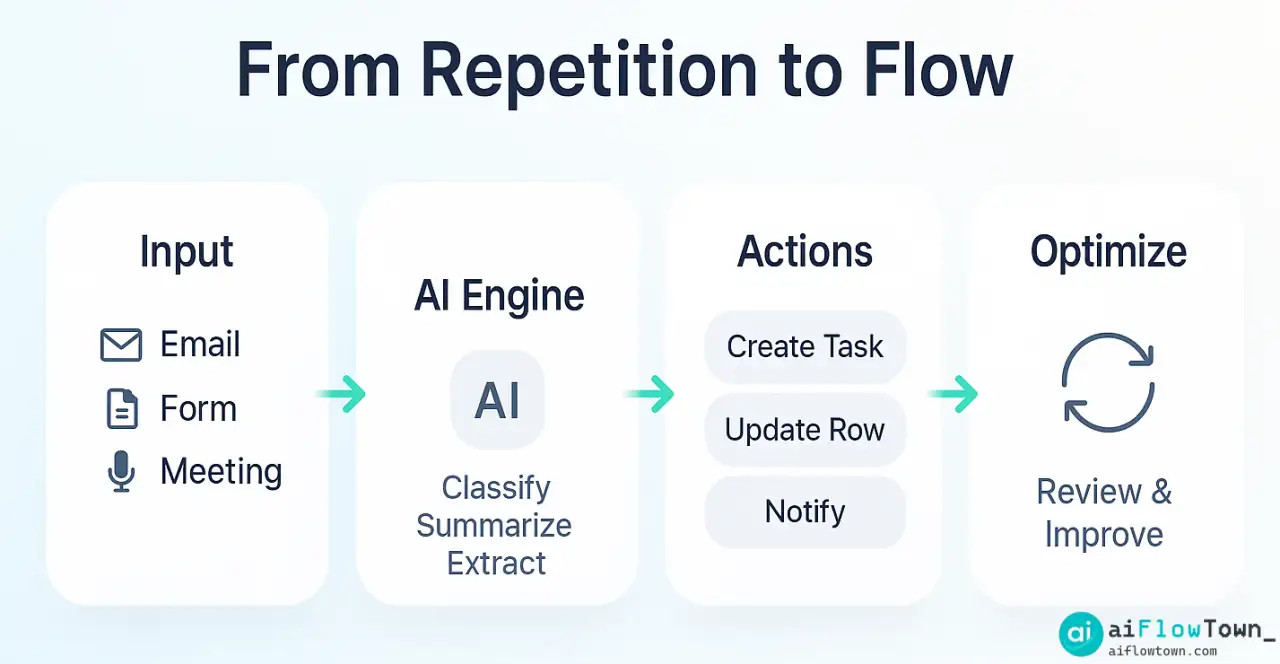
Traditional automation moves data from A to B when a trigger fires. AI adds judgment. It can summarize, classify, prioritize, or even draft responses before sending them. That shift turns automations from brittle rules into adaptable helpers. When you hear AI workflow automation, picture three layers working together:
- ✅ Triggers (events): “New email arrives,” “Form submitted,” “Task created.”
- ✅ Actions (do this): “Create a record,” “Send a message,” “Update a row.”
- ✅ Intelligence (decide first): “Is this urgent?” “What’s the category?” “Draft a reply.”
That last layer is where time savings explode—classification, enrichment, and summarization before the action fires.
Beginner-Friendly Mental Model: The Four Box Map
Before choosing tools, map your work into four boxes. This keeps complexity low and ensures each automation has a job.
| Box | Examples | Automation Role |
|---|---|---|
| Capture | Inboxes, forms, meeting notes | Normalize, tag, route |
| Plan | Calendar, backlog, sprints | Estimate, schedule, prioritize |
| Make | Writing, coding, design | Draft, summarize, template |
| Share | Reports, updates, handoffs | Assemble, notify, archive |
When a task feels messy, ask: which box is failing? Capture too noisy, Plan too optimistic, Make too ad hoc, or Share too manual. Then automate that box first.
Tool Landscape: Choose Like a Systems Thinker
There are hundreds of products. You only need a few that play nice. For automation tools for beginners, think “one connector, one brain, one planner, one knowledge base.”
| Role | Entry-Friendly Options | What to Look For |
|---|---|---|
| Connector | Zapier, Make, IFTTT | Stable triggers, reliable runs, good logs |
| Brain | ChatGPT, Notion AI | Promptable, safe outputs, traceable steps |
| Planner | Reclaim, Motion, Todoist | Auto-scheduling, focus protection |
| Knowledge | Notion, Coda | Schemas, templates, fast search |
Mixing vendors is fine—just keep your stack small. A compact stack is the best automation software for most teams because maintenance is cheaper than features you never use.
Set Up Your First Automation in 20 Minutes
Pick one annoying thing you do daily. Then run this script:
- Observe: Watch yourself for a day. Which click repeats? Which copy-paste keeps happening?
- Define done: What outcome counts as “complete”? Write it in one sentence.
- Choose a connector: If both apps are common, Zapier is the fastest start.
- Add AI in the middle: Use a prompt to summarize, classify, or extract fields.
- Protect from mistakes: Add a human approval step on early runs.
- Log everything: Create a “Runs” database in Notion. Each run writes a row.
This is the beginner-safe loop you’ll reuse everywhere.
Six Proven Starter Automations (Copy These)
- ✅ Inbox to Tasks: New starred email → create task with AI-generated title + due date guess. Human checks date, then task auto-blocks on calendar.
- ✅ Meeting Notes to Actions: Record call → transcript → AI extracts action items → tasks created per owner.
- ✅ Client Intake Router: Form submission → AI classifies tier (“lead,” “customer,” “VIP”) → routes to right Slack channel and CRM pipeline.
- ✅ Daily Standup Draft: Calendar + tasks → AI composes “Yesterday/Today/Blocks” → you edit in 30 seconds instead of 15 minutes.
- ✅ Content Pipeline: Idea note → AI generates outline, tags, and status → moves card to “Draft” column and assigns reviewer.
- ✅ Weekly Report: Pull metrics → AI highlights anomalies → send to stakeholders with one-click approval.
Each of these uses the same skeleton: Trigger → AI Decide → Action → Log.
Prompts that Make or Break Automations
Most failed automations fall apart in the prompt. Keep prompts structured and testable.
“Given raw text, extract: {category, urgency: 1–5, owner, next_action}. If any field is missing, set as null. Return JSON only.”
Then validate the JSON before the next action. If invalid, send the run to an “Exceptions” view so nothing silent-fails.
Guardrails: Safety Nets for Real Work
- ✅ Idempotence: Use unique IDs so retries don’t duplicate records.
- ✅ Rate limits: Backoff and queue noisy triggers.
- ✅ Privacy: Mask secrets; keep audit logs.
- ✅ Approvals: For anything customer-facing, insert a review step.
Guardrails turn “hope it works” into “we trust it.”
The Beginner’s Playbook (Five Weeks)
| Week | Goal | Deliverable |
|---|---|---|
| 1 | One daily pain automated | Live Zap/Scenario + run log |
| 2 | Calendar & focus protection | Auto time-blocking for top tasks |
| 3 | Team handoffs | Meeting → actions → owners |
| 4 | Insights | Weekly AI summary of work-in-progress |
| 5 | Harden | Error handling, approvals, docs |
Role-Based Starter Stacks
For Solo Creators
Connector (Zapier), Notebook (Notion), AI Brain (ChatGPT), Planner (Reclaim). Add a content pipeline board. Use templates for titles and briefs so AI productivity tools can draft consistently.
For Sales
Connector (Make), CRM (HubSpot), Meetings (Calendly), Notes (Otter). AI enriches leads, scores intent, and schedules follow-ups automatically.
For Ops
Connector (Zapier), Sheets/Databases, Status bot in Slack. AI flags anomalies (“Orders high, stock low”) and creates tickets.
Automation Recipes Library
Save and reuse “recipes” like you reuse design components. Each recipe has: purpose, trigger, inputs/outputs, prompt, risks, log fields. Here are three that work in most stacks:
| Recipe | Trigger | AI Step | Action |
|---|---|---|---|
| Triaged Task | New email w/ label “action” | Summarize + set urgency (1–5) | Create task, block time |
| Post-Meeting Handoff | Call recording ready | Extract tasks & owners | Assign + notify channel |
| Weekly Narrative | Friday 4pm cron | Aggregate wins, risks | Draft memo for review |
Cost, Speed, Accuracy: Pick Two (Unless You Use AI Well)
Cheap and fast often means lower accuracy. AI lets you cheat the triangle if you add good checks. For example, AI drafts the response, a rule checks for red flags (dates, names), and you approve with one click. That’s accuracy without slowness.
When to Stop Automating
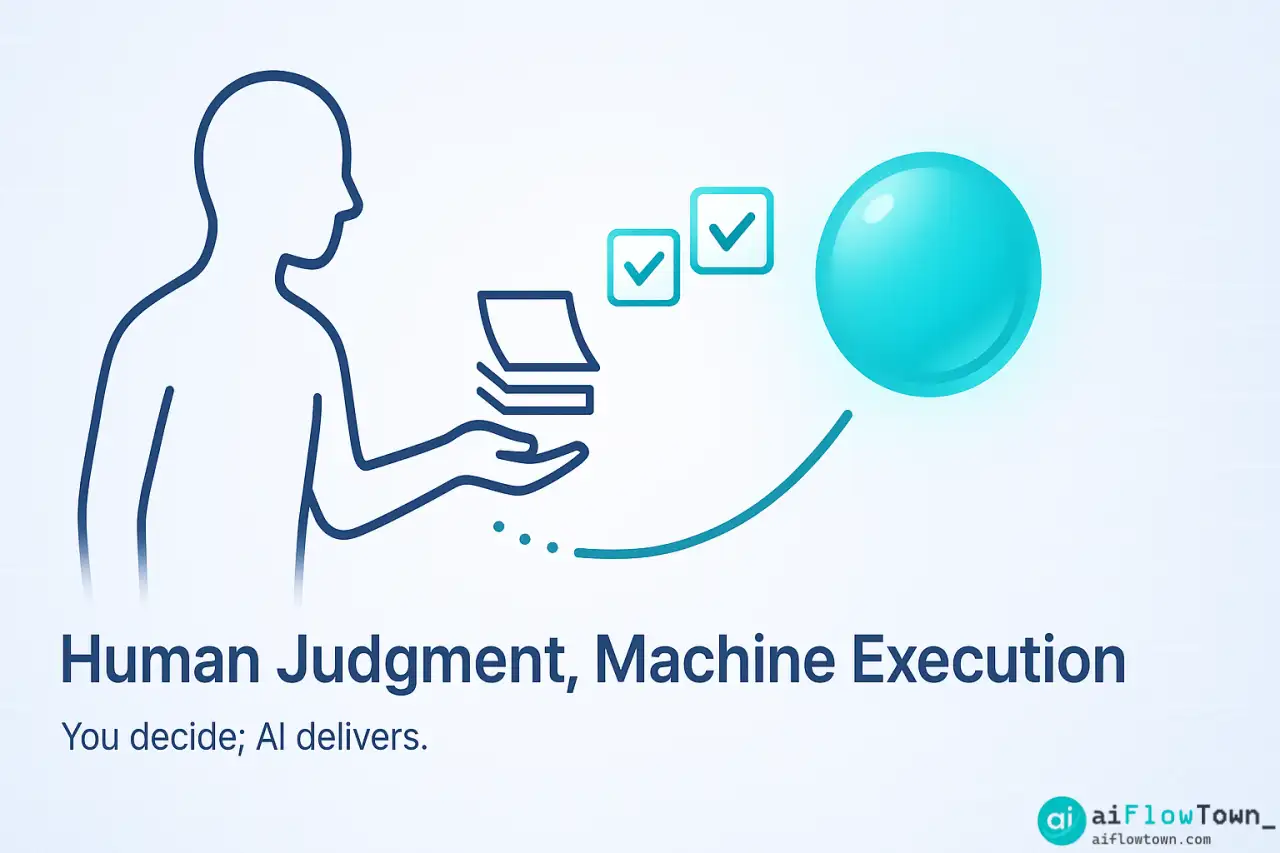
Automate outcomes, not preferences. If the output’s audience is you, heavy automation is safe. If the audience is customers, keep more human oversight. A healthy guideline: anything irreversible (billing, compliance, legal) stays human-approved.
Measuring Real Impact (Simple, Honest Metrics)
- ✅ Hours saved/week (self-reported + calendar analysis).
- ✅ Cycle time from request to done.
- ✅ Rework% (items touched twice).
- ✅ Focus blocks protected (2×90 minutes/day is gold).
Create a one-page dashboard. If metrics don’t improve in two weeks, simplify or kill the automation.
Onboarding a Team Without Drama
People resist automation when it surprises them. Run a transparent rollout:
- ✅ Share a short Loom: “What it does, where to find logs.”
- ✅ Add a panic button: label an email “STOP” to pause a workflow.
- ✅ Celebrate a saved hour publicly. Momentum beats mandates.
Security & Compliance for Beginners
Three basics keep you safe:
- ✅ Store secrets in native vaults; never hardcode API keys.
- ✅ Principle of least privilege: connect only the scopes you use.
- ✅ Data minimization: don’t ship personal data through AI unless necessary.
If a vendor offers regional data hosting and SOC-type reports, choose it. Boring security is good security.
Common Pitfalls (And the Fixes)
- ❌ Spaghetti Zaps: too many point-to-point flows. ➜ Fix: centralize in a “Router” scenario.
- ❌ Prompt Drift: outputs degrade slowly. ➜ Fix: lock prompts as versioned snippets; review monthly.
- ❌ Invisible Failures: errors with no alert. ➜ Fix: send exceptions to a shared “Ops—Attention” channel.
- ❌ Over-automation: you forget how the work happens. ➜ Fix: keep a one-page system map updated.
From One Automation to a System (Your First OS)
Here’s a beginner OS that stays simple:
- ✅ Input: email, forms, uploads → AI labels + routes.
- ✅ Plan: tasks get urgency and estimates → auto-block on calendar.
- ✅ Make: drafts and templates speed creative work.
- ✅ Share: weekly reports and handoffs compile themselves.
Want prompt patterns that pair well with this OS? See AI Productivity Prompts for reusable scripts that turn vague requests into crisp, automatable steps.
Choosing Tools by Jobs, Not Hype
A quick decision grid keeps you honest:
| Job | Must-Have | Nice-to-Have |
|---|---|---|
| Move data reliably | Retries, logs, filters | Branching, webhooks |
| Decide with context | Prompt templates, variables | Fine-tuning, memory |
| Protect focus | Auto scheduling, buffers | Energy-aware timing |
| Explain itself | Human-readable logs | Automated “what changed” notes |
If a tool can’t pass the must-haves, skip it—even if everyone is talking about it.
Templates You Can Paste Today
Classification Prompt — “You are a strict classifier. Return JSON with {category: one of [sales, support, ops], urgency: 1–5, next_action: short verb phrase}. If uncertain, set null.”
Meeting → Tasks — “From transcript, extract bullet tasks with owners and dates if mentioned. Output CSV with columns: task, owner, due_date, confidence 0–1.”
Weekly Digest — “Summarize these items into Wins/Risks/Next. Keep each bullet < 14 words.”
Case Study: From Firefighting to Flow in 14 Days
A two-person studio lived in their inbox. Every client request became a tab to remember. We installed three tiny automations: starred email → task + time block, meeting recording → tasks by owner, Friday digest from calendar + tasks. Nothing fancy. In two weeks, average response time dropped by 40%, and both founders got one full free afternoon back. That’s the kind of change beginners can actually feel.
Accessibility & Inclusivity in Automation
Good systems work for everyone on the team. Add visual labels, avoid color-only signals, and write plain-language logs. If a teammate uses voice control, ensure key actions can be triggered by links or buttons, not just keyboard combos. Automations that exclude people aren’t efficient—they’re broken.
Scaling Without Breaking It
When runs rise from dozens to thousands, move from single-flow to hub-and-spoke. Introduce queues, split large jobs, and move secrets to a managed vault. Most beginners won’t need this on day one—but design with the option to grow, so you never paint yourself into a corner.
Learning Loop: How to Keep Improving
Every month, run a one-hour “Ops Review”:
- ✅ Top 10 slowest runs—why?
- ✅ Top 10 exceptions—fix or suppress?
- ✅ New repetitive tasks observed—add one new recipe.
- ✅ Any prompt drift—tighten with examples.
Small, steady refactors beat big rewrites.
Where Prompts Meet Process
Prompts don’t live in isolation; they live inside processes. Tie each prompt to a play (“Triage email,” “Assemble report”). Store prompts next to the workflow docs. That way new teammates can see the whole picture, not just the magic words.
FAQs for Beginners Who Don’t Want Surprises
❓ FAQ
Do I need to learn code to automate?
No. Most stacks for starters are no-code. When you hit limits, add lightweight scripts later—but you can get 80% of the gains without code.
⚙️ What’s the fastest first win?
Convert one email label into tasks with auto time-blocking. It removes a daily decision tax and shows immediate value.
️ Is sending data through AI safe?
Use vendors with clear data retention controls, minimize PII, and keep an audit log. Add approvals for anything external-facing.
What if a workflow breaks?
Good systems fail loudly. Route errors to a shared channel, pause the flow with a keyword (“STOP”), and keep a run history table for quick rollback.
How do I write better prompts for automation?
Use structured outputs (JSON/CSV), include edge cases, and version your prompts. See our AI Productivity Prompts for plug-and-play patterns.
Final Thoughts (Your First Step, Today)
Start with one ugly, repetitive task—then give it to a machine. Keep your stack small, your prompts structured, and your guardrails simple. Within a week, you’ll feel the shift: more focus, fewer loose ends, and a clearer path from idea to done. The promise of AI automation tools isn’t hype; it’s the quiet, compounding freedom of systems that work while you do your best work. When you’re ready to pair these systems with high-leverage writing and planning patterns, grab our practical scripts at AI Productivity Prompts. Build once, benefit daily. That’s the real game.
⚠️ Reminder: Even the smartest tools / AI can miss small details or make mistakes. Always double-check your work before presenting or publishing it - a quick review can save hours later.