The Tiny Zapier Trick That Fixes Big Automation Failures
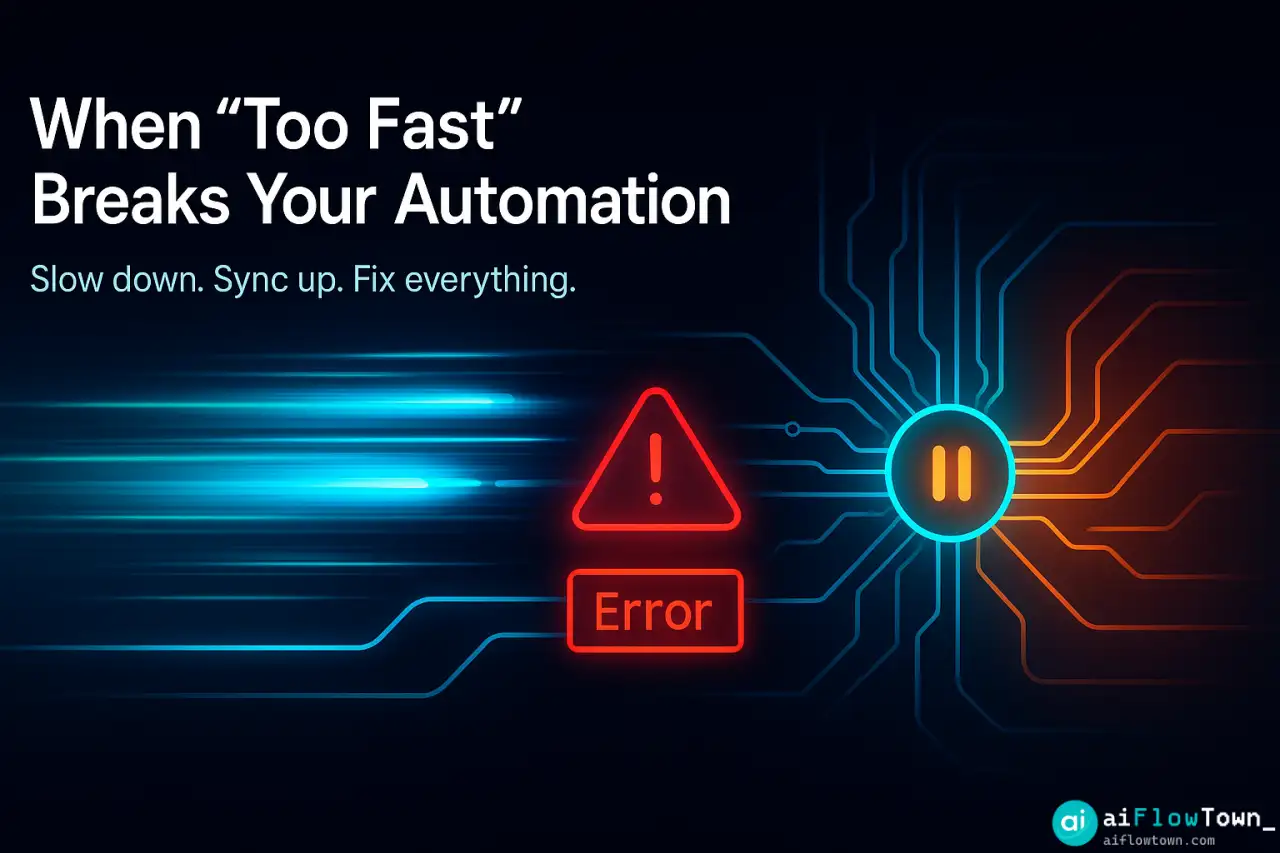
You built the perfect Zap. A new file in Google Drive triggers a workflow, sends an email, and updates a spreadsheet. But it fails. Every. Single. Time. The error? “File not found.” How can the file be “not found” when finding the file is what triggered the Zap? The problem is that your automation is too fast. The Zap triggered the instant the file started syncing, not after it finished. This is the most common automation headache, and it’s fixed by the most overlooked tool in your kit: the Zapier Delay block.
Why “Faster” Isn’t Always Better in Automation
We build automations to be fast, but sometimes they’re so fast they break themselves. Your Zapier workflow runs in milliseconds, but the real world it connects to is much slower. This gap creates three common problems:
- Sync Lag: A file is added to a cloud drive (Google Drive, Dropbox). The Zap triggers immediately, but the file is still syncing and isn’t “real” yet. The Zap fails.
- API Latency: Your Zap posts data to an app (like a CRM), then immediately tries to read that data back. The app’s database hasn’t finished processing, so the Zap finds nothing.
- Human Lag: Your automation sends an email to a client at 3:00 AM, the second they fill out a form. This feels robotic, impersonal, and a little creepy.
The solution isn’t a more complex workflow. It’s just a pause. This is one of the most useful tricks in our Quick Tips & Flow Hacks library.
5 Tiny Tricks for the Zapier Delay Block
The “Delay by Zapier” module is a built-in tool that does two things: “Delay For” (waits a set time) and “Delay Until” (waits for a specific date/time). Here are 5 ways to use it that go beyond the basics.
Trick 1: The 2-Minute “Sync Fix”
This is the classic. Your Zap triggers on “New File in Google Drive” but fails on the next step. The file just isn’t ready for the next action.
The Fix: Add a “Delay For” step right after your trigger. Set it for 1 or 2 minutes. This tiny pause gives Google Drive, Dropbox, or any other service time to finish its sync. The file will be ready and waiting when the Zap continues.
Trick 2: The “Human” Follow-Up Email
A new lead signs up for your newsletter. You want to send them two emails: a “Welcome” email now, and a “Here’s some help” email in a few days. You don’t need two Zaps. You need one Zap with a pause.
- Step 1: Trigger (New Subscriber in Mailchimp).
- Step 2: Action (Send “Welcome” email).
- Step 3: Action (Delay For 2 Days).
- Step 4: Action (Send “How’s it going?” email).
This makes a single event trigger a multi-day sequence. It’s the simplest way to build a drip campaign.
Trick 3: The 10-Minute “Grace Period”
A user buys a product on your site. An instant “Thank You” email is good. But an instant “How was your purchase?” email is bad. The user hasn’t even closed the tab yet. Give them a “grace period” to let the action feel real.
- Step 1: Trigger (New Sale in Stripe).
- Step 2: Action (Add user to CRM).
- Step 3: Action (Delay For 15 Minutes).
- Step 4: Action (Send “Thank You & Next Steps” email).
This 15-minute pause makes the automation feel timely and helpful, not robotic and pushy.
Trick 4: The 1-Second “API Throttle”
This is a more advanced tip. Let’s say you’re using “Looping by Zapier” to process 100 items in a spreadsheet. Your Zap runs so fast that it hits the other app’s API 100 times in 3 seconds. The app thinks it’s being attacked and blocks you (this is called “rate limiting”).
The Fix: Inside your loop, add a “Delay For” step. Set it for 1 or 2 seconds. This “throttles” your Zap, forcing it to slow down and respect the app’s limits. It turns a failing Zap into a successful, patient one.
This is a fundamental concept in building robust AI workflows that interact with other systems.
Trick 5: The “9 AM Report”
Sometimes you don’t want to wait for a period. You want to wait until a specific time. A lead fills out your “Contact Us” form at 2:00 AM on a Saturday. You don’t want to send that Slack notification to your sales team right then.
- Step 1: Trigger (New Form Submission).
- Step 2: Action (Delay Until 9:00 AM Monday).
- Step 3: Action (Send lead info to the #sales Slack channel).
This respects your team’s time and batches work for when people are actually working.
When to Use “Delay” vs. “Schedule”
The “Delay” block is not the only time-based tool. Zapier also has “Schedule by Zapier.” They are not the same. “Delay” pauses a Zap that has already started. “Schedule” starts a new Zap on a timer.
| Use Case | Use This Tool | Example |
|---|---|---|
| An event already happened. | ✅ Delay by Zapier | A new lead signs up. Wait 2 days, then send email. |
| No event has happened yet. | ✅ Schedule by Zapier | Every Monday at 9 AM, run this Zap. (No trigger needed). |
| You need to pause a workflow. | ✅ Delay by Zapier | Wait 1 minute for a file to sync. |
| You need a recurring workflow. | ✅ Schedule by Zapier | Check this website every hour. |
Warning: Max Delay Time
Be careful with long delays. Zapier’s “Delay” can hold a task for a maximum of 30 days. If you set a “Delay For 40 Days,” the Zap will fail. For delays longer than 30 days, you need to use a different method (like adding them to a Google Sheet and using “Schedule” to check it daily).
❓ FAQ
Does using the “Delay” block cost extra Zapier tasks?
No. “Delay by Zapier” is a built-in tool and does not count as a task. You can add delays to your Zaps without worrying about your monthly task limit. However, the other actions in your Zap (like “Send Email”) still count as tasks.
What’s the difference between “Delay For” and “Delay Until”?
“Delay For” is relative (e.g., “Wait for 2 hours”). “Delay Until” is specific (e.g., “Wait until Oct 26 at 9:00 AM”). Use “Delay For” to create pauses and sequences. Use “Delay Until” to schedule actions for a specific time or day.
⏰ What if I want to delay until 9 AM in the lead’s time zone?
This is an advanced technique. The “Delay Until” step uses your account’s time zone. To delay for a specific time zone, you would need to add a “Formatter by Zapier” step to convert the time zone, save that as a variable, and then feed that variable into the “Delay Until” step.
Final Thoughts
In automation, speed is not the goal. The goal is completion. A Zap that runs in 1 millisecond and fails is useless. A Zap that waits 2 minutes and succeeds is a perfect automation.
The Zapier Delay block is the simplest, most powerful tool for making your automations more reliable, patient, and human. It’s the “pause” that fixes the problem. So the next time your Zap fails, don’t rebuild it—just ask yourself if it needs to slow down.
Want to see what other simple tools you can use? Check out our list of AI automation tools for beginners that can help you get started.
⚠️ Reminder: Even the smartest tools / AI can miss small details or make mistakes. Always double-check your work before presenting or publishing it - a quick review can save hours later.