Why Manual Time Tracking Fails
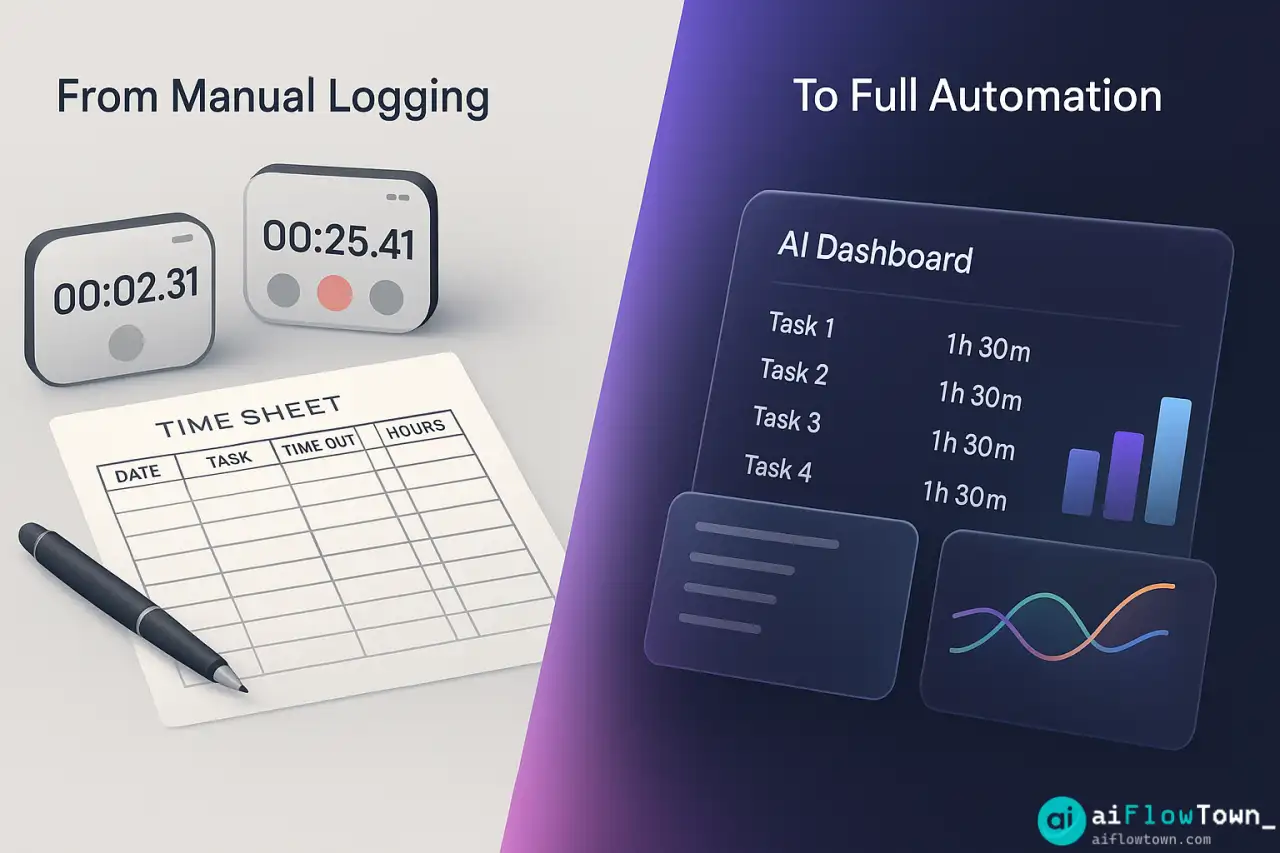
You open your time tracker. Start a timer for “Client Project.” Work for 20 minutes. Get interrupted by Slack. Forget to pause the timer. It runs for 3 hours while you do other things. You catch it, stop it, manually adjust the time backward. Now you have to remember what you actually did for those 3 hours and log it separately.
This happens repeatedly. By Friday, your time logs are fiction. You spent 40 hours at your computer but can only account for 22 hours in your tracker. The missing 18 hours? Lost to context switching, interruptions, and tasks too small to bother logging. You have no real data about your productivity.
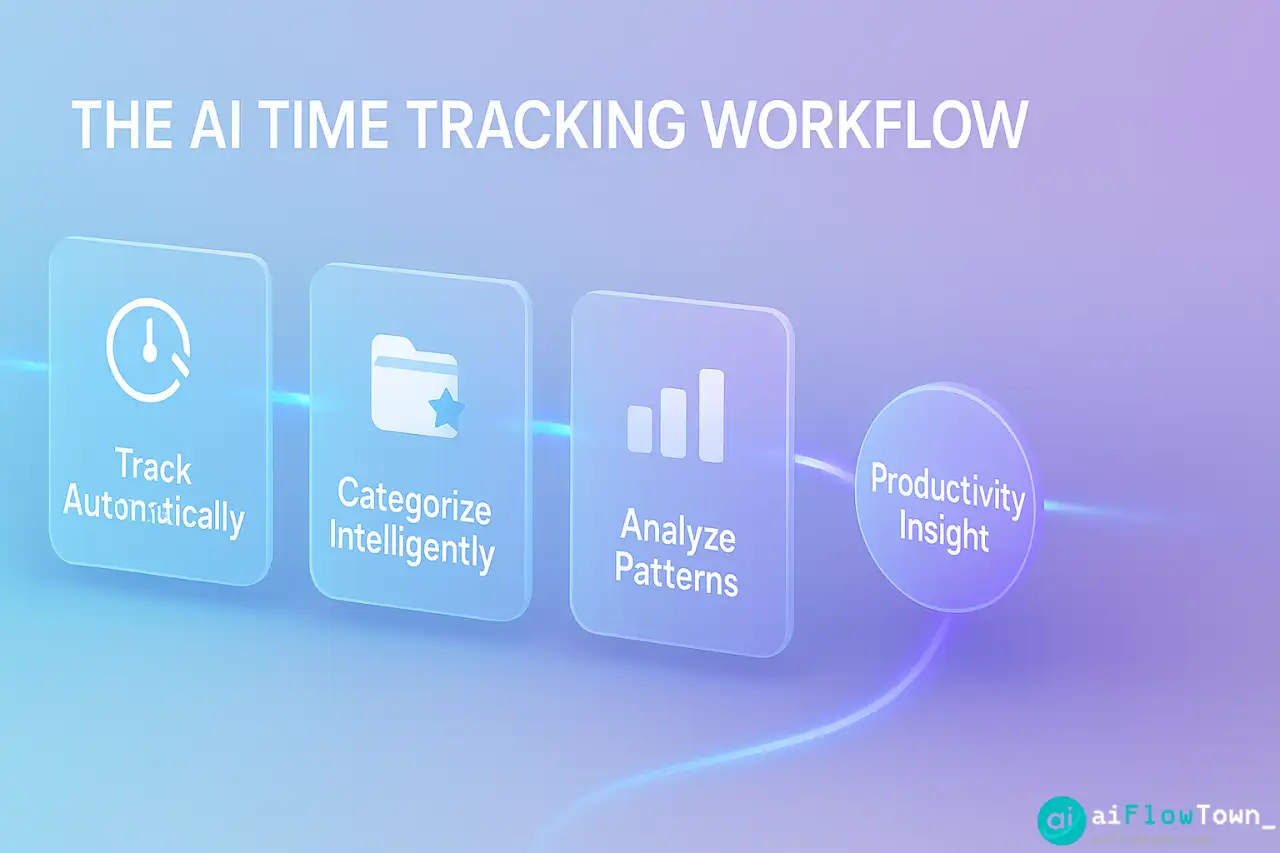
This is where ai time tracker tools change everything. They run silently in the background, logging which apps you use, which websites you visit, and how long you spend in each. No timers to start or stop. No manual entries. Just accurate, automatic tracking using ai to track time spent on tasks automatically.
The AI Time Tracking Landscape
| Tool | What It Tracks | Best For | Price |
|---|---|---|---|
| RescueTime | Apps, websites, productivity scoring | Individual productivity analysis | Free-$12/mo |
| Timing (Mac) | Everything automatically, detailed breakdowns | Freelancers billing by hour | $79/year |
| Clockify AI | Manual + AI suggestions | Teams needing project tracking | Free-$10/mo |
| Toggl Track | Manual with smart reminders | Simple project time logging | Free-$10/mo |
| Memory (Mac) | Screenshots + AI analysis | Detailed activity reconstruction | $25/mo |
Each tool has different tracking philosophy. RescueTime and Timing are fully automatic—zero manual input. Toggl and Clockify blend manual logging with AI assistance. Memory takes screenshots periodically so you can reconstruct your day visually. Choose based on whether you want automation or control. For more tools, visit best AI productivity tools.
Setting Up Automatic Tracking
Step 1: Choose Your Tool and Install
For this guide, I’ll use RescueTime because it’s accessible across platforms and has a generous free tier. Install it. Grant permissions to track apps and browser activity. That’s it—tracking starts immediately with automatic time tracking with ai tools.
Step 2: Categorize Your Activities
RescueTime auto-categorizes most apps and sites (Slack = Communication, Google Docs = Writing, etc.). But you’ll want to customize:
- Work-related sites: Mark as productive
- Social media during work hours: Mark as distracting
- Email clients: Mark as communication (neutral)
- Project-specific tools: Create custom categories
Spend 10 minutes teaching the tool what matters to you. It learns and applies these rules automatically going forward using smart time logging using ai software.
Step 3: Set Goals and Alerts
Tell RescueTime: “I want to spend 4+ hours daily on productive work.” It tracks against this goal and alerts you if you’re falling short. Or set limits: “Alert me if I spend more than 30 minutes on social media.” The tool becomes your accountability partner. Learn more at AI workflow examples.
Reading Your Dashboard: What the Data Means
The Productivity Pulse
RescueTime shows a daily productivity score (0-100%) based on time in productive vs distracting activities. You might think you had a productive Tuesday—score says 42%. Reality check delivered. You were busy, not productive. There’s a difference.
Category Breakdown
Your Week:
– Writing: 12h 30m (actual focused writing time)
– Meetings: 8h 15m (maybe too many?)
– Email: 6h 45m (definitely too much)
– Communication tools: 5h 20m
– Design work: 4h 10m
– Social media: 2h 35m (ouch, didn’t realize)
– Honest Time Distribution –
This is analyze productivity with ai time tracking that shows reality, not perception. You can’t argue with data.
Patterns and Trends
AI identifies your patterns: “You’re most productive 9-11am. Productivity drops 45% after 3pm. You spend 2x more time in email on Mondays than other days.” These insights tell you when to schedule deep work and when to batch shallow tasks.

Integrating with Your Workflow
Connect to Project Management
Tools like Timing can connect to project management systems. Time spent in specific folders or apps automatically attributes to the right project. If you’re billing clients by hour, this becomes automatic invoice data—no manual time sheets.
Sync with Calendar
RescueTime syncs with Google Calendar. Meeting time gets logged automatically. You see the correlation between meetings and productivity—spoiler: usually inverse. More meetings = less productive time.
Export and Analyze
Export weekly reports to spreadsheets. Feed them to ChatGPT for deeper analysis using stop manual time entry with ai automation:
"Here's my time tracking data for the past month:

[Paste data]

Analyze:
1. Which days am I most/least productive?
2. What activities correlate with high productivity?
3. Where am I wasting the most time?
4. What patterns should I change?
5. Recommend 3 specific schedule adjustments

Be direct about problems you see."
AI spots patterns humans miss. It might notice: “Your productivity drops 60% on days with 3+ meetings. Consider batching meetings to preserve focus days.”
Using AI Prompts to Summarize Your Week
"Create a weekly productivity summary from this data:

Total hours worked: [X]
Top 5 activities: [list with hours]
Productivity score: [Y%]
Most productive day: [day]
Biggest time sink: [activity]

Format as:
1. Executive summary (2-3 sentences)
2. Key achievement (what I spent time well on)
3. Main opportunity (what to reduce/change)
4. Next week focus (actionable recommendation)

Tone: Honest but encouraging, focused on improvement not criticism."
This transforms raw data into actionable insights. You’re not just tracking time—you’re learning from it. For more strategies, check productivity flow hacks.
Real Results: A Consultant’s Discovery
The Before State
Lisa, a marketing consultant, billed clients by project. She estimated time spent but had no real data. She often felt busy but wasn’t sure where hours went. She’d quote 10 hours for a project, deliver great work, but wonder if she undercharged.
After 30 Days of Tracking
RescueTime revealed brutal truths:
- Projects she quoted 10 hours actually took 16 hours
- She spent 8 hours weekly in email—double what she thought
- Social media “quick checks” totaled 90 minutes daily
- Her most productive hours: 7-9am before calendar filled
- Client calls broke her focus for 45+ minutes afterward
Armed with data, Lisa made changes: raised rates to match actual time, scheduled deep work 7-10am daily, batched email to 2x per day, blocked social media during work hours. Result: Same client quality, 20% higher revenue, less stress.
The Uncomfortable Truth About Your Time
Here’s what most people discover after their first week of AI time tracking:
- ⚠️ You overestimate productive time by 40-60%
- ⚠️ Distractions consume 2-4 hours you didn’t account for
- ⚠️ Context switching happens 3x more than you realize
- ⚠️ Your peak productivity window is shorter than you thought
- ⚠️ Certain tasks take 2x longer than estimated
This data is uncomfortable. It’s also liberating. You can’t fix what you don’t measure. Now you know exactly what to fix.
❓ FAQ
Is tracking everything creepy or invasive?
You’re tracking yourself, not being tracked by someone else. Data stays on your device or in your private account. It’s like a fitness tracker for your work habits—only you see it. You control what’s tracked and can pause anytime.
⚡ Does running a tracker slow down my computer?
Modern trackers use minimal resources—less than having one extra Chrome tab open. RescueTime and Timing are optimized to run invisibly. You won’t notice performance impact unless your computer is already struggling.
What if I do client work that’s confidential?
Most tools let you pause tracking for specific apps or websites. Or use tools like Timing that track time spent in apps without recording content. You can get productivity insights without exposing confidential information.
How accurate is automatic categorization?
85-90% accurate out of the box, improves as you correct it. You’ll spend 5-10 minutes weekly adjusting categories initially, then it learns. After a month, it categorizes 95%+ correctly without input.
Can I track specific projects automatically?
Tools like Timing do this well—track based on which folder you’re working in or which app. RescueTime requires manual project tagging. Clockify blends both. Choose based on whether you need project-level detail or general productivity insights.
Final Thoughts
You can’t manage what you don’t measure. Manual time tracking gives you incomplete data because you can’t remember or log every fragmented minute. AI time tracker tools give you the complete picture—sometimes uncomfortable, always useful.
Install one this week. Let it run. Don’t change your behavior yet—just observe. After 7 days, review the data. You’ll see patterns you couldn’t see before. Then make informed decisions about what to change.
The most productive people aren’t guessing where their time goes. They know. And knowing is how you start winning back the hours that currently disappear without trace.
⚠️ Reminder: Even the smartest tools / AI can miss small details or make mistakes. Always double-check your work before presenting or publishing it - a quick review can save hours later.