Never Miss a Deadline Again with Smart AI Reminders
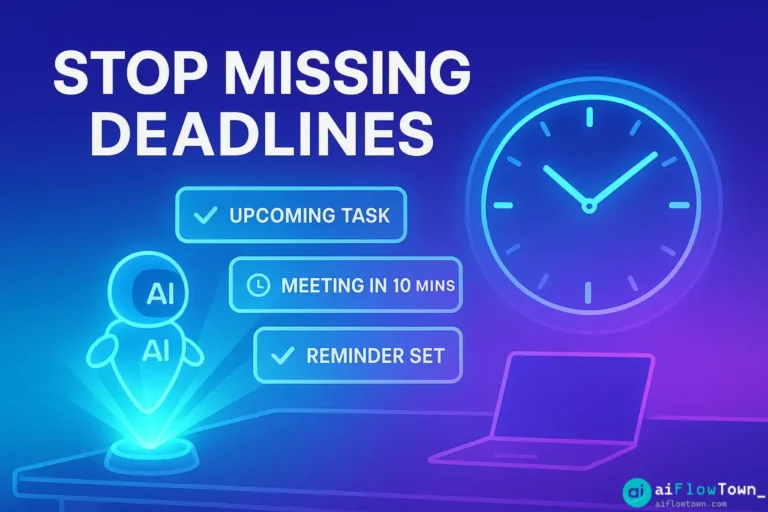
We’ve all been there. That sinking feeling when you realize a crucial deadline slipped your mind. Despite our best intentions, juggling multiple projects and constant interruptions makes it easy to lose track. Traditional reminders help, but they often require manual setup and can get lost in the noise. What if you could build an intelligent system that proactively manages your deadlines using AI? This guide will show you exactly how to stop missing deadlines with AI by setting up smart AI reminder workflows.
Forget relying solely on willpower or cluttered notification centers. We’ll walk you through creating an automated system using familiar tools like Notion (or your task manager), automation platforms (Zapier/Make.com), and AI like ChatGPT. This system won’t just remind you; it can potentially prioritize, escalate, and ensure critical dates stay top-of-mind. This is practical AI task management in action.
Learn how to build a safety net for your commitments and finally say goodbye to the stress of missed deadlines.
Part 1: Why Deadlines Slip (It’s Often Not Just Forgetfulness)
Missing deadlines rarely happens because we simply forget. The root causes are often more systemic:
- Lack of Visibility: Deadlines are scattered across emails, project briefs, and meeting notes, making it hard to see the complete picture.
- Poor Prioritization: Urgent but unimportant tasks constantly push back critical, deadline-driven work.
- Over-Optimism (The Planning Fallacy): We consistently underestimate how long tasks will take, leading to last-minute rushes.
- Notification Overload: Generic calendar reminders get lost in a sea of pings and pop-ups, losing their effectiveness.
- Lack of Proactive Checkpoints: We often only realize a deadline is in jeopardy when it’s too late.
An AI-powered reminder system can address these issues by centralizing deadline information, adding intelligence to prioritization, and creating more nuanced, timely alerts.
An AI reminder system isn’t just about remembering deadlines; it’s about building a proactive awareness of your commitments and potential bottlenecks.
Part 2: Designing Your AI Reminder System – The Core Components
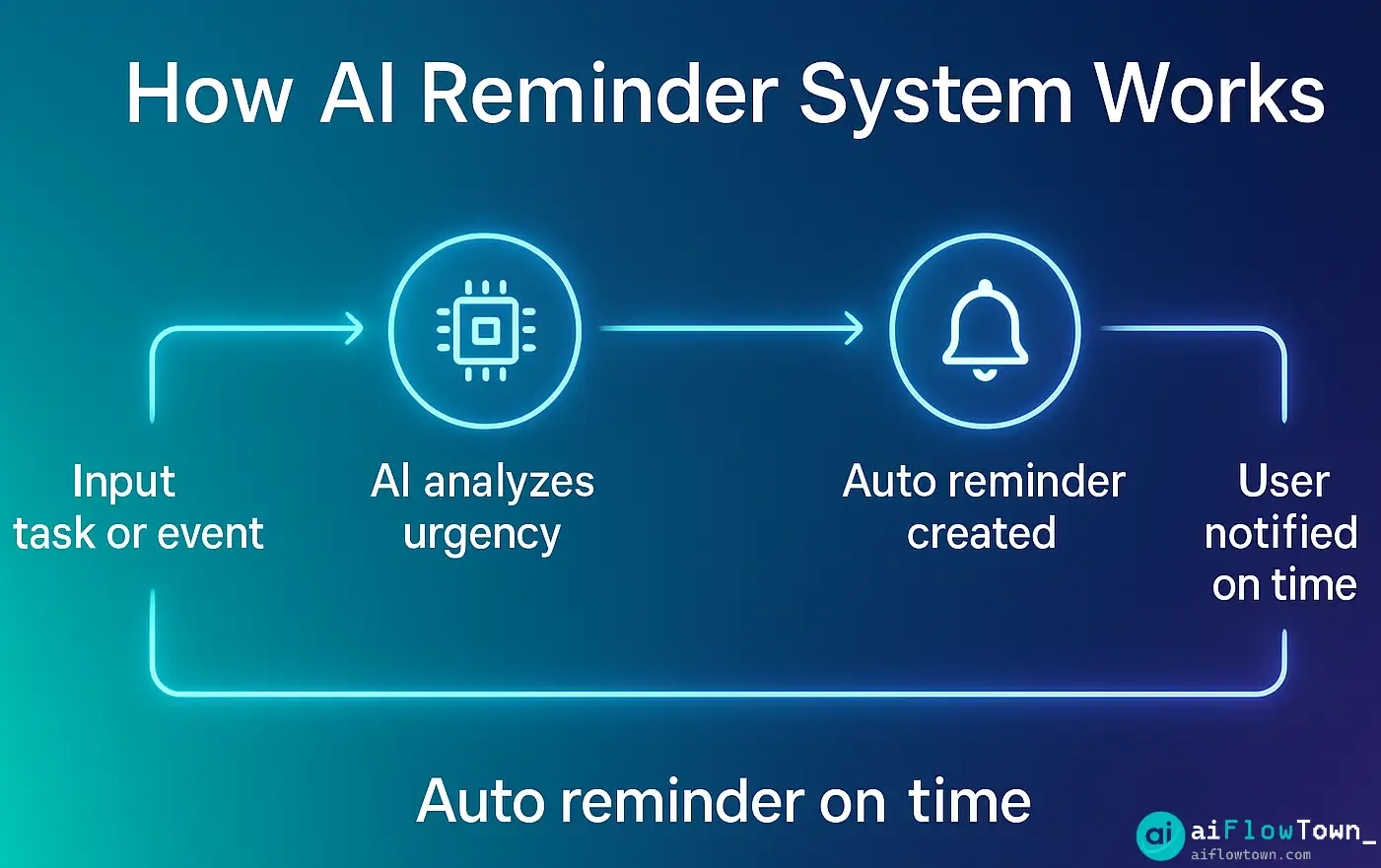
Our goal is to build a workflow where adding a task with a deadline in one place automatically triggers intelligent reminders elsewhere. The key components are:
- The Task Hub: Your central source of truth for tasks and deadlines. This could be a Notion database, Asana, Todoist, ClickUp, or even a structured Google Sheet. Crucially, it must have a clear “Deadline” field (Date type) and ideally a “Status” field.
- The Automation Engine: The bridge that watches your Task Hub and connects to other apps. We’ll use Zapier or Make.com.
- The AI Brain (Optional but Powerful): An AI model (like ChatGPT) can be used to add intelligence, such as drafting reminder messages with specific context or escalating alerts based on proximity to the deadline.
- The Notification Channel: Where you receive the smart reminders (e.g., Slack, Email, SMS).
Part 3: Building the Workflow – Step-by-Step Example (Notion + Zapier + AI)
Let’s build a robust system using Notion as our Task Hub and Zapier as the engine. This workflow will send increasingly urgent Slack reminders as a deadline approaches.
Goal: When a task in our Notion “Projects” database is marked “In Progress” and its deadline is approaching (e.g., within 3 days, then 1 day), send a detailed reminder message to a specific Slack channel.
Step 1: Prepare Your Notion Database
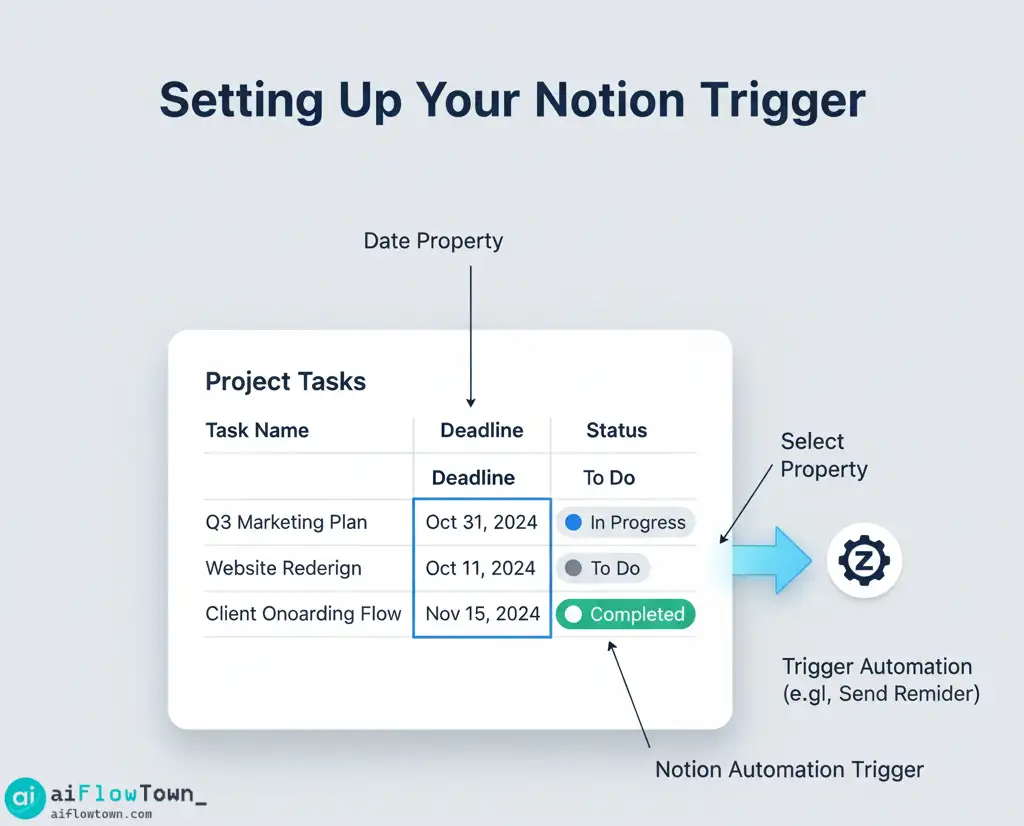
Ensure your Notion database (e.g., named “Project Tasks”) has at least these properties:
- `Task Name` (Title property)
- `Deadline` (Date property)
- `Status` (Select property with options like “To Do”, “In Progress”, “Done”)
- `Assignee` (Person property – optional)
- `Project` (Relation property – optional)
Step 2: Set Up the Zapier Trigger (Scheduled Trigger)
Instead of triggering instantly on change (which can be noisy), we’ll use a scheduled trigger to check for upcoming deadlines periodically.
- Create a new Zap. Choose “Schedule by Zapier” as the trigger.
- Set it to run “Every Day” at a specific time (e.g., 9 AM).
- Add a “Filter by Zapier” step. We only want to continue if today is a weekday (optional, adjust as needed). You can use Formatter by Zapier -> Date / Time -> Format -> `dddd` (outputs day name) and filter if the output contains “Saturday” or “Sunday”.
Step 3: Find Relevant Notion Items
- Add an action step: “Notion”.
- Choose the event “Find Database Items”. Connect your Notion account.
- Select your “Project Tasks” database.
- Set up the Search Criteria. This is crucial:
- Find items where `Status` (Select) Is exactly “In Progress”.
- AND `Deadline` (Date) Is on or before `{{zap_meta_human_now_plus_3d}}` (This Zapier code means “3 days from now”).
- AND `Deadline` (Date) Is on or after `{{zap_meta_human_now}}` (This means the deadline hasn’t passed yet).
- (Note: You might need Zapier’s Formatter to get dates in the exact format Notion requires for comparison).
- Configure the output to return multiple items if found.
Step 4: Loop Through Found Items (if needed)
If the “Find Database Items” step returns multiple tasks nearing their deadline, Zapier might process them individually. If it returns them as a list (line items), you might need Zapier’s “Looping” function (available on paid plans) to process each task separately in the subsequent steps.
Step 5: Add AI Intelligence (Optional but Recommended)
For each found task, you can add a ChatGPT step to craft a more nuanced reminder.
- 4. AI Reminder Message Prompt:
Act as a helpful project assistant. A task is nearing its deadline. Craft a concise and motivating reminder message based on the following details. Calculate the exact number of days remaining until the deadline.

**Task Name**: [Insert Task Name from Notion step]
**Deadline**: [Insert Deadline from Notion step]
**Assignee**: [Insert Assignee Name from Notion step, if available]
**Project**: [Insert Project Name from Notion step, if available]
**Current Date**: {{zap_meta_human_now}}

Structure the reminder message clearly. Start by stating the urgency (e.g., "Heads up!", "Final Reminder!"). Mention the task, project, assignee, deadline, and exact days remaining. Keep it brief and encouraging.
Step 6: Send the Smart Reminder (Slack Action)
- Add the final action step: “Slack”.
- Choose the event “Send Channel Message” (or “Send Direct Message”). Connect your Slack account.
- Choose the specific channel or user to send the reminder to.
- In the “Message Text” field, insert the output (the crafted reminder message) from the ChatGPT step (or construct a simpler message using data directly from the Notion step if you skipped the AI). You can use Slack’s formatting (like `bold` or `_italic_`).
- Customize bot name/icon if desired.
- Test the step.
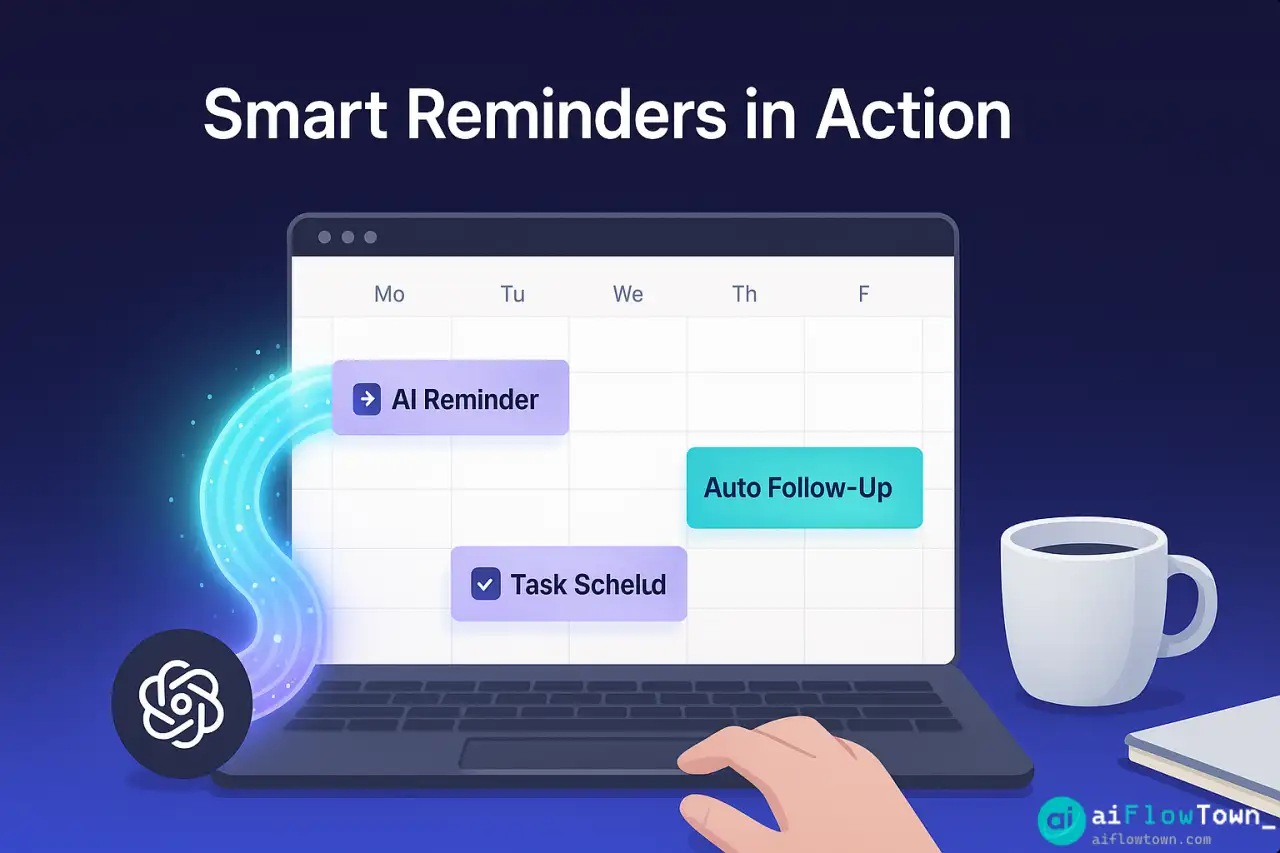
Result: Every morning, this Zap will check your Notion tasks, identify any “In Progress” items due within the next 3 days, optionally use AI to craft a smart reminder, and send it via Slack. You now have an automated safety net for your deadlines!
Alternative Workflows & Ideas
| Trigger Source | AI Task | Reminder Channel | Use Case |
|---|---|---|---|
| New Email in Gmail (with specific label/subject) | Extract task and deadline from email body | Google Calendar Event + Notification | Automatically schedule tasks received via email |
| New Item in Google Sheets Row | Parse date/time and task description | SMS Reminder (via Twilio/Zapier) | Simple task capture with text message alerts |
| Slack Message (saved or reacted to) | Identify action item and potential deadline | Direct Message in Slack | Capture tasks mentioned in team chat |
| Voice Note (via transcription service) | Extract task and reminder time from transcript | Google Calendar Reminder | Hands-free task capture on the go |
Part 4: Tips for Effective AI Reminders
- Be Specific with Deadlines: Ensure your tasks in the source app have clear, actual dates. Vague deadlines make automation difficult.
- Refine Your Triggers: Don’t try to automate everything. Focus on triggers for important tasks or specific types of communication to avoid notification fatigue.
- Iterate on Your AI Prompts: The quality of your reminder message depends on the prompt. Experiment with different tones and information requests to find what works best for you. Our prompt library offers various styles.
- Use Escalation Logic: For critical deadlines, consider building multi-step automations that send reminders with increasing urgency (e.g., 3 days out, 1 day out, 4 hours out).
- Combine with Time Blocking: Use AI reminders in conjunction with an AI time blocking tool like Reclaim AI. The reminder prompts you, and the time blocking tool ensures you have dedicated space to act.
Conclusion: Build Your Proactive Deadline Safety Net
Missing deadlines is stressful and unprofessional. By setting up a smart AI reminder system, you move from reactive panic to proactive awareness. Leveraging tools like Notion, Zapier/Make, and AI allows you to build a personalized, automated safety net that adapts to your workflow.
Start simple. Choose one trigger source (like your main task list) and set up your first automated deadline check today. Even a basic workflow can make a significant difference in ensuring you never miss a deadline again.
❓ FAQ
❓ Do I need paid plans for Zapier/Make and OpenAI for this?
Often, yes. While simple triggers might work on free plans, using AI modules (ChatGPT/OpenAI) and potentially multi-step logic (like Looping or Paths in Zapier, or complex scenarios in Make) usually requires a paid subscription for the automation platform. OpenAI API usage is also pay-as-you-go. However, the cost is typically low for personal productivity workflows.
Can’t Google Calendar’s default reminders do this?
Google Calendar reminders are static – you set them once per event. An AI reminder system is dynamic. It triggers based on changing information (like a task status) and can generate context-aware messages based on current data (like days remaining, assignee). It’s a more intelligent and proactive approach.
What’s the easiest AI reminder to set up first?
A simple Zapier workflow triggering from “New Event Matching Search” in Google Calendar could be easiest. For example, trigger on events with “Deadline:” in the title, add a Delay step (e.g., delay until 1 day before the event starts), and then send yourself a Slack message with the event details. This doesn’t require complex AI parsing initially.
⚠️ Reminder: Even the smartest tools / AI can miss small details or make mistakes. Always double-check your work before presenting or publishing it - a quick review can save hours later.