Clean Your Gmail Automatically with AI
Is your Gmail inbox a source of constant stress and distraction? An endless, overwhelming flood of newsletters you never read, promotional offers, notifications, mixed with genuinely important messages? You’re not alone. While the dream of “Inbox Zero” promises mental clarity, achieving it manually feels like a losing battle. Standard Gmail filters help, but they lack the intelligence to understand context. Enter the AI email cleaner – an automated workflow designed to bring smart organization back to your digital life.
This guide will teach you exactly how to clean up your Gmail inbox automatically by leveraging the power of Artificial Intelligence. We’ll show you how to combine Gmail’s existing features with automation platforms (like Zapier or Make.com) and AI models (like ChatGPT or Gemini) to create a system that doesn’t just filter, but understands and acts on your emails. Imagine emails being automatically sorted into nuanced categories, important messages summarized, and junk identified with higher accuracy – all happening in the background. This is the power of Gmail AI sorting.
Stop drowning in email. Let’s build your intelligent inbox management system.
Part 1: The Pain of Inbox Overload & Why Standard Filters Fall Short
A perpetually cluttered inbox isn’t just an aesthetic problem; it actively sabotages your productivity and increases stress levels. The core issues are:
- ❌ Time Drain: The sheer volume requires significant daily time spent manually sorting, deleting, labeling, and archiving. Estimates suggest knowledge workers spend hours each day just managing email.
- ❌ Missed Opportunities & Urgency Blindness: Critical emails from clients, managers, or potential leads can easily get lost amidst promotional clutter or lengthy newsletters, leading to delayed responses or missed deadlines.
- ❌ Cognitive Load & Decision Fatigue: Each email, no matter how trivial, requires a micro-decision: Read now? Delete? Archive? Label? Reply? Snooze? This constant low-level processing depletes mental energy needed for focused work.
- ❌ Filter Rigidity & Lack of Context: Standard Gmail filters are powerful for rule-based sorting (sender address, specific subject keywords, has attachment), but they lack contextual understanding. They can’t easily distinguish between a vital project update email containing the word “report” and a routine company-wide newsletter also mentioning “report.” They struggle with nuance, intent, sentiment, and identifying genuinely urgent requests versus informational updates.
This is precisely where an AI email cleaner workflow shines. By adding a layer of AI analysis – specifically, using Large Language Models (LLMs) – your system can understand the content, purpose, and urgency of an email. This enables far more sophisticated, accurate, and personalized automated email organization with AI than filters alone can achieve.
Traditional filters sort by address label or keyword. AI email cleaners sort by understanding the letter’s content and intent. It’s the difference between a mail sorter following rigid rules and a personal assistant who actually reads and understands your mail before organizing it.
Part 2: The AI Email Cleaner Workflow – How It Works
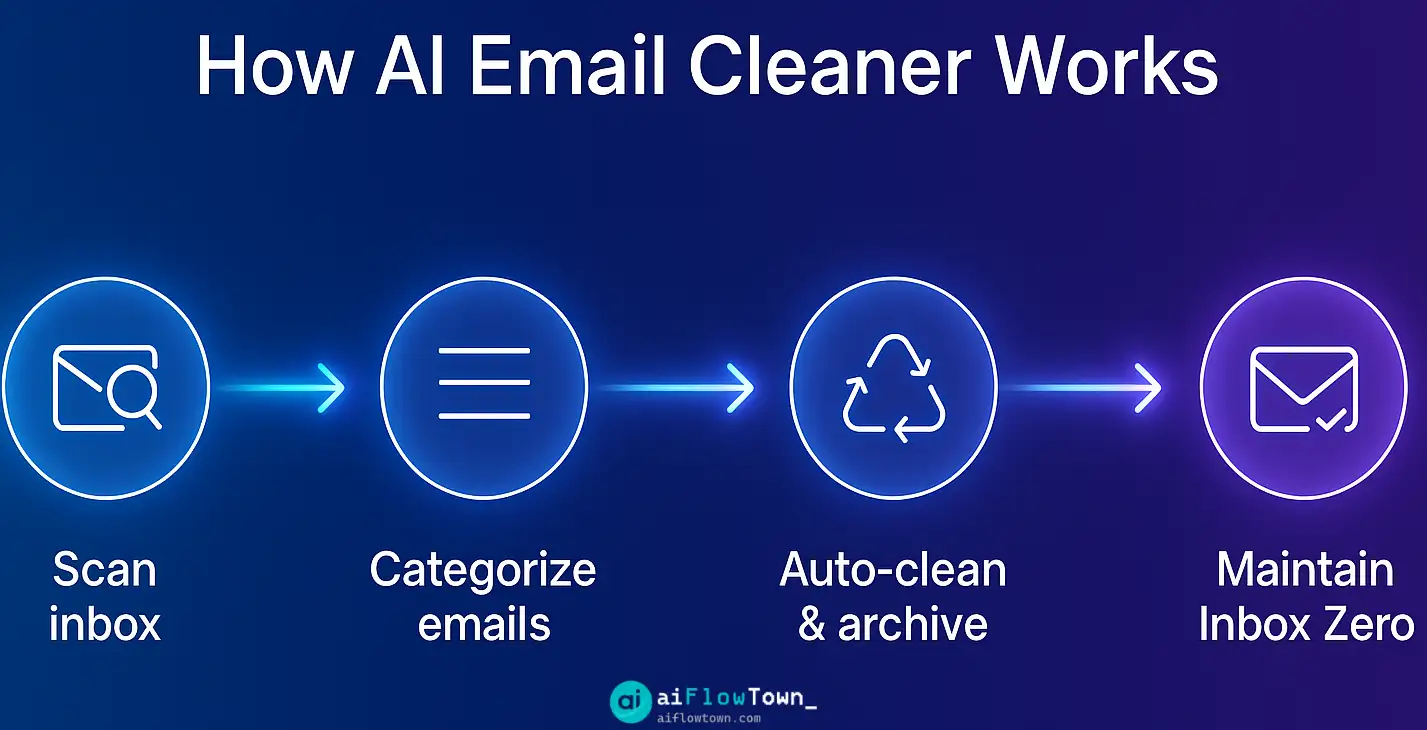
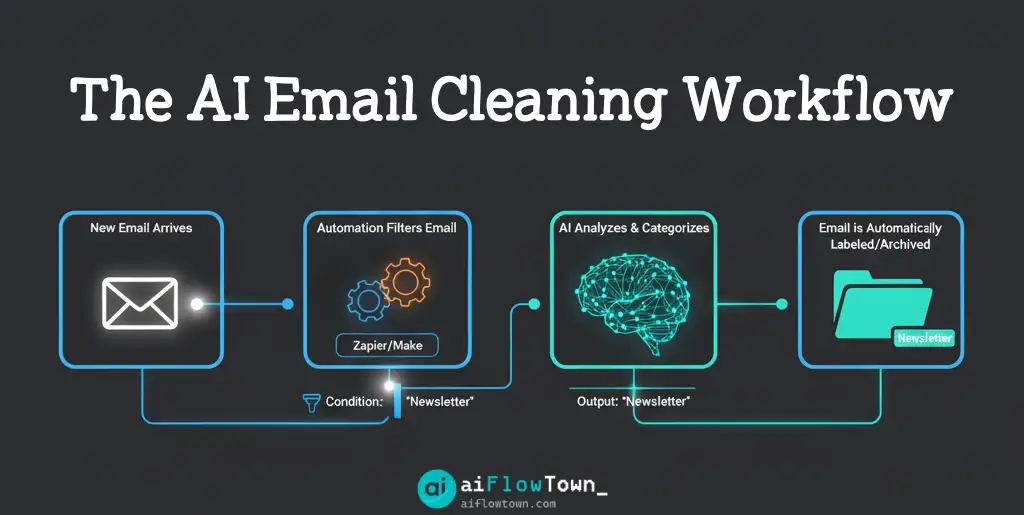
The core concept involves using an automation platform (like Zapier or Make.com) to act as an intermediary between your Gmail inbox and an AI model. This platform intercepts emails based on certain criteria and sends their content to the AI for analysis. Based on the AI’s intelligent response, the platform then performs automated actions within Gmail.
The typical flow looks like this:
- Trigger: A new email arrives in Gmail that meets specific conditions you define (e.g., it lands in the primary inbox, is currently unread, doesn’t already have certain labels applied by you manually, or maybe even emails from unknown senders).
- AI Analysis: The automation tool extracts key data from the email (like subject line, sender, and a snippet or the full body text). It sends this data to an AI model (like ChatGPT or Gemini) along with a carefully crafted prompt. The prompt instructs the AI to analyze the content and classify the email’s category, intent, or urgency based on predefined rules you set (e.g., “Urgent Request,” “Newsletter/Promo,” “Receipt/Notification,” “Meeting Invite,” “Personal Note,” “Potential Spam”).
- Action in Gmail: The AI returns a structured response (usually a single category name or label). The automation tool receives this response and, based on its value, performs one or more actions in Gmail. Common actions include: applying a specific Gmail label (e.g., “AI: Newsletter”), archiving the email (moving it out of the inbox), marking it as read, starring it for importance, or even moving it to the trash.
Part 3: Building Your AI Email Cleaner – Step-by-Step Example (Gmail + Make.com + AI)
Goal: When a new email arrives in the primary Gmail inbox and doesn’t already have a user-defined label (indicating you haven’t manually sorted it), use AI to determine its category (Urgent Action, Newsletter/Promo, Receipt/Notification, Personal/Direct, Meeting/Calendar, Other) and automatically apply the corresponding Gmail label.
Step 1: The Trigger – Watching Your Gmail Inbox in Make.com
- Create a new Scenario in Make.com. Click the large plus icon and search for the “Gmail” module.
- Select the trigger “Watch emails”.
- Connect your Google account, granting Make.com the necessary permissions.
- Configure the trigger settings:
- Folder: Select
Inbox. - Criteria: Choose
Unread emails only. - Filter based on Labels (Crucial): This is key to avoid processing emails you’ve already handled. You need a way to tell Make only to process emails without your typical organizational labels. One approach is to list the Label IDs you don’t want to process. You can find Label IDs using the Gmail API or helper tools, or potentially filter later in the workflow based on label names retrieved. A simpler, though less robust, method might be to only process emails received within the last X minutes, assuming you manually label quickly. For this example, let’s assume we proceed and filter later if needed.
- Maximum number of results: Start with a low number like
5or10during testing.
- Folder: Select
- Choose when to start (e.g., “From now on”). Schedule the scenario to run periodically, for instance, every 15 minutes.
Step 2: The AI Brain – Categorizing the Email with OpenAI
- Click the plus icon (+) next to the Gmail module to add another module. Search for “OpenAI (ChatGPT)”.
- Choose the action “Create a Chat Completion”.
- Connect your OpenAI account by providing your API key (ensure you have billing set up with OpenAI for API usage).
- Configure the “Create a Chat Completion” settings:
- Model: Select an appropriate model.
gpt-3.5-turbois usually sufficient and cost-effective for categorization. - Messages: This is where you define the interaction.
- Add an item with the Role set to
System. In Message Content, write:You are an expert email categorization assistant. Your only job is to classify emails into one of the following exact categories based on content and sender: "Urgent Action", "Newsletter/Promo", "Receipt/Notification", "Personal/Direct", "Meeting/Calendar", "Other". Respond with only the single chosen category name. - Add another item with the Role set to
User. In Message Content, craft your prompt, mapping data dynamically from the Gmail trigger module.
- Add an item with the Role set to
- Model: Select an appropriate model.
- Prompt Example for User Message:
- AI Email Categorization Prompt:
Please analyze the following email details and classify it according to the instructions provided in the system message.

Subject: {{1.subject}}
Sender: {{1.sender.emailAddress}}
Body Snippet (first 500 characters): {{substring(1.textContent; 0; 500)}}

Category:
(Note:
{{1.subject}},{{1.sender.emailAddress}},{{1.textContent}}are examples of mapping variables from the Gmail trigger in Make.com. The actual variables might differ slightly. Thesubstringfunction limits the text sent to the AI to save costs.)
- AI Email Categorization Prompt:
- Under Advanced Settings, set the Temperature to a low value like
0.2to make the categorization more consistent and less random. - Run this module once with sample data from the trigger to ensure it correctly outputs a single category word (e.g., “Newsletter/Promo”).
Step 3: The Routing Logic – Directing Based on Category
- Click the connection line after the OpenAI module to add a “Router” module. This creates branches for different outcomes.
- Click the Router to create multiple paths leading out from it. Create one path for each of your defined categories (Urgent Action, Newsletter/Promo, Receipt/Notification, Personal/Direct, Meeting/Calendar, Other).
- Click on the dotted line connecting the Router to the first path. Set up the Filter for this path.
- Label: Name it clearly (e.g., “If Newsletter/Promo”).
- Condition: Select the variable containing the AI’s response (e.g.,
{{2.choices[].message.content}}if2is the OpenAI module). Choose the (Text operators: equal to) condition. Enter the exact category name:Newsletter/Promo.
- Repeat step 3 for each path, setting up filters for “Urgent Action,” “Receipt/Notification,” etc., using the exact category names the AI is expected to output. Create a final path without a filter as a “fallback” or for the “Other” category.
Step 4: The Actions – Labeling and Archiving in Gmail
Now, add the final Gmail actions within each specific path connected to the Router.
Inside the “If Newsletter/Promo” Path:
- Add a “Gmail” module, choose the action “Modify Email Labels”.
- Map the
Message IDfrom the initial Gmail trigger module (Module 1) to theMessage IDfield. - In the Labels to Add field, select or type the name of your Gmail label (e.g.,
AI-Sorted/Newsletters). Make sure this label exists in your Gmail first. - You might add another “Gmail” module after this one with the action “Archive an Email”, again using the
Message IDfrom Module 1, if you want these emails to bypass your main inbox view after being labeled.
Inside the “If Urgent Action” Path:
- Add a “Gmail” module, action “Modify Email Labels”.
- Map the
Message IDfrom Module 1. - Add the label
AI-Sorted/Urgent. - Consider adding another “Gmail” module with action “Mark an Email as Important (Star)” to visually highlight these in your inbox.
Configure similar Gmail “Modify Email Labels” actions for the other category paths (Receipts, Personal, Meeting), applying appropriate labels (e.g., AI-Sorted/Receipts, AI-Sorted/Personal). You decide whether to archive these categories or leave them in the inbox.
Result: Once you save and activate this scenario, Make.com will periodically check your Gmail. New, unlabeled emails will be sent to the AI for categorization, and based on the AI’s response, the appropriate label will be automatically applied in Gmail, helping you achieve intelligent inbox filtering!
Workflow Enhancement Ideas & Considerations
| Enhancement Idea | How to Implement (Conceptual) | Potential Benefit |
|---|---|---|
| AI Summarization for Long Emails | Add another OpenAI module after categorization (e.g., only for “Review Later” emails). Prompt it to summarize the email body. Add the summary as a comment or forward it to a notes app. | Quickly grasp key points of lengthy emails without reading fully. Creates an AI email summary tool. |
| Action Item Extraction to Task List | For emails categorized as “Urgent Action,” add an OpenAI module to extract tasks/questions. Add another module (Todoist, Asana, Notion) to create a new task using the extracted text. | Automatically populate your to-do list from action-oriented emails. |
| Sentiment Analysis & Tagging | Modify the categorization prompt to also output sentiment (Positive/Negative/Neutral). Add a Gmail step to apply a “Sentiment: Negative” label. | Easily identify and prioritize potentially problematic emails (e.g., customer complaints). |
| Auto-Drafting Simple Replies | For specific categories (e.g., simple inquiries), add an OpenAI module to draft a standard reply based on the email content. Add a Gmail “Create a Draft” action. | Speeds up response time for common queries (CRITICAL: Always review drafts before sending!). |
| Spam/Phishing Detection (Advanced) | Train a more specialized prompt to identify characteristics of spam/phishing emails. Add a Gmail “Move to Trash” or “Report Spam” action. | Potentially enhances Gmail’s built-in filtering (Use with caution!). |
Conclusion: Reclaim Your Inbox, Reclaim Your Focus
An overflowing inbox doesn’t have to be an accepted reality of modern work. By implementing an AI email cleaner workflow using tools like Make.com or Zapier, you can effectively automate the tedious task of sorting and managing your emails, freeing up significant time and mental energy. While standard Gmail filters offer basic sorting, adding an AI layer provides the crucial contextual understanding needed for truly effective automated email organization with AI.
Start with the basic categorization workflow outlined in this guide. Even this simple setup can make a dramatic difference in reducing inbox clutter and ensuring you see important messages sooner. As you gain confidence, explore enhancements like AI summarization or task extraction to build an even smarter, more personalized inbox assistant. Take control of your email, and you’ll take a significant step towards a more focused and productive workday. Explore other ways to streamline your digital life in our AI Workflows category.
❓ FAQ
❓ Is it safe to send my email content to an AI like ChatGPT?
How much does this AI email cleaner system cost?
Will the AI make mistakes in categorization?
⚠️ Reminder: Even the smartest tools / AI can miss small details or make mistakes. Always double-check your work before presenting or publishing it - a quick review can save hours later.