When Google Sheets Starts Working for You
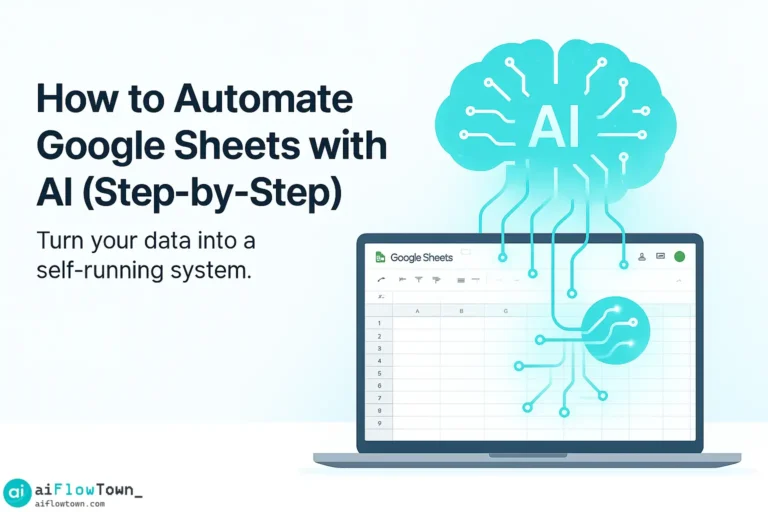
It begins with a quiet moment — staring at a sea of rows, formulas, and half-finished reports. Then it hits you: what if this thing could run itself? That’s the magic moment when you decide to automate Google Sheets with AI. Suddenly, your spreadsheet isn’t just a tool — it’s a teammate that can read, reason, and report without you lifting a finger.
AI automation doesn’t replace the power of Sheets — it multiplies it. The difference is simple: where humans see repetition, AI sees patterns. Where humans type formulas, AI writes them instantly. What used to take an afternoon now takes seconds. The only question left is — how far do you want to go?
Why AI automation matters more than ever
Because busywork isn’t productivity
Every spreadsheet user has been there — juggling formulas, cross-sheet references, and endless “=IF(“ errors. But real productivity isn’t about doing more clicks. It’s about building systems that do the clicking for you. AI turns every sheet into a silent assistant — one that knows when to update, summarize, or notify you without being told.
Imagine opening your sheet in the morning and finding your metrics already summarized: growth rates, conversion analysis, highlights in natural language — all generated overnight by your AI workflow. That’s not science fiction; it’s simple configuration.
The mental shift
Think of Google Sheets not as software, but as an interface for logic. Each cell is a neuron. Each formula is a connection. When you bring AI into that network, you give it something new — judgment. The ability to choose what to do next, not just calculate what’s already there.
What you gain
- ⚡ Hours back every week from repetitive updates.
- Smart formula generation — no syntax headaches.
- Auto-summarized reports written like human analysts.
- Seamless integrations with tools like Zapier and Notion.
- The ability to “talk” to your data via AI prompts.
Once you automate, you stop staring at data — you start asking better questions.
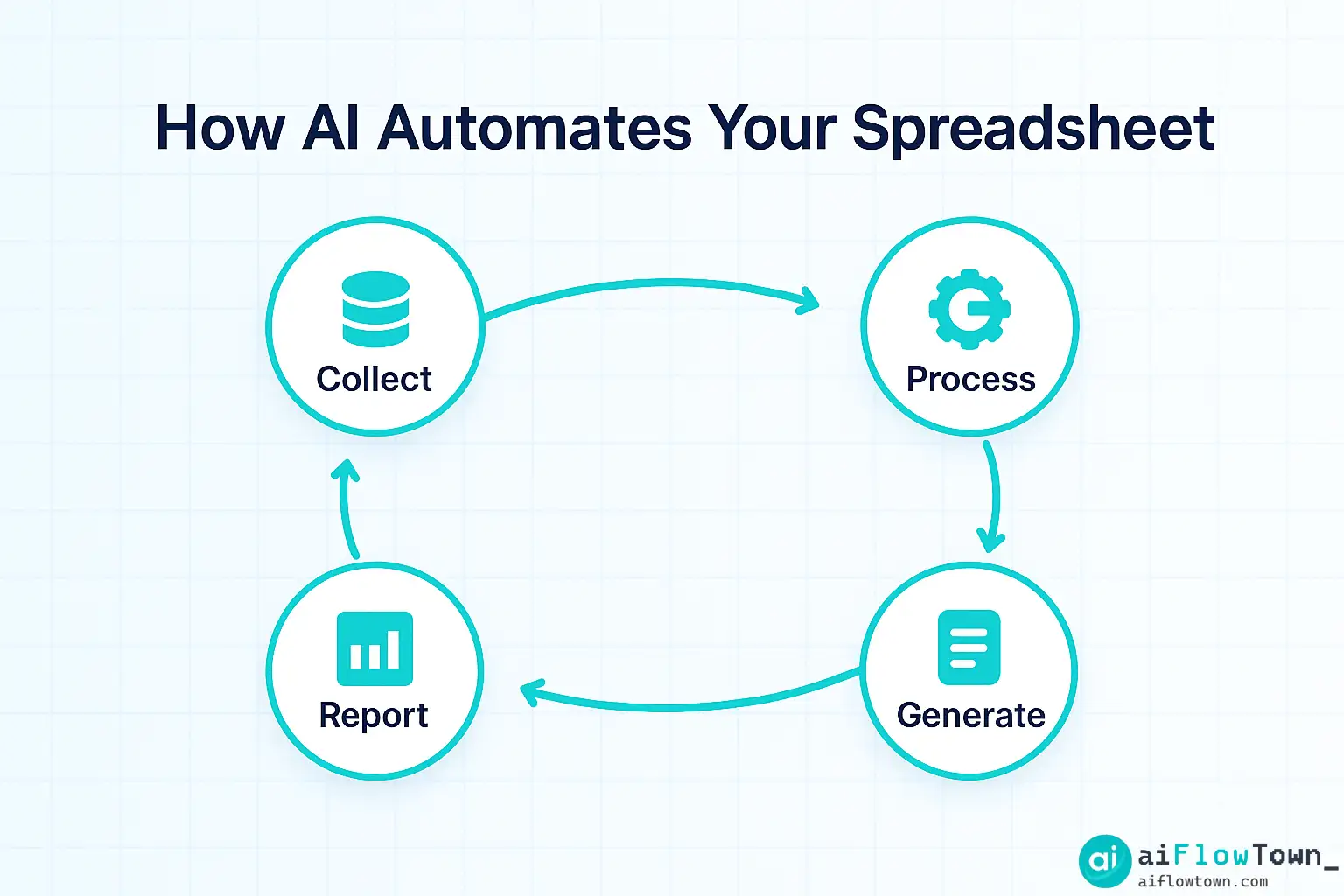
Step 1: Choose your automation model
Option 1: ChatGPT as your in-cell assistant
OpenAI’s ChatGPT can be connected directly to Google Sheets using APIs or extensions like “GPT for Sheets.” You simply type “=GPT(“ in a cell, describe your task, and watch the magic happen. The model can write product descriptions, summarize reviews, or generate insights right inside your sheet.
Option 2: Zapier or Make for no-code automation
If you want zero code, use Zapier. It connects your Sheets to hundreds of apps and AIs. For instance:
- New form entry → ChatGPT summarizes it → result saved to sheet.
- Invoice update → AI drafts client summary → email sent automatically.
- Data added → AI forecasts next week’s metrics → Slack alert triggered.
It’s the simplest way to make AI do the work quietly behind the scenes.
Option 3: App Script for full control
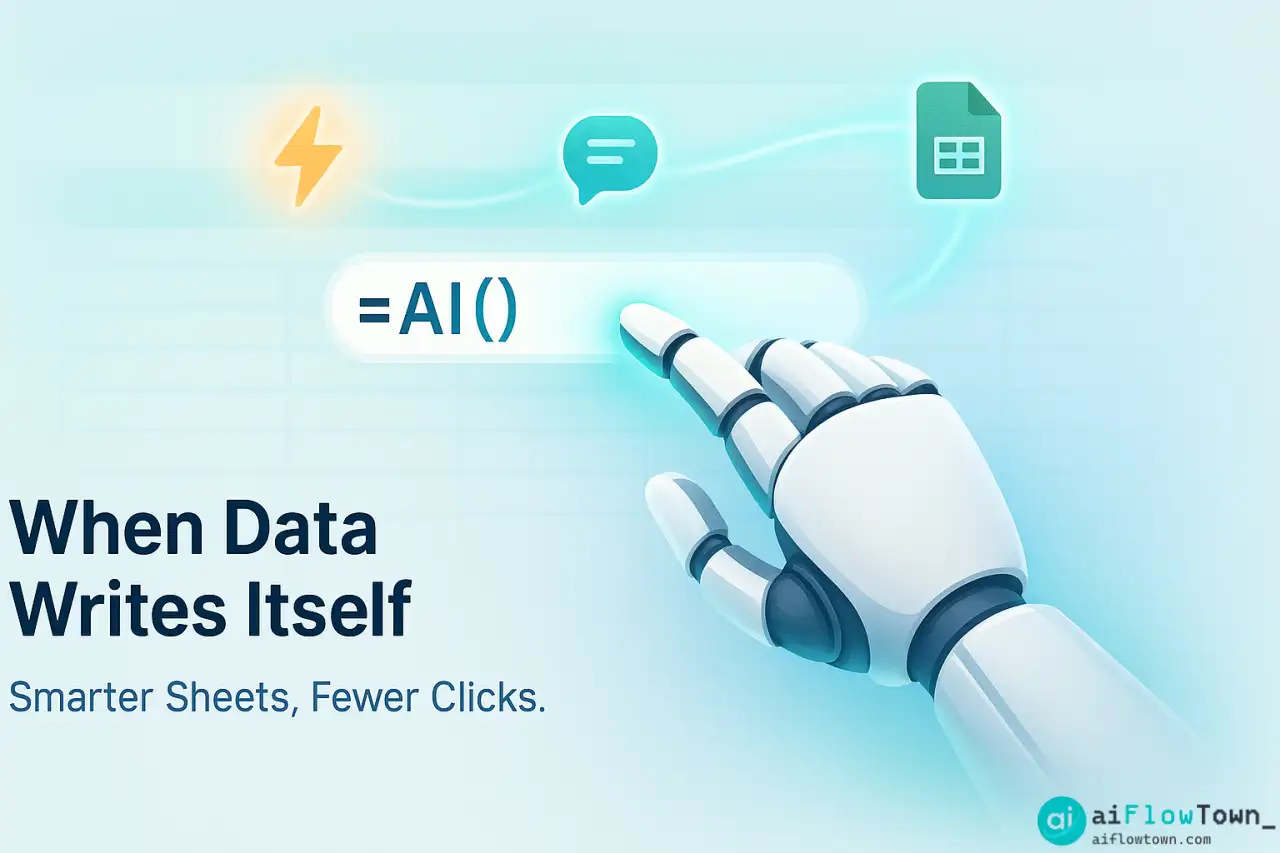
For tech-savvy users, Google Apps Script unlocks total customization. You can write functions like “=AI_SUMMARY()” that send data to OpenAI, get the response, and insert it automatically. It’s ideal for dashboards, analysis, and daily updates you never want to touch again.
Step 2: Build your AI prompts like logic circuits
Every automation begins with a good prompt. Think of it as instructions for your AI employee — the more context you give, the smarter it behaves.
Prompt templates that work
- “Summarize the data in range A2:C20 in one sentence highlighting trend changes.”
- “Convert this list of tasks into a weekly plan grouped by priority.”
- “Explain what happened in this dataset like you’re talking to a 12-year-old.”
The point isn’t to sound formal. It’s to sound specific. The AI doesn’t read your mind — it reads your intent.
Prompt layering
Use a two-step prompt system for precision:
- First, define the goal: “Analyze customer feedback for recurring themes.”
- Then, define the format: “Return a 3-column summary with sentiment, topic, and frequency.”
This structure ensures that every automation gives output you can reuse instantly. It’s also reusable across workflows — similar logic applies to Notion or email automation. (See more examples in AI Productivity Prompts.)
Step 3: Connect the ecosystem
Google Sheets isn’t an island — it’s a nerve center. AI automation reaches its full power only when data flows freely in and out. Connect these pathways:
Inbound automation
Use Google Forms, CRM exports, or APIs to feed live data. Every time new data lands, AI processes it automatically — no manual import, no dragging CSVs.
Outbound automation
Send insights elsewhere — a Slack message, Notion dashboard, or client report. For instance, “When revenue increases 10% week-over-week, alert the team in Slack.”
Smart synchronization
Apps like Zapier, Make, and Pabbly connect everything. Claude can write summaries while ChatGPT handles formula generation. The result: one tool writes, one thinks. You just supervise.
Step 4: Create self-writing reports
Why it works
Humans summarize; AI systematizes. Once you integrate AI with Sheets, reporting becomes storytelling. Instead of numbers, you get narratives. A line graph becomes a paragraph: “Revenue rose 14% thanks to seasonal demand and lower churn.” It’s the difference between information and insight.
Building your report bot
Here’s a basic weekly summary workflow:
- 1️⃣ Every Friday → Zapier extracts summary data from Sheets.
- 2️⃣ Sends it to ChatGPT → prompt: “Summarize weekly changes and give one improvement idea.”
- 3️⃣ ChatGPT writes a paragraph → saved into a new tab called “Weekly Summary.”
- 4️⃣ The summary is emailed to the team automatically.
With that, your reporting loop becomes completely hands-free — and readable.
Beyond text: visual storytelling
AI can even suggest better visuals. Ask ChatGPT: “Which chart best explains cost vs. profit across months?” It might answer, “Use a dual-axis line chart — one for revenue, one for margin.” You can then ask Google Sheets to generate that chart. It’s a feedback loop between language and logic.
Step 5: Maintain, monitor, and scale
Keep it healthy
Like any automation, AI sheets need checkups. Review your prompts monthly. Delete outdated automations. Keep data clean. And back up your sheet regularly — remember, AI can only reason as well as the inputs you provide.
Scale with templates
Once a system works, clone it. Create an “AI Template Library” inside Drive. Store your scripts, formulas, and prompt notes. The next time you need a new automation, copy and modify. It’s compound intelligence — the same logic applied to different workflows.
Connect with other systems
Google Sheets is only one node in the AI web. You can sync it with Notion to manage projects, or with Gmail to send automatic updates. The same principles apply everywhere — design once, reuse forever. (For example, see how AI connects tasks and prompts at AI Productivity Prompts.)
Step 6: Rethink your role
From operator to orchestrator
When you automate, your job changes. You’re no longer “doing” data — you’re directing it. The new skill isn’t typing faster; it’s designing smarter workflows. The best operators now think like system architects, not spreadsheet users.
When humans and AI collaborate
AI handles speed; humans handle sense. The point of automation isn’t to replace your decision-making — it’s to buy you time for it. A well-automated sheet is quiet, predictable, and invisible. That’s how you know it’s working.
Real-world ROI
Teams that use AI automations in Sheets often report 40–60% reduction in manual reporting time. Marketing agencies use it for campaign analytics, freelancers for invoices, operations teams for KPIs. Every time AI takes a task, you get an hour back to think strategically.
Conclusion: build once, think forever
When you automate Google Sheets with AI, you’re building more than a spreadsheet — you’re building a small thinking system. It listens, reacts, summarizes, and improves over time. The real reward isn’t convenience — it’s creative freedom. Because when machines do the repeating, humans can finally do the reimagining. That’s the quiet revolution happening in every spreadsheet right now.
⚠️ Reminder: Even the smartest tools / AI can miss small details or make mistakes. Always double-check your work before presenting or publishing it - a quick review can save hours later.