You want an AI assistant that knows your preferences, automates your routines, and helps with your specific workflows—not generic ChatGPT responses. Building one sounds technical, but modern no-code tools let you create a personalized AI assistant in an afternoon. No programming required. This guide shows you how to build an assistant that remembers your context, automates repetitive tasks, connects to your tools, and actually understands what you need before you finish asking.
What a Personal AI Assistant Actually Does
Generic ChatGPT is a blank slate every conversation. Your personal ai assistant is different—it’s customized to you:
- ✅ Remembers your context: Your role, projects, preferences, writing style
- ✅ Automates your workflows: Triggers actions based on your requests
- ✅ Connects to your tools: Gmail, Calendar, Notion, Slack, task managers
- ✅ Learns your patterns: Suggests tasks, reminds you of forgotten items
- ✅ Available 24/7: Via web, mobile, Slack, wherever you work
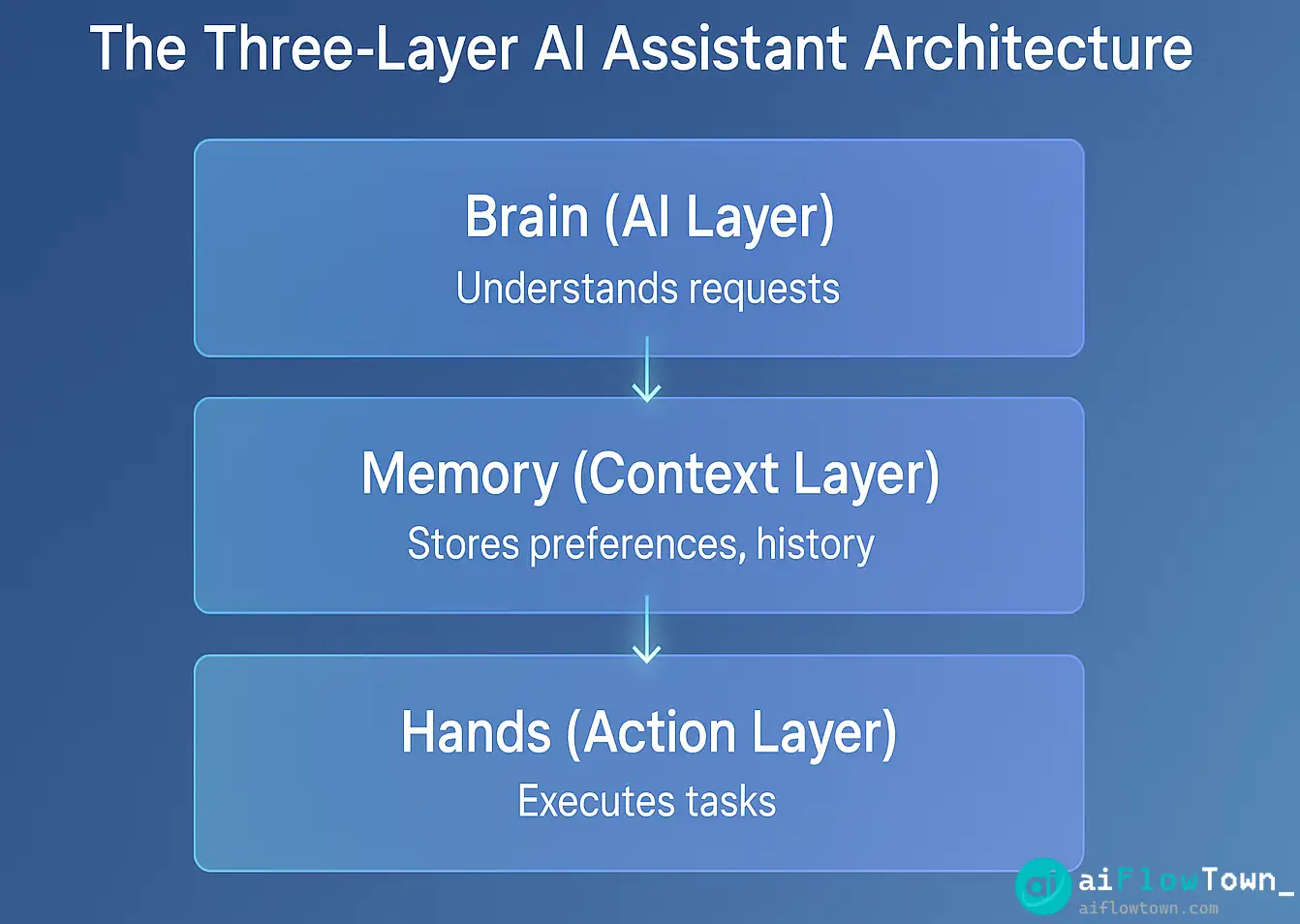
The Three-Layer Architecture
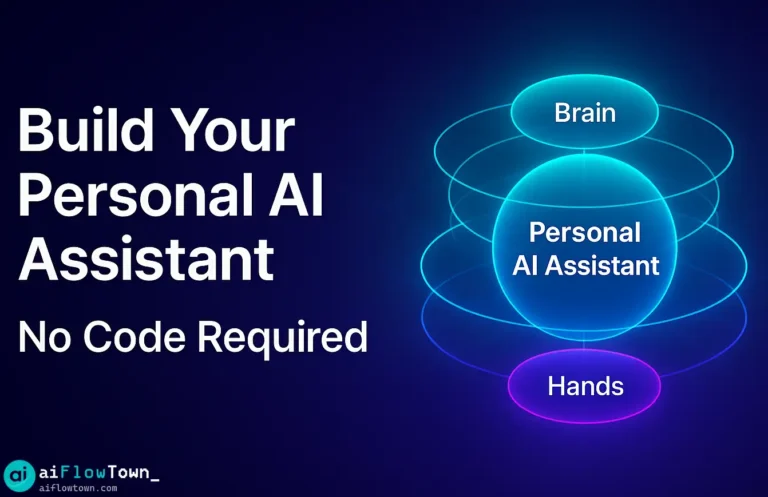
Your assistant has three components working together:
| Layer | What It Does | Tools Used |
|---|---|---|
| Brain (AI) | Understands requests, generates responses | ChatGPT API or Claude |
| Memory (Context) | Stores your preferences, history, data | Notion database or Airtable |
| Hands (Actions) | Executes tasks in your tools | Zapier or Make.com |
These layers enable build custom ai assistant no code functionality that rivals expensive commercial solutions.
Building Layer 1: The AI Brain
Option A: ChatGPT with Custom Instructions
Simplest approach—use ChatGPT với hướng dẫn mở rộng:
In ChatGPT Settings → Custom Instructions:

What would you like ChatGPT to know about you?

"I'm [your role] at [company/industry].

My work involves: [key responsibilities]
My communication style: [direct/formal/casual]
My productivity system: [GTD/Time blocking/etc.]
Tools I use: [list main tools]
My timezone: [your timezone]

Current priorities:
- [Top 3 projects/goals]

Common requests I'll make:
- Draft emails to clients
- Plan my day based on calendar
- Summarize meeting notes
- Generate task lists from discussions"

How would you like ChatGPT to respond?

"Be concise and actionable. Start with the answer, then explain if needed.
Format outputs for easy copy-paste (markdown, bullets, code blocks).
When giving options, rank by my stated priorities.
If I'm unclear, ask ONE clarifying question, don't assume.
Use my timezone for all time-related responses."
This creates create personal chatbot for tasks that understands your context automatically.
Option B: Custom GPT (ChatGPT Plus)
More powerful—build a dedicated GPT for your needs:
- Go to ChatGPT → Explore GPTs → Create
- Name it: “[Your Name]’s Assistant”
- Upload knowledge files: your templates, style guides, project docs
- Set capabilities: Web browsing (for research), Code Interpreter (for analysis)
- Configure instructions (use template above, expanded)
Your Custom GPT remembers uploaded documents and uses them to answer questions specific to your work.
Building Layer 2: Memory System
Notion as Knowledge Base
Create a Notion workspace your assistant can reference:
 AI Assistant Database

 Preferences
- Writing style examples
- Email templates
- Meeting agenda formats
- Decision frameworks

 Active Projects
- Project names
- Key stakeholders
- Deadlines
- Status updates

 People Database
- Clients/colleagues
- Communication preferences
- Previous interactions
- Important dates

 Reference Materials
- Company guidelines
- Industry resources
- Personal notes
- Learning materials
Your assistant queries this database when answering questions, providing contextual responses using ai assistant workflow automation principles.
Connecting Notion to AI
Use Zapier to sync Notion with your assistant:
Zap 1: Context Retrieval
Trigger: You send message to assistant mentioning project name
Action: Zapier searches Notion for project details
Action: Feeds context to ChatGPT API
Response: AI answers with full project context

Zap 2: Memory Update
Trigger: You tell assistant "Remember: [preference]"
Action: Zapier adds entry to Preferences database
Result: Assistant remembers for future conversations
Building Layer 3: Action Automation
Connecting to Your Tools
Your assistant should do things, not just talk. Common integrations:
| Tool | What Assistant Can Do | Example Command |
|---|---|---|
| Gmail | Draft/send emails, search inbox | “Draft reply to Sarah’s proposal” |
| Google Calendar | Schedule meetings, check availability | “When am I free tomorrow afternoon?” |
| Todoist | Add tasks, update priorities | “Add ‘Review Q4 budget’ to work list” |
| Slack | Send messages, post updates | “Tell team standup delayed 30 min” |
| Google Drive | Find files, create documents | “Find that marketing deck from June” |
Example Automation: Email Assistant
What you say: "Draft email to client about project delay"

What happens:
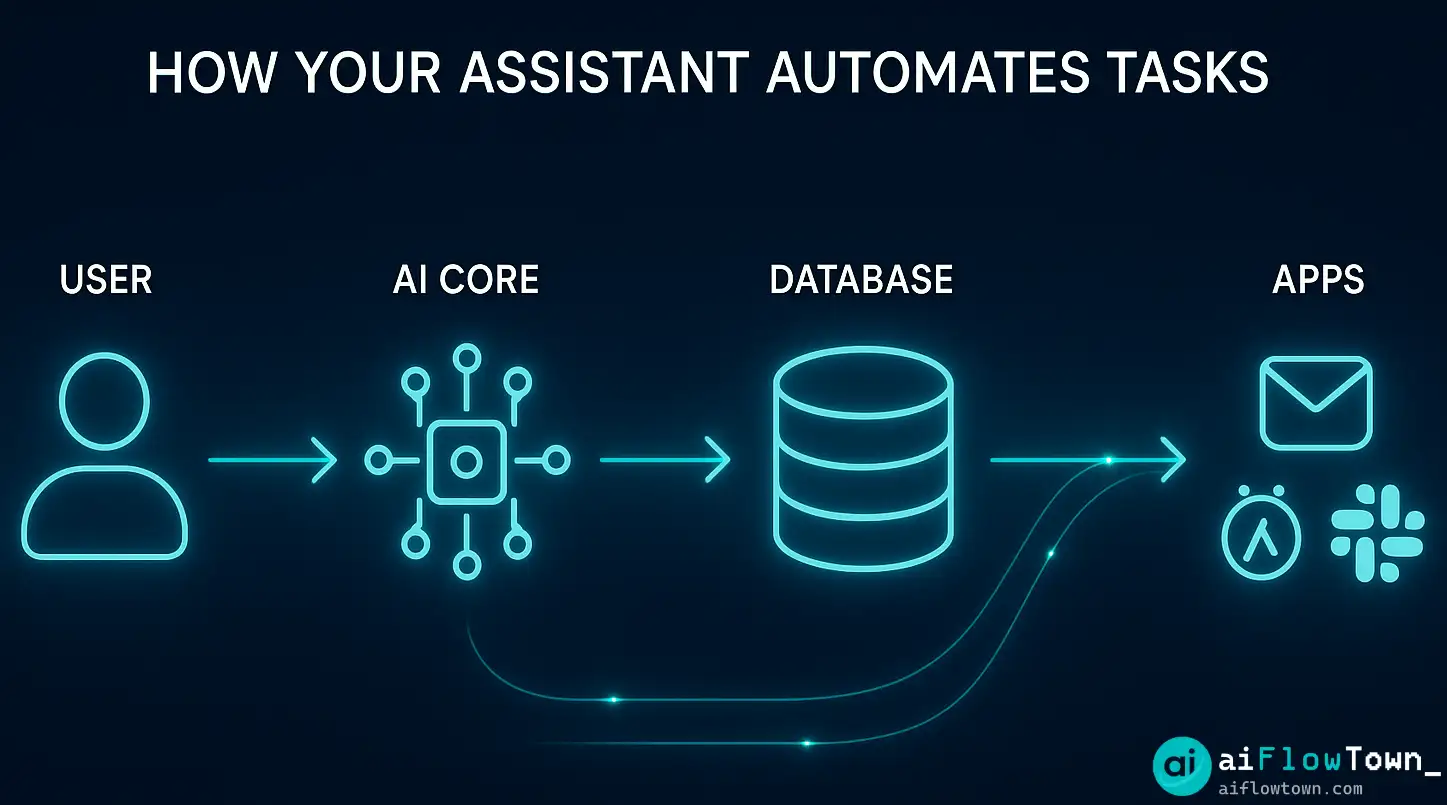
1. Zapier catches your request
2. AI retrieves client info from Notion People database
3. AI checks project status from Projects database
4. AI generates draft using your email template style
5. Zapier creates Gmail draft
6. You get notification: "Draft ready in Gmail"
7. You review, edit if needed, send

Time saved: 10 minutes → 2 minutes
This demonstrates no-code ai helper setup that actually executes tasks.
Interface Options: Where You Talk to Your Assistant
Option 1: Slack Bot
Most convenient for work-focused assistants:
- ✅ Create private Slack workspace (free)
- ✅ Add custom bot connected to ChatGPT API via Zapier
- ✅ Message bot anytime, get instant responses
- ✅ Bot can trigger automations in other tools
- ✅ Available on mobile via Slack app
Option 2: WhatsApp Bot
For personal use or mobile-first workflow:
- ✅ Use Twilio + Zapier to create WhatsApp bot
- ✅ Text your assistant like texting a friend
- ✅ Voice messages converted to text, AI responds
- ✅ Perfect for on-the-go requests
Option 3: Web Dashboard
For desktop-focused work:
- ✅ Custom GPT serves as interface (if using ChatGPT Plus)
- ✅ Or build simple Notion page with embedded bot
- ✅ Or use Voiceflow (no-code bot builder) for custom interface
Real-World Assistant Examples
Example 1: Marketing Manager’s Assistant
Capabilities:
- “Summarize this week’s analytics from Google Sheets”
- “Draft social posts for next week based on content calendar”
- “Check budget status for Q1 campaigns”
- “Generate campaign report using template in Notion”
- “Find competitor analysis doc from last month”
Time saved: 8-10 hours weekly on reporting, searching, drafting.
Example 2: Freelance Designer’s Assistant
Capabilities:
- “What projects are due this week?”
- “Draft invoice for Client X based on hours logged”
- “Generate project proposal for new client inquiry”
- “Remind me to follow up on quote sent last Tuesday”
- “Find style guide for [brand] project”
Time saved: 5-7 hours weekly on admin tasks.
Example 3: Student’s Study Assistant
Capabilities:
- “Quiz me on biology chapter 8”
- “Add homework assignments from syllabus to calendar”
- “Summarize lecture notes I just uploaded”
- “Create study schedule for finals week”
- “Generate practice problems for calculus exam”
Time saved: 6-8 hours weekly on organizing, note-processing. For more learning tools, check tools and apps.
Step-by-Step Build Process
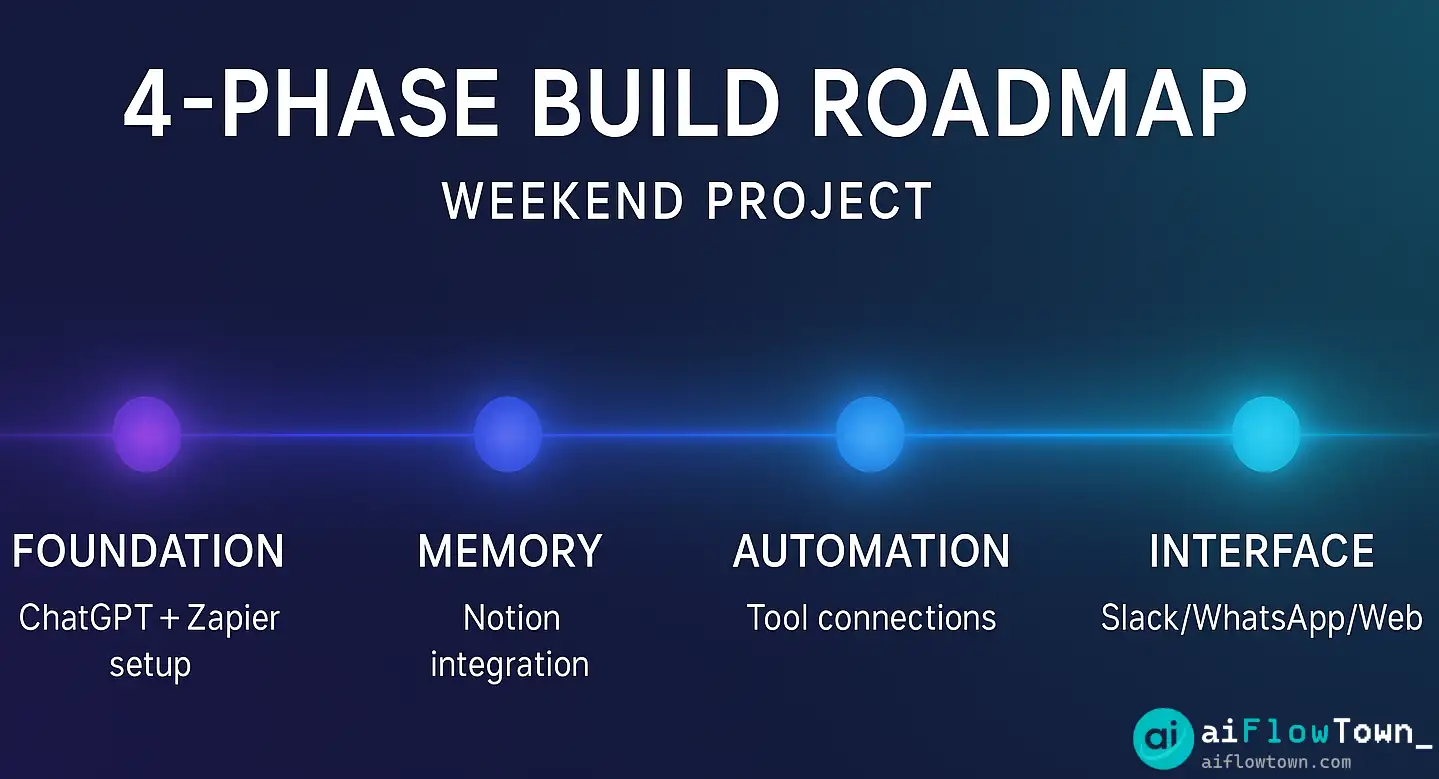
Phase 1: Foundation (1-2 hours)
- Sign up for ChatGPT API ($20/mo budget)
- Set up Zapier account ($20/mo starter plan)
- Create Notion workspace for memory
- Configure Custom Instructions or Custom GPT
- Test basic conversation—verify AI understands your context
Phase 2: Memory (2-3 hours)
- Build Notion databases (Preferences, Projects, People)
- Populate with initial data (your templates, current projects)
- Create Zapier connection between Notion and ChatGPT
- Test: Ask assistant about a project, verify it retrieves Notion data
Phase 3: Automation (3-4 hours)
- Pick ONE tool to connect first (Gmail recommended)
- Create Zapier workflow: Assistant request → Gmail draft
- Test thoroughly with different request types
- Add second tool integration after first works reliably
- Document your commands in Notion for reference
Phase 4: Interface (1 hour)
- Choose interface (Slack, WhatsApp, or web)
- Connect chosen interface to your AI backend
- Test end-to-end: Request → Response → Action
- Invite yourself to start using daily
Total setup time: 7-10 hours spread over a weekend. For more workflow automation guides, visit AI workflows.
Advanced Features to Add Later
Voice Interface
Add speech-to-text so you can talk to your assistant:
Use ElevenLabs or Play.ht for voice
Connect via Zapier or Make.com
Speak request → Transcribed → AI processes → Spoken response
Perfect for hands-free during commute or cooking
Proactive Reminders
Assistant checks your calendar and reminds you automatically:
Daily 8am Zap:
- AI reviews your calendar for the day
- Checks task list against calendar
- Identifies conflicts or preparation needed
- Sends you morning briefing: "Today you have..."
- No manual checking required
Learning from Feedback
Train your assistant to improve:
After assistant completes task:
You rate: Thumbs up or down
If down, explain what was wrong
Zapier logs feedback to Notion
Weekly, review feedback patterns
Update Custom Instructions accordingly
Assistant improves over time
❓ FAQ
What’s the total cost?
Minimum setup: ChatGPT API ($20-30/mo) + Zapier ($20/mo) = $40-50/mo. Optional: ChatGPT Plus ($20/mo) for Custom GPTs. Free alternatives exist (using ChatGPT free tier + manual processes) but with significant limitations. Cost justified if saving 5+ hours weekly.
Is my data secure?
Data flows through OpenAI API, Zapier, and your chosen tools. OpenAI doesn’t train on API data (per their policy). Zapier encrypts data in transit. Your Notion data stays in your workspace. Risk similar to using any cloud productivity tool. Don’t put highly sensitive data in assistant context.
⚡ How reliable is this setup?
Works 95%+ of the time once properly configured. Occasional issues: API rate limits, Zapier hiccups, misunderstood requests. Keep important workflows manual-capable as backup. Not suitable for mission-critical systems yet, but excellent for productivity enhancement.
Do I need any technical skills?
No coding required, but basic tech comfort helps. If you can create Zapier automations (point-and-click), you can build this. Hardest part: debugging when something doesn’t work—requires patience and methodical testing. Plenty of tutorials available for each tool component.
Can I use this on mobile?
Yes, depending on interface choice. Slack bot works perfectly on mobile. WhatsApp bot designed for mobile. Custom GPT accessible via ChatGPT app. Web dashboard works on mobile browser. Choose interface based on where you work most.
Final Thoughts
Building your personal ai assistant isn’t about replacing human judgment—it’s about automating the mechanical parts of your workflow so you can focus on what requires actual thinking. The assistant handles retrieving context, drafting communications, executing routine tasks, and remembering details you’d otherwise forget.
Start simple: Custom Instructions + one automation. Use it daily for a week. Add features as you discover friction points. After a month, your assistant becomes indispensable—you’ll wonder how you worked without this personalized ai productivity assistant handling your routine coordination.
The goal isn’t a perfect AI that does everything. It’s a useful AI that handles 80% of repetitive work, letting you spend time on the 20% that actually matters. Build that assistant this weekend.
Next: Now that you have your assistant, make it even more powerful with our guide to AI automation tools for beginners that integrate seamlessly.
⚠️ Reminder: Even the smartest tools / AI can miss small details or make mistakes. Always double-check your work before presenting or publishing it - a quick review can save hours later.