The Real Cost of “Untitled Document (47)”
Open your Google Drive right now. How many files start with “Copy of” or end with “(1)” or “(2)”? How many are named “Screenshot” followed by random numbers? Every one of those files represents a moment where you—or someone on your team—was too busy to think of a proper name. AI file organization doesn’t judge you for that. It just fixes it.
Here’s what actually happens when your Drive turns into a landfill of bad filenames: you spend more time looking for files than using them. Your team asks “where’s that document?” in Slack instead of just finding it. New hires can’t locate anything without a guided tour. Productivity dies not from lack of tools, but from not being able to find the right tool when you need it.
The solution isn’t “be more disciplined about naming files.” Humans don’t work that way. The solution is letting AI handle what AI does best: following rules perfectly, every single time.
Why File Chaos Multiplies Faster Than You Think
Week One: The Innocent Beginning
You start a new client project. Create a folder. Everything’s clean. Then reality hits:
- Client emails you three attachments: “Budget.xlsx”, “Budget.xlsx”, “Budget_Final.xlsx”
- You take screenshots for the pitch deck, iPhone saves them as “IMG_8472.png”
- Team members create “Meeting Notes”, “meeting notes”, “Meeting_Notes_2”
- Someone downloads a file, edits it, uploads it back as “Copy of Proposal.docx”
By Friday, your pristine folder looks like a yard sale.
Week Two: The Avalanche
Now you have duplicates of duplicates. Files with the same content but different names. Names that made sense at 11pm but are cryptic at 9am. The worst part? You can’t fix it manually without stopping actual work. So the mess compounds.
This is where ai to rename and organize google drive files changes everything. Instead of fighting entropy, you set rules that prevent chaos before it starts.
How Smart Renaming Actually Works
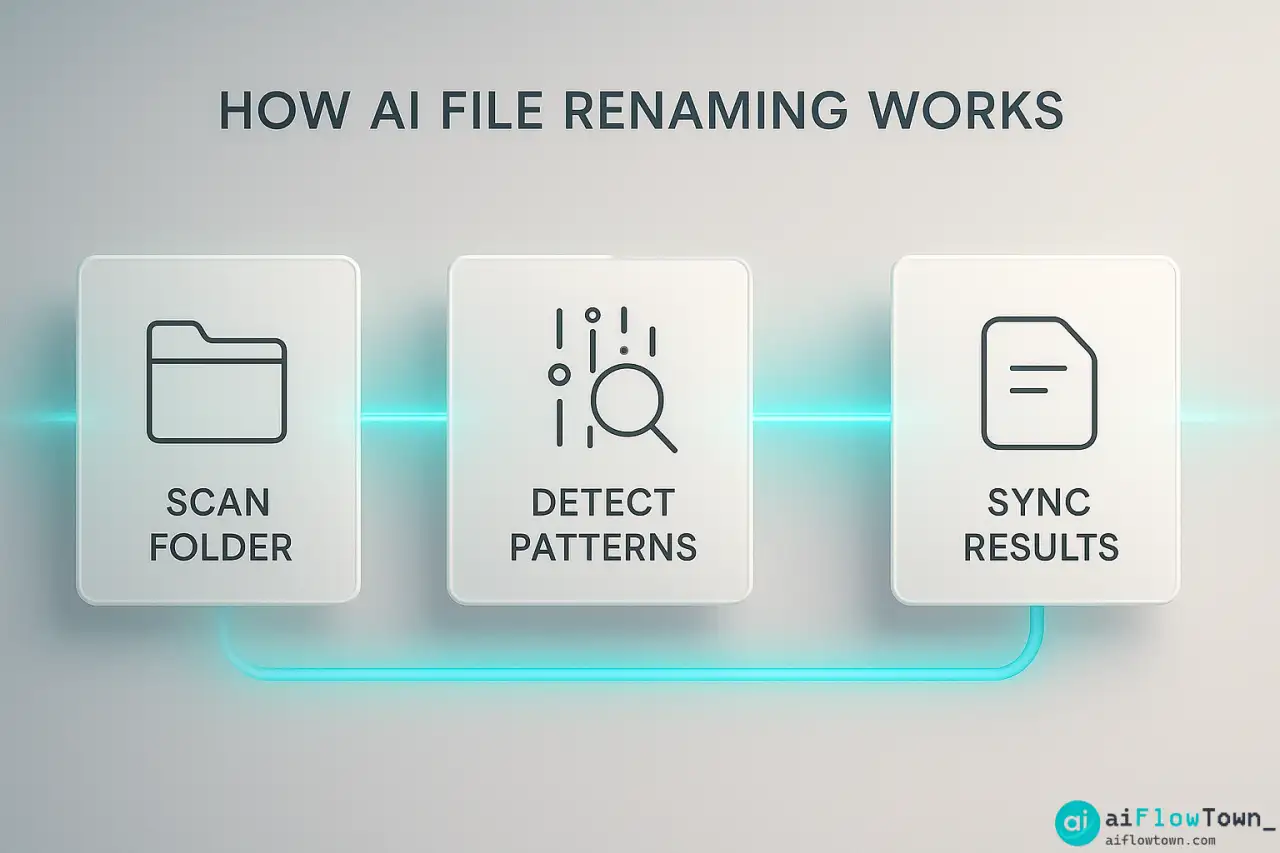
AI file organization isn’t magic—it’s pattern recognition plus automation. Here’s what happens under the hood when you set up intelligent renaming.
The AI Reads, Not Just Labels
Traditional file systems only know what you tell them in the filename. AI goes deeper. It opens your document, reads the first page, identifies key entities (client names, project titles, dates), and understands context. A PDF with “INVOICE” in big letters at the top gets treated differently than a PDF with “PROPOSAL” at the top—even if both are currently named “Document.pdf”.
Tools that support auto organize files with ai rules use natural language processing to extract meaning. This means AI can tell the difference between a meeting note about Q4 planning and a meeting note about hiring, then name them accordingly.
Rules That Think Like You Do
You’re not training an AI model from scratch. You’re teaching it your existing logic. Think about how you currently organize mentally:
“Client files go by client name first, then project, then deliverable type.”
“Meeting notes should have the meeting name and date.”
“Invoices need the client name, invoice number, and month.”
AI takes that mental model and applies it consistently. Every time. No exceptions. No “I was in a hurry” shortcuts.
Batch Processing vs Real-Time Renaming
You have two modes: cleanup and prevention. Cleanup mode processes everything in your Drive right now—all 3,000 poorly-named files get renamed in one sweep. Prevention mode watches for new uploads and renames google drive files automatically with ai as they arrive. Most people use both: clean up the past once, then let AI handle the future automatically.
| Your Current Filename | What AI Sees | What It Becomes |
|---|---|---|
| Document (3).pdf | Contains “Statement of Work” + client “TechCorp” | SOW_TechCorp_Oct2024.pdf |
| IMG_9247.png | Screenshot in “Marketing” folder, contains logo | Marketing_LogoConcept_Draft.png |
| Copy of meeting notes | Google Doc in “Team Sync” folder, dated Oct 15 | TeamSync_Notes_Oct15_2024.doc |
| Budget final FINAL.xlsx | Spreadsheet with Q4 data, modified last week | Budget_Q4_Final_Oct2024.xlsx |
Setting Up Your First Auto-Renaming Rule
Let’s walk through a real setup from zero to working system. I’ll use a common scenario: organizing client proposal documents that currently have terrible names.
Choose Your Tool
You need software that connects to Google Drive and supports ai file naming system for remote teams. Popular options:
- Zapier + ChatGPT plugin – Flexible but requires some logic building
- Make.com (formerly Integromat) – More powerful, steeper learning curve
- Filerev – Built specifically for Drive organization, easiest for beginners
- Otter.ai for transcripts – If you’re organizing meeting recordings
For this example, I’ll use Zapier because it’s accessible and doesn’t require coding.
Connect and Authorize
Link your Google Drive account. The tool needs read access (to see filenames and content) and write access (to rename). Yes, that sounds scary. Check that the service is:
- ✅ SOC 2 Type II certified
- ✅ Uses OAuth (not storing your password)
- ✅ Allows you to revoke access anytime
- ✅ Has transparent privacy policies
Never use random Chrome extensions or sketchy freemium tools for this. Your Drive contains sensitive data. Treat access seriously.
Define Your Naming Logic
Before building rules, write down your ideal naming pattern. Here’s a template that works for most teams:
[DocumentType]_[ClientName]_[ProjectName]_[Date]

Real examples:
→ Proposal_AcmeCorp_WebRedesign_Oct2024
→ Invoice_StartupXYZ_Consulting_Oct2024
→ Contract_BetaInc_AnnualRetainer_Signed_Oct2024
→ Report_ClientABC_Q3Results_Oct2024
Notice the pattern: most specific to least specific, left to right. This makes alphabetical sorting actually useful. All “Proposal” files group together. Within proposals, clients group together. Within a client, projects group together.
Build Your First Rule (Step by Step)
Let’s create a rule for proposal documents. Here’s the exact configuration:
Trigger: New file added to “Proposals” folder
Condition: File type is PDF or Google Doc
AI Action: Read first 500 words, extract client name and project description
Rename Pattern: Proposal_[ClientName]_[ProjectDescription]_[UploadDate]
– Working Rule Configuration –
The AI reads the document, finds phrases like “prepared for Acme Corp” or “regarding website redesign project,” extracts those entities, and constructs the filename. If it can’t find a client name with high confidence, it flags the file for manual review instead of guessing.
Test on Dummy Files First
Don’t unleash this on your real Drive immediately. Create a test folder with 10-15 intentionally messy files:
- Document.pdf (actually a proposal for client “TechStart”)
- Copy of Copy of agreement.docx (actually a contract for “BrandCo”)
- untitled (4).pdf (actually an invoice for “StartupXYZ”)
Run your rule. See what comes out. Adjust the pattern if needed. Common tweaks:
- Change date format to YYYY-MM-DD for better sorting
- Replace spaces with underscores (some systems handle this better)
- Add version numbers if you detect “v2” or “final” in original name
- Limit filename length to 50 characters to avoid truncation issues
Go Live Gradually
Start with one folder. Let it run for a week. Once you trust it, expand to more folders. The beauty of smart file organization using ai tools is that each rule is independent. You can have different logic for different folder types without them conflicting.
For example, explore how other teams handle multi-step AI workflows that combine renaming with other automations like tagging and moving files.
Real Configuration: A Consulting Firm’s Drive Overhaul
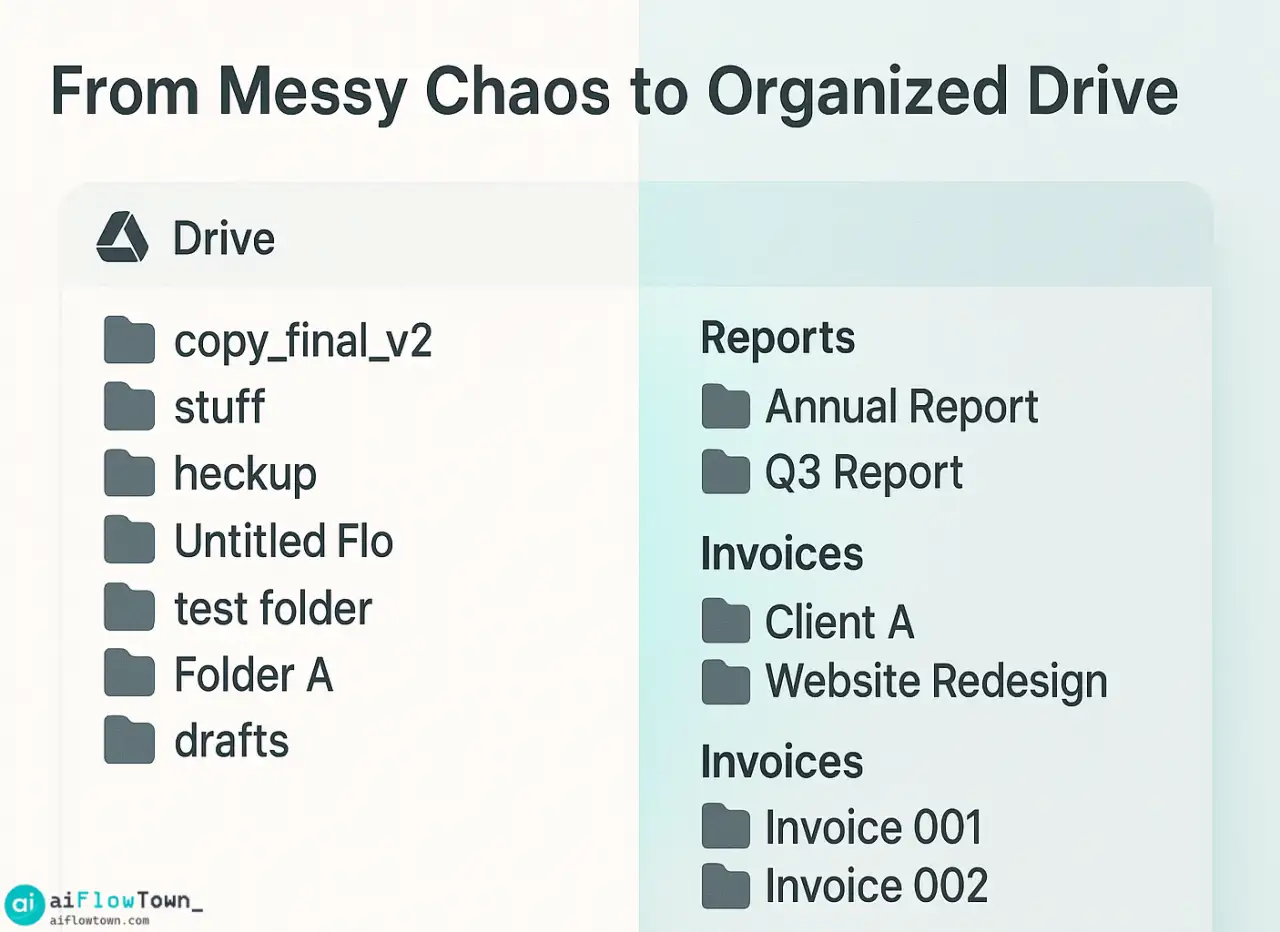
Let’s look at how a 20-person consulting firm transformed their disaster of a Drive into a searchable system using AI rules.
The Situation
Five years of client work. Over 15,000 files. Three different naming conventions because three different partners each had their own system. New consultants spent their first week just learning where things were stored. Searching for files by client name returned dozens of irrelevant results because “client name” appeared in content but not filenames.
The Five Rules They Built
| File Category | AI Rule Logic | Example Transformation |
|---|---|---|
| Client proposals | Extract client name from doc header + date from metadata | doc (5).pdf → Proposal_ClientName_Oct2024.pdf |
| Contracts | Read signatory names + effective date from text | agreement final.docx → Contract_ClientName_Effective_Jun2024.docx |
| Deliverables | Match to project folder name + deliverable type | Report.xlsx → Deliverable_ProjectX_Analysis_Report.xlsx |
| Meeting notes | Parse calendar invite title + meeting date | notes.doc → Meeting_ClientName_KickoffCall_Oct15.doc |
| Invoices | Extract invoice number + client + billing period | Invoice.pdf → Invoice_ClientName_INV2024-045_Oct.pdf |
The 72-Hour Transformation
They ran the rules over a weekend. By Monday morning:
- ✅ 89% of files were automatically renamed and organized
- ✅ Average time to find a client file dropped from 4 minutes to 30 seconds
- ✅ Duplicates were identified (same content, different names) and merged
- ✅ New consultants could navigate the Drive without training
The 11% that couldn’t be auto-processed were edge cases: personal files, archived projects from acquired companies, and files with unusual formats. They manually handled those in a single afternoon—something that would have been impossible before AI did the heavy lifting on everything else.
What This Looked Like in Practice
Before AI, finding last quarter’s deliverable for Client ABC meant:
- Search “Client ABC” → 847 results
- Guess which folder might have it → wrong folder
- Ask colleague who worked on it → they’re in a meeting
- Eventually find it named “Final Report v4 (Sarah’s edits).xlsx”
- Total time: 15 minutes of frustration
After AI organization:
- Search “Deliverable ClientABC Q3” → one result
- Open file → it’s exactly what you need
- Total time: 8 seconds
That’s the difference between a system organized for computers and a system organized for humans.
Common Setup Mistakes (and How to Avoid Them)
The biggest mistake isn’t setting up AI wrong—it’s setting up too much too fast. Start with your messiest folder and one simple rule. Prove it works. Then expand. Perfection is the enemy of progress.
Mistake: Creating Rules Before Understanding Your Search Behavior
Don’t build a naming system based on how you think you should organize. Build it based on how you actually search. Track yourself for a week. What do you type into the search box? “Client name + project”? “Document type + date”? “Project name + version”? Your naming pattern should mirror your search pattern.
Mistake: Ignoring Your Team’s Chaos Patterns
If everyone on your team uploads files with completely random names, your AI rules need to be more aggressive about extracting context from content rather than trusting filenames. If your team is pretty good at naming but inconsistent with format, your rules can be lighter—just standardizing format rather than rewriting everything.
Mistake: Not Handling Duplicates
AI will happily rename two different files to the same name if they have similar content. You need duplicate detection logic. Most tools offer options like:
- Append “_v2” or “_copy” to duplicates
- Add timestamp to filename (ensures uniqueness)
- Flag duplicates for manual review instead of auto-renaming
- Check file hash and skip if identical content already exists
Mistake: Setting It and Truly Forgetting It
AI organization needs a monthly check-in. Are rules still matching correctly? Has your team’s workflow changed? Are there new file types that need rules? Spending 20 minutes per month reviewing keeps the system sharp. Ignoring it for six months means you’ll wake up to new chaos.
Advanced Patterns Once Basic Renaming Works
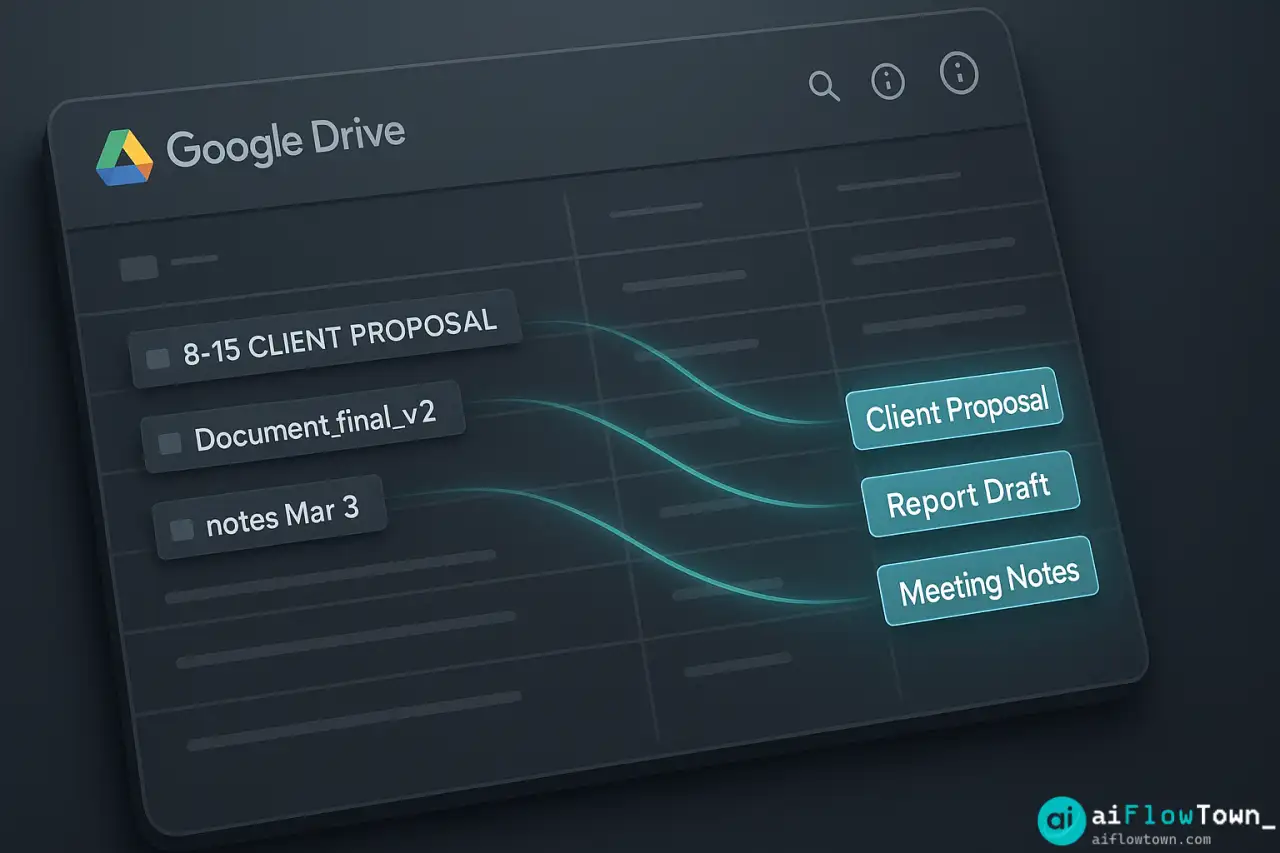
After your core ai to rename and organize google drive files system runs smoothly, you can layer in sophisticated features that make your Drive even smarter.
Automatic Version Control
AI detects when someone uploads a new version of an existing file and appends version numbers automatically. “Report.pdf” becomes “Report_v1.pdf”, next upload becomes “Report_v2.pdf”. You never accidentally overwrite the previous version.
Client-Based Auto-Routing
When AI detects a client name in a file, it doesn’t just rename—it moves the file to that client’s folder automatically. Upload a file anywhere in your Drive with “Acme Corp” in the content, and it ends up in the Acme Corp project folder with a proper name. No dragging, no thinking.
Smart Tagging from Content
AI reads the file and adds status tags to the name: “[DRAFT]”, “[APPROVED]”, “[URGENT]”. These tags come from either explicit text in the document or implicit context (like due dates or approval stamps). Makes filtering and prioritizing visual at a glance.
You can combine this with the techniques from beginner-friendly AI automation to create even more powerful workflows.
Integration with Project Management Tools
Connect your Drive to Asana, Monday, or Notion. When a task is marked “Complete”, AI finds related files and updates their names to include “[FINAL]” or “[DELIVERED]”. When a project moves to “Archive” status, Drive files get moved to an archive folder automatically.
| Advanced Feature | What It Does | Best For |
|---|---|---|
| OCR + Rename | Scans images/PDFs, extracts text, renames based on content | Teams with lots of scanned documents |
| Sentiment detection | Tags files as “positive” or “issue” based on language tone | Customer feedback or support teams |
| Language detection | Adds language code to multilingual document names | International teams |
| Expiration dates | Reads “valid until” dates, archives files after expiration | Legal or compliance teams |
Maintenance: Keeping Your System Clean Long-Term
AI organization isn’t fire-and-forget. It’s fire-and-check-occasionally. Here’s a realistic maintenance schedule:
Weekly: Spot Check
Look at your most active folder. Are new files being renamed correctly? If you spot pattern failures, note them for your monthly review.
Monthly: Rule Audit
Review your AI logs (most tools provide these). Which rules triggered most often? Which rules failed to match? Adjust patterns based on real usage. This takes about 20-30 minutes and keeps your system accurate as your work evolves.
Quarterly: Full System Review
Search your Drive for common bad patterns: “Copy of”, “untitled”, files ending in “(1)” or “(2)”. These indicate files that slipped through your rules. Figure out why and create rules to catch them next time. For more comprehensive strategies, check out AI prompt patterns that can help refine your automation logic.
Yearly: Naming Convention Review
Your business changes. Your projects change. Your team changes. Your naming convention should evolve too. Once a year, ask your team: “Does our current file naming still make sense?” Adjust rules based on feedback.
❓ FAQ
What happens if AI renames a file incorrectly?
Most tools keep a rename history. You can undo individual renames or batch undo if something goes wrong. That’s why testing on a small folder first is crucial—you catch logic errors before they affect your whole Drive.
Can AI read sensitive information in my files?
Yes, AI needs to read file content to rename intelligently. Use tools that are SOC 2 compliant and process data securely. For highly sensitive files, consider excluding certain folders from AI processing and organizing those manually.
Is this worth it for small teams or individuals?
Absolutely. Even as a solo user, if you’re wasting 30 minutes per week searching for files, that’s 26 hours per year. Most AI organization tools cost less than $15/month. The ROI hits positive in the first month.
What about files that don’t fit any rule?
Set up a “needs review” rule as your fallback. If AI can’t confidently match a file to any pattern, it gets moved to a review folder and you handle it manually. This is usually less than 10% of files.
How do I get my team to actually follow the system?
The beautiful part: they don’t have to. They can upload files with terrible names, and AI fixes it automatically. For best results, share a simple one-page guide showing the new naming pattern so people know what to expect, but enforcement is automatic.
Final Thoughts
Your Google Drive doesn’t need to be a productivity black hole. With proper ai file organization, searching for files becomes instant instead of painful. The setup takes an afternoon. The payoff lasts years.
Start with your worst folder—the one that makes you groan when you need to find something. Set up one rule. Watch it work. Then expand. Within a month, file hunting becomes a problem you used to have, not a problem you currently have.
Your time is worth more than manually renaming files. Let AI handle the tedious stuff while you focus on actual work.
⚠️ Reminder: Even the smartest tools / AI can miss small details or make mistakes. Always double-check your work before presenting or publishing it - a quick review can save hours later.