A Better Way to Report AI Projects
Reporting on Artificial Intelligence projects presents unique challenges. How do you effectively communicate progress when dealing with experimental workflows, evolving tools, and sometimes unpredictable outputs? Standard project reports often feel inadequate, failing to capture the nuances of AI development and implementation. Scattered updates across Slack, email, and various documents lead to confusion and a lack of clear visibility. What you need is a dedicated system. This guide introduces the ultimate AI project report template, built specifically for Notion.
Stop struggling with disjointed updates. We’re providing a free, customizable Notion project report template designed to help you clearly articulate project goals, track progress, showcase results (even qualitative ones), document learnings, and detail the specific AI tools and prompts used. We’ll walk you through setting up and utilizing this template to create insightful, consistent reports that keep stakeholders informed and aligned.
This template is more than just a document; it’s a framework for thinking about and communicating the value of your AI initiatives. It provides a structured way to communicate AI project results effectively.
Part 1: The Problem – Why Standard Reporting Fails for AI Projects
Traditional project reporting often focuses on linear progress against predefined tasks. AI projects, however, are frequently more iterative and experimental:
- ❌ Defining Progress: Progress isn’t always linear. Sometimes “progress” involves discovering a prompt doesn’t work or an AI tool isn’t suitable. Standard reports struggle to capture this learning process.
- ❌ Quantifying Value: The benefits of AI aren’t always easily quantifiable in the early stages. How do you report on improved creativity or slightly better draft quality before it translates to hard metrics?
- ❌ Documenting the “How”: The specific prompts used, the AI model versions tested, and the fine-tuning involved are critical details often lost in standard reports but essential for replication and improvement.
- ❌ Scattered Information: Goals might be in one document, progress updates in Slack, tool choices in bookmarks, and results in a spreadsheet. Creating a cohesive report requires significant manual compilation.
- ❌ Lack of Consistency: Different team members might report progress in vastly different ways, making it hard to get a consistent overview across multiple AI initiatives.
A dedicated AI project status report template built in Notion addresses these challenges by providing specific sections for AI-related details and leveraging Notion’s flexibility.
Reporting on AI projects requires a shift from just tracking tasks completed to documenting the process of experimentation, learning, and value discovery.
Part 2: Introducing the Free Notion AI Project Report Template
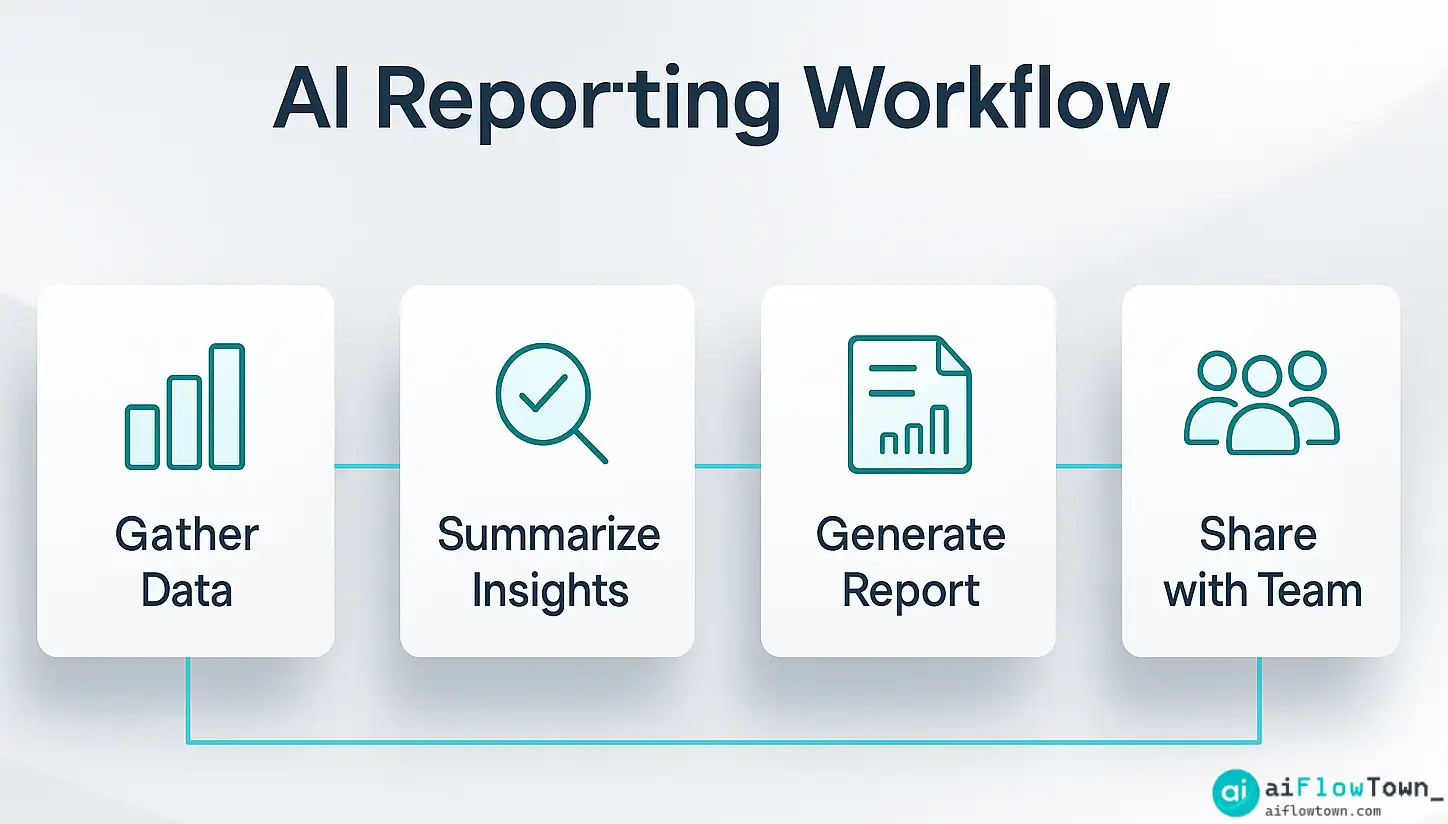
Our template provides a structured yet flexible framework designed to capture the unique aspects of AI projects. It encourages clarity, consistency, and the documentation of crucial details.
Core Sections of the Template:
Each report generated from this template (ideally as a page within a “Project Reports” database) will include these key sections:
- Project Overview & Goals: Define the project, its strategic objective, and the key performance indicators (KPIs) you’re aiming to influence.
- Reporting Period & Status: Clearly state the timeframe covered by the report and the overall project status (On Track, At Risk, Off Track).
- Key Activities & Progress: Detail the main tasks worked on during the period. Use checkboxes or bullet points.
- AI Integration Details:
This crucial section documents the specifics:
- AI Tools Used: List the specific AI models or platforms employed (e.g., ChatGPT-5, Claude 3, Midjourney V6).
- Key Prompts Developed/Used: Include the text of significant prompts, perhaps linking to a dedicated prompt library entry.
- Methodology/Approach: Briefly describe how the AI was used (e.g., “AI used for initial draft generation,” “AI used for data analysis script”).
- Results & Metrics: Showcase the outcomes achieved during the period. Include quantitative data where possible (e.g., “Reduced report generation time by 2 hours,” “Generated 50 unique image concepts”), but also qualitative results (e.g., “Improved first draft quality,” “Identified new content angles”).
- Learnings & Insights: What did you discover? Did a specific prompt perform exceptionally well? Did an approach fail? Capturing these learnings is vital for AI projects.
- Challenges & Blockers: Identify any obstacles encountered (e.g., “API limitations,” “Inconsistent AI output quality,” “Need for better training data”).
- Next Steps: Outline the planned activities for the next reporting period.
Setting Up Your Notion Workspace:
While the template can be used standalone for individual reports, its true power comes from integrating it within a larger Notion setup:
| Recommended Database | Key Properties | How it Connects to the Report Template |
|---|---|---|
| Projects Database | Project Name, Status, Goal, Owner, Timeline, Relation to Reports | Each project page can have a linked view showing all related AI Project Reports. |
| Reports Database | Report Name (e.g., “Project X – Week 42”), Reporting Period (Date), Status, Relation to Project | This is where you’ll create instances of the AI Project Report template for each update. |
| AI Prompt Library (Optional) | Prompt Name, Prompt Text, Category, Relation to Projects | The report template can link directly to specific prompts used via a Relation property. |
| AI Tools Database (Optional) | Tool Name, Category, Link, Relation to Projects | The report template can link to the specific AI tools mentioned via a Relation property. Find inspiration in our list of the best free AI tools. |
Using Notion’s relational database features transforms this from a simple template for ai project updates into an interconnected knowledge management system.
Part 3: How to Use the Notion AI Project Report Template Effectively
Step 1: Duplicate and Customize
Make a copy of the template into your Notion workspace. Go through each section and property. Rename, add, or delete fields to perfectly match your team’s terminology and reporting needs. For instance, you might add a “Budget Used” property or a specific “Risk Level” select property.
Step 2: Establish a Reporting Cadence
Decide how often reports will be created (e.g., weekly, bi-weekly, monthly). Create a recurring task in your calendar or task manager to remind you to fill out the template.
Step 3: Fill Out the Template Consistently
For each reporting period:
- Create a new page in your “Reports Database” using the template.
- Fill in the Project Overview and Goals (these might stay consistent or evolve).
- Detail the Key Activities performed. Be specific.
- Crucially, document the AI Integration Details. Don’t skip this! Capture the prompts and tools used while they are fresh in your mind.
- Record the Results, both quantitative and qualitative.
- Reflect honestly on Learnings and Challenges. This section drives improvement.
- Outline clear Next Steps.
- Link the report back to the main Project page using the Relation property.
Step 4: Leverage Notion AI for Summaries (Optional)
If your “Key Activities” or “Learnings” sections become lengthy, use Notion AI’s built-in features:
- Notion AI Report Section Summary:
Highlight the detailed text within a section (e.g., Key Activities) and use the "Ask AI" command. Select "Summarize". Paste the concise summary at the beginning of that section for quick scanning by stakeholders.
This creates an executive summary layer within your report, showcasing practical Notion AI summary capabilities.
Share the Notion page link with relevant stakeholders. Because it’s a Notion page, they can easily comment directly on specific points, fostering better communication than static PDF reports.
Conclusion: Bringing Clarity to AI Innovation
Effectively reporting on AI projects requires a dedicated approach that captures the nuances of experimentation, tool usage, and iterative learning. This AI project report template for Notion provides a robust, flexible framework to do just that. By standardizing how you document and communicate progress, you enhance visibility, foster better collaboration, and build a valuable knowledge base for future AI initiatives.
Stop letting valuable insights get lost in scattered updates. Duplicate the template, adapt it to your workflow, and start creating clear, consistent, and insightful reports that truly reflect the dynamic nature of your AI projects. For more ways to structure your work, explore additional templates and resources.
❓ FAQ
❓ Is this template suitable for all types of AI projects?
Yes, the template is designed to be flexible. Whether your project involves using AI for content generation, data analysis, automation, or software development, the core sections (Goals, Activities, AI Details, Results, Learnings) are relevant. You should customize the specific properties and details within each section to match your project type.
How much technical skill is needed to use this Notion template?
Basic familiarity with Notion is all that’s required. If you know how to create pages, use databases, and edit properties, you can use this template effectively. Using advanced features like Notion AI Autofill or connecting to Zapier requires additional learning but isn’t necessary for the core template functionality.
How can I visualize the data from these reports?
Notion databases allow for different views. You can create Board views grouped by Status, Calendar views based on Reporting Period, or even use Notion’s basic charting capabilities if you add numerical properties (like ‘KPI Improvement %’). For more advanced visualization, you might export data to Google Sheets or a dedicated BI tool.
Can multiple people collaborate on one report?
Absolutely. Like any Notion page, you can share the report page with collaborators and grant them editing access. Multiple team members can contribute updates to different sections simultaneously. Use comments for discussion directly within the report.
⚠️ Reminder: Even the smartest tools / AI can miss small details or make mistakes. Always double-check your work before presenting or publishing it - a quick review can save hours later.