The Invisible Tasks Hiding in Your Inbox
You process 50 emails today. In your mind, you handled them all—responded, archived, deleted. But buried in those emails were 8 action items you needed to track: follow-ups promised, deadlines mentioned, deliverables requested. You remember the obvious ones, but the casual “can you also check on X when you get a chance?” slips through.
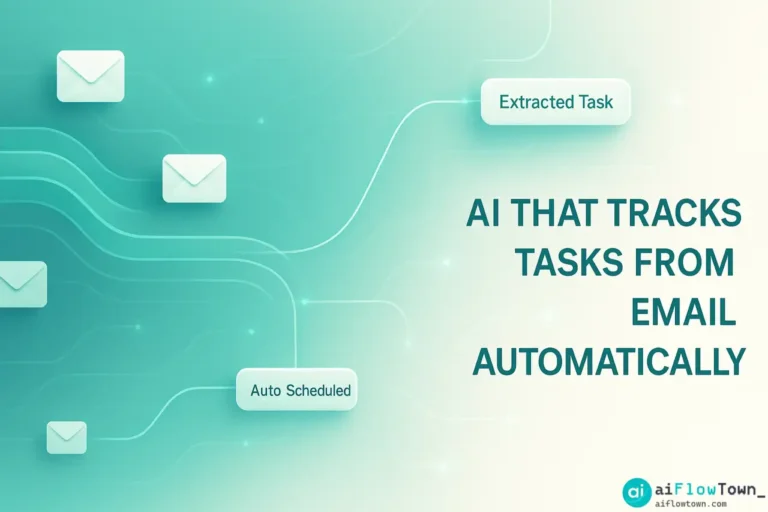
Two weeks later, someone asks “did you ever check on X?” You didn’t. It wasn’t in your task manager because you never manually transferred it from that email. Using ai email tasks tracking prevents this by catching every action item automatically, even the ones you’d miss.
The problem isn’t carelessness—it’s cognitive load. Your brain is managing the conversation, composing responses, and making decisions. Simultaneously parsing each email for trackable action items and manually adding them to another system? That’s asking your brain to do too much. AI handles the parsing and transfer so you can focus on the actual work.
Why Manual Email-to-Task Transfer Fails
The Interruption Cost
You’re reading an email. Realize it contains a task. Stop reading. Open your task manager. Create the task. Return to email. Context switched twice. Multiply this by 15 emails per day with embedded tasks. You’re fragmenting your attention dozens of times, killing productivity with each switch.
The “I’ll Remember This” Trap
Small tasks feel too minor to formally track. “Just need to send that link to John”—feels like you’ll remember. You don’t. By afternoon, you’ve processed 30 more emails and that small commitment is gone. It resurfaces when John follows up three days later asking “did you send that link?”
Inconsistent Capture
When you’re fresh in the morning, you diligently add email tasks to your system. By 4pm when you’re tired, you skip the manual transfer. Your task list becomes an incomplete picture of your commitments. This is where extract action items from emails with ai maintains consistency regardless of your energy level.
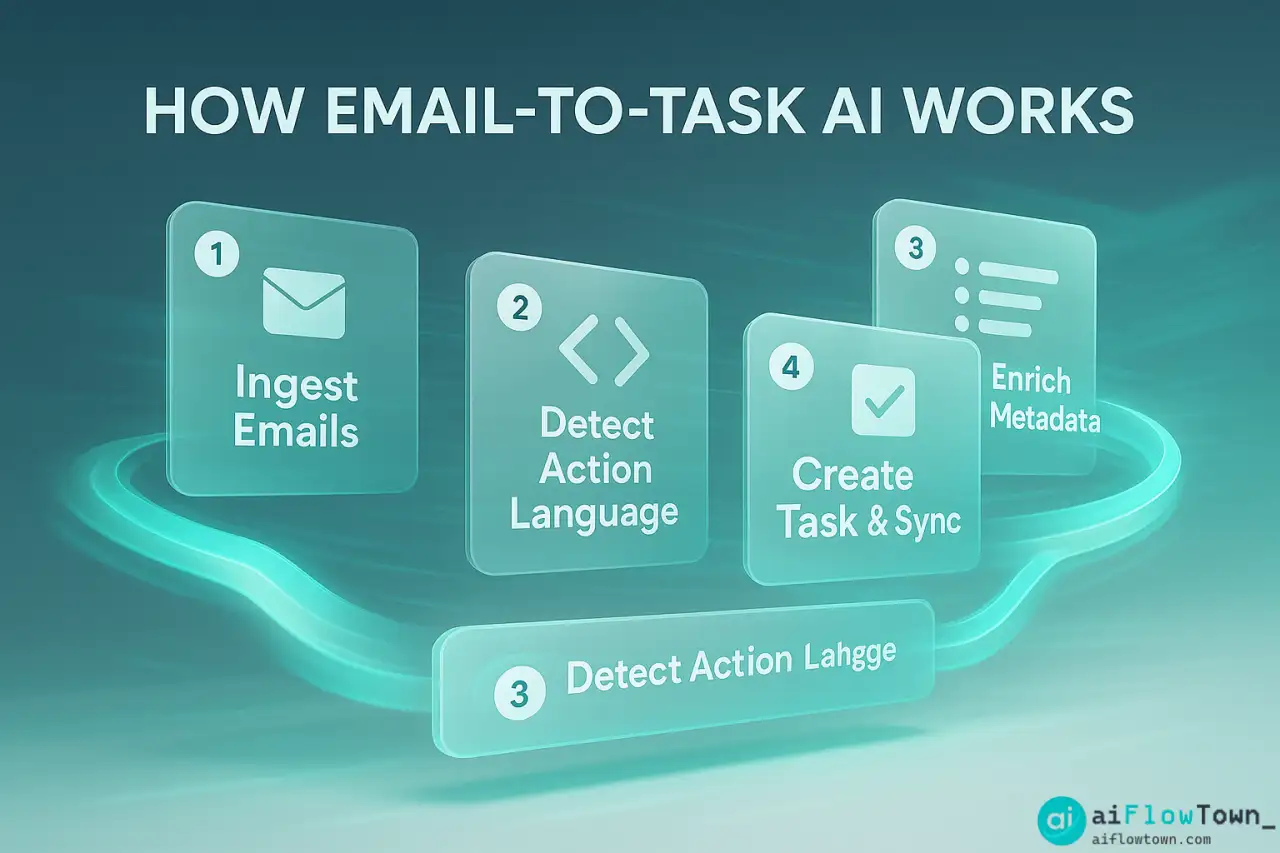
How AI Detects Tasks in Emails
Natural Language Understanding
AI recognizes action-oriented language patterns:
– “Can you…” / “Could you…” = Request for action
– “By Friday…” / “Before the meeting…” = Deadline mentioned
– “I’ll…” / “I will…” = Commitment you’re making
– “Don’t forget to…” / “Remember to…” = Reminder of task
– “Following up on…” = Previous commitment needs attention
These patterns appear across different email styles. AI catches them regardless of whether the sender is direct or politely indirect using automate task creation from inbox using ai intelligence.
Context Analysis
AI doesn’t just extract sentences—it understands what’s being asked. “Can you review this?” becomes a task titled “Review [document name]” with the document attached as context. “Let’s schedule a meeting next week” becomes “Schedule meeting with [person] about [topic discussed in email]” with suggested due date.
Priority and Urgency Detection
AI identifies urgency signals: “ASAP,” “urgent,” “as soon as possible,” “by end of day.” These automatically get flagged as high-priority tasks. Casual “when you get a chance” items get marked as low priority. You get a pre-sorted task list, not just a dump of everything. For more workflow strategies, visit AI workflow automation.
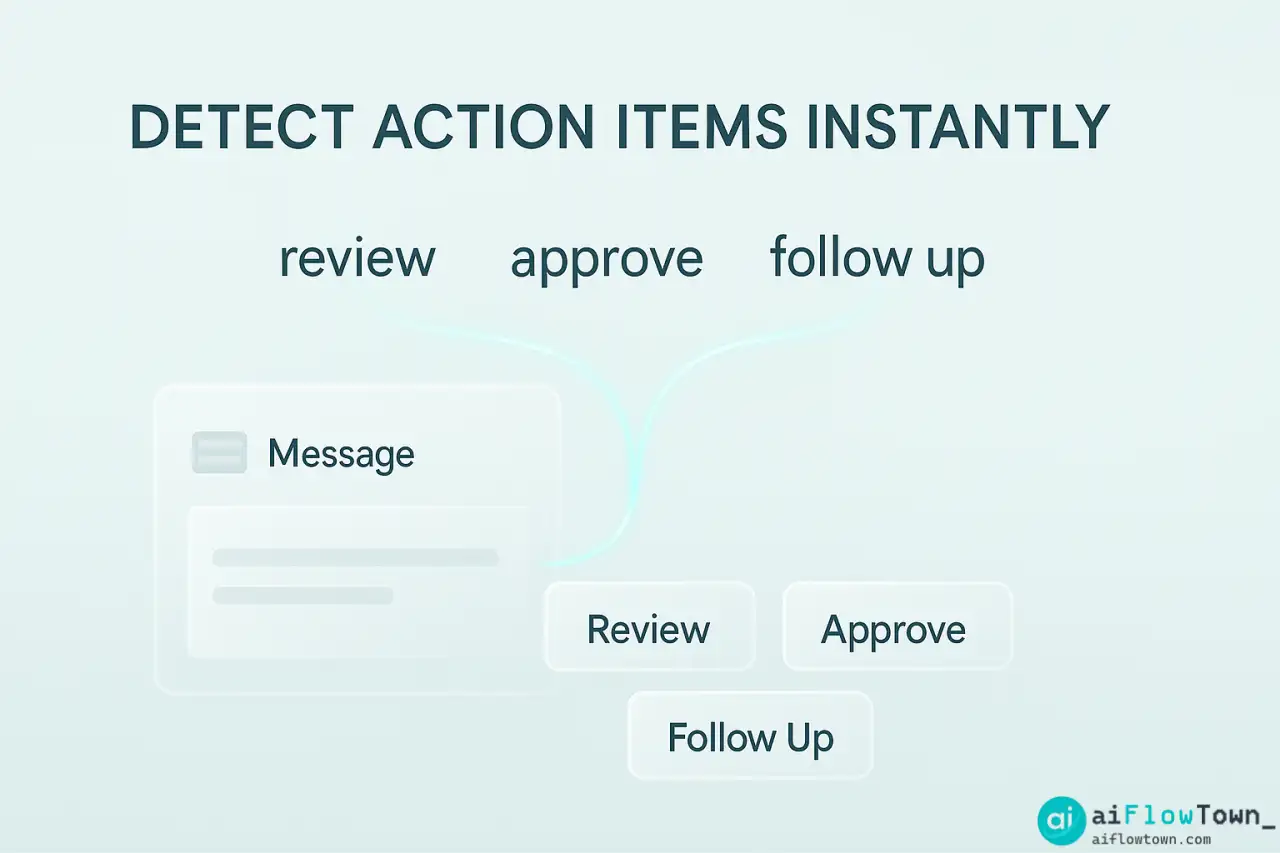
Setting Up AI Email Task Tracking
Choose Your Integration Method
| Method | Best For | Setup Complexity |
|---|---|---|
| Gmail + Todoist AI | Simple setup | Low |
| Outlook + Microsoft To Do | Microsoft users | Low |
| Zapier + ChatGPT + Any task app | Custom workflow | Medium |
| SaneBox + task manager | Email filtering + tasks | Medium |
Basic Configuration
Set up AI to monitor your inbox with specific rules:
Scan emails for:
- Direct requests ("can you", "please", "would you")
- Commitments you make ("I'll", "I will", "I can")
- Deadlines mentioned (dates, "by Friday", "before the meeting")
- Follow-up needs ("circle back", "following up", "checking in")

For each detected task:
- Extract the action item
- Identify the deadline if mentioned
- Note the requester
- Attach email context
- Assign priority based on urgency language

Create task in [your task manager] with these details.
This enables smart email task detection with ai tools to work automatically. Learn more at AI automation for beginners.
Advanced Filtering
Not every email action needs to become a formal task. Configure exclusions:
- ✓ Skip tasks from newsletters or automated emails
- ✓ Ignore tasks you’ve already completed (AI checks if you replied)
- ✓ Filter out internal team coordination that doesn’t need tracking
- ✓ Combine multiple requests from same email into one task
Fine-tuning prevents task list overload with trivial items.
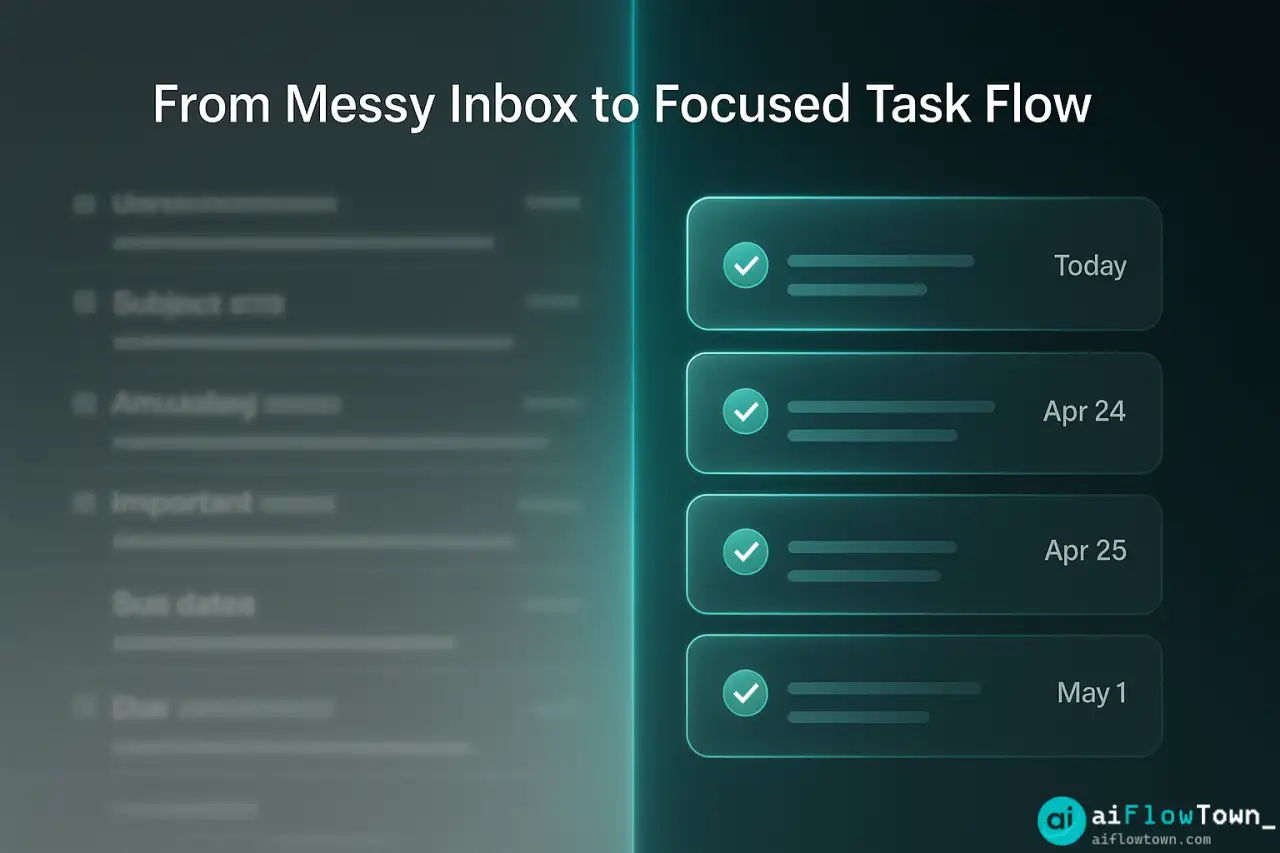
Real Example: Email Task Transformation
The Before State
Marcus, a project manager, received 60-80 emails daily. His method: flag emails that contained tasks, plan to review flags at end of day and transfer to task manager. Reality: by evening, he had 15 flagged emails and was too tired to process them properly. He’d skim, create vague tasks like “follow up on client thing,” and miss details.
Result: incomplete task capture, vague task descriptions, no deadline tracking, frequent “I forgot about that” moments.
The AI Implementation
Marcus set up Zapier + ChatGPT + Todoist integration. Every email hitting his inbox got analyzed. Tasks automatically appeared in Todoist with:
- Clear action description
- Extracted deadline
- Who requested it
- Link back to original email
- Priority flag based on email language
Results After 30 Days
Metrics:
– Tasks captured: 87 (vs ~45 manually)
– Missed commitments: 2 (vs ~12)
– Time spent on email-to-task transfer: 5 min/day (vs 30 min)
– “Can you also…” tasks caught: 23 (previously missed)Marcus: “I didn’t realize how much I was dropping. AI catches the subtle requests I’d miss—someone saying ‘would love your thoughts on X’ now becomes a task instead of falling through cracks.”
– AI Task Tracking Impact –
This demonstrates how convert emails to tasks automatically with ai improves capture completeness.
Advanced Use Cases
Meeting Action Items
Connect AI to your meeting transcription tool. After every meeting, AI scans the transcript for commitments made:
"John will send the report by Tuesday" → Creates task for John
"Sarah mentioned she'll follow up with legal" → Creates task for Sarah
"Team needs to review options before next sync" → Creates task for whole team
Action items from meetings automatically flow into task lists without manual note-taking transfers.
Client Communication Tracking
For client-facing roles, set up special handling:
“When email is from a client domain, automatically tag task as ‘Client’ and set priority to High. Include client name in task title. Add to ‘Client Commitments’ project for easy filtering.”
Now you have automatic tracking of all client promises, preventing missed deliverables that damage relationships.
Team Delegation Automation
When AI detects a task assigned to someone on your team, it can automatically create the task in their task manager and notify them. Delegation happens in the background as you process email. For more tips, visit productivity flow hacks.
Common Mistakes to Avoid
The biggest mistake is never reviewing AI-created tasks. AI isn’t perfect—it occasionally creates duplicate tasks, misinterprets context, or extracts something that isn’t actually a commitment. Daily quick review of auto-generated tasks catches these issues before they cause problems.
Trusting AI Completely
AI might interpret “it would be nice if someone could look into X” as a task assigned to you when it was actually a general suggestion. Always scan your auto-created tasks, especially early on, to catch misinterpretations. Most tools improve as they learn your patterns.
Not Customizing for Your Role
Default settings work for general use but miss role-specific patterns. If you’re in sales, customize to catch “send proposal” and “schedule demo” phrases. If you’re in support, train AI to recognize “ticket,” “escalate,” and “follow up” in context of customer issues.
Letting the Task List Bloat
AI creates tasks eagerly. Without regular cleanup, your list fills with low-priority items that clutter visibility of what actually matters. Set up weekly reviews to archive completed items and delete tasks that are no longer relevant.
❓ FAQ
Does AI read all my emails including personal ones?
You control which folders or labels AI monitors. Most people set it to scan only work email or specific folders. Personal email can be excluded. Check your tool’s privacy settings and data handling policies before connecting.
What happens if I already completed a task before AI creates it?
Good AI tools check if you’ve replied to the email before creating a task. If you responded handling the request, no task is created. You can also quickly mark auto-created tasks as complete if you’ve already handled them.
Can this work for team emails and delegation?
Yes. AI can detect when tasks are assigned to specific team members and route accordingly. “John, can you handle X” creates a task for John, not you. Requires setup to recognize team member names and email addresses.
⏰ How quickly do tasks appear after email arrives?
Usually within 1-5 minutes. Some tools process in real-time, others batch every few minutes. Fast enough that by the time you finish reading the email, the task is already in your system.
Is this expensive to set up?
Basic versions are often free or included in existing tool subscriptions. Advanced automation might require paid plans ($10-20/month typical). Given the time saved and missed tasks prevented, ROI is usually immediate.
Final Thoughts
Your inbox contains a hidden to-do list scattered across dozens of emails. Manually transferring those commitments to your task manager is tedious and error-prone. With ai to track tasks from email automatically, every action item gets captured consistently, regardless of how busy or tired you are.
Set this up once and forget about it. AI works in the background, catching tasks while you focus on actually completing them. No more “I forgot I promised to do that” moments. No more scrambling to remember what that email asked for.
Your task list becomes a complete picture of your commitments, not just the ones you remembered to write down. That completeness is worth far more than the ten minutes it takes to set up the automation.
⚠️ Reminder: Even the smartest tools / AI can miss small details or make mistakes. Always double-check your work before presenting or publishing it - a quick review can save hours later.