Why Follow-Ups Get Missed
You know follow-ups matter. Studies show 80% of sales require 5+ follow-ups, but most people stop after one or two. It’s not laziness—it’s cognitive load. Remembering who needs a follow-up, when to send it, and what context to include across dozens of clients is impossible to manage mentally.
Manual systems fail because they require discipline and memory during your busiest moments. You’re in back-to-back meetings all day, then realize at 6pm you forgot to follow up with three people. By then, you’re too tired to write thoughtful emails. So they wait until tomorrow. Tomorrow brings new urgencies. The cycle continues.
Using automate follow up emails with AI doesn’t make you less personal—it ensures the personal touch actually happens consistently. The system remembers so you don’t have to.
The Complete Automation Flow
Components You Need
| Component | Purpose | Options |
|---|---|---|
| Trigger source | What starts the follow-up | Calendar event, CRM update, form submission |
| Automation platform | Connects everything | Zapier, Make.com, n8n |
| AI writing | Generates personalized emails | ChatGPT API, Claude API |
| Email sender | Actually sends the email | Gmail, Outlook, your CRM |
| Tracking | Records what was sent | Google Sheets, Airtable, CRM |
This workflow for how to automate client follow-up emails with ai integrates existing tools you likely already use. For more automation strategies, visit AI workflow optimization.
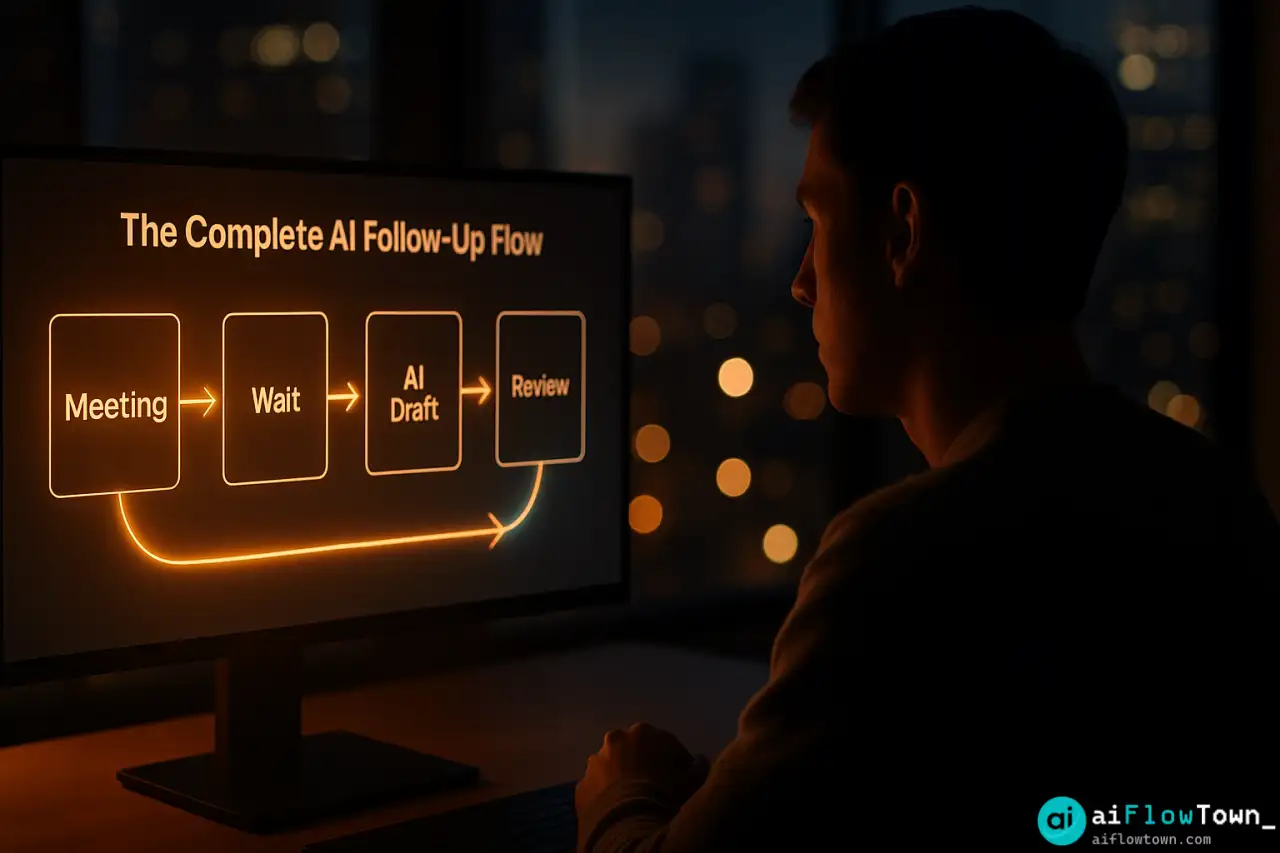
The Basic Zapier Flow
Here’s the simplest version that works:
Trigger: Calendar event ends (meeting with client)
Delay: Wait 24 hours
ChatGPT: Generate follow-up email using meeting notes
Gmail: Create draft (not auto-send—you review first)
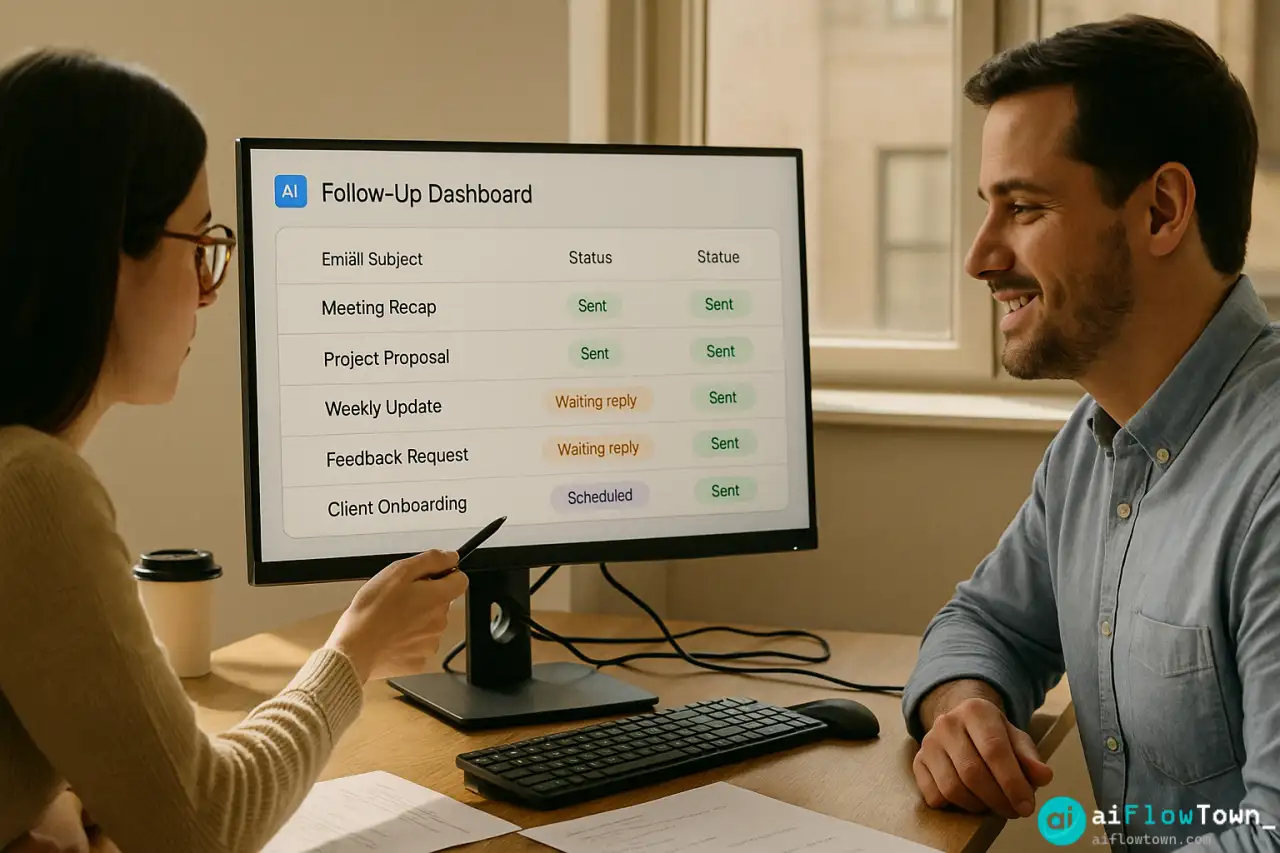
Google Sheets: Log that follow-up was created
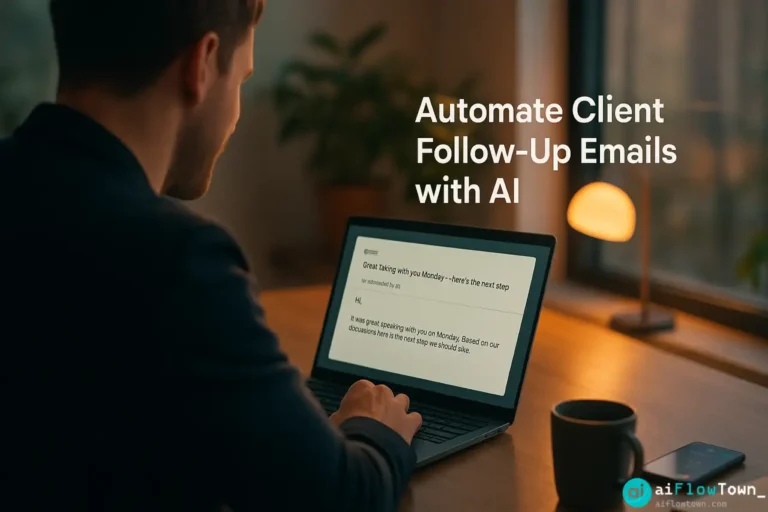
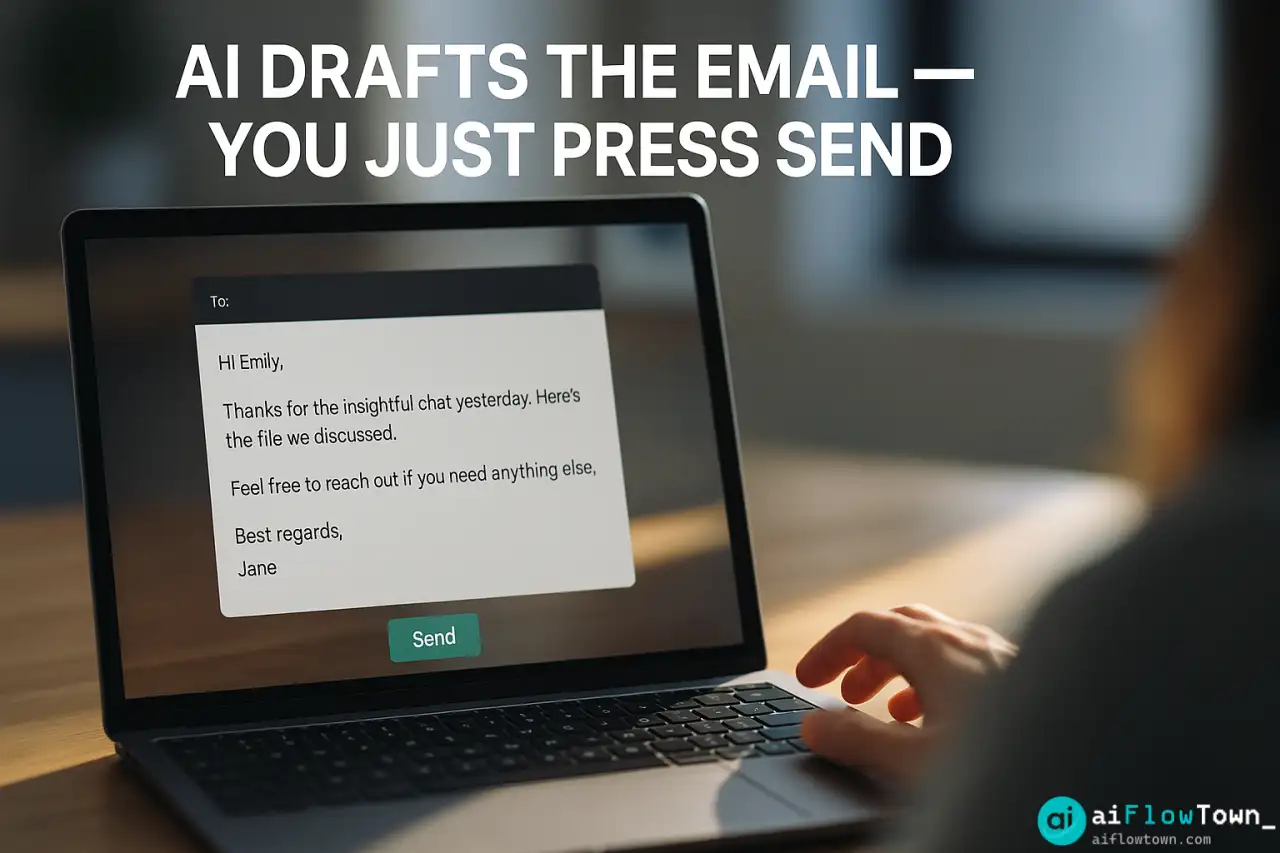
This creates the draft automatically. You spend 30 seconds reviewing and clicking send, instead of 10 minutes writing from scratch using build automated email sequences with chatgpt logic.
The Advanced Flow with Smart Timing
For more sophistication:
Trigger: CRM status changes to “Proposal Sent”
Check: Has client opened the proposal email? (via tracking pixel)
If opened: Wait 2 days, send follow-up asking for thoughts
If not opened: Wait 4 days, send “checking in” email
AI generates: Email personalized to which path triggered it
Send: Automatically or as draft based on your preference
Track: Log in CRM with timestamp
This conditional logic ensures follow-ups match client behavior, not arbitrary timelines. Learn more at AI automation for beginners.
The Personalization Layer
Automated doesn’t mean generic. The AI prompt determines personalization quality.
The Follow-Up Email Prompt
"Generate a follow-up email for this client interaction.

Context:
- Client name: [Name]
- Company: [Company]
- Last interaction: [Type of meeting/call]
- Date: [When it happened]
- Key points discussed: [Pull from meeting notes or CRM]
- Next steps agreed upon: [What you/they committed to]
- Client's main concern: [Their priority/pain point]

Email should:
1. Reference specific point from our conversation
2. Confirm next steps or deliverables
3. Offer additional value (resource, insight, introduction)
4. Include clear call-to-action
5. Match professional but warm tone

Length: 100-150 words
Sign with: [Your name and signature]

Avoid:
- Generic "just checking in" language
- Pushy sales tone
- Anything that sounds obviously automated"
Feed this prompt conversation-specific details and AI generates emails that sound human-written using personalized follow-up workflow using ai tools effectively. For more prompts, check AI productivity prompts.
Dynamic Personalization Variables
Pull data automatically from your calendar or CRM:
- {{client_name}} – Name from calendar invite
- {{meeting_notes}} – Notes you added after call
- {{project_name}} – From CRM project field
- {{next_deadline}} – Date from project timeline
- {{last_email_date}} – When you last contacted them
These variables make each email contextually relevant without manual customization.
Smart Timing Logic
When to Send Different Follow-Ups
| Situation | Wait Time | Email Focus |
|---|---|---|
| After intro call | 24 hours | Thank you + summarize next steps |
| After proposal sent | 3 days | Answer questions + offer discussion |
| After no response | 7 days | Gentle nudge + provide value |
| After project kickoff | 48 hours | Confirm details + set expectations |
| After deliverable | 2 days | Request feedback + offer support |
Build timing rules into your automation using smart timing for automated client emails that adapts to context. Each trigger can have different delay periods and email templates.
Preventing Over-Communication
Set limits so automation doesn’t annoy:
- ⚠️ Max 1 automated follow-up per week per client
- ⚠️ Stop after 3 follow-ups if no response
- ⚠️ Pause automation if client replies (detect via email filters)
- ⚠️ Don’t send during weekends or holidays
- ⚠️ Check if you emailed them manually recently before auto-sending
Real Example: Consulting Firm Workflow
The Problem
A 4-person consulting firm closed 30% of proposals. Analysis showed they were great at initial meetings but inconsistent with follow-ups. Some clients got 5 follow-ups, others got zero. It depended entirely on who remembered and had time.
The Automated Solution
They built this workflow in Zapier:
Trigger 1: Discovery call ends (Google Calendar)
→ Wait 24h → AI generates thank you email with meeting recap
→ Creates draft in Gmail → Consultant reviews and sendsTrigger 2: Proposal sent (tag in Gmail)
→ Wait 3 days → Check if proposal PDF was opened
→ If yes: AI generates “thoughts on proposal?” email
→ If no: AI generates “want to discuss proposal?” email
→ Auto-sends (they trust this one)Trigger 3: No response after 7 days
→ AI generates value-add email (shares relevant resource)
→ Creates draft → Manual review before sendingTrigger 4: Client responds positively
→ Automation stops → Manual conversation takes over– Complete Follow-Up System –
Results After 60 Days
- ✅ Follow-up consistency: 40% → 98%
- ✅ Proposal close rate: 30% → 47%
- ✅ Average time to close: 21 days → 14 days
- ✅ Time spent on follow-ups: 4 hours/week → 45 min/week
- ✅ No client complaints about over-communication
The firm didn’t become pushy—they became consistent. Clients appreciated the reliable follow-through using create ai-powered email follow-up system professionally.
Safety and Quality Control
The Human Review Gate
For most follow-ups, set automation to create drafts, not auto-send. You review in 30 seconds and click send. This catches:
- AI misunderstanding context from notes
- Timing that’s off (client just emailed you an hour ago)
- Tone that doesn’t match the relationship
- Situations that need a call instead of email
What’s Safe to Auto-Send
Once you’ve tested the system for 30 days, these can auto-send:
- ✅ Meeting confirmations 24 hours before
- ✅ Thank you emails immediately after calls
- ✅ Delivery notifications when work is ready
- ✅ Standard check-ins after project milestones
What Always Needs Review
- ⚠️ First follow-up with new clients
- ⚠️ Follow-ups after sensitive conversations
- ⚠️ Anything involving pricing or contracts
- ⚠️ Responses to complaints or issues
Measuring Follow-Up Effectiveness
Track these metrics to optimize your automation:
Weekly Review Dashboard (Google Sheets):

- Follow-ups created: [Count]
- Follow-ups sent: [Count]
- Response rate: [Percent]
- Average time to response: [Days]
- Follow-ups that led to meetings: [Count]
- Follow-ups marked as spam/unsubscribe: [Count - should be near zero]

If response rate drops below 30%, audit:
- Are emails too frequent?
- Is personalization working?
- Are you following up too late/early?
- Does AI tone match your brand?
❓ FAQ
How much does this automation cost?
Zapier starts at $20/mo for the tasks needed. ChatGPT API costs about $0.01-0.03 per email generated. For 100 follow-ups monthly, you’re looking at $25-30 total. ROI is positive if it closes even one extra deal.
Will clients know it’s automated?
Not if done well. The emails reference specific conversation details, use natural language, and come from your actual email. They read as thoughtful follow-ups, which they are—just AI-assisted writing. If someone asks, be honest: “I use AI to help draft follow-ups so I never forget to reach out.”
⚡ What if I want to customize before sending?
Set automation to create drafts instead of auto-sending. You get notification, review the email in 30 seconds, tweak if needed, then send. Best of both worlds—automation handles 90% of work, you control final 10%.
Can this work with my CRM?
Yes, most CRMs integrate with Zapier: Salesforce, HubSpot, Pipedrive, etc. Trigger follow-ups based on CRM status changes, pull client data from CRM fields, log sent emails back to CRM. Keeps everything in one place.
What if someone unsubscribes or complains?
Add them to suppression list immediately. Build an “opt-out” filter that stops automation for anyone who replies negatively. Review your email frequency and tone—if multiple people complain, you’re over-automating. Scale back to draft-only mode.
Final Thoughts
Follow-up consistency separates top performers from everyone else—not because they work harder, but because they have systems that ensure important conversations don’t die from forgetfulness. Automate follow up emails with AI removes the mental load of remembering while maintaining the personal touch that matters.
Start simple: automate one type of follow-up this week. Thank you emails after client calls. Test it for two weeks. Refine the prompt. Then add another automation. Build the system incrementally rather than trying to automate everything at once.
Your clients won’t care that AI helped you remember to follow up. They’ll just appreciate that you actually did.
⚠️ Reminder: Even the smartest tools / AI can miss small details or make mistakes. Always double-check your work before presenting or publishing it - a quick review can save hours later.