The Complete Setup Process
What You Need
| Component | Purpose | Options |
|---|---|---|
| Email source | Where tasks originate | Gmail, Outlook, any IMAP |
| Automation platform | Connects email to AI | Zapier, Make.com, n8n |
| AI processor | Extracts action items | ChatGPT API, Claude API |
| Task manager | Where tasks are stored | Todoist, Notion, Asana, TickTick |
Setup takes 30 minutes. After that, it runs automatically forever using automatically extract action items from gmail logic. For more automation ideas, visit AI workflow optimization.
Step-by-Step Zapier Setup
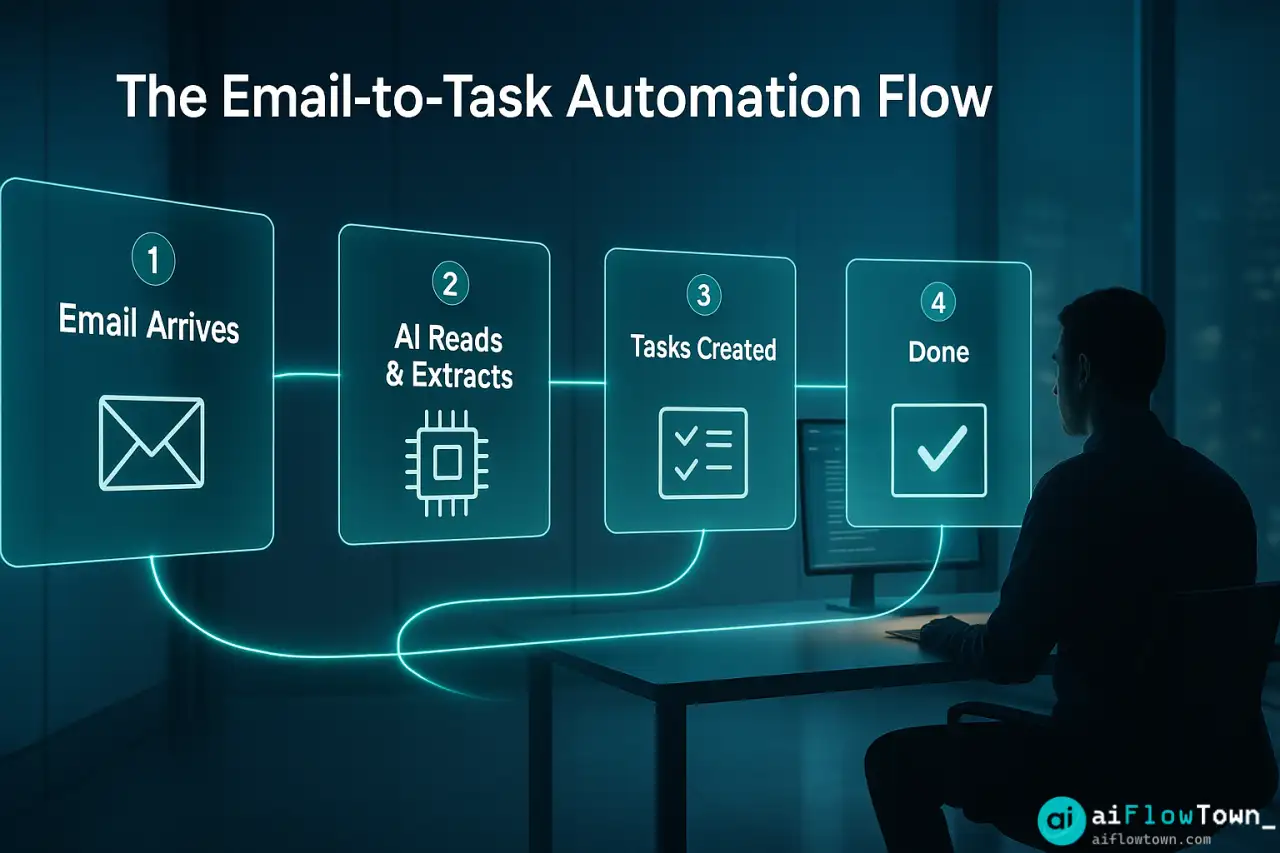
Create new Zap: Gmail → ChatGPT → Todoist (or your task manager)
Trigger: New email arrives (you can filter by label, sender, or subject)
Action 1: Send email to ChatGPT API with extraction prompt
Filter: Only proceed if ChatGPT finds action items
Action 2: Create task in Todoist with extracted details
Action 3: Label email as “Task Extracted” in Gmail
Once configured, every new email gets analyzed automatically. Tasks appear in your task manager without manual input using convert email requests to tasks with ai systematically.
The Gmail to Notion Workflow
For Notion users, the workflow looks slightly different but achieves the same result:
Notion-Specific Setup
Zapier Flow:

1. Trigger: New email in Gmail (with specific label like "Action")
2. ChatGPT: Extract task with this prompt:

   "Analyze this email and extract action items:

   [Email content]

   For each action item, provide:
   - Task description (what needs to be done)
   - Deadline (if mentioned, otherwise leave blank)
   - Priority (High/Medium/Low based on email urgency)
   - Context (who requested it and why)
   - Estimated effort (Quick/Medium/Large)

   Return as JSON format."

3. Notion: Create new database item with:
   - Title: Task description
   - Due date: Extracted deadline
   - Priority: From AI analysis
   - Related email: Link back to original email
   - Status: "To Do"

4. Gmail: Apply label "Extracted" and archive
Tasks now live in Notion with full context and links back to source emails. Learn more at AI automation for beginners.
The AI Extraction Prompt
The prompt determines accuracy. Here’s what works:
"Extract action items from this email.

Email content:
From: {{sender_email}}
Subject: {{subject}}
Body: {{email_body}}

Instructions:
1. Identify any requests, action items, or tasks directed at me
2. Ignore: meeting invites (handled by calendar), FYI information, automated notifications
3. For each action item found, provide:
   - Task: [Clear, actionable description starting with verb]
   - Deadline: [Extract if mentioned, otherwise mark as 'No deadline']
   - Priority: [High if urgent language used, Medium if normal, Low if optional]
   - Requester: [Who asked for this]
   - Context: [1 sentence explaining why this matters]

Output format: JSON array of tasks

If no action items found, return: {"tasks": []}

Examples of action items:
- 'Can you send me the report?'
- 'Please review the attached document'
- 'Don't forget to update the spreadsheet'
- 'We need your input by Friday'

NOT action items:
- 'Meeting scheduled for tomorrow' (calendar handles this)
- 'FYI - project update' (informational only)
- 'Thanks for your help' (no action needed)"
This prompt helps AI distinguish between actual tasks and conversational noise using never miss email action items using automation effectively. For more prompts, check AI productivity prompts.

Understanding the Output
What Gets Extracted
AI catches these common action item patterns:
- ✅ Direct requests: “Can you send me X?”
- ✅ Soft requests: “It would be great if you could…”
- ✅ Reminders: “Don’t forget to…”
- ✅ Deadlines: “Need this by Friday”
- ✅ Follow-ups: “Following up on…”
- ✅ Assignments: “You’re responsible for…”
- ✅ Questions needing response: “What’s your take on…?”
What Gets Ignored
- ⚪ Calendar invites (your calendar handles these)
- ⚪ FYI emails with no action needed
- ⚪ Marketing emails
- ⚪ Automated notifications
- ⚪ Social pleasantries (“Thanks!”, “Great work!”)
- Smart Reminder Configuration
Setting Up Intelligent Reminders
Don’t just extract tasks—set smart reminders based on urgency:
Zapier Logic:

IF deadline mentioned in email:
  - Set reminder 1 day before deadline

IF priority = High:
  - Set reminder for same day at 5pm
  - Add to "Today" list in task manager

IF priority = Medium:
  - Set reminder for next morning
  - Add to "This Week" list

IF priority = Low:
  - Set reminder for 3 days out
  - Add to "Backlog" list

IF no deadline + from boss:
  - Assume needs response within 48 hours
  - Set priority to High
This ensures urgent items surface immediately while non-urgent tasks don’t clutter your today list using ai workflow for inbox task management intelligently.
Context Preservation
Each extracted task should link back to the original email:
Task: Send Q3 report to Sarah
Due: Thursday Oct 26
Priority: High
Context: Sarah requested this for board meeting preparation
Email: [Link to original Gmail thread]
Notes: She specifically mentioned needing revenue breakdown section– Complete Task Context –
You never lose the “why” behind tasks—critical for proper execution.
Weekly Review Automation
"Review this week's extracted tasks and create summary:

Tasks extracted this week: [Pull from task manager API]

Create report showing:
1. Total tasks extracted
2. How many completed vs still open
3. Most common task types (patterns in what people ask for)
4. Any overdue tasks (flag these urgently)
5. Tasks from specific people (who requests most from you?)

Suggest:
- Should I batch similar tasks?
- Are there patterns I can systemize?
- Who should I follow up with?

Format as brief weekly review email I can read in 2 minutes."
This meta-analysis helps you optimize workflows and catch missed items.
Real Example: Marketing Manager
Before Automation
James, a marketing manager, received 80-100 emails daily. He used email flags for tasks but often:
- ❌ Forgot to flag action items buried in long emails
- ❌ Lost flagged emails in inbox clutter
- ❌ Had no deadline tracking for email tasks
- ❌ Missed 2-3 action items weekly
- ❌ Spent 20 minutes daily manually adding tasks
After AI Extraction Setup
James configured Gmail → ChatGPT → Todoist automation:
- ✅ AI scans all incoming email automatically
- ✅ Tasks appear in Todoist within 2 minutes
- ✅ Deadlines extracted and set as due dates
- ✅ Priority assigned based on email urgency cues
- ✅ Original email linked for context
Results After 30 Days
- Tasks extracted: 127 (average 4.2 per day)
- Missed action items: 0
- Time spent on manual task entry: 0 minutes
- Overdue tasks: Reduced from 8-10 to 0-2 weekly
- Manager satisfaction: “You’re so responsive now”
James didn’t become more organized—the system became automatic.
❓ FAQ
What does this automation cost?
Zapier starts at $20/mo for needed features. ChatGPT API costs about $0.02 per email analyzed. For 100 emails daily, that’s $2/day = $60/mo total. ROI is positive if it prevents even one missed deadline per month.
What if AI extracts wrong tasks?
Initially, review extracted tasks daily to catch errors. After 2-3 weeks, AI learns your patterns and accuracy improves to 90%+. You can always manually delete false positives—still faster than manually adding all tasks.
Can I limit to specific senders only?
Yes, add filter in Zapier: only process emails from your boss, specific team members, or external domains. Ignore internal newsletters, automated systems, etc. Start narrow, expand as you trust the system.
Is it safe to send emails to AI?
Depends on content sensitivity. ChatGPT API (paid) doesn’t train on your data. For highly confidential emails, either exclude them from automation or use on-premise AI solutions. Most business email is fine for cloud AI processing.
⚡ What if I want to review before tasks are created?
Modify workflow to send you daily digest: “AI found these potential tasks today. Click to approve and add to your task manager.” Review takes 2 minutes, you control what gets added, still saves manual extraction time.
Final Thoughts
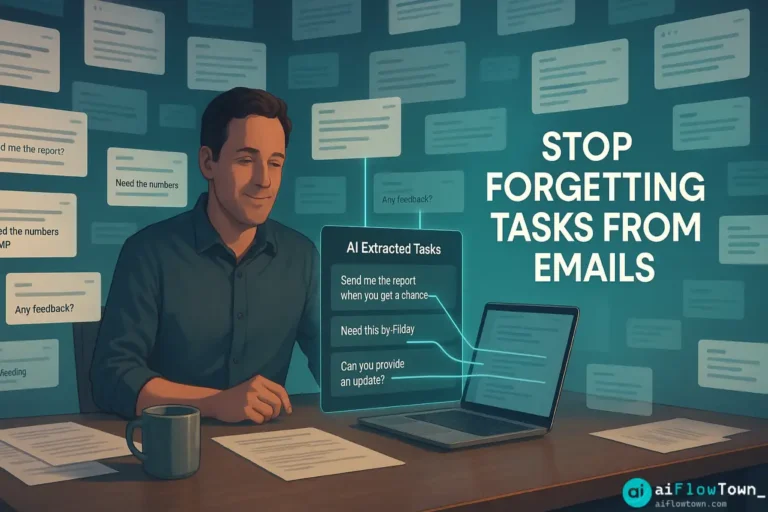
Email will always contain hidden tasks. You can’t eliminate that—but you can automate the extraction. Email task extraction with AI ensures every “Can you…?” and “Don’t forget…” becomes a tracked, prioritized task in your actual task system automatically.
Set this up once. Spend 30 minutes configuring. Then never manually copy an email task again. The system runs silently, catching action items you’d otherwise miss, ensuring you respond reliably even when email volume is overwhelming.
Your inbox isn’t a task manager. Stop treating it like one. Extract the tasks automatically and let your real task system do what it’s designed for.
⚠️ Reminder: Even the smartest tools / AI can miss small details or make mistakes. Always double-check your work before presenting or publishing it - a quick review can save hours later.