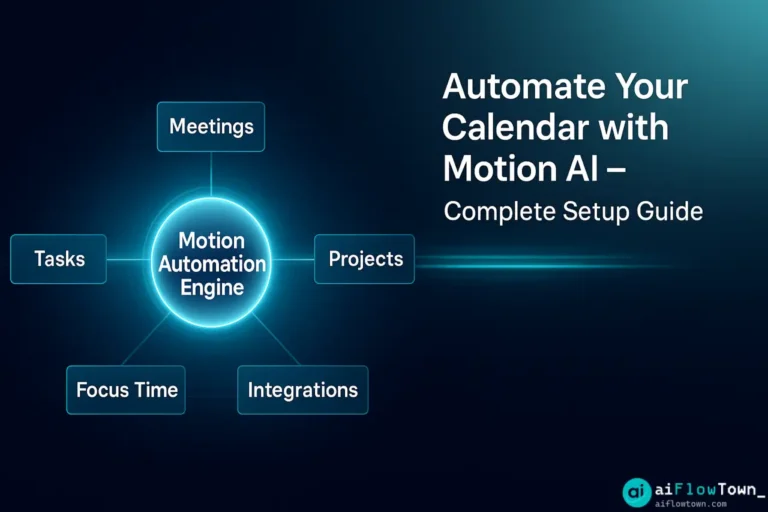
Motion AI promises to automatically schedule your tasks, protect focus time, and optimize your calendar. But setup matters—configure it wrong, and Motion becomes an expensive calendar with AI that doesn’t understand your workflow. Configure it right, and it actually works: tasks appear at optimal times, meetings fit around deep work, your calendar adapts dynamically to reality. This complete setup guide walks you through the essential configuration that makes Motion useful instead of frustrating.
What Motion AI Actually Does
Before setup, understand Motion’s core function:
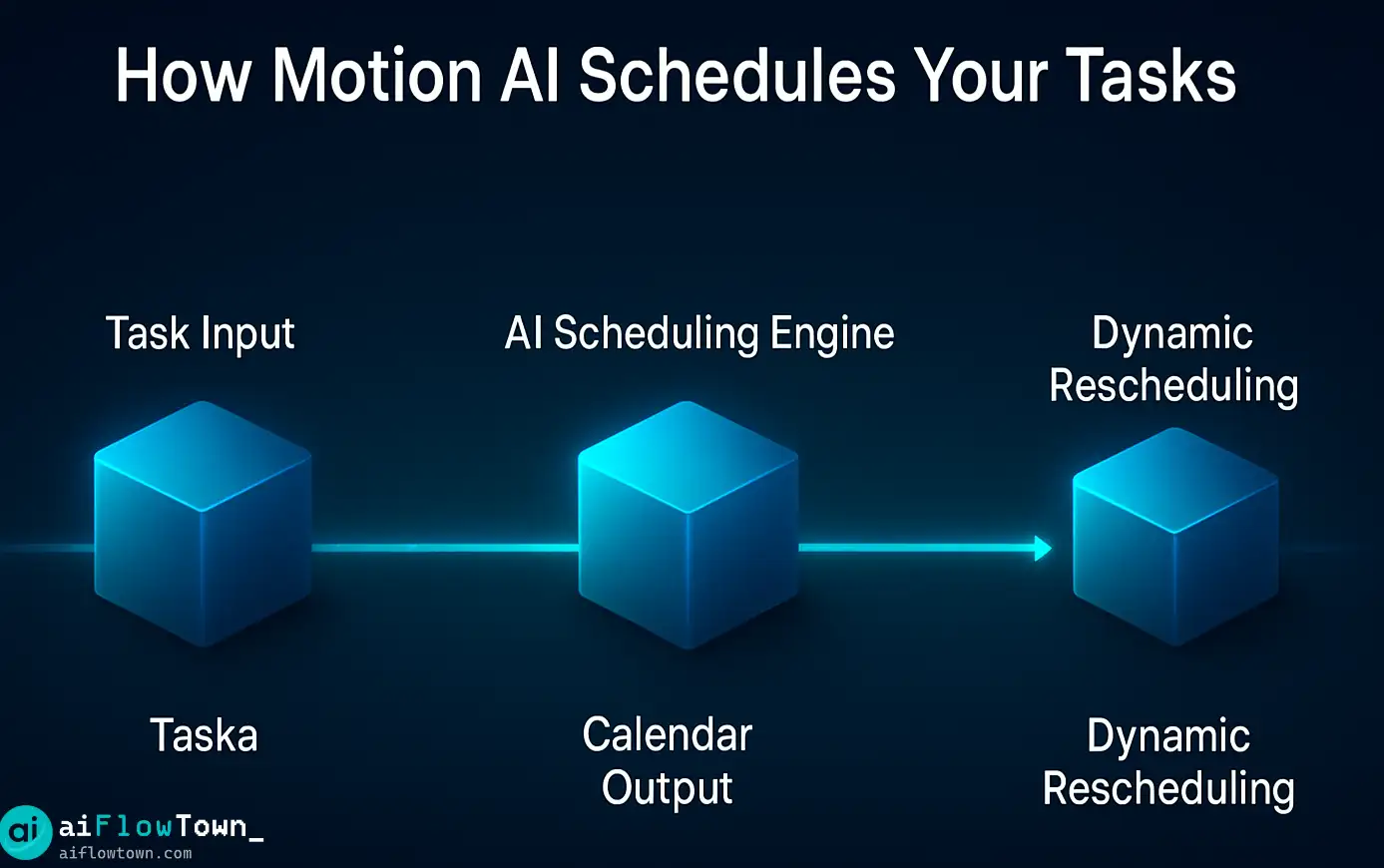
- Auto-scheduling: You add tasks with deadlines, Motion places them on calendar automatically
- Dynamic rescheduling: When meetings appear, Motion moves tasks to new available slots
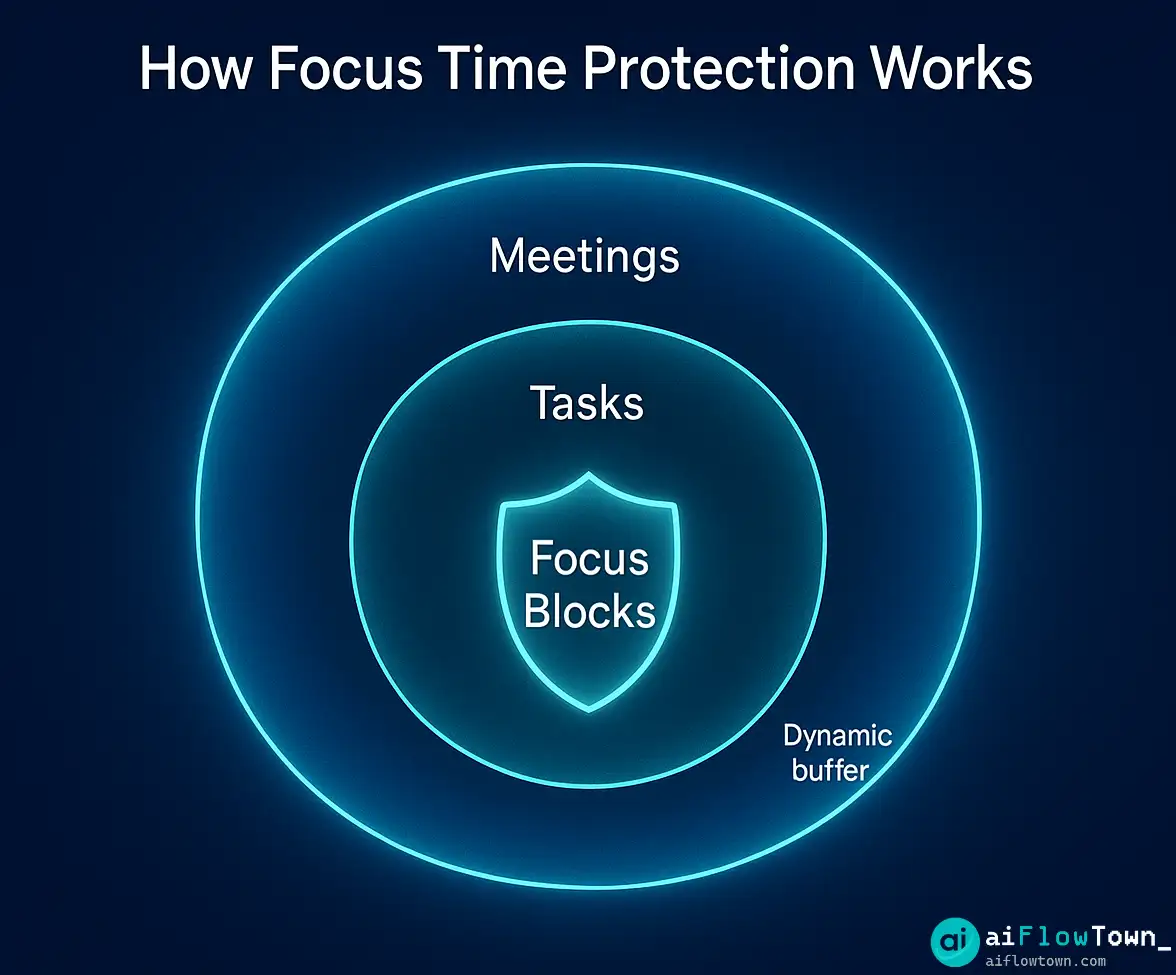
- Focus time protection: Blocks calendar time for deep work, makes you “busy” to others
- Meeting optimization: Suggests best times for meetings based on your patterns
- Project management: Basic task organization with deadlines and priorities
This motion ai setup guide ensures these features work with your actual workflow using motion app configuration guide principles.
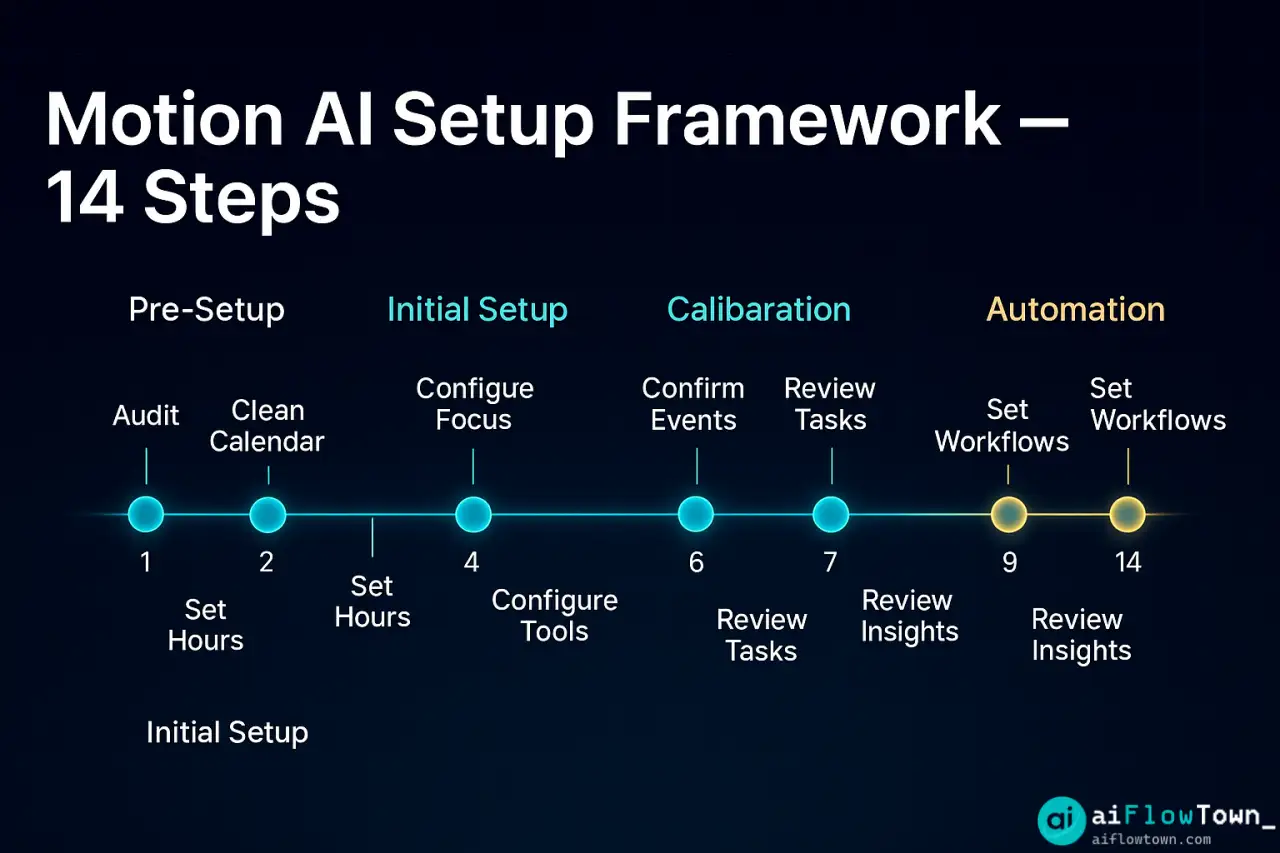
Phase 1: Pre-Setup (Before You Sign Up)
Step 1: Audit Your Current Schedule (30 minutes)
Before letting AI manage your calendar, understand your current reality:
Answer these questions:

1. When are you most productive? (Morning/Afternoon/Evening)
2. How many meetings do you average weekly?
3. How much uninterrupted work time do you need daily?
4. What tasks are recurring weekly? (Reports, admin, planning)
5. Which meetings could be async instead?
6. What's your actual daily work capacity? (Realistic hours available)

Why this matters: You'll configure Motion based on these realities, not fantasy schedules.
Step 2: Clean Your Existing Calendar (15 minutes)
Motion imports your current calendar. Clean it first:
- ✅ Delete old, irrelevant events
- ✅ Remove duplicate calendars
- ✅ Consolidate similar recurring meetings
- ✅ Mark personal events clearly (Motion respects these as “busy”)
- ✅ Cancel any meetings you’ve been meaning to end
Phase 2: Initial Setup (Day 1)
Step 3: Connect Your Calendars (5 minutes)
Motion supports:
- Google Calendar (most common)
- Outlook/Office 365
- Apple Calendar (via iCloud)

Best practice:
- Connect work calendar as primary
- Connect personal calendar as secondary (Motion sees events, won't schedule work tasks there)
- Don't connect shared team calendars yet—adds confusion initially
This enables automate calendar with motion ai across your schedules.
Step 4: Set Your Working Hours (10 minutes)
Critical step most people rush—be realistic:
| Setting | Default | Better Setting |
|---|---|---|
| Start time | 9:00am | Your actual start time |
| End time | 5:00pm | When you want work to stop |
| Lunch break | 12-1pm | When you actually eat |
| Work days | Mon-Fri | Actual work days (some work weekends) |
| Daily capacity | 8 hours | Realistic: 5-6 hours after meetings/breaks |
Key insight: Set “Daily Capacity” to 60-70% of working hours. Motion schedules 8 hours of tasks in an 8-hour day, which ignores meetings, breaks, and buffer. Set to 5-6 hours for realistic scheduling.
Step 5: Configure Focus Time (15 minutes)
This is Motion’s killer feature—configure it properly:
Settings → Focus Time:

Minimum focus block duration: 90 minutes
(Research shows 90 min optimal for deep work. Don't go below 60 min)

Preferred focus times:
Select your peak productivity hours:
- Morning person: 8am-12pm
- Afternoon person: 1pm-5pm
- Night owl: Evenings (if flexible work hours)

Focus time per day: Start with 2-3 hours
(Can increase later once you see it working)

Auto-protect focus time: ON
(Makes you "Busy" during focus blocks—others can't book you)

Allow urgent meetings to override: Your choice
(ON = Flexible, OFF = Strict. Start with ON, tighten later)
Step 6: Set Task Defaults (10 minutes)
Settings → Task Defaults:

Default task duration: 1 hour
(Motion uses this for tasks without specified duration)

Default priority: Medium
(Prevents everything being "urgent")

Auto-schedule new tasks: ON
(Otherwise you manually schedule—defeats the purpose)

Chunk preference: Prefer longer chunks
(Better to work 2 hours straight than 4×30min fragments)

Buffer between tasks: 15 minutes
(Prevents back-to-back scheduling, allows breathing room)
For more calendar strategies, visit AI workflows.
Phase 3: First Week Usage (Days 2-7)
Step 7: Add Your First Tasks (Day 2, 30 minutes)
Start with just this week’s tasks—don’t dump your entire backlog yet:
For each task, provide:

Task name: Be specific
- Bad: "Work on project"
- Good: "Draft Q4 marketing proposal intro section"

Duration: Your best estimate
- If unsure, overestimate by 50%
- Motion tracks actual vs estimate, you'll improve

Deadline: When it must be done
- "Soft" deadlines: Set to ideal completion date
- "Hard" deadlines: Set to actual due date

Priority:
- High: Deadline within 2 days OR critical impact
- Medium: This week OR important but not urgent
- Low: Nice to have, flexible timing

Project: Group related tasks
- Example: "Q4 Marketing" project contains multiple tasks
Step 8: Observe Motion’s Scheduling (Days 2-4)
Don’t intervene yet—let Motion schedule for 3 days and observe:
- Are tasks appearing during your peak productivity times?
- Are focus blocks actually protected from meetings?
- Is daily workload realistic or overwhelming?
- When meetings appear, does Motion reschedule tasks sensibly?
Common first-week observation: Motion schedules too much. That’s because you overestimated your daily capacity in Step 4. We’ll fix this in Step 9.
– Expected Adjustment Needed –
Step 9: First Calibration (Day 5, 15 minutes)
Based on 3 days of observation, adjust settings:
If Motion schedules too much work:
Settings → Working Hours → Reduce "Daily Capacity" by 1 hour
(From 6 hours to 5 hours, for example)

If tasks scheduled during low-energy times:
Settings → Focus Time → Adjust "Preferred focus times"

If important tasks keep getting bumped:
Edit those tasks → Increase priority to "High"

If you're constantly rescheduling manually:
You're overriding AI too much—let it work, adjust settings instead
This demonstrates motion ai tutorial for beginners iterative approach using set up motion for task scheduling properly.
Phase 4: Advanced Configuration (Week 2+)
Step 10: Add Projects and Templates (Week 2)
Once basic scheduling works, organize better:
Create Projects for recurring work:

Project: Weekly Planning
- Task: Monday morning planning (1 hour, recurring)
- Task: Friday review (30 min, recurring)
- Priority: High (these anchor your week)

Project: Content Creation
- Task: Research topics (2 hours)
- Task: Draft article (3 hours)
- Task: Edit and publish (1 hour)
- Motion learns these tasks often go together

Project: Client Work
- Separate project per major client
- Helps track time per client
- See total time allocated vs available
Step 11: Configure Meeting Scheduling (Week 2)
Settings → Meetings:

Meeting hours:
Define when you're available for meetings (narrower than work hours)
Example: Available 11am-12pm and 3pm-4pm only

Meeting buffer:
Before meeting: 5-10 min (prep time)
After meeting: 10-15 min (notes, decompress)

Default meeting duration:
30 minutes (forces shorter, more focused meetings)

Auto-decline conflicts: ON
If someone tries booking during focus time, Motion suggests alternatives
Step 12: Set Up Recurring Tasks (Week 3)
Motion handles recurring tasks differently than calendar events:
Good candidates for recurring tasks:
- Weekly team standup prep (30 min, every Monday)
- Monthly reports (2 hours, last Friday of month)
- Quarterly planning (4 hours, 2 weeks before quarter end)
- Daily email processing (30 min, every morning)

How to set up:
Create task → Set frequency (Daily/Weekly/Monthly)
Motion automatically schedules next occurrence after you complete current one
Phase 5: Integration and Automation (Week 4+)
Step 13: Connect Motion to Other Tools
Motion integrates with productivity tools via Zapier:
| Integration | What It Does | Use Case |
|---|---|---|
| Slack | Status updates based on calendar | “In focus time” auto-status |
| Todoist/Asana | Import tasks to Motion | Migrate existing task system |
| Gmail | Create tasks from emails | Flag emails → Auto-task creation |
| Notion | Sync task status | Keep project wiki updated |
Step 14: Enable Mobile Workflow (Ongoing)
Motion mobile app setup:

Notifications:
- Task starting soon: 10 min before (so you're not surprised)
- Task deadline approaching: 1 day before
- Schedule changed: ON (know when Motion reschedules)

Quick add widget:
Add to phone home screen for fast task capture

Today view:
Check morning and evening—see what Motion scheduled
This enables motion ai workflow automation setup on the go. For more automation, check AI automation tools for beginners.
Common Setup Mistakes to Avoid
Mistake 1: Setting Unrealistic Daily Capacity
Problem: Setting 8-hour capacity when you have 3 hours of meetings daily.
Result: Motion schedules work that physically can’t fit.
Fix: Capacity = Work hours – Average meeting hours – 1 hour buffer. If 8-hour workday with 2 hours of meetings, set capacity to 5 hours.
Mistake 2: Making Everything High Priority
Problem: Flagging every task as “High” priority.
Result: Motion can’t prioritize—everything is equally urgent.
Fix: Reserve “High” for truly deadline-critical or high-impact tasks. Most tasks should be “Medium.”
Mistake 3: Manually Overriding Too Often
Problem: Constantly dragging tasks to different times.
Result: Motion’s AI can’t learn your patterns.
Fix: Let Motion schedule for 1 week without intervention. Then adjust settings based on observations, not manual overrides.
Mistake 4: Not Setting Focus Time Preferences
Problem: Skipping focus time configuration.
Result: Motion schedules tasks anytime, including low-energy periods.
Fix: Explicitly tell Motion your peak productivity windows. AI will prioritize important work for those times.
Mistake 5: Importing Entire Task Backlog
Problem: Adding 200 tasks from old system on Day 1.
Result: Motion overwhelmed, schedules years into future, nothing feels actionable.
Fix: Import only this month’s tasks initially. Add more as you complete current work.
Measuring Success
Week 4 Check-In Questions
Is Motion working for you?

✅ Are 80%+ of Motion's scheduled tasks at good times?
✅ Do you actually work on tasks when Motion schedules them?
✅ Has meeting chaos decreased?
✅ Are you completing more tasks weekly than before?
✅ Do you have protected focus time most days?

If mostly "yes": Motion is working—keep refining settings
If mostly "no": Review Steps 4-6, you likely misconfigured working hours or capacity
For more productivity measurement, visit mindset and focus.
❓ FAQ
⏰ How long until Motion feels natural?
Week 1: Feels weird, you’ll fight the AI. Week 2-3: Start trusting suggestions. Week 4+: Feels natural, checking what Motion scheduled becomes routine. By Week 8, working without Motion feels chaotic. Give it full month before judging.
Is Motion worth $34/month?
If you have 15+ tasks weekly, unpredictable meeting schedule, and value your time at $30+/hour, yes. Motion saves 30-60 min daily in planning and context-switching. That’s 2.5-5 hours weekly = $75-150 value for $34 cost. Not worth it for simple schedules or few tasks.
Can I use Motion with existing tools?
Yes, but creates friction. Motion wants to be your primary task system. If you keep tasks in Todoist/Asana, you’ll manually duplicate to Motion. Better: migrate fully to Motion, or use integrations (via Zapier) to sync automatically. Dual systems = double work.
Does Motion work for teams?
Yes, Team plan ($30/user/mo) adds shared projects, workload visibility, and collaborative scheduling. Best for 3-10 person teams. Larger teams might need more robust project management (Asana, ClickUp) alongside Motion for personal scheduling.
Is mobile app good enough?
Good for viewing schedule and quick task adds, not for heavy task management or project planning. Do setup and bulk task entry on desktop. Use mobile for: checking today’s schedule, marking tasks complete, adding quick tasks on-the-go.
Final Thoughts
This motion ai setup guide isn’t about using every feature—it’s about configuring the essentials correctly so Motion’s AI actually understands your workflow. Most setup frustration comes from misconfigured working hours, unrealistic daily capacity, or not setting focus time preferences.
Follow these steps sequentially. Don’t skip the observation phase in Week 1. Let Motion’s AI learn your patterns before overriding constantly. After 4 weeks of proper setup and usage, Motion becomes genuinely useful—calendar chaos decreases, important work gets scheduled automatically, and you stop spending mental energy on “what should I work on when?”
The $34/month is justified if Motion saves you 30+ minutes daily. But it only saves time if configured correctly. Use this guide, give it a full month, and track whether you’re actually reclaiming time. If yes, keep it. If no after proper setup, Motion might not fit your work style.
Next: Combine Motion with other productivity systems using our guide to the complete AI productivity tool stack.
⚠️ Reminder: Even the smartest tools / AI can miss small details or make mistakes. Always double-check your work before presenting or publishing it - a quick review can save hours later.