Introduction
You just got the perfect ChatGPT response. Clear, structured, exactly what you needed. Then tomorrow, you need something similar—and you’re rewriting the prompt from scratch. This chatgpt template trick stops that cycle. Turn any great AI response into a reusable template in minutes, so you never start from zero again.
Why You Need Reusable ChatGPT Templates
Most people use ChatGPT like a one-off conversation. They get a good result, use it, and forget it. Then they face the same task next week and waste time recreating what already worked.
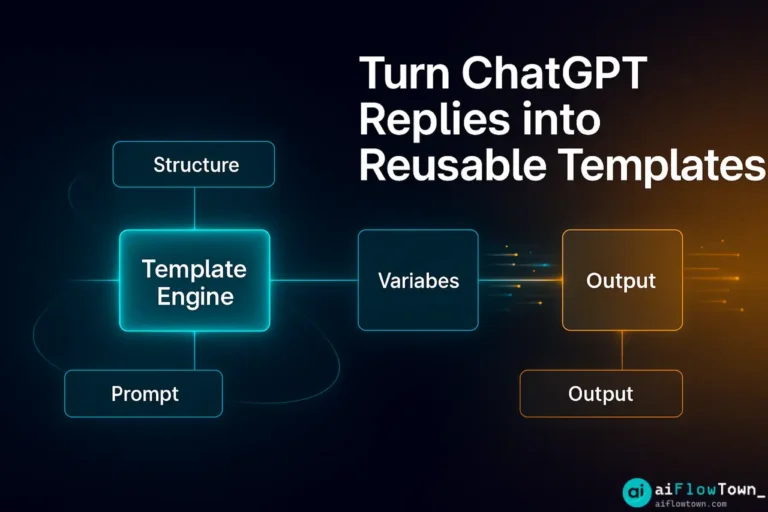
The chatgpt template trick flips this. When ChatGPT nails a response, you capture the structure, save it, and reuse it with variables. Your best prompts become a library you can pull from instantly.
The 3-Step Template Creation Method
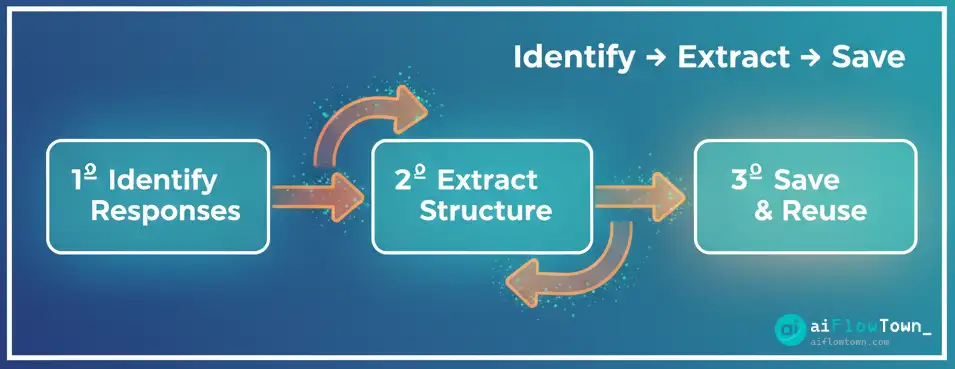
Step 1: Identify Template-Worthy Responses
Not every ChatGPT reply deserves to be a template. Look for responses you’ll need repeatedly: email formats, meeting agendas, project briefs, content outlines, or analysis frameworks.
If you think “I’ll need this again,” it’s template material.
Step 2: Extract the Structure
Copy the response and replace specific details with placeholders. Turn “Q3 Marketing Campaign” into “[PROJECT NAME]”. Change “Sarah Johnson” to “[CLIENT NAME]”. Replace dates with “[DEADLINE]”.
The goal: create a fill-in-the-blank version that works for any similar situation.
Step 3: Save and Organize
Store templates where you can access them fast. Notion databases, Google Docs with folders, or dedicated tools like TextExpander work well. Tag each template by use case so you can find it in seconds.
Template Examples You Can Use Today
Email Response Template
**Original ChatGPT Response:**
"Hi [Name], thanks for reaching out about the Q2 budget review. I've reviewed the numbers and have three recommendations..."

**Template Version:**
"Hi [NAME], thanks for reaching out about [TOPIC]. I've reviewed [CONTEXT] and have [NUMBER] recommendations..."

**When to Use:**
Any professional email requiring analysis or recommendations
Meeting Agenda Template
**Original ChatGPT Response:**
"Product Roadmap Review - May 15
1. Review Q2 deliverables (15 min)
2. Prioritize Q3 features (20 min)..."

**Template Version:**
"[MEETING TITLE] - [DATE]
1. [AGENDA ITEM 1] ([TIME])
2. [AGENDA ITEM 2] ([TIME])..."

**When to Use:**
Any recurring meeting type that needs structure
Content Outline Template
**Original ChatGPT Response:**
"How to Master Remote Work
I. Introduction: The remote work challenge
II. Essential tools and setup
III. Communication strategies..."

**Template Version:**
"[CONTENT TITLE]
I. Introduction: [HOOK/PROBLEM]
II. [MAIN POINT 1]
III. [MAIN POINT 2]..."

**When to Use:**
Blog posts, articles, or long-form content creation
For more prompt strategies, explore our prompt library collection.
Advanced Template Techniques
Add Instructions Within Templates
Don’t just leave blanks. Add brief instructions so you remember what goes in each placeholder.
[PROJECT NAME - use client's preferred terminology]
[DEADLINE - format as MM/DD/YYYY]
[BUDGET - include currency and approximate range]
Create Template Chains
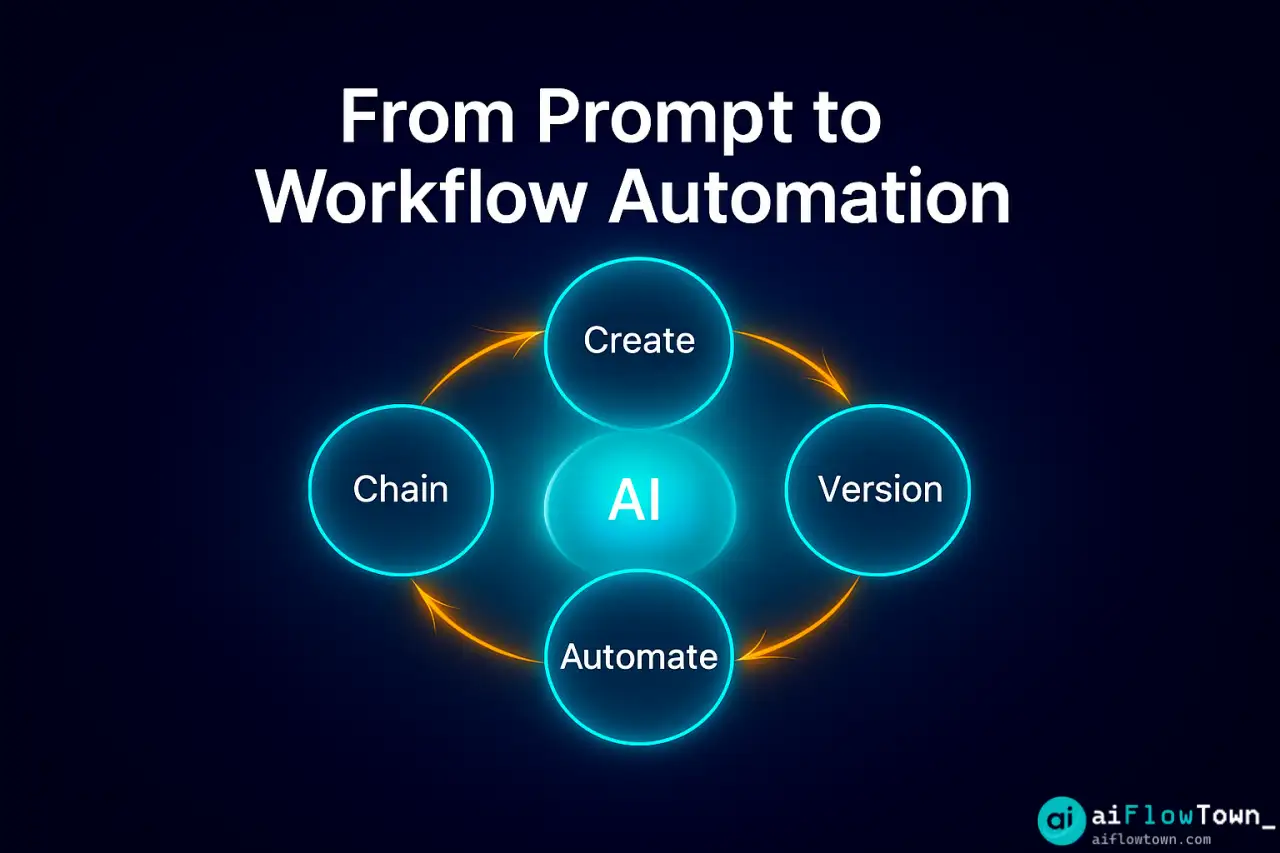
Some workflows need multiple templates in sequence. Build a chain: first template generates a project brief, second creates the task list, third drafts the kickoff email.
Save them together with a note about the sequence.
Version Your Templates
As you refine templates, keep versions. Mark them “v1,” “v2,” etc. If a new version doesn’t work as well, you can revert to the previous one.
Include Example Outputs
Save one filled-in example with each template. It reminds you what good output looks like and speeds up the filling process.
Tools for Managing ChatGPT Templates
| Tool | Best For | Key Feature |
|---|---|---|
| Notion | Knowledge workers | Database views, tags, easy search |
| TextExpander | High-volume users | Keyboard shortcuts for instant insertion |
| Google Docs | Simple setup | Free, shareable, folder organization |
| Airtable | Team collaboration | Filterable views, shared access |
| Apple Notes | Quick capture | Fast, mobile-friendly, syncs everywhere |
Pick one and stick with it. Switching tools kills momentum.
How to Use Templates Effectively
Start with high-frequency tasks. Template the things you do weekly, not once-a-year tasks. Maximum ROI comes from repetition.
Keep templates short. Long templates are intimidating and take too long to fill. Aim for 150-300 words max.
Update based on results. If a template consistently needs the same tweaks, update the template itself. It should improve over time.
Share with your team. The best templates become team assets. Everyone saves time when they can access proven formats.
For automation ideas, check out our guide to AI workflows.
Common Template Mistakes to Avoid
Don’t over-template. Some tasks benefit from fresh thinking. Not everything should be templated.
Don’t forget context. Add a note at the top of each template explaining when to use it and any important considerations.
Don’t let templates get stale. Review your template library quarterly. Delete what you don’t use, update what’s changed.
Don’t skip the placeholders. Vague brackets like “[INSERT HERE]” aren’t helpful. Be specific: “[CLIENT NAME – first and last]”.
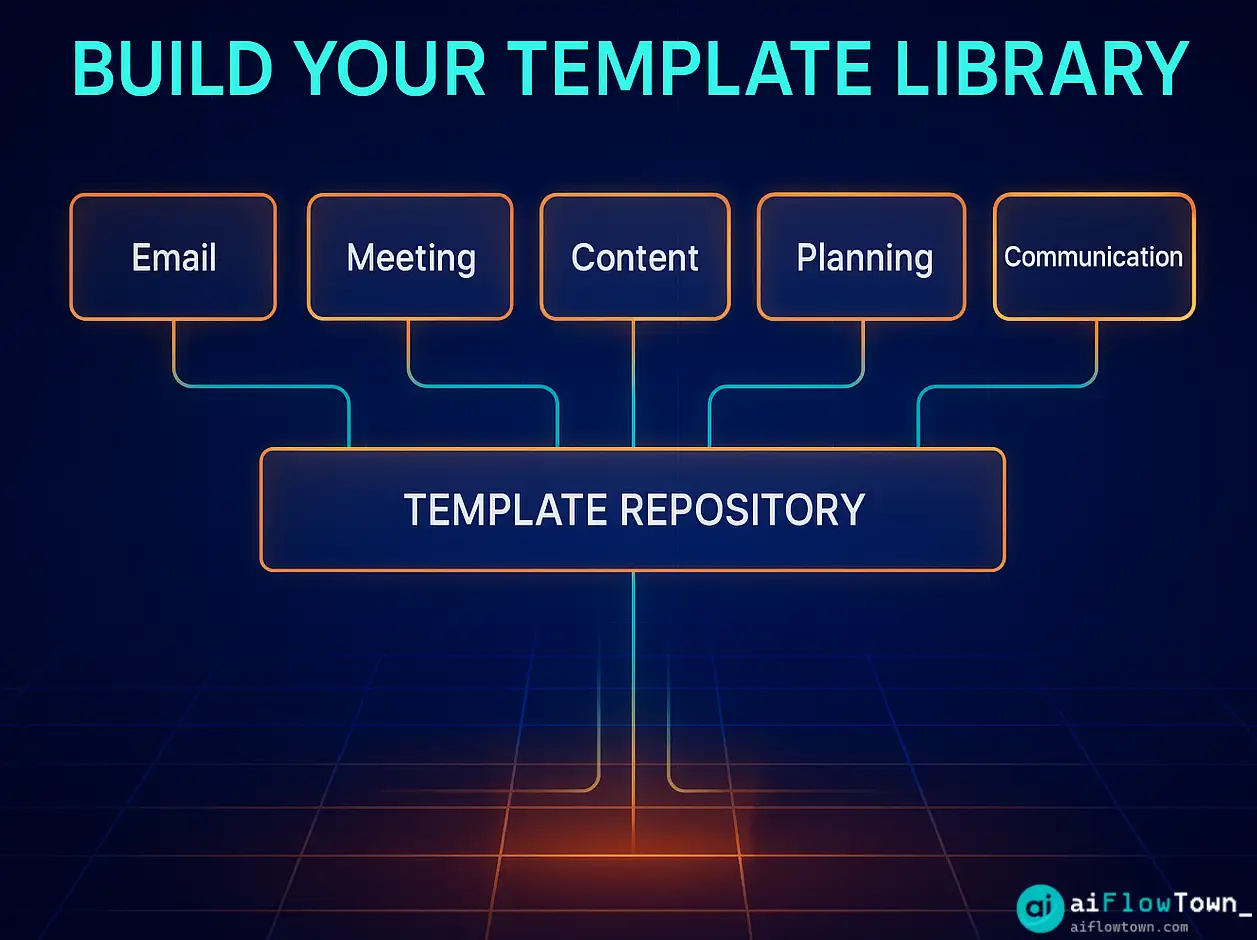
Building Your Template Library
Start with These 5 Categories
- Email templates: Responses, outreach, follow-ups, status updates
- Analysis templates: Data reviews, performance summaries, decision frameworks
- Content templates: Outlines, social posts, newsletters, blog structures
- ️ Planning templates: Agendas, project briefs, weekly reviews, goal setting
- Communication templates: Slack updates, team announcements, client check-ins
How to Organize
Use a consistent naming system: “[CATEGORY] – [USE CASE] – [DATE CREATED]”.
Example: “Email – Client Proposal Follow-up – 2024-10”.
Tag by: function, audience, urgency level, and time to complete.
Turning Templates Into Automated Workflows
Once you have solid templates, level up with automation. Connect them to tools like Zapier, Make, or native integrations.
Example workflow: When you add a new client to your CRM, automatically generate a welcome email using your template, populate it with client data, and send it for your approval.
For step-by-step automation guides, explore AI automation tools for beginners.
Real-World Template Success Stories
Marketing consultant: Built 15 email templates for different client scenarios. Cut email writing time from 30 minutes to 5 minutes per message.
Project manager: Created meeting agenda templates for standups, retrospectives, and planning sessions. Team meetings became 20% more efficient with consistent structure.
Content creator: Saved ChatGPT outlines for different content types. Reduced outline creation time from 45 minutes to 10 minutes per piece.
❓ FAQ
⏱️ How many templates should I create?
Start with 5-10 for your most frequent tasks. Build your library gradually as you identify patterns. Too many templates too fast becomes overwhelming to manage.
Can I share templates with my team?
Yes. Store them in shared tools like Notion, Google Docs, or Airtable. Add instructions so teammates know when and how to use each template.
What if ChatGPT’s response isn’t perfect?
Refine it first, then template the improved version. Don’t template mediocre outputs—you’ll just reuse mediocre content. Get it right once, then scale it.
Do templates work with other AI tools?
Absolutely. This method works with Claude, Gemini, or any AI chat tool. The structure is tool-agnostic—just paste your template and fill in the variables.
How do I know if a template is working?
Track time saved and quality maintained. If you’re filling a template in under 5 minutes and getting consistent results, it’s working. If you’re constantly tweaking, the template needs refinement.
Final Thoughts
The chatgpt template trick isn’t about being lazy—it’s about being strategic. Every minute you spend recreating something you’ve already perfected is a minute stolen from actual creative work.
Build your template library slowly. Start with one or two high-impact templates this week. As you use them, you’ll spot more opportunities. Within a month, you’ll have a collection that saves hours.
The goal isn’t to template everything. It’s to template the repetitive so you have energy for the innovative. Let templates handle the structure while your brain handles the substance.
Ready to build a complete productivity system? Discover how templates fit into your workflow with our guide to the 15 best AI productivity tools that work together seamlessly.
⚠️ Reminder: Even the smartest tools / AI can miss small details or make mistakes. Always double-check your work before presenting or publishing it - a quick review can save hours later.