What Todoist AI Actually Does
Todoist’s AI features aren’t flashy. No chatbot. No automated workflows. Just three core capabilities aimed at the friction points in task management.
The AI writes better task descriptions from vague inputs, suggests priority levels based on your patterns, and predicts how long tasks will take. That’s it. The question is whether these three things matter enough.
This todoist ai review tests each feature with real tasks over four weeks to see what actually works.
The Three AI Features Explained
Smart Task Descriptions
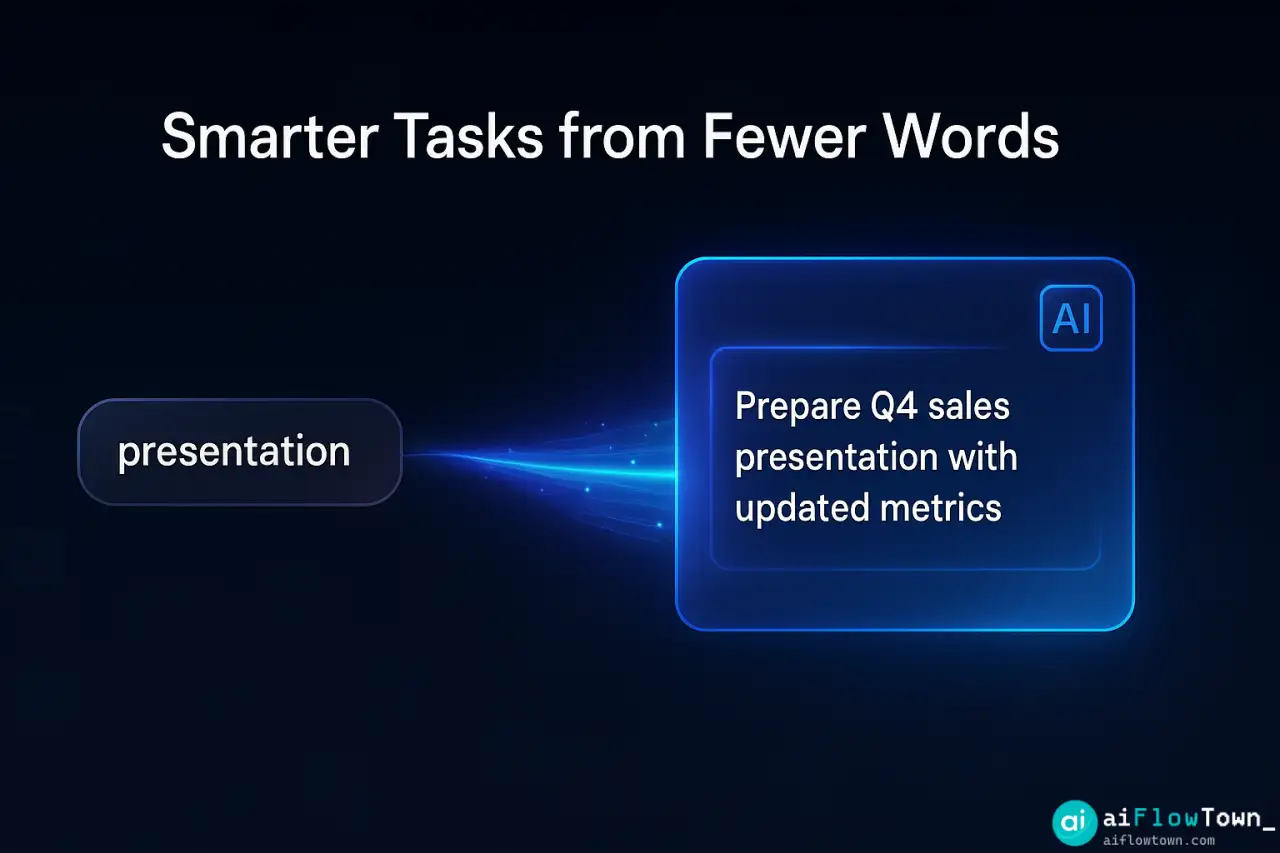
What it does: You type a vague task like “presentation.” AI suggests fuller descriptions: “Prepare Q4 sales presentation with updated metrics and team accomplishments.”
How it works: AI analyzes your other tasks, project context, and common patterns to expand shorthand into actionable descriptions.
Real-world test: I added “client email” as a task. AI suggested: “Draft and send follow-up email to Client X regarding meeting action items.” That’s actually helpful—it reminded me what the email needed to cover.
Where it fails: New projects without context. If AI hasn’t seen similar tasks, suggestions are generic.
Priority Prediction
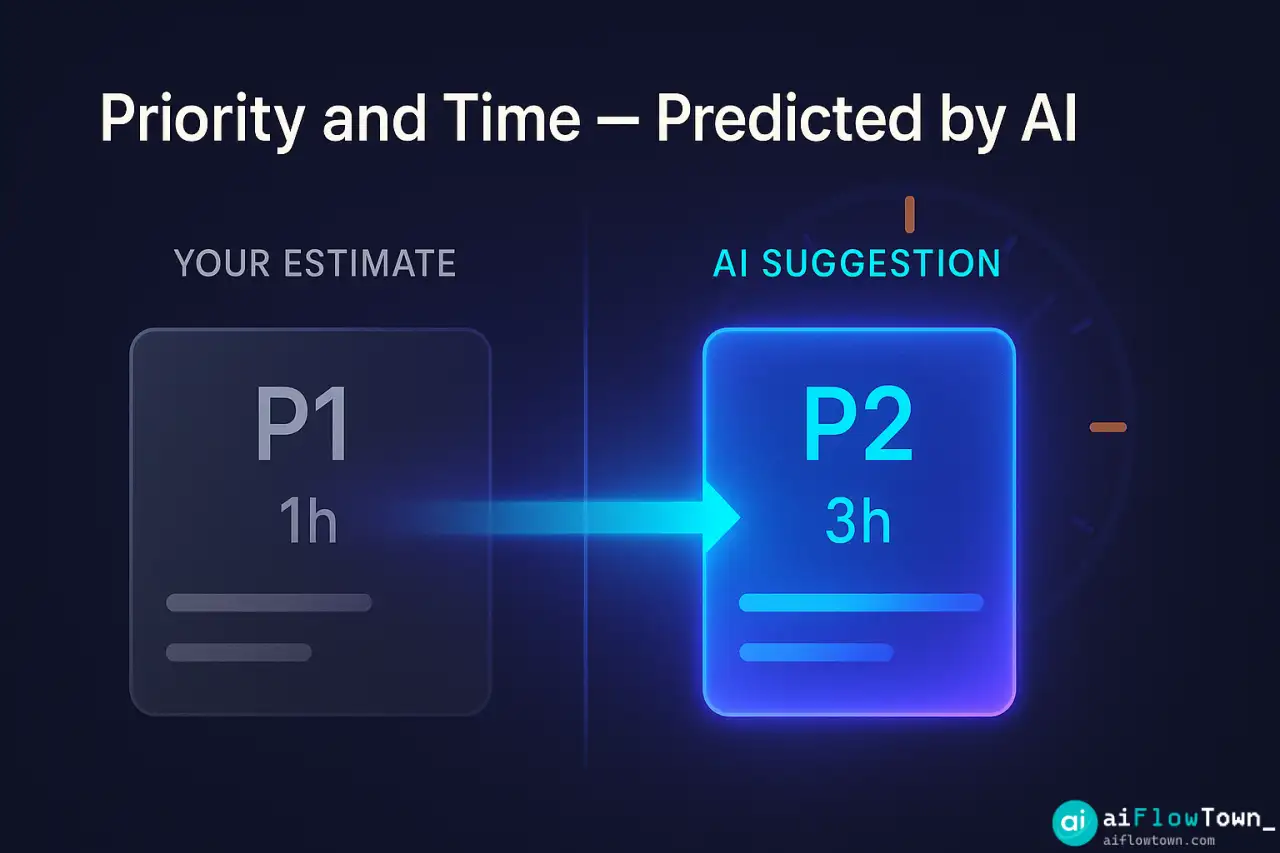
What it does: AI suggests whether a task should be P1, P2, P3, or P4 based on due dates, project importance, and your previous prioritization patterns.
How it works: Machine learning analyzes thousands of your priority decisions to understand what you consider urgent vs important.
Real-world test: Added “review contract.” AI suggested P2. I would have made it P3. Turned out there was a tight turnaround I’d forgotten—AI was right.
Where it fails: First few weeks. AI needs training data. Early suggestions are often wrong until it learns your patterns.
For more AI task management strategies, check our AI workflows guide.
Duration Estimates
What it does: Predicts how long a task will take based on similar completed tasks.
How it works: Tracks your actual completion times and suggests realistic durations for new tasks.
Real-world test: I estimated “write blog post” at 2 hours. AI suggested 3.5 hours based on my history. AI was accurate—I consistently underestimate writing time.
Where it fails: Unusual tasks. If you haven’t done something similar before, AI can’t help.
What AI Features Cost
| Plan | Price | AI Features | Worth It For |
|---|---|---|---|
| Free | $0 | None | Basic task management |
| Pro | $4/mo | All AI features | Power users, 50+ tasks/week |
| Business | $6/mo | All AI + team features | Teams sharing projects |
AI features are only available on Pro and above. The $4/month question: are they worth it?
How AI Features Work in Practice
Daily Task Entry
Without AI: Type “meeting prep” → manually add details → guess priority → estimate time
With AI: Type “meeting prep” → AI suggests “Prepare agenda and materials for Thursday client meeting” → Accept or edit → AI suggests P2 priority → AI estimates 45 minutes
Time saved: 30 seconds per task. Doesn’t sound like much. Over 20 tasks daily, that’s 10 minutes saved.
More importantly: the suggestions are often better than what I’d write rushed. They include context I’d forget.
Priority Decisions
Before AI: Everything feels urgent. I mark too many things P1. Important stuff drowns in fake urgency.
After AI: AI suggests priorities based on actual patterns. I override when needed, but the baseline is smarter. My P1 list shrank from 15 items to 3–5 actually urgent tasks.
This is the most valuable feature. Priority inflation kills productivity. AI provides a reality check.
Time Management
My pattern: Chronically underestimate task duration. Schedule back-to-back tasks. Run late constantly.
With AI duration prediction: More realistic scheduling. AI knows I take 3 hours for client proposals, not the 90 minutes I keep assuming.
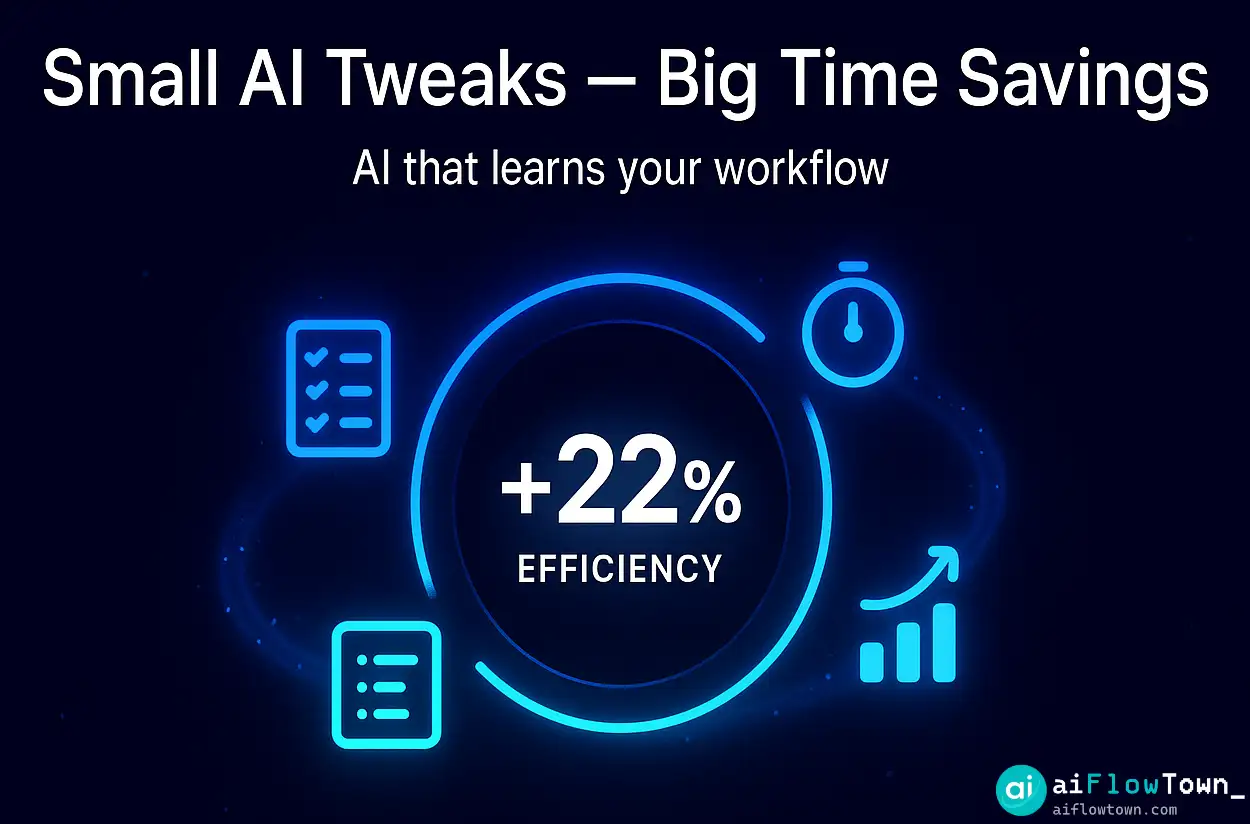
Over four weeks, my on-time task completion went from 60% to 82%. The AI didn’t make me faster—it made my planning more honest.
For time management workflows, explore our AI productivity prompts guide.
Todoist AI vs Alternatives
vs Motion
Motion: Full AI scheduling, auto-reschedules tasks, integrates with calendar ($34/mo)
Todoist AI: Suggestions only, you make final decisions, separate from calendar ($4/mo)
Winner: Depends on control needs. Motion for full automation, Todoist for AI-assisted manual control.
vs Notion AI
Notion AI: More general-purpose, writes any content, database-aware ($10/mo add-on)
Todoist AI: Task-specific, learns your patterns, predicts your behavior ($4/mo)
Winner: Different use cases. Notion for broader AI needs, Todoist for focused task management.
vs Todoist Free
Free version: Manual everything, no predictions, works fine
AI version: Saves time, improves decisions, costs $48/year
Winner: AI version if you manage 30+ tasks weekly. Free version if you’re casual user.
What Works and What Doesn’t
Strengths
Priority suggestions are genuinely useful. This alone might justify the cost. AI catches urgency I miss and downgrades fake urgency I create.
Duration predictions improve scheduling. Knowing actual task length prevents over-commitment.
Natural language processing is smart. Type “meeting Thursday 2pm” and AI understands. No manual date picking.
Learning improves over time. Week one suggestions were mediocre. Week four suggestions felt personalized.
Doesn’t change core Todoist. AI enhances, doesn’t complicate. Turn it off and Todoist works exactly as before.
Weaknesses
Requires training period. First 2–3 weeks, suggestions are hit-or-miss. You’re training the AI with your corrections.
Limited to Pro plan. Can’t test AI features before paying. No AI trial period.
No integration with calendar AI. Todoist AI doesn’t talk to Reclaim, Motion, or calendar tools. You get suggestions but not automatic scheduling.
Task description suggestions are inconsistent. Sometimes brilliant, sometimes obvious. No pattern to when it helps vs wastes time.
Can’t explain reasoning. AI suggests P2, but won’t tell you why. You trust it or you don’t.
Should You Upgrade for AI Features?
Upgrade If You:
- ✅ Manage 50+ tasks per week consistently
- ✅ Struggle with priority decisions (everything feels urgent)
- ✅ Consistently underestimate task duration
- ✅ Already like Todoist’s core features
- ✅ Value time savings over manual control
- ✅ Can commit to 2–3 weeks of training AI
Time saved: 10–15 minutes daily. That’s 60+ hours yearly for $48. Math checks out.
Skip If You:
- ❌ Manage fewer than 20 tasks weekly
- ❌ Already have good priority judgment
- ❌ Prefer full manual control over suggestions
- ❌ Use task manager casually, not daily
- ❌ Want AI to do the work, not suggest
- ❌ Budget-conscious and free version works
Free Todoist is excellent. AI adds value but isn’t necessary for most users.
For complete tool comparisons, explore our guide to the 15 best AI productivity tools.
Better Alternatives for Specific Needs
Want full automation: Motion ($34/mo) or Reclaim AI (free–$18/mo)
Want AI + knowledge management: Notion with AI ($10/mo add-on)
Want free AI task features: TickTick has basic AI on free plan
Want more powerful AI: Use ChatGPT to generate task lists, paste into free Todoist
Want calendar integration: Any calendar AI tool + free Todoist works better than Todoist AI alone
Tips If You Do Upgrade
Train it deliberately. First two weeks, correct every wrong suggestion. AI learns from corrections.
Use natural language. Type “draft proposal for client meeting next Tuesday” instead of adding dates manually. Let AI parse it.
Trust priority suggestions initially. Even if they feel wrong. Test them for a week before overriding consistently.
Check duration predictions weekly. Are estimates getting more accurate? If not, your task naming might be too generic.
Combine with other AI tools. Todoist AI handles tasks. Use Reclaim for calendar. Use ChatGPT for planning. Best-of-breed beats all-in-one.
❓ FAQ
Can I try AI features before paying?
No. Todoist Pro ($4/mo) includes AI features, but there’s no AI-specific trial. You can trial Pro for 30 days, which includes AI. Cancel before trial ends if it’s not worth it.
⏱️ How long before AI suggestions are good?
2–3 weeks of daily use. AI needs data on your patterns. Week one suggestions are mediocre. Week four suggestions feel personalized. Be patient through training period.
Does AI work offline?
No. AI features require internet connection. Core Todoist works offline, but suggestions won’t appear until you’re back online. Not a problem for most users.
Do AI features work on mobile?
Yes, fully. Smart descriptions, priority suggestions, and duration estimates work identically on iOS, Android, and web. No feature limitations on mobile.
Can I turn off specific AI features?
Yes. Settings let you disable individual AI suggestions. Keep priority predictions, turn off task descriptions if they’re not helpful. Customize what you see.
Final Thoughts
This todoist ai review comes down to a simple calculation: do you save 10–15 minutes daily? If yes, the $4/month pays for itself. If no, free Todoist works fine.
For heavy Todoist users managing 50+ tasks weekly, AI features are worth it. Priority suggestions alone justify the cost. Duration predictions prevent over-commitment. Task descriptions save mental energy.
For casual users, the free version is plenty. AI adds polish but not necessity.
The honest take: Todoist AI isn’t revolutionary. It’s evolutionary. Small improvements that compound over months. After four weeks, I’m keeping the Pro plan. Not because any single feature is amazing, but because the collective time savings add up.
Try it for a month. Track whether you’re actually using the suggestions. If you ignore them, downgrade. If you rely on them, you found your $4 of value.
Ready to build a complete AI-powered productivity system? Discover how Todoist fits into your workflow with our guide to AI automation tools for beginners that work together.
⚠️ Reminder: Even the smartest tools / AI can miss small details or make mistakes. Always double-check your work before presenting or publishing it - a quick review can save hours later.