From Sci-Fi to Your Desk: Build Your Own AI Assistant
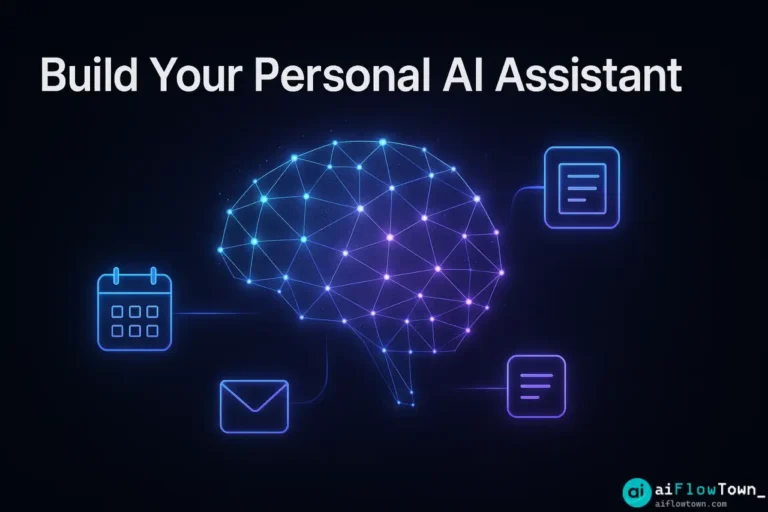
The dream of having a personal assistant like Iron Man’s Jarvis—an intelligent entity that understands you, anticipates your needs, and automates your life—is no longer science fiction. While we may not have holographic interfaces just yet, the tools to build your own custom AI personal assistant are now accessible to everyone, no coding required. This is your step-by-step guide to creating a smart assistant that can manage your tasks, summarize your emails, and more.
Forget complex programming languages. We’re going to show you how to build your own AI assistant using powerful, user-friendly “no-code” platforms. By connecting simple tools in a clever way, you can design a system that works exactly the way you think. This guide is for beginners, focusing on the concepts and practical steps needed to bring your first AI helper to life.
We’ll be using a combination of tools to achieve this, primarily focusing on Zapier and ChatGPT. If you’re new to this workflow, our guide on creating a Zapier ChatGPT workflow is an excellent starting point.
Part 1: The Philosophy – What Are We Building?
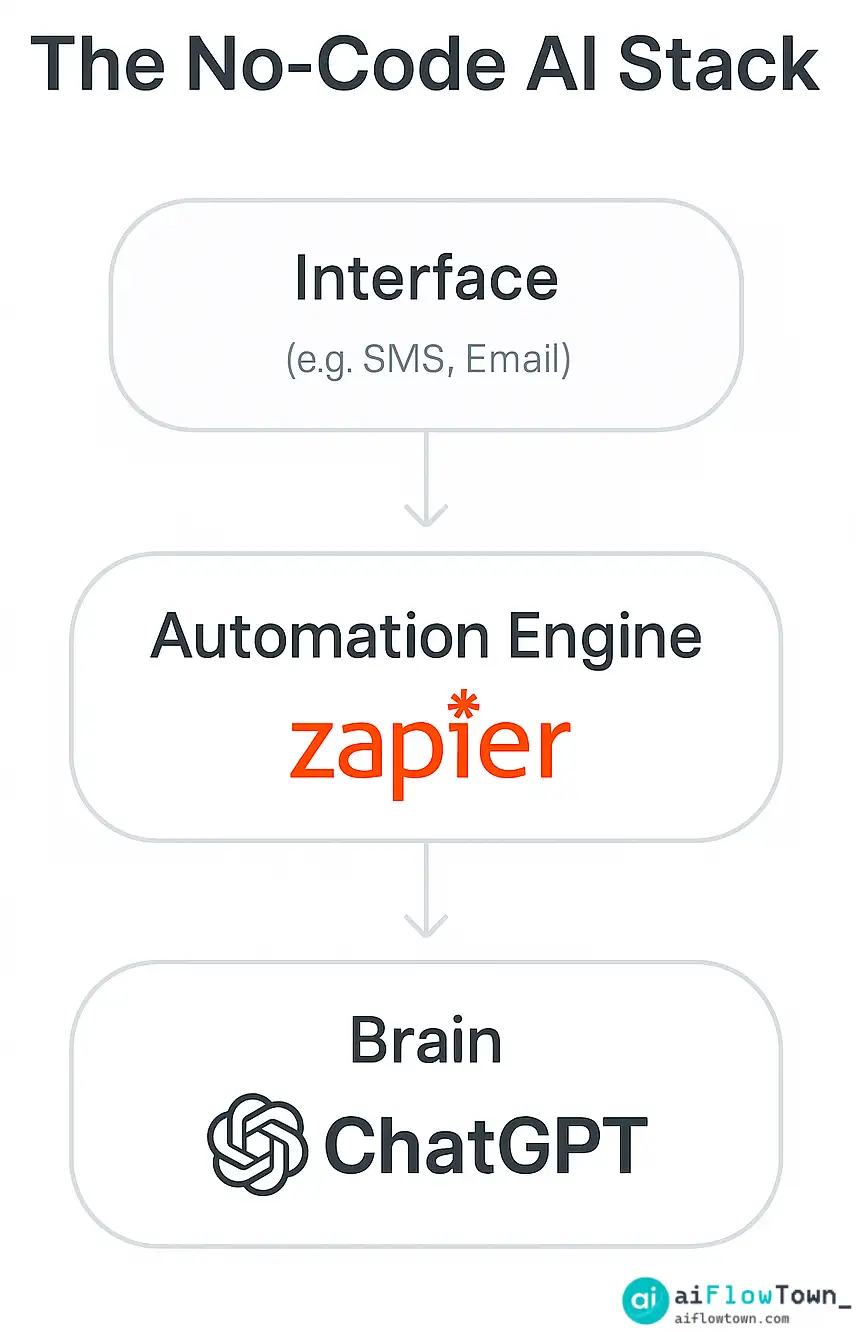
Before we dive in, let’s define what a “no-code AI assistant” really is. It’s not a single app. It’s a personal AI workflow – an automated system that you design to handle specific, repetitive tasks. It consists of three core components:
- The Interface (The “Ears”): This is how you “talk” to your assistant. It could be sending an email to a specific address, adding a row to a Google Sheet, or even sending an SMS.
- The Automation Engine (The “Nervous System”): This is the central hub that connects everything. It listens for your command via the Interface and routes the information. Our tool of choice here is Zapier.
- The Brain (The “Intelligence”): This is where the thinking happens. It takes your command, processes it, and decides what to do. Our brain will be ChatGPT.
Our goal is to create a system where you can send a simple command like “Remind me to call the dentist tomorrow at 10 am” to a specific input, and your system will automatically understand and add it to your calendar. This is how you automate daily tasks with AI.
Part 2: The Core Task – Building a “Smart Task Manager”
For this guide, we will build a powerful and practical assistant: a smart task manager. You’ll be able to send it a natural language command, and it will intelligently categorize it and add it to the right place. The Goal: Send an email to a special address (e.g., `assistant@yourdomain.com`). The AI will read the subject, determine if it’s a “Task,” a “Meeting,” or a “Note,” and then add it to the correct app (e.g., Todoist for tasks, Google Calendar for meetings, Notion for notes).
What You’ll Need:
- A Zapier account (a paid plan is needed for multi-step Zaps with paths, which is key for this workflow).
- An OpenAI account with a payment method for API access.
- Accounts for your chosen apps: Gmail, Todoist, Google Calendar, Notion.
Step 1: The Trigger – Your Assistant’s Inbox
First, we need a way to send commands. Using a dedicated email address is a simple and effective method.
- In Zapier, create a new Zap and choose “Email by Zapier” as the trigger.
- This will give you a unique, custom email address (e.g., `randomwords.xyz@zapiermail.com`). Save this address! This is your assistant’s private line.
- Test this step by sending an email to that address with a subject like: “New task: Finish the quarterly report by Friday”.
Step 2: The Brain – ChatGPT Categorizes the Command
This is the intelligence layer. We’ll send the email subject to ChatGPT and ask it to classify the command.
- Add a new action step and select “ChatGPT“.
- Choose the event “Conversation“.
- In the “User Message” field, craft a precise prompt. This is crucial for building a reliable custom ChatGPT assistant.
Example Prompt for the “User Message” Field:
Act as a task classification engine. I will provide you with a piece of text. Your job is to analyze it and classify its intent into one of three categories: "Task", "Meeting", or "Note". You must only respond with one of those three words and nothing else.
For example:
- If the text is "Remind me to call John tomorrow", you should respond with "Task".
- If the text is "Schedule a marketing sync on Tuesday at 4pm", you should respond with "Meeting".
- If the text is "Idea for blog post: The future of AI assistants", you should respond with "Note".
Here is the text to analyze: [Insert "Subject" data from the Email by Zapier trigger]
Test this step. If you sent the test email “New task: Finish the quarterly report by Friday”, ChatGPT should respond with the single word: `Task`.
Step 3: The Logic – Using Paths to Direct Traffic
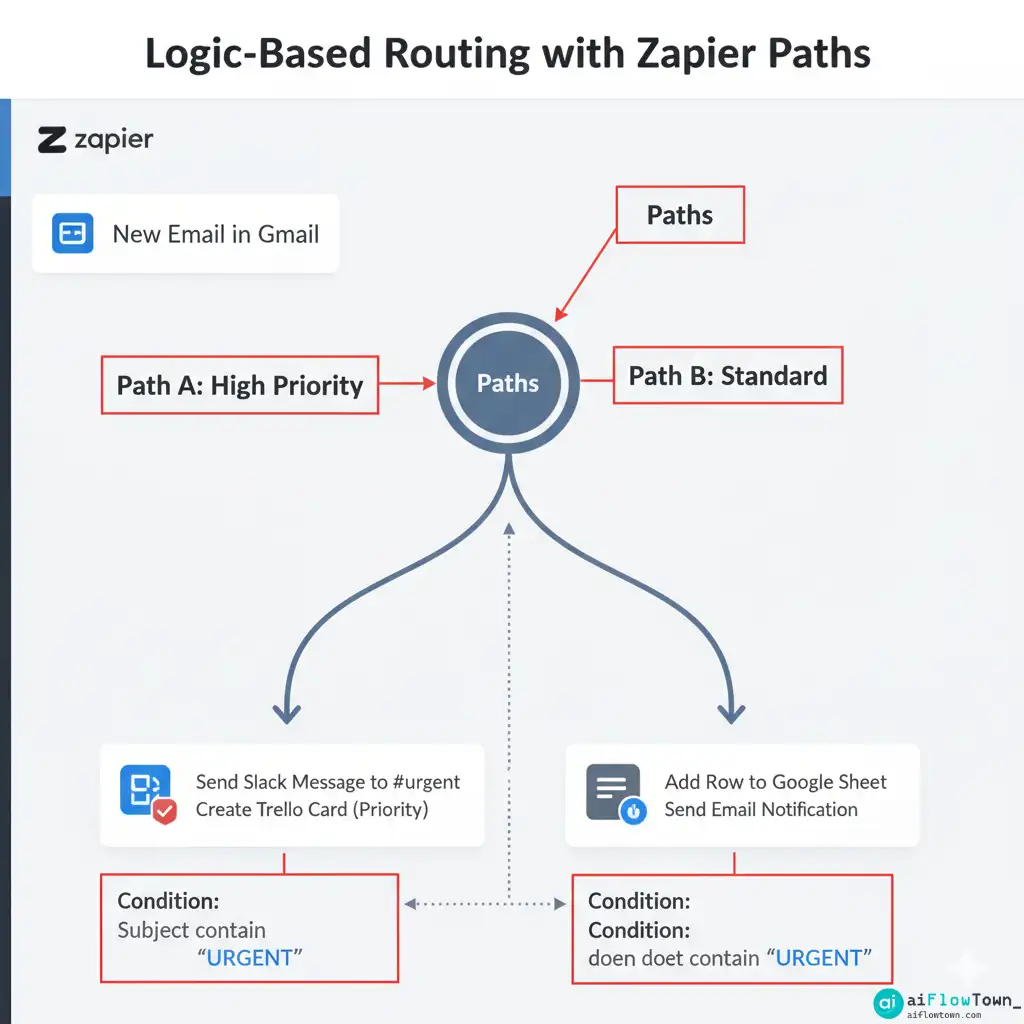
Now that we know the command’s category, we need to send it to the right place. This requires a feature in Zapier called “Paths“, which allows your workflow to perform different actions based on different conditions.
- Add a new step and choose the “Paths” helper.
- You will be presented with two initial paths (Path A and Path B). You can rename them and add more.
- Configure Path A (for Tasks):
- Rename it to “Handle Tasks”.
- Set up the rule for this path to continue only if… the ‘Reply’ from the ChatGPT step (which contains our category) (Text) Exactly matches `Task`.
- Configure Path B (for Meetings):
- Rename it to “Handle Meetings”.
- Set up the rule for this path to continue only if… the ‘Reply’ from the ChatGPT step (Text) Exactly matches `Meeting`.
- Add a third path, rename it “Handle Notes,” and set up a similar rule for the word `Note`.
Step 4: The Final Actions – Putting Everything in its Place
Now we just need to add the final action inside each path.
Inside the “Handle Tasks” Path:
- Add an action and select “Todoist“.
- Choose the action “Create Task“.
- In the “Task Name” field, insert the original ‘Subject‘ data from the Email by Zapier trigger. You can also get more advanced and have another ChatGPT step to clean up the text first.
Inside the “Handle Meetings” Path:
- Add an action and select “Google Calendar“.
- Choose the action “Quick Add Event“. This is powerful because Google Calendar can understand natural language.
- In the “Describe Event” field, insert the original ‘Subject‘ from the trigger. Google Calendar will automatically parse “marketing sync on Tuesday at 4pm” into a correctly scheduled event.
Inside the “Handle Notes” Path:
- Add an action and select “Notion“.
- Choose the action “Create Database Item“.
- Select your “Notes” or “Ideas” database. In the “Title” or “Name” property of the note, insert the ‘Subject‘ from the trigger.
Once all paths are configured, turn on your Zap. You have now built a functioning, multi-talented no-code AI assistant!
Comparing Assistant Capabilities
This table shows how this modular approach can be expanded.
| Command Type | ChatGPT’s Role | Recommended Action App | Example Command |
|---|---|---|---|
| Task Management | Categorize & Extract Task Name | Todoist, Trello, Asana | “Remind me to buy milk” |
| Scheduling | Categorize & Extract Event Details | Google Calendar, Calendly | “Schedule lunch with Sarah next Wednesday” |
| Note Taking | Categorize & Use as Title | Notion, Evernote, Google Docs | “Note: Idea for a new automation” |
| Summarization | Summarize Pasted Text/URL | Gmail, Slack | “Summarize this article: [link]” |
Conclusion: The Future of Personal Productivity is You
You’ve just learned the fundamental pattern to create a smart assistant. This is more than just a fun tech project; it’s a new paradigm for personal productivity. By identifying the repetitive tasks in your life and building simple, intelligent systems to handle them, you free up your most valuable resource: your cognitive energy.
Start with the smart task manager we built today. As you use it, you’ll start seeing other opportunities for automation. Maybe you can create a path for “Summarize” that takes a URL and sends you the summary in Slack. The possibilities are limited only by your imagination. Welcome to the future of getting things done.
❓ FAQ
Is building this AI personal assistant completely free?
Not entirely. While you can start on free plans, this specific multi-step workflow with “Paths” requires a paid Zapier plan. Additionally, the ChatGPT API usage is pay-as-you-go. However, the cost is typically very low for personal use (a few dollars a month), making it a highly affordable “employee.”
How reliable is ChatGPT for classifying my commands?
It’s surprisingly reliable, especially with a clear and well-structured prompt like the one we used. The key is to be extremely specific in your instructions (e.g., “You must only respond with one of these three words”). For mission-critical tasks, you can even add a “fallback” path in Zapier for commands that aren’t classified correctly.
Can I use a different AI model besides ChatGPT?
Yes. Zapier has integrations with other powerful AI models, such as Anthropic’s Claude. You can easily swap the ChatGPT action for a Claude action. The core logic of the workflow (Trigger -> Classify with AI -> Paths -> Final Actions) remains exactly the same.
✨ What’s the next step to make my assistant even smarter?
The next level is to add more “thinking” steps. For example, in the “Handle Tasks” path, you could add another ChatGPT action *before* creating the task in Todoist. You could ask this second AI step to “Take this raw text and extract a due date, priority level, and a clean task name.” This creates a much richer and more intelligent workflow.
⚠️ Reminder: Even the smartest tools / AI can miss small details or make mistakes. Always double-check your work before presenting or publishing it - a quick review can save hours later.