Turn ChatGPT and Zapier into Your Automation Engine
Imagine your digital life running on autopilot. A customer inquiry email arrives, and a thoughtful, well-written draft reply is instantly created and saved in your Gmail. A new idea is added to a Google Sheet, and a full-fledged project plan for it appears in your task manager. This isn’t science fiction; it’s the power you unlock when you create a Zapier ChatGPT workflow.
By themselves, ChatGPT is a brilliant brain, and Zapier is a master connector. Together, they form an automation powerhouse. Many people know how to use ChatGPT for one-off tasks, but the real leap in productivity comes from integrating it into your daily processes. This guide will walk you through, step-by-step, how to build your first AI workflow automation. We’ll start with the basics of the ChatGPT Zapier integration and then build a practical, real-world example that you can adapt for your own needs. This is where you stop using AI as a novelty and start using it as a system. If you’re new to the world of automation, you might also want to check out our broader guide on the best AI automation tools for beginners.
Part 1: The Core Concepts – How Does This Integration Work?
Before we build, it’s essential to understand the two key players and their roles in this workflow.
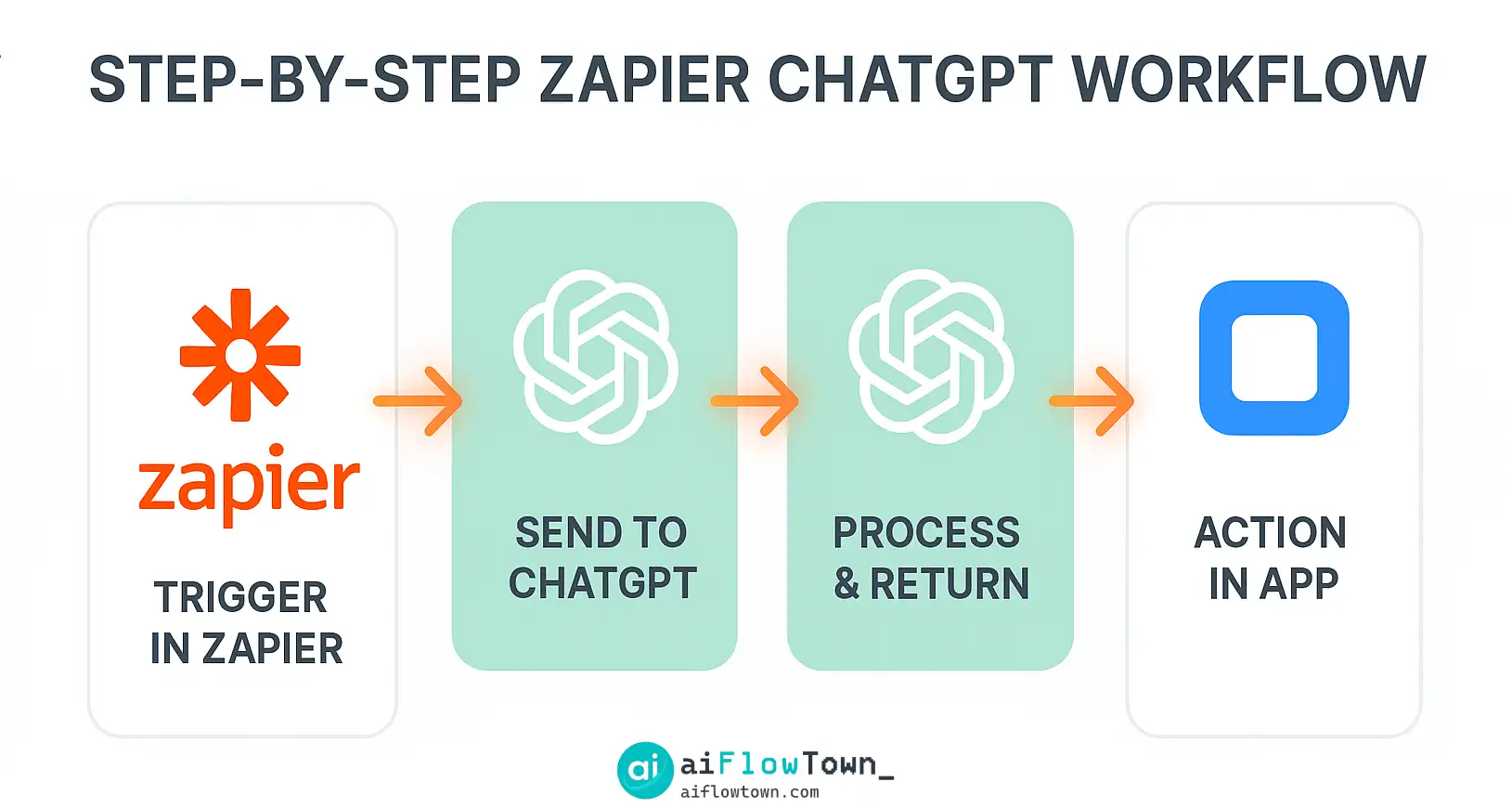
- Zapier: Think of Zapier as the digital nervous system for the internet. It watches for “Triggers” in one app (like a new email in Gmail) and then performs “Actions” in another app (like sending a message in Slack). It’s the glue that connects over 5,000 different applications.
- ChatGPT: In this workflow, ChatGPT acts as the “thinking” step. It’s an Action that takes information from the Trigger, processes it based on your instructions (your prompt), and then passes the result to the next step in the workflow.
The basic flow is always the same: Trigger App -> ChatGPT (to think/process) -> Action App. By mastering this simple pattern, you can automate an incredible variety of tasks.
Part 2: What You’ll Need to Get Started
The beauty of this system is its accessibility. You don’t need to be a developer to get started. Here’s your checklist:
- A Zapier Account: The free Zapier plan is a great place to start. It allows you to build simple, two-step Zaps, which is enough for many basic workflows.
- An OpenAI (ChatGPT) Account: You’ll need an account with OpenAI. While you can use the free version of ChatGPT for chatting, connecting it to Zapier requires access to its API. This means you will need to add a payment method to your OpenAI account for API usage, but the costs for these workflows are typically very low (pennies per hundred runs).
- Accounts for Your Other Apps: Have your login details ready for the apps you want to connect (e.g., Gmail, Slack, Google Sheets, Trello).
Part 3: Building Your First Zapier ChatGPT Workflow (Step-by-Step)
Let’s build a classic, high-value workflow: Automatically drafting replies to customer feedback emails.
The Goal: When a new email with the subject “Feedback” arrives in Gmail, we want ChatGPT to analyze its sentiment, draft a professional and empathetic reply, and save that draft in Gmail for us to review and send.
Step 1: Set Up the Trigger in Zapier
- Log in to your Zapier account and click “Create Zap”.
- For the Trigger, search for and select “Gmail”.
- Choose the event “New Email”. You may need to connect your Gmail account if you haven’t already.
- Customize the trigger. To avoid this running on every single email, you can specify a filter. For example, you might set the “Search String” to `subject:”Feedback”`. This tells Zapier to only run when an email matching that subject arrives.
- Test your trigger. Zapier will pull in a recent email from your account to use as sample data. Make sure it finds a relevant email and proceed.
Step 2: Add the ChatGPT “Thinking” Action
This is where the magic happens. We’ll tell ChatGPT what to do with the email content.
- Click the “+” to add a new step and search for “ChatGPT”.
- Choose the event “Conversation”. Connect your OpenAI account. You will need to provide your API key, which you can find in your OpenAI account settings.
- Now, we configure the action. This is the most important part—crafting the prompt. In the “User Message” field, you will write your instructions and dynamically insert data from the Gmail trigger.
Example Prompt for the “User Message” Field:
Act as an experienced customer support specialist with a friendly and empathetic tone.
I have received the following customer feedback email.

**Customer's Name:** [Insert 'From Name' data from Gmail trigger]
**Customer's Email:** [Insert 'Body Plain' data from Gmail trigger]

Your task is to perform two steps:
1.  First, analyze the sentiment of the email (Positive, Negative, or Neutral).
2.  Second, draft a professional and helpful reply. If the sentiment is negative, be apologetic and offer to help.
If it's positive, thank them warmly. If it's neutral, be polite and clear.
Structure your entire response as a single block of text, starting with "Sentiment: [Your analysis]" on the first line, followed by "---" as a separator, and then the full draft of the email reply on the subsequent lines.
Step 3: Add the Final Action in Gmail
ChatGPT has now “thought” and generated the reply. The final step is to do something with that output.
- Click the “+” to add a final step and select “Gmail” again.
- This time, choose the event “Create Draft”.
- In the “Action” setup, you’ll configure the draft.
- To: Insert the ‘From Email’ data from the initial Gmail trigger.
- Subject: You can write “Re: ” and then insert the ‘Subject’ from the Gmail trigger.
- Body: This is the key part. Here, you will insert the ‘Reply’ data from the ChatGPT action. Because we cleverly formatted our prompt, we might need to do a simple text split. Many workflows just use the full reply.
- Test this final step. Zapier will send the data to Gmail, and you should see a new draft appear in your Gmail “Drafts” folder.
Once the test is successful, you can name your Zap and turn it on. Congratulations! You’ve just built a fully functional Zapier ChatGPT workflow.
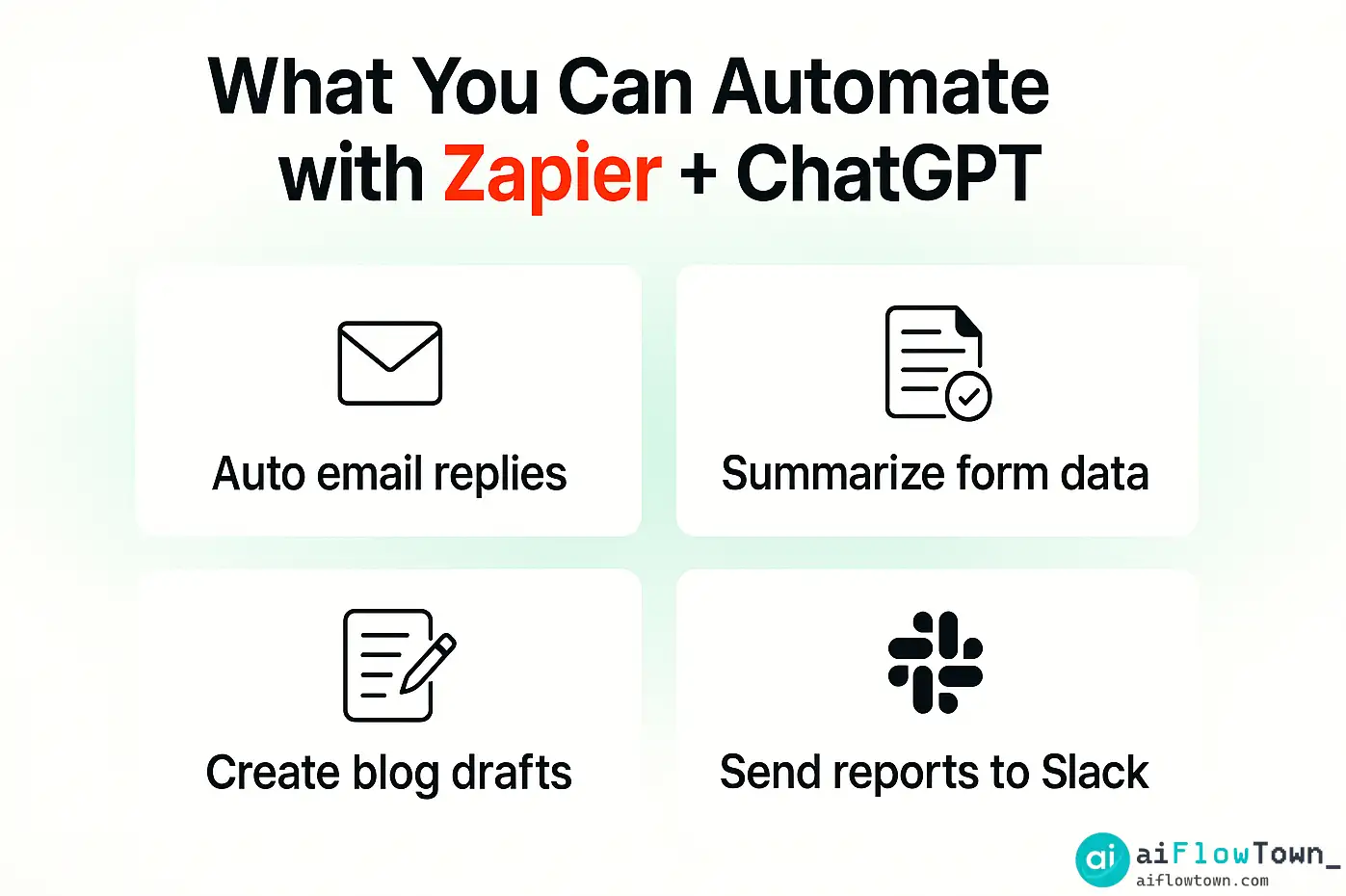
Comparison of Potential Workflows
The “Email Reply” workflow is just the beginning. The same Trigger -> Think -> Action pattern can be applied to many different areas.
| Workflow Goal | Trigger App | ChatGPT Task | Action App |
|---|---|---|---|
| Content Ideation | Google Sheets (New Row) | “Expand this keyword into 5 blog post ideas.” | Trello (Create Card) |
| Meeting Summarization | Google Calendar (Event Ends) | “Summarize the attached meeting notes and extract action items.” | Slack (Send Channel Message) |
| Social Media Drafting | Feedly (New Article in Category) | “Write a short, insightful tweet about this article.” | Buffer (Add to Queue) |
| Lead Qualification | Typeform (New Entry) | “Analyze this form submission and score the lead from 1-10 based on our criteria.” | HubSpot (Update Contact Property) |
Conclusion: Your First Step into a Smarter Workflow
Building your first Zapier ChatGPT workflow can feel like unlocking a superpower. You’ve moved beyond manual, repetitive tasks and started creating intelligent systems that work for you in the background.
The example we built is a foundation. Now, look at your own daily tasks. What do you do over and over again? What information do you regularly need to process or transform? Start small, automate one task, and you will quickly see opportunities for AI automation everywhere.
This is the future of personal productivity—not just working faster, but building systems that let you focus on the work that only you can do.
❓ FAQ
Is the ChatGPT integration on Zapier free?
The integration itself is available on the free Zapier plan. However, to use it, you must connect an OpenAI account with a payment method on file for API usage. The cost is pay-as-you-go and is very low for most personal workflows (often less than a dollar for hundreds of runs), but it is not completely free.
What’s the difference between the “Conversation” and “Completion” actions for ChatGPT in Zapier?
The “Conversation” action is the most common and powerful. It allows you to have a back-and-forth with ChatGPT and even provide it with a “memory” of previous steps. The older “Completion” action is simpler and is being phased out. For all new workflows, you should use the “Conversation” action.
✅ My Zap is not working. What are the common troubleshooting steps?
First, check the “Zap History” to see where the error occurred (the Trigger, ChatGPT, or the final Action). Most often, errors come from either an incorrectly configured prompt in ChatGPT or the data not being in the format the final app expects. Test each step individually to isolate the problem.
Can I connect other AI models besides ChatGPT to Zapier?
Yes! Zapier also has integrations for other AI models, such as Anthropic’s Claude and Google’s Gemini. You can swap out the ChatGPT action for one of these other models if you prefer their output for certain tasks. The fundamental workflow (Trigger -> Think -> Action) remains the same.
⚠️ Reminder: Even the smartest tools / AI can miss small details or make mistakes. Always double-check your work before presenting or publishing it - a quick review can save hours later.