A Smarter Way to Organize Your AI Projects
In the age of AI, our projects are becoming more dynamic, experimental, and data-driven. We’re constantly testing new prompts, generating content, and launching automated workflows. The problem? Traditional project management tools can feel rigid and overly complex for these fluid tasks. Sometimes, what you really need is a simple, flexible, and intelligent command center. This is where our free AI tracker template for Google Sheets comes in.
Forget expensive software. This guide will not only give you access to a powerful free project tracker google sheets template but will also teach you how to use it as an intelligent dashboard for all your AI-related initiatives. We’ve designed this template to be more than just a static list; it’s a dynamic tool that helps you track progress, manage outputs, and even integrate simple AI functions directly within your spreadsheet. Whether you’re a content creator, a marketer, or an indie developer, this template will help you bring order to your AI experiments and turn creative chaos into measurable progress.
Why Google Sheets for an AI Project Tracker?
While dedicated project management apps are powerful, Google Sheets offers a unique combination of flexibility, accessibility, and surprising intelligence that makes it perfect for this use case.
- Infinite Flexibility: You can add any column, create any formula, and customize the layout to perfectly match your workflow. There are no rigid structures forcing you to work a certain way.
- Collaboration is Native: Easily share your tracker with team members, clients, or collaborators with full control over permissions.
- The Power of Extensions: The ecosystem of add-ons for Google Sheets is massive. You can connect it to almost any other tool in your stack, creating powerful automations. This is a core principle of AI automation for beginners.
- Simple AI Integration: With basic formulas and the potential for Google Apps Script, you can build surprisingly smart features right into your sheet.
The best project management tool is the one you’ll actually use. For many, the simplicity and familiarity of a spreadsheet make it the most powerful tool of all.
Introducing Your Free AI Tracker Template
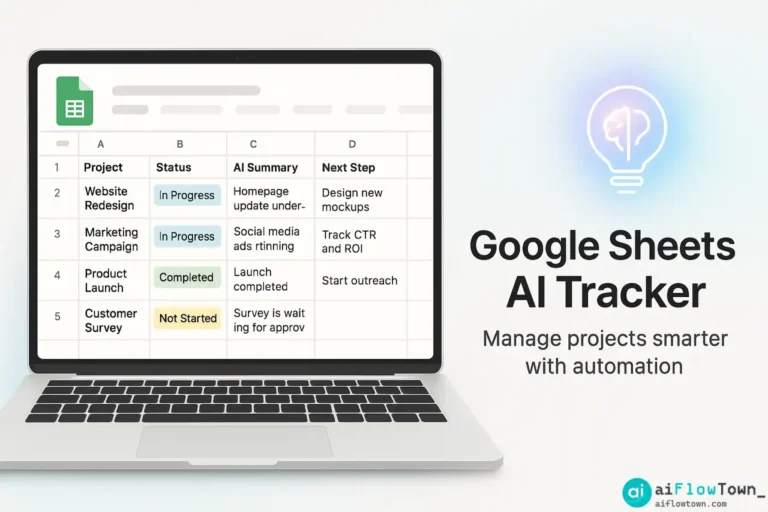
Our template is designed to be a clean, intuitive, and powerful starting point. It’s built around a central task database with several key features that make it “AI-ready.”
[A visually appealing button or link to download/duplicate the Google Sheet template would go here.]
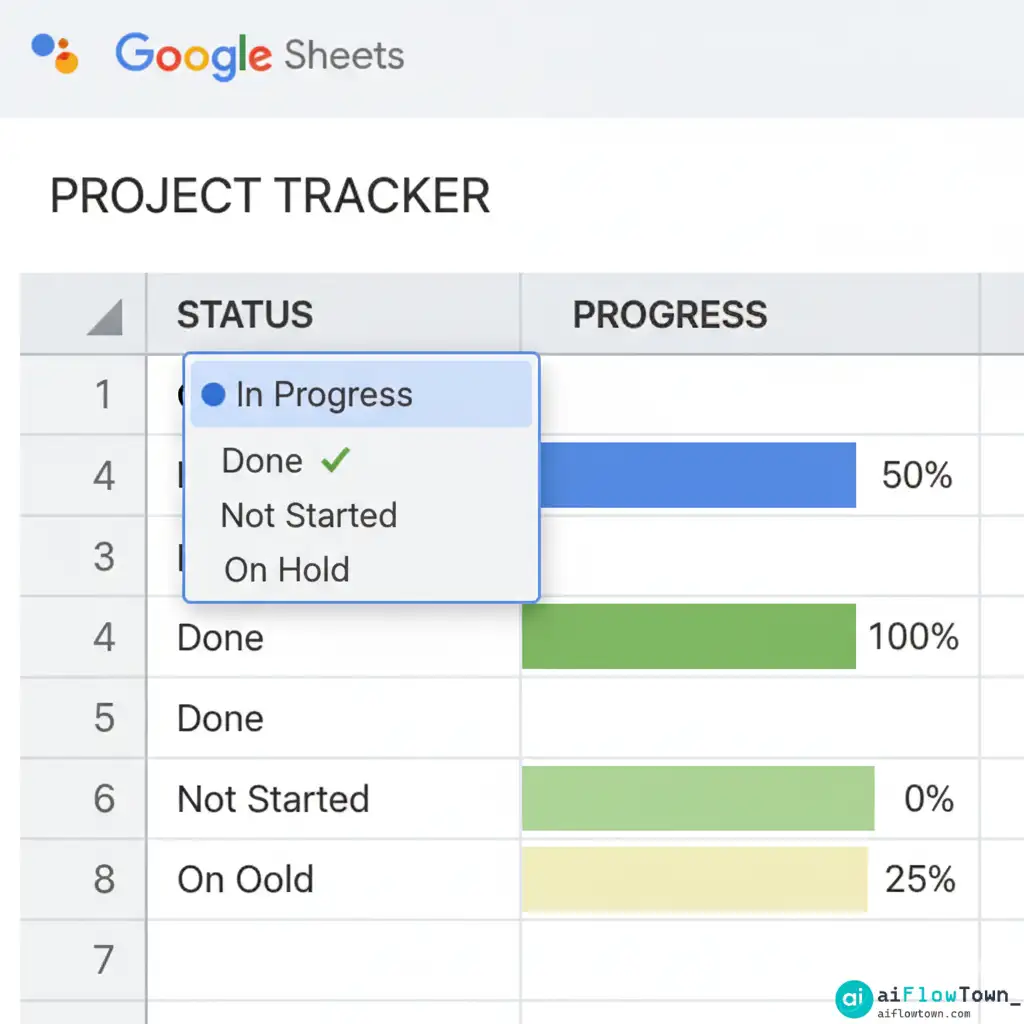
Core Components of the Template:
| Column/Feature | Purpose | How It Works |
|---|---|---|
| Task/Experiment Name | A clear description of the task or AI experiment. | Example: “Generate 10 ad copy variations for the new campaign.” |
| Status | Track the current state of the task. | A dropdown menu with options: To Do, In Progress, Blocked, Done. |
| Owner & Due Date | Assign responsibility and set deadlines. | Standard text and date fields. |
| Progress Bar | Visually represent task completion. | An automatic bar that updates based on the “Status” column. |
| AI Prompt Used | Log the exact prompt used for an AI task. | A text field to save your best prompts for future use. This is a core part of building a prompt library. |
| Link to AI Output | Quickly access the results of your AI generation. | A URL field linking to a Google Doc, image file, or other output. |
| KPI/Metric | Define what success looks like for this task. | A field to note the Key Performance Indicator (e.g., “Click-Through Rate > 3%”). |
How to Use the AI Tracker Template: A Step-by-Step Guide
Here’s a practical walkthrough of how to integrate this ai project management template into your daily workflow.
Step 1: Duplicate the Template
Click the download link and select “File” > “Make a copy” to save an editable version to your own Google Drive. Rename it to something relevant, like “My AI Content Projects.”
Step 2: Define Your Projects & Tasks
Start by populating the sheet with your current AI-related tasks. Be specific. Instead of “Write blog post,” try “Generate outline for ‘Best Free AI Tools’ blog post.”
- For each task, assign an owner and a realistic due date.
- Set the initial status for all new tasks to “To Do.”
Step 3: Log Your Prompts and Outputs
This is where the “AI” part of the tracker becomes crucial. When you perform an AI task (like generating text or an image), follow this process:
- Paste the exact prompt you used into the “AI Prompt Used” column. This creates an invaluable log of what works.
- Save the output (the text, image, etc.) and paste the link to it in the “Link to AI Output” column.
By doing this, you’re not just completing tasks; you’re building a searchable, reusable database of your most successful AI experiments.
Step 4: Update the Status and Track Progress
As you work on tasks, update the “Status” dropdown. You’ll see the progress bars automatically change, giving you a quick visual overview of your project’s health. This simple visual feedback turns the sheet into a simple kpi tracker template.
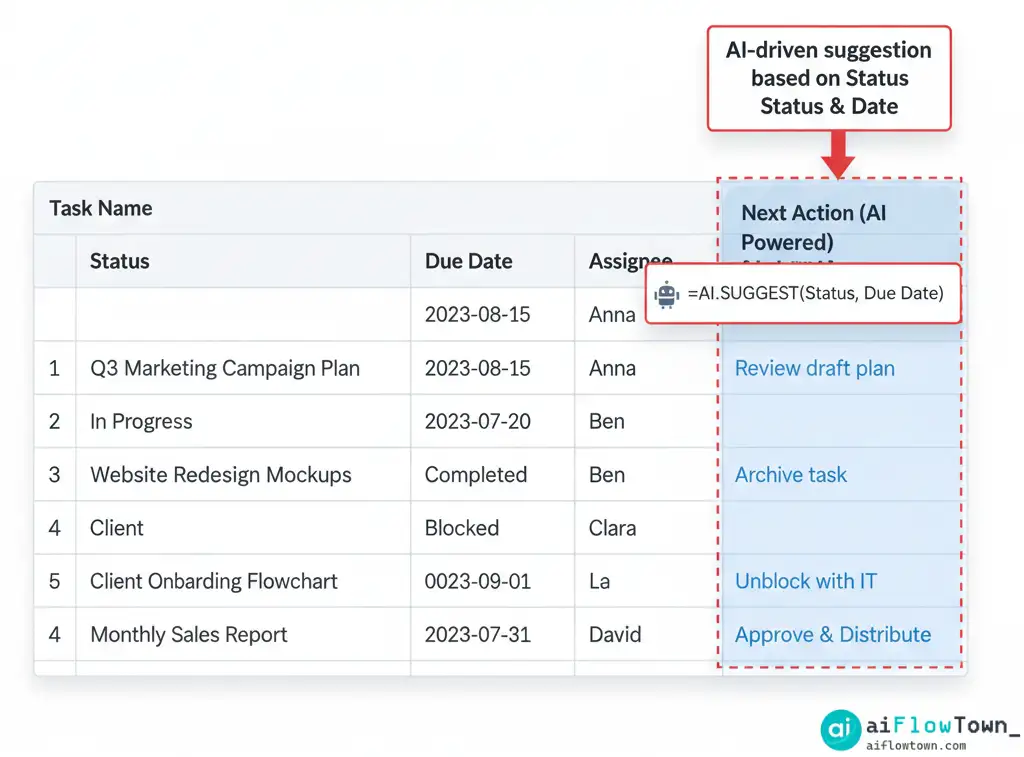
Level Up: Adding Simple Google Sheets AI Integration
While you can use this tracker manually, its true power is unlocked with simple formulas. You can use Google’s built-in Gemini functions to make your sheet even smarter. For more information, you can check the official documentation from Google Workspace.
Example – The “Next Action” Suggester:
You can add a new column called “Suggested Next Action.” In that column, you could use a formula that looks at the status. For example:
=IF(B2="Done", "Archive or Review", IF(B2="Blocked", "Follow up with owner", "Continue working"))
This simple logic starts to turn your sheet from a passive list into an active assistant that suggests what you should do next.
Conclusion: Your Central Hub for AI-Powered Work
You don’t need a complex or expensive system to effectively manage your AI projects. This powerful and flexible AI tracker template provides a robust foundation. It encourages best practices like logging prompts and defining success metrics, while remaining simple enough that you’ll actually use it every day. By bringing structure to your AI experiments, you accelerate your learning and turn random acts of generation into a systematic process of value creation. Duplicate the template, start logging your tasks, and build your own AI project command center today.
❓ FAQ
Do I need any special add-ons to use this Google Sheet template?
No. The core template is built using standard Google Sheets features like data validation (for dropdowns) and conditional formatting (for progress bars). You can use it immediately without installing anything extra.
How can I connect this sheet to other apps like Slack or Trello?
The best way to connect your Google Sheet to other applications is by using an automation platform like Zapier. For example, you could create a Zap that automatically posts a message in a Slack channel every time a task in the sheet is marked as “Done.”
✨ Can this template be used for non-AI projects?
Absolutely! At its core, this is a flexible project management template. You can simply ignore or delete the “AI Prompt Used” and “Link to AI Output” columns to use it as a powerful, general-purpose tracker for any type of project.
⚠️ Reminder: Even the smartest tools / AI can miss small details or make mistakes. Always double-check your work before presenting or publishing it - a quick review can save hours later.