A Smarter Content Calendar for 2025
Every marketer hits that wall: ideas everywhere, deadlines slipping, and a dozen tabs open with “calendar” tools that don’t talk to each other. That’s why this content calendar template for 2025 was built — one Google Sheet that keeps your ideas, statuses, and AI-assisted insights in one clean view.
It’s lightweight, instantly shareable, and powered by built-in formulas that turn your sheet into a living dashboard. You’ll learn exactly how to copy it, how to customize columns, and how to make AI handle status updates automatically — so your calendar never falls behind again.
Why This Template Matters in 2025
Content teams used to spend more time managing their workflow than creating. The AI wave changed that — now, organization and automation go hand in hand. This template bridges both worlds: the simplicity of a spreadsheet and the intelligence of automation.
- ✅ A simple Google Sheet — no login walls, no lag.
- ✅ AI tracking column that updates itself.
- ✅ Compatible with any platform — blog, LinkedIn, YouTube, newsletter.
Instead of “tools that think for you,” this template helps you think better — using structure, not stress.
How to Copy and Customize the Template
Step-by-step:
- 1️⃣ Open the shared Google Sheets file.
- 2️⃣ Click File → Make a copy.
- 3️⃣ Rename it with your team name and year (e.g., “Acme Content Calendar 2025”).
- 4️⃣ Add team members with Edit access.
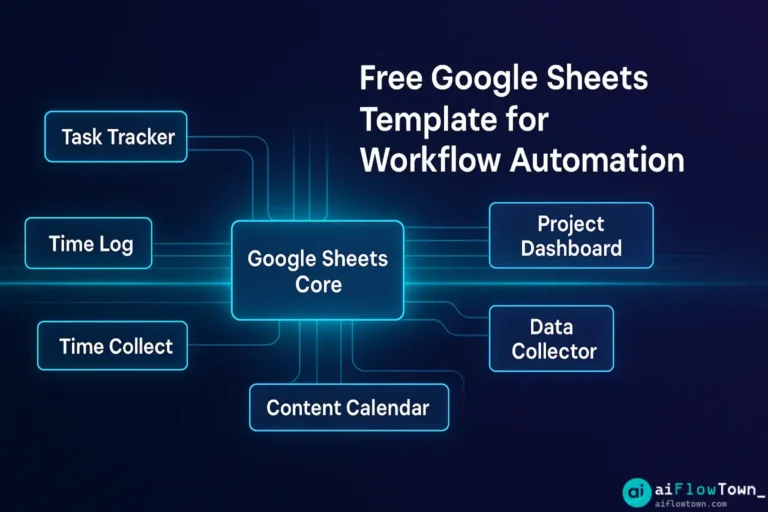
The sheet includes three core tabs:
| Tab | Purpose | Notes |
|---|---|---|
| Monthly Planner | Track every post, channel, and date. | Includes conditional formatting by status. |
| AI Tracker | Stores prompt ideas, draft links, and AI outputs. | Linked with status formula. |
| Performance Log | Captures views, clicks, and engagement metrics. | Use for quarterly reports. |
Column Structure Explained
| Column | Label | Description |
|---|---|---|
| A | Date | Scheduled publish date. |
| B | Platform | e.g., Blog, YouTube, LinkedIn. |
| C | Title / Topic | Headline or post idea. |
| D | Main Keyword | SEO keyword for tracking. |
| E | Content Type | Article, Video, Carousel, Email. |
| F | Owner | Responsible team member. |
| G | AI Prompt / Input | What was sent to AI tool. |
| H | AI Draft Link | URL to generated draft or doc. |
| I | Status | Auto-updated via AI formula. |
| J | Performance | CTR, views, engagement. |
Add AI Tracking Logic (Auto Status)
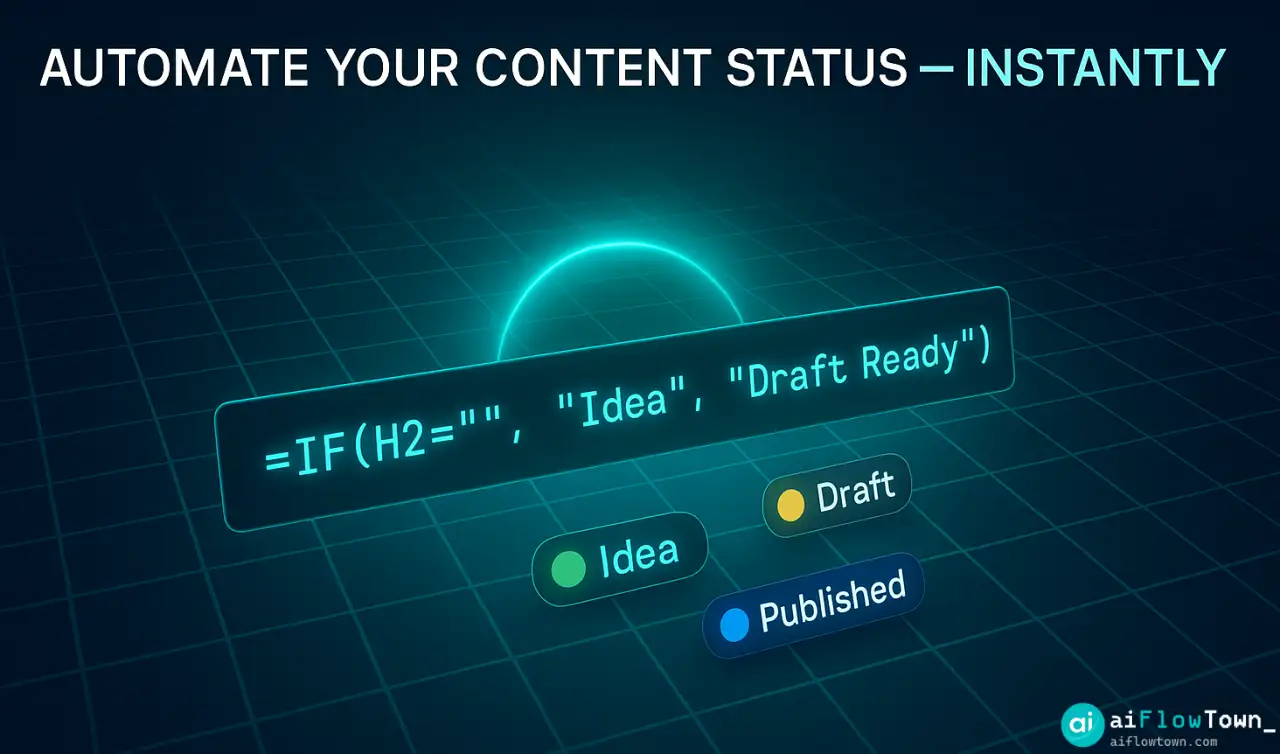
Here’s how the automation works. The sheet uses conditional logic to update “Status” automatically based on cell values in the “AI Draft Link” and “Performance” columns.
=IF(H2="","Idea",IF(AND(H2<>"",J2=""),"Draft Ready",IF(J2<>"","Published","Review")))How it works:
- Idea — if no draft link yet.
- Draft Ready — if AI output exists but not published.
- Published — if performance data exists.
- Review — optional middle stage for editors.
You can enhance it by linking AI tools through Zapier or Make. For example, when a new draft appears in Notion AI, the sheet marks “Draft Ready” automatically. This method scales well for small teams managing multiple channels.

Integrate AI Prompts for Planning
You can use an extra sheet tab called “AI Prompts” to store content ideas. Paste prompt templates there and reference them during brainstorms. For example:
Generate 10 blog post ideas for [topic] that align with our brand tone [friendly, educational]. Each idea should include a short meta description and CTA suggestion.This way, AI not only helps create content but also fuels your editorial calendar directly.
Weekly Workflow Using the Template
Once set up, the sheet becomes your central hub. Here’s how to manage a week efficiently:
- ✅ Monday — Review “Idea” rows, promote 3–5 to “Draft Ready.”
- ✅ Tuesday — Run AI prompts, link generated drafts.
- ✅ Wednesday — Internal review or edits.
- ✅ Thursday — Schedule approved posts.
- ✅ Friday — Log performance metrics for published items.
This lightweight rhythm keeps creativity flowing while automation quietly handles tracking. To see how it fits broader productivity loops, check out AI Workflows.
How to Analyze and Improve Performance
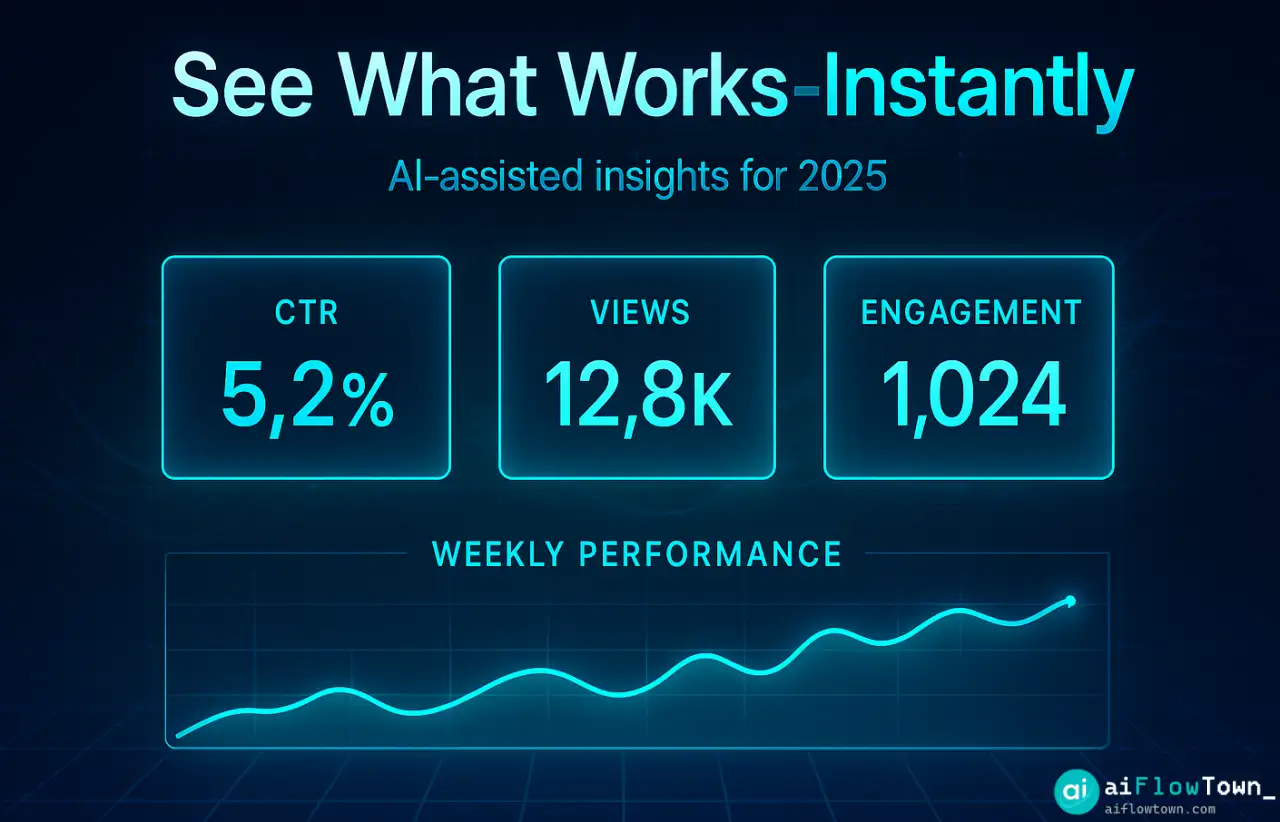
Once your calendar starts filling up, the “Performance Log” tab becomes your data goldmine. Each row you fill in gives you a clearer picture of what works and what doesn’t.
Use these metrics weekly:
- CTR — Click-through rate shows headline and CTA strength.
- Views — Tracks organic reach by platform.
- Engagement — Comments, saves, or shares.
- Publish Date vs. Draft Date — Measures production efficiency.
For deeper insights, link the sheet to Google Analytics or your blog CMS export. Copy metrics into the Performance Log to reveal trends over months. You’ll spot patterns like “LinkedIn performs best on Wednesdays” or “AI-generated posts have 18% faster turnaround.”
Tips for Smarter AI Status Automation
- Color-code statuses: Assign soft colors (gray = idea, blue = draft, green = published).
- ⚙️ Add a “Last Updated” timestamp: Use
=NOW()for version tracking. - Connect to Make or Zapier: When a new AI draft appears, auto-update cell H with the doc URL.
- ️ Group by Owner: Filter by “Owner” to auto-generate weekly workload reports.
Automation doesn’t mean overcomplication. The goal is to reduce manual steps so your energy goes into writing, not tracking.
Template Variations for Different Teams
Depending on your workflow, you can create versions of this sheet for:
| Team Type | Recommended Modifications |
|---|---|
| Solo Creator | Keep only “Monthly Planner” and “AI Tracker.” Add a Notes column for drafts. |
| Marketing Agency | Duplicate tabs for each client. Use Data Validation for “Client Name.” |
| In-House Brand | Link sheet to internal folders via Google Drive URLs. |
| Newsletter Team | Include an “Email Subject Line Test” column with A/B ideas. |
Collaborate With AI Without Losing Control
The trick to AI collaboration is balance. Let AI handle structure and status, but keep human judgment for tone, story, and alignment. Here’s how to build that rhythm:
- Collect ideas in the “AI Prompts” tab using short, focused instructions.
- Generate drafts with Notion AI, ChatGPT, or Writesonic — paste the link in column H.
- Review and refine manually. If approved, log it as “Published.”
- Analyze performance in the last tab and adjust your AI input next week.
This loop gives you continuous improvement — machine speed with human sense. To see similar workflows, explore AI Productivity Prompts.
Common Mistakes and Fixes
- ❌ Overcomplicating the sheet. — Keep only what you’ll use weekly.
- ❌ No status colors. — You’ll lose visual tracking. Color = clarity.
- ❌ Forgetting automation limits. — Overly complex scripts slow Sheets down. Use simple formulas first.
- ❌ Neglecting analysis. — Data unused is data wasted. Review every Friday.
Remember: this template is a system, not a spreadsheet. It’s only useful when updated regularly — just like your content strategy.
❓ FAQ
️ How often should I update the calendar?
Weekly. Friday reviews keep everything clean, ensuring no outdated drafts linger.
Can I connect it to Notion or Airtable?
Yes, using Make.com or Zapier integrations. When a Notion AI draft is ready, your sheet updates status automatically.
How many posts can this template handle?
Around 1,000 rows per sheet without slowing. Split by quarter for best performance.
Can multiple people edit at once?
Absolutely. That’s the beauty of Google Sheets. Real-time collaboration is seamless.
⚙️ Can I use Excel instead?
Technically yes, but you’ll lose real-time collaboration and AI integration flexibility.
Final Thoughts
Building consistency is harder than building content. This content calendar template removes that friction — helping you plan, write, and publish with the clarity of automation and the focus of simplicity.
Instead of chasing “the perfect system,” improve the one you already have. Start with this sheet. Make it yours. Add prompts, tweak logic, expand columns — just keep it alive. That’s how small teams become organized brands.
To scale beyond this, explore our deeper guides on AI Workflows and Best Free AI Tools. Or, if you want to take automation further, follow our complete setup in AI Automation Tools for Beginners.
⚠️ Reminder: Even the smartest tools / AI can miss small details or make mistakes. Always double-check your work before presenting or publishing it - a quick review can save hours later.