Build an AI-First Notion That Thinks With You
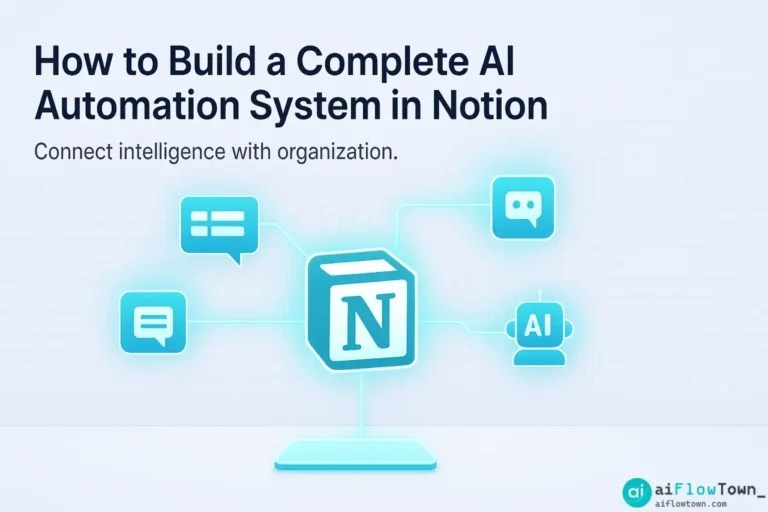
Notion already feels like a second brain — but with AI, it becomes a living system that thinks with you. The promise of notion AI automation is simple: stop managing data, and start managing ideas. Imagine your notes summarizing themselves, tasks updating automatically, and dashboards that think ahead of you.
This isn’t science fiction. With the right setup, Notion becomes the hub where automation, AI reasoning, and human creativity meet. Let’s build that system step by step.
The Mindset: Systems, Not Shortcuts
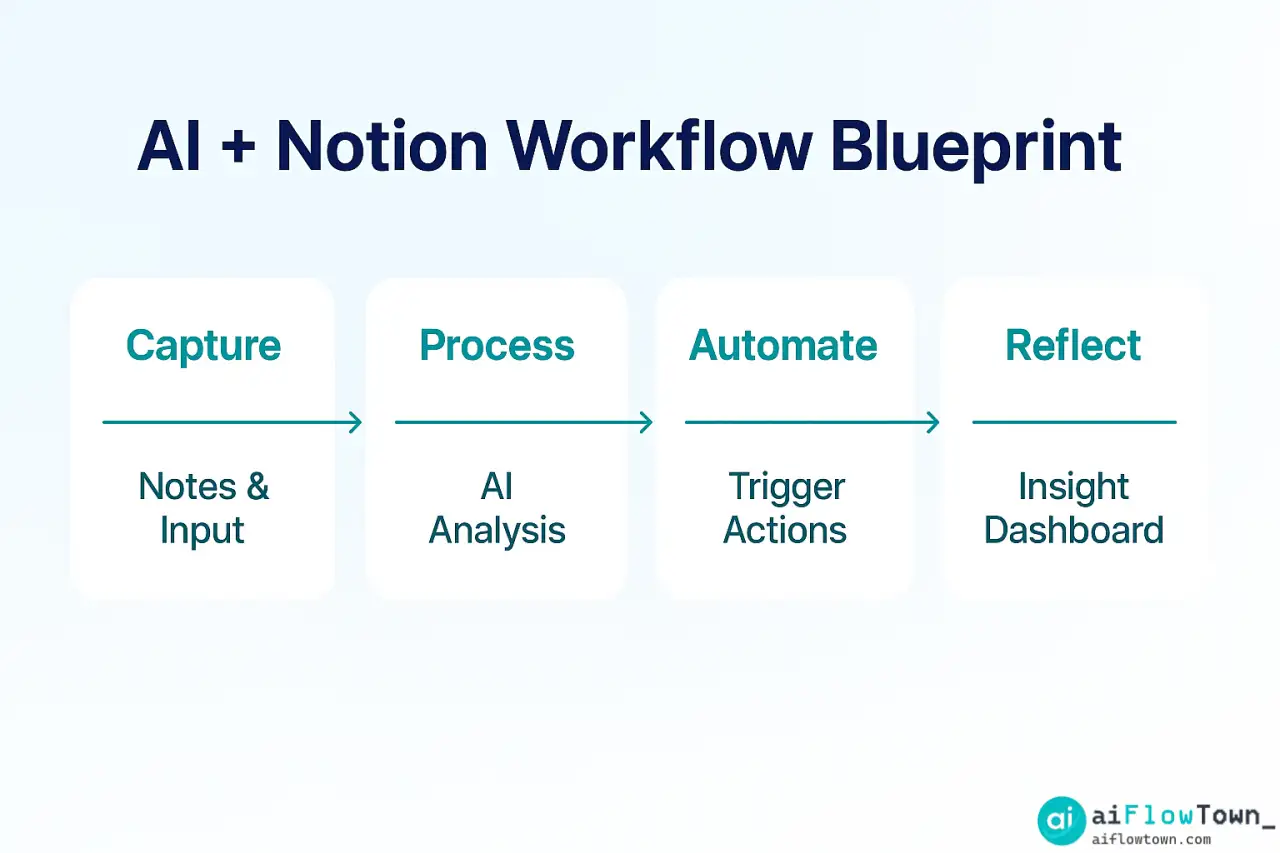
Automation fails when it’s added on top of chaos. Before adding bots or APIs, you need structure. Every great workflow has three layers: capture, organize, and automate. The secret is designing Notion so AI can understand context — not just react to triggers.
Layer 1 – Capture with Purpose
Notion is your input layer. Create a single “Inbox” page for notes, links, and tasks. Add a “Source” property (Email, Chat, Meeting, Idea) and a date. This structure helps AI know what kind of content it’s reading later.
Layer 2 – Organize by Logic
Next, design databases instead of pages. Think in tables: Tasks, Notes, Projects, Contacts. The key is consistency. Every record should have type, status, and owner fields. This makes automation predictable — the same way spreadsheets need columns before formulas work.
Layer 3 – Automate with AI
Now the fun part. Connect ChatGPT, Zapier, or Make to Notion. These tools process new entries automatically: summarizing, tagging, and creating next steps. For example, when you add a meeting note, AI can extract action items and create tasks under your “To-Do” database.
Choosing the Right Tools to Connect Notion and AI
Automation lives or dies by integration. Below are three reliable bridges between Notion and AI:
| Connector | Purpose | Best Use Case |
|---|---|---|
| Zapier | Triggers actions between apps. | Create tasks, sync databases. |
| Make (Integromat) | Builds visual workflows. | Complex multi-step automations. |
| Reclaim.ai | Manages time automatically. | Auto-block calendar based on Notion tasks. |
Each tool connects differently, but all can send content to ChatGPT or Notion’s internal AI for processing. If you’re new to integrations, read AI Automation Tools for Beginners first to understand basic workflow logic.
Building Your AI Workflow Inside Notion
Step 1 – Create a Master Dashboard
Your dashboard is home base. Use linked databases to display Tasks, Notes, Projects, and Goals. Group them by status or priority. AI will later reference this layout when generating summaries or weekly reports.
Step 2 – Add Smart Templates
Templates keep your system consistent. Create templates for meetings, projects, and ideas. Add placeholders for summary, key insights, and next actions. When AI fills them later, it knows exactly where to write.
Step 3 – Set Up Automations
Use Zapier to trigger events like:
• New email in Gmail → Create “Idea” in Notion.
• New Slack message in #ideas → Add note with sender and link.
• New task completed → Send summary to ChatGPT for analysis.
Small automations like these stack up into a self-running workflow.
Step 4 – Integrate ChatGPT or Notion AI
Inside Notion, AI can summarize text, generate ideas, or rephrase updates. Outside, ChatGPT via Zapier can read entries and produce insights. Example: every Friday, a script gathers all week’s tasks and asks ChatGPT: “Summarize progress and suggest 3 priorities for next week.” The result appears in a “Weekly Review” page automatically.
Step 5 – Visualize and Reflect
Add a “Reflection” database for metrics like focus hours, completed tasks, or highlights. Automation feeds data into charts. Use Notion’s roll-ups and progress bars to turn raw numbers into motivation.
Example: Daily Automation Loop
Here’s a lightweight daily cycle you can implement:
- ✅ Morning — Zapier checks calendar, adds today’s focus tasks.
- ✅ Noon — ChatGPT summarizes active notes into insights.
- ✅ Evening — AI logs completed tasks, updates streak count.
By the weekend, you have a full report — built by your own system, not your effort.
Designing for Scalability
Start Manual, Automate Later
Begin with manual steps to ensure your logic works. When you understand your flow, hand repetitive parts to AI. Automation should simplify, not confuse.
Keep a Log of Automations
Make a Notion table called “Automation Map.” List each automation, its trigger, and its purpose. This becomes your control center when something breaks.
Prioritize Privacy
Always store personal data carefully. Use unique API keys per connector, and avoid sending sensitive info to external AI unless anonymized. Simplicity and safety win over sophistication.
Extending Notion Beyond Itself
Combine Notion with complementary AI tools from The 15 Best AI Productivity Tools — for example, Motion to schedule tasks, or Otter.ai to summarize meetings directly into Notion. Each addition multiplies value if you respect your system’s simplicity.
Common Mistakes and Fixes
- ❌ Creating automations before defining structure → ✅ Build databases first.
- ❌ Over-complicating with too many tools → ✅ One connector is enough.
- ❌ Ignoring naming conventions → ✅ Keep consistent property names (“Title,” “Status,” “Owner”).
- ❌ No audit trail → ✅ Log every automation in your Automation Map.
Real-World Results
Emma – Marketing Lead: “AI summaries in Notion cut my reporting time by 70 %.” Ken – Freelance Designer: “My ideas go from voice notes to Notion tasks automatically.” Lena – Startup Founder: “Our whole team uses Notion as a shared automation hub. Meetings, tasks, and reflections all sync in one place.”
Future of Notion + AI
The next phase of automation is adaptive — AI that not only organizes but also advises. Expect Notion to become context-aware: suggesting goals, rearranging priorities, or writing weekly reflections without prompts. The more structured your data today, the smarter your system tomorrow.
Final Thoughts
Building an AI workflow system in Notion isn’t about complexity; it’s about clarity. Once your setup captures inputs, processes data, and reflects insights automatically, you stop chasing productivity and start living it. For ready-made prompts and connectors, explore AI Productivity Prompts — they integrate perfectly with this Notion setup.
❓ FAQ
⚙️ Do I need coding skills to automate Notion?
No. Most connections use visual builders like Zapier or Make. You can automate in minutes by dragging and linking triggers and actions.
Can I use Notion’s built-in AI instead of ChatGPT?
Yes. Notion AI handles summaries and rewriting well, but ChatGPT via API gives more control and longer context windows for complex workflows.
What’s the simplest workflow to start with?
Start with a “Meeting Notes → Tasks” automation. Let AI extract actions, assign dates, and log them. It’s simple yet shows full potential.
Is my data safe when using these integrations?
Use secure API keys, review permissions, and avoid sending sensitive info to external AI unless anonymized. Privacy first, always.
Where can I find ready-made automation templates?
Visit AI Productivity Prompts for pre-built workflows, tested templates, and prompt patterns to expand your Notion system.
⚠️ Reminder: Even the smartest tools / AI can miss small details or make mistakes. Always double-check your work before presenting or publishing it - a quick review can save hours later.