The Emails That Are Killing Your Time
Status Updates and Check-Ins
Every Monday: “Here’s where we are on Project X. Completed: [tasks]. In progress: [tasks]. Next week: [tasks].” The structure never changes. Only the task list changes. You’re spending 10 minutes writing what could be a 30-second fill-in.
Meeting Coordination
Endless back-and-forth: “Thanks for suggesting Tuesday. Unfortunately I have a conflict. Would Wednesday at 2pm work?” This is the same email you sent three times last week to different people. The names and times change. The message is identical.
Polite Declines
You get 10 coffee chat requests per week. You can accommodate two. The other eight get the same gentle “my schedule is fully committed” message. Same email, different recipient, every time.
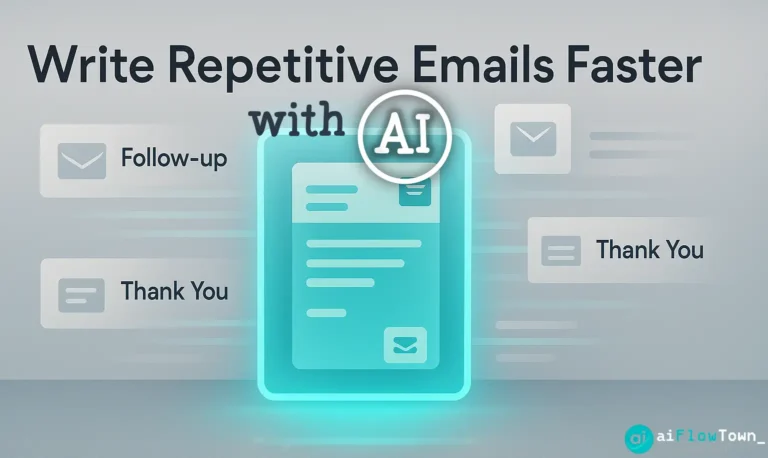
Add these up. If each type happens 3 times per week, that’s 15 repetitive emails. At 5 minutes each, you’re spending 75 minutes weekly on email work that requires zero creativity. That’s 65 hours per year. Learn how to write repetitive emails faster with ai to reclaim that time.
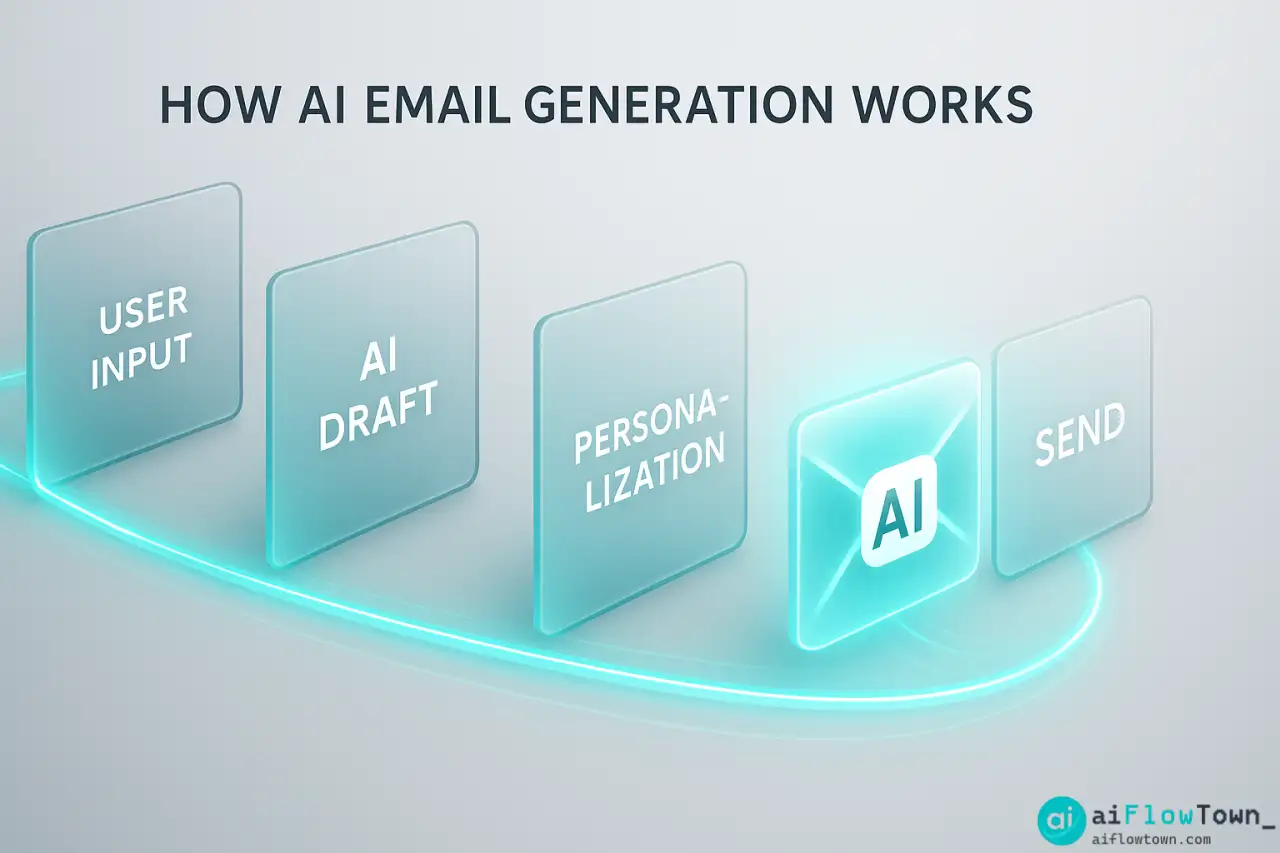
How AI Actually Handles Email Patterns
Pattern Recognition from Your Old Emails
Modern AI tools can scan your sent folder and identify your most common email types. They notice: “This person writes ‘Thanks for your patience on this’ in 40% of follow-up emails.” The AI learns from emails you’ve already written. When you ask it to draft a status update, it writes in your voice because it’s trained on your voice.
Dynamic Variable Insertion
You tell AI: “Write my weekly status email for Project Alpha.” It knows the structure from past emails, but asks for this week’s specifics: completed tasks, what’s in progress, any blockers. You provide bullet points. AI generates the full email in your style. It takes 30 seconds instead of 10 minutes.
Context-Aware Tone Adjustment
AI can adjust formality based on recipient. The same “meeting confirmation” email to your boss is more formal than the one to your colleague. You don’t maintain separate templates. You tell AI who the recipient is, and it adjusts tone automatically using ai templates for common email responses that adapt to context.
For deeper workflow integration, check out beginner-friendly AI automation.
Setting Up Your AI Email System
Let’s build a working system from scratch. This setup takes about 30 minutes and saves hours every week thereafter.
Step 1: Identify Your Repetitive Email Types
Go through your sent folder from the last month. Look for patterns:
Common Repetitive Email Types:

1. Weekly project status updates
2. Meeting scheduling requests
3. Polite declines for invitations
4. Client invoice follow-ups
5. Requesting documents/information
6. Post-meeting action item summaries
7. Introduction emails (connecting two people)
8. Thank you notes after meetings
Most professionals have 8-12 email types that repeat constantly. Identify yours first.
Step 2: Extract Your Natural Patterns
For each email type, find 3-4 real examples you’ve sent. Feed them to AI with this prompt:
"Here are 4 examples of my [email type]:

[Paste email 1]
[Paste email 2]
[Paste email 3]
[Paste email 4]

Analyze these and create a reusable template prompt that matches my tone, structure, and common phrases."
AI will return a custom prompt template that generates emails in your voice. Save this for reuse.
Step 3: Build Your Prompt Library
Create a simple document with all your email prompts. When you need to send a repetitive email, copy the relevant prompt, fill in the variables, paste to AI, get your draft. This is how you automate repetitive email writing with gpt without losing your personal touch.
| Email Type | Reusable Prompt | Time Saved |
|---|---|---|
| Weekly Status | “Weekly update for [project]: Done [X], working on [Y], next [Z]” | 8 min → 2 min |
| Meeting Request | “Schedule meeting with [name] about [topic], suggest [times]” | 6 min → 1 min |
| Polite Decline | “Decline [request] due to [reason], suggest [alternative]” | 5 min → 1 min |
| Follow-up | “Follow up on [topic] from [date], need [action] by [deadline]” | 7 min → 2 min |
Explore more prompt strategies at AI productivity prompts.
Step 4: Integrate with Your Email Workflow
Choose your integration method:
️ Gmail + ChatGPT extension: Generate drafts without leaving Gmail
️ Outlook + Copilot: Microsoft’s built-in AI for email drafting
️ Text Expander + AI: Type a shortcut, AI expands it to full email
The best tool is the one you’ll actually use. Start with free browser extensions if you’re not ready to switch email clients.
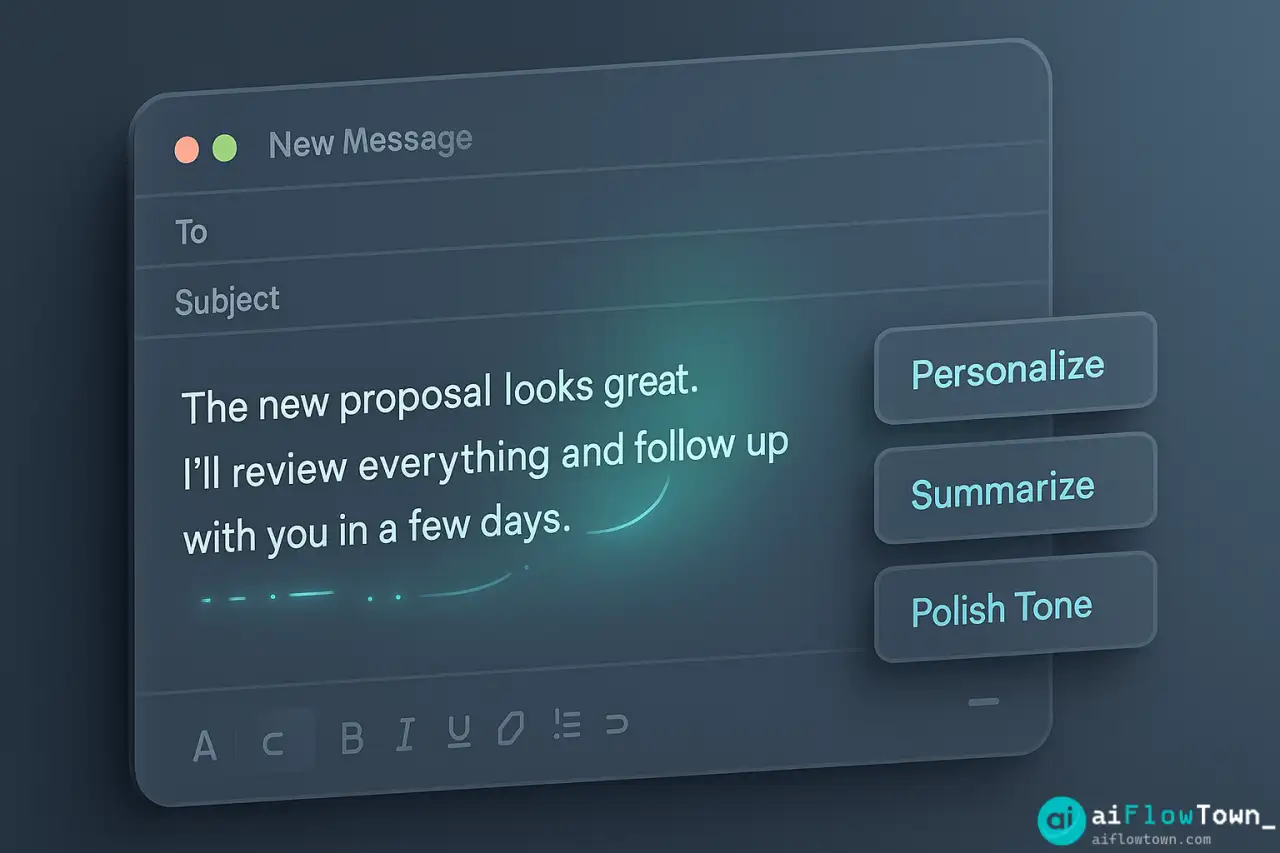
Real Example: A Project Manager’s Time Savings
The Setup
Jordan manages three client projects and spent 2 hours daily on repetitive emails. After setting up AI email automation:
Jordan created 8 prompt templates and integrated ChatGPT with Gmail. The process took one Saturday morning.
The Results
✅ Weekly status emails: 30 min → 8 min (3 projects)
✅ Team question responses: 20 min → 7 min daily
✅ Meeting scheduling: 20 min → 6 min daily
✅ Total daily email time: 2 hours → 45 minutes
Jordan reclaimed 6+ hours per week using smart email automation using ai prompts. The emails didn’t get worse—clients and team members noticed no difference in quality. The only change was Jordan’s stress level and available time for actual project work.
Advanced Tips for Better Results
Conditional Logic in Prompts
“Write status email for Project X. If on track: emphasize progress. If blocked: focus on solutions needed. Current status: [specify]”
Same email type, but AI adapts the tone and content based on project reality.
Batch Email Generation
"Generate follow-up emails for 15 conference contacts.

Template: Thanks for connecting at [event]. Enjoyed discussing [topic]. Would love to explore [specific thing].

List with specifics:
1. Person A - discussed AI adoption
2. Person B - talked about workflow tools
[etc.]"
AI produces 15 customized emails in one go. Task that used to take 90 minutes now takes 15 minutes. For more automation ideas, visit quick tips and flow hacks.
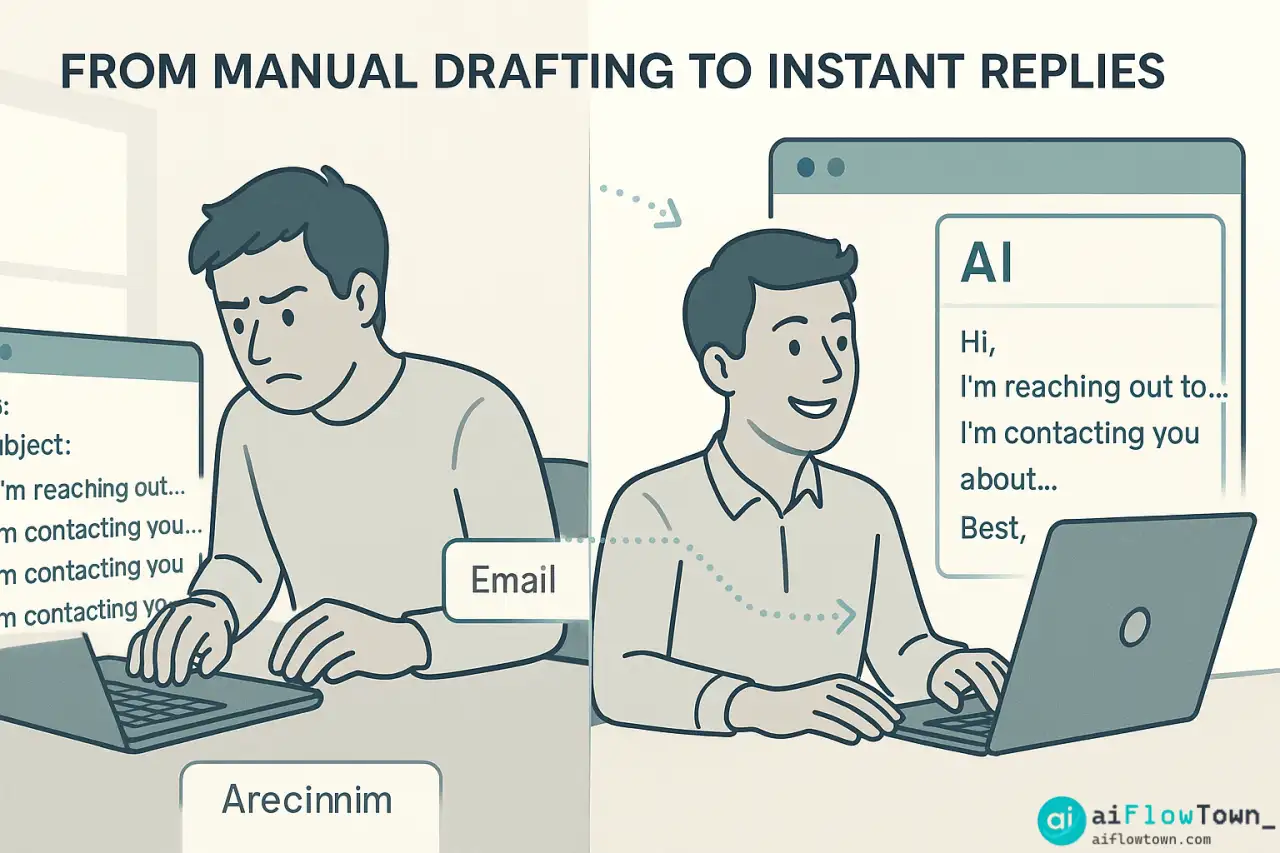
Avoiding Common Mistakes
The biggest mistake is using AI to write completely from scratch without training it on your style. AI needs examples of your voice to sound like you. Generic prompts produce generic emails.
Not Providing Enough Context
Prompt: “Write an email declining a meeting.” AI has no idea about your relationship with this person, why you’re declining, or how formal to be. Result: Generic, awkward email.
Better prompt: “Decline meeting request from [colleague]. Reason: schedule conflict. Tone: friendly but direct. Suggest: next week or async discussion.”
Never Editing AI Output
AI drafts are drafts, not finished products. Always scan for:
✏️ Does this sound like me?
✏️ Is there a sentence that’s weirdly formal?
✏️ Did AI miss important context?
✏️ Is there a personal touch that would improve this?
The goal is AI does 80% of the work, you do the final 20% that makes it authentically yours and helps you reduce email writing time with ai tools effectively.
Using the Same Prompt for Every Email Type
A prompt that works great for status updates will fail for sensitive client communications. Different email types need different prompts. Build a library, don’t rely on one universal prompt.
❓ FAQ
Will people notice I’m using AI for emails?
Not if you train AI on your actual writing style and edit outputs. The key is using AI to speed up drafting, not to write in a voice that isn’t yours. Most recipients can’t tell the difference.
⏱️ How much time does this actually save?
For repetitive emails, 60-80% time reduction is realistic. A 10-minute email becomes a 2-3 minute task. Expect to reclaim 5-10 hours per week if you handle a lot of routine communication.
What about emails that need creativity or nuance?
Use AI for the structure and boilerplate, write the nuanced parts yourself. AI handles formatting and standard phrases. You handle the strategic thinking and personal touches. It’s collaboration, not replacement.
Can my whole team use the same prompts?
Start with shared prompts for consistency, but each person should customize based on their voice. Team templates ensure everyone covers the same information while keeping emails authentic to each sender.
How often should I update my prompts?
Review quarterly or when you notice AI outputs need frequent editing. Your communication style evolves, so keeping prompts current ensures AI continues to match your actual voice and context.
Final Thoughts
You don’t need to spend hours writing emails that follow the same pattern every time. AI email writing isn’t about replacing your judgment or voice—it’s about automating the repetitive structure so you can focus on communication that actually requires thought.
Start small. Pick your three most repetitive email types. Create prompts for them. Use AI for one week and track your time. You’ll quickly see where the value is and expand from there.
A year from now, you’ll look back at the hours you used to spend retyping the same status updates and wonder why you didn’t automate this sooner. Today is a good day to start.
⚠️ Reminder: Even the smartest tools / AI can miss small details or make mistakes. Always double-check your work before presenting or publishing it - a quick review can save hours later.