Build Your Ultimate AI Command Center in Notion
The world of artificial intelligence is expanding at an exponential rate. New tools, models, and techniques emerge almost daily. Keeping track of your AI projects, favorite prompts, useful resources, and the ever-growing list of tools can quickly become overwhelming. Your valuable AI assets end up scattered across bookmarks, notes, and random documents. What you need is a central command center. This guide will show you how to build the ultimate AI dashboard right inside Notion, and we’re providing a free template to get you started instantly.
Forget juggling multiple apps. By leveraging Notion’s powerful databases and flexible pages, you can create a single, integrated space to manage every aspect of your AI workflow. This Notion AI dashboard template isn’t just a static page; it’s a dynamic system designed to help you organize, track, and optimize your AI usage. Learn how to manage AI projects in Notion, build a comprehensive tools database, and create an efficient prompt library, all interconnected for seamless access.
Ready to bring order to your AI universe? Let’s build your dashboard.
Part 1: Why Notion is the Perfect Home for Your AI Dashboard
While various tools exist, Notion’s unique features make it exceptionally well-suited for creating a personalized AI command center:
- Relational Databases: This is Notion’s superpower. You can create separate databases for Projects, AI Tools, Prompts, and Resources, and then link them together. For example, you can see exactly which prompts were used for a specific project or which tools are best for a particular task.
- Customizable Views: Display your information exactly how you need it – as tables, boards, galleries, calendars, or lists. You can create different dashboard views for different needs (e.g., “Active AI Projects,” “Top-Rated AI Writing Tools”).
- Flexible Page Content: Each item in your database (a project, a tool, a prompt) is a full Notion page where you can add detailed notes, images, web bookmarks, code snippets, and more.
- Integration & Embeds: Embed content from other platforms (like YouTube tutorials or Figma designs) directly into your dashboard pages.
- Potential Notion AI Integration: If you use Notion AI, you can potentially add AI blocks within your dashboard pages to summarize project notes, brainstorm ideas related to a tool, or even refine prompts stored in your library. (Learn more in our Notion AI review).
A well-designed Notion dashboard doesn’t just store information; it creates connections and surfaces insights about your AI workflow.
Part 2: Introducing the Free Notion AI Dashboard Template
To help you get started immediately, we’ve created a comprehensive, free Notion template. It includes interconnected databases designed specifically for managing your AI activities.
Core Components of the Template:
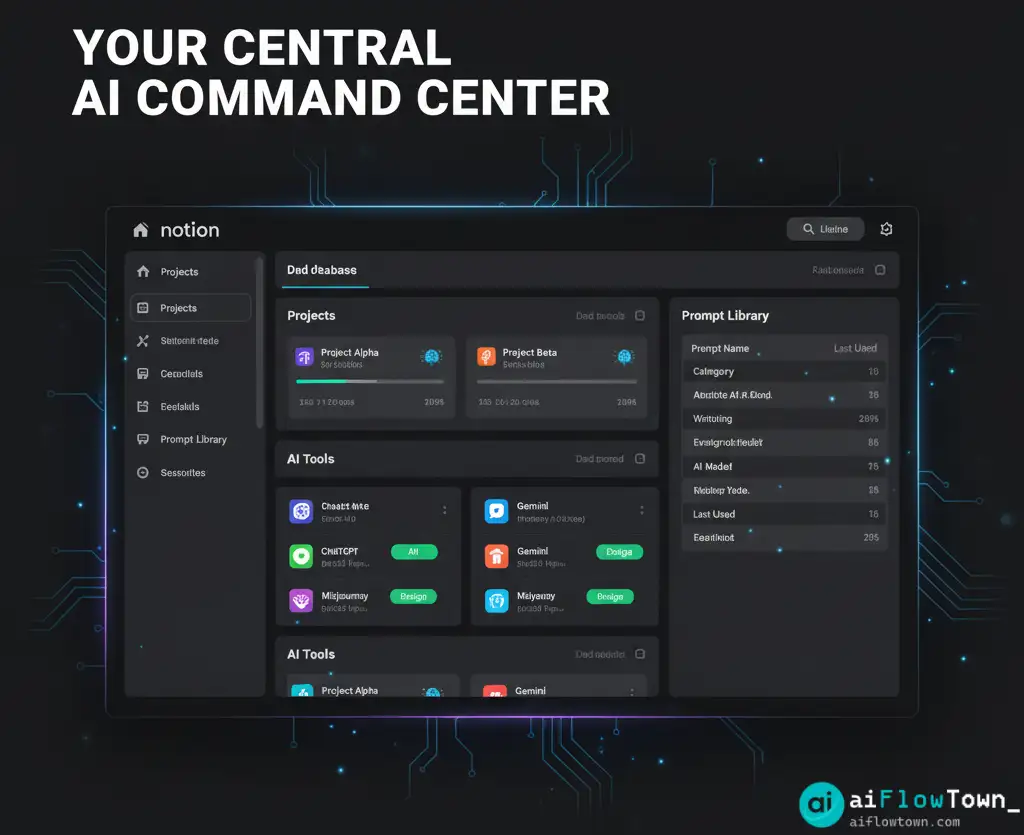
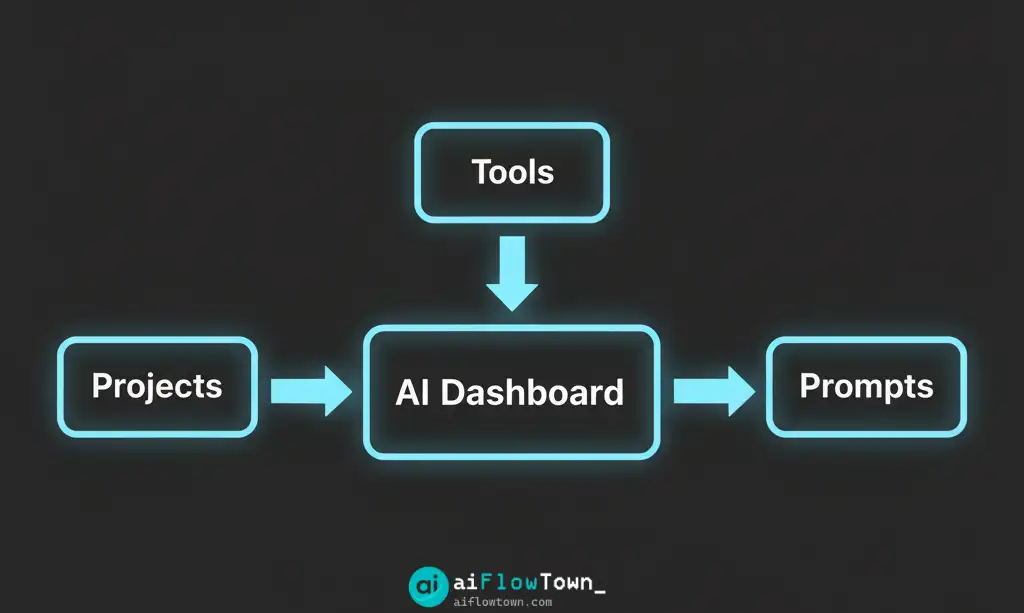
This template is built around three core, linked databases:
- AI Projects Database: Track all your projects where AI plays a significant role.
- AI Tools Database: Catalog and evaluate the AI tools you use or discover.
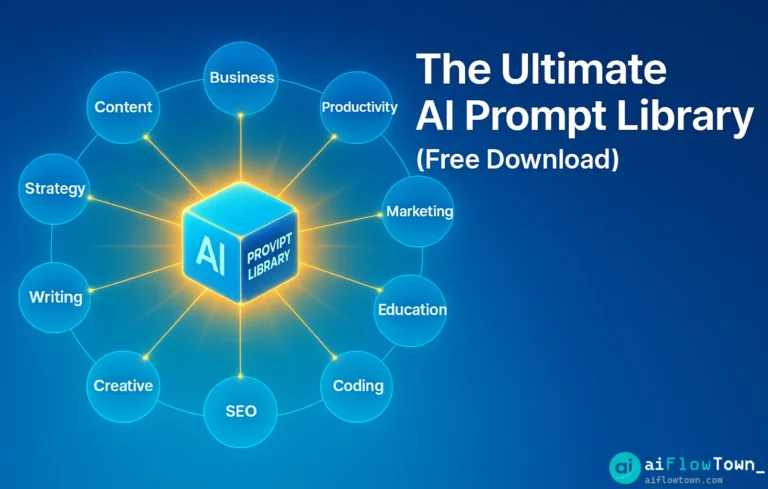
- AI Prompt Library Database: Store, categorize, and refine your most effective prompts.
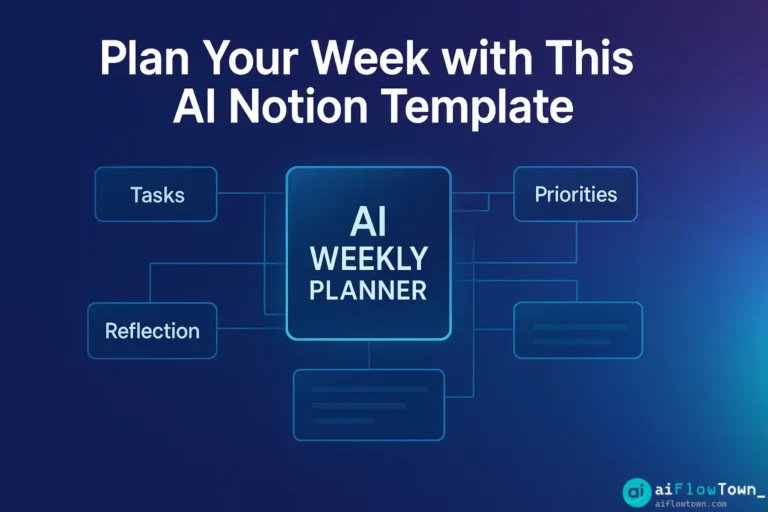
These databases are linked together and surfaced on a central “AI Dashboard” page using Linked Views, giving you a high-level overview and quick access points.
Detailed Breakdown of Databases:
| Database | Key Properties | Purpose |
|---|---|---|
| AI Projects | Status (To Do, In Progress, Done), Goal/Objective, Key Results (KPIs), Related Tools (Relation to AI Tools DB), Related Prompts (Relation to Prompt Library DB), Deadline | Manage the lifecycle of your AI initiatives, track progress, and link relevant resources. A key tool for Notion project management AI workflows. |
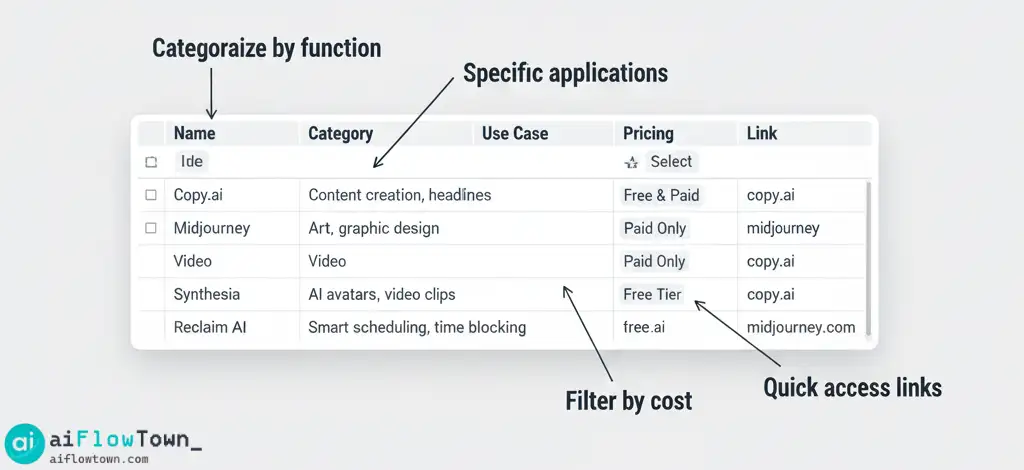
| AI Tools | Tool Name, Category (Writing, Image, Code, etc.), Use Case, Pricing (Free, Freemium, Paid), Link, Rating (⭐), Related Projects (Relation to AI Projects DB) | Build your personal directory of the best AI tools, evaluate them, and see which projects they’re used in. Essential for creating an AI tools database notion system. |
| AI Prompt Library | Prompt Name/Purpose, Category (Marketing, Coding, etc.), Core Prompt Text, AI Model (ChatGPT, Claude, etc.), Example Output, Rating (⭐), Related Projects (Relation to AI Projects DB) | Organize, refine, and quickly access your most effective prompts. Functions as your personal Notion prompt manager. |
Part 3: Setting Up and Customizing Your AI Dashboard
Once you duplicate the template, follow these steps to make it your own:
Step 1: Explore the Structure
Familiarize yourself with the main Dashboard page and the three core databases. Understand how the Linked Views on the dashboard pull information from the underlying databases.
Step 2: Populate Your Databases
- Add Your Tools: Start by adding the AI tools you currently use or are exploring to the “AI Tools” database. Fill in the properties like category, use case, and pricing.
- Log Your Projects: Add your current AI-related projects to the “AI Projects” database. Define their goals and link any tools you’re using via the relation property.
- Save Your Prompts: Begin transferring your best prompts into the “AI Prompt Library.” Categorize them and, crucially, link them to the projects where you’ve used them successfully.
Step 3: Customize Properties and Views
- Add/Modify Properties: Don’t hesitate to add new properties that are relevant to your workflow (e.g., a “Subscription Renewal Date” for paid tools, or a “Team Member Assigned” for projects).
- Create New Views: The main dashboard shows overview views. Create more specific views within each database. For example, in “AI Projects,” create a Board view grouped by “Status.” In “AI Tools,” create a Gallery view filtered for “Free AI Writing Tools.”
Step 4: Integrate into Your Daily Workflow
- Start Your Day Here: Make the AI Dashboard your first stop. Review active projects, check deadlines.
- Capture New Tools/Prompts: When you discover a new AI tool or craft a great prompt, immediately add it to the respective database.
- Link Everything: Consistently use the Relation properties to link tools and prompts back to your projects. This builds the contextual power of your dashboard over time.
By consistently using and updating this system, you centralize ai workflow components into one manageable space.
Part 4: Advanced Tips & Potential Automations
Once you’re comfortable with the basics, consider these enhancements:
- Notion AI Autofill: If you have Notion AI, experiment with adding AI Autofill properties. For example, automatically summarize project notes, categorize newly added tools based on their description, or generate tags for prompts.
- Web Clipper Integration: Use the Notion Web Clipper browser extension to quickly save interesting AI articles, tools, or resources directly into a “Resources” database (you can create this and link it to your dashboard).
- Zapier Integration (Advanced): Connect your Notion databases to other apps using Zapier. For example, automatically create a new project entry in your Notion AI Dashboard when a specific trigger happens in Slack or your email. (Explore ideas in our AI automation guide).
Conclusion: Your AI Control Center Awaits
Managing the rapidly expanding world of AI doesn’t have to be chaotic. By building a dedicated AI dashboard in Notion, you create a personalized, organized, and intelligent system for tracking projects, evaluating tools, and leveraging your best prompts. This free template provides a robust starting point, empowering you to take control of your AI workflow.
Duplicate the template, start populating it with your own data, and customize it to fit your unique needs. Turn your scattered notes and bookmarks into a powerful, interconnected command center that helps you work smarter in the age of AI. Explore more free Notion templates to further enhance your workspace.
❓ FAQ
❓ Is this Notion AI Dashboard template completely free?
Yes, the template structure itself is completely free to duplicate and use with any Notion account (including the free plan). However, utilizing Notion AI features within the template (like AI Autofill) requires a Notion AI add-on subscription after the initial free trial credits are used.
How much customization is needed after duplicating the template?
The template is designed to be usable immediately, but its real power comes from customization. You’ll definitely want to populate it with your own projects, tools, and prompts. We highly recommend customizing the “Select” properties (like Project Status, Tool Category, Prompt Category) to match your specific workflow and terminology.
Can I use this template to track metrics or results from my AI projects?
Absolutely. The “AI Projects” database includes properties for “Key Results (KPIs).” You can customize this further by adding specific Number properties to track quantifiable outcomes (e.g., “Conversion Rate Improvement,” “Content Pieces Generated”). You can then create dashboard views that summarize these metrics.
Can I share this dashboard with my team?
Yes, like any Notion page or database, you can easily share this dashboard with collaborators. You can set permissions (view only, comment, edit) depending on how you want your team to interact with the databases and project information.
⚠️ Reminder: Even the smartest tools / AI can miss small details or make mistakes. Always double-check your work before presenting or publishing it - a quick review can save hours later.