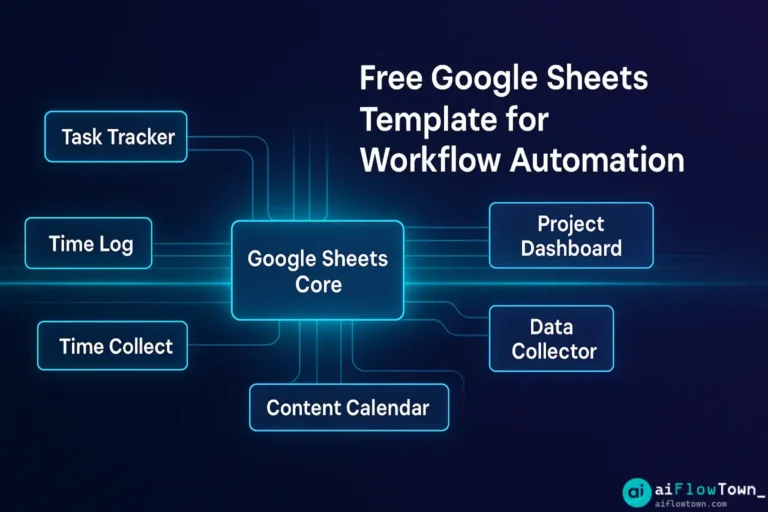
You don’t need expensive software for workflow automation. Google Sheets—free, accessible, powerful—can automate task tracking, data logging, project management, and reporting with built-in formulas and simple scripts. These templates eliminate setup time: copy, customize to your workflow, start automating immediately. No coding required for basic use, minimal scripting for advanced features. Here are five essential automation templates that handle 80% of common workflow needs.
Why Google Sheets for Automation?
Compared to dedicated tools, Google Sheets offers:
- ✅ Free: No subscription costs, unlimited sheets
- ✅ Accessible: Works anywhere with browser, real-time collaboration
- ✅ Flexible: Customizable to any workflow, not locked into tool’s structure
- ✅ Integratable: Connects with 1000+ apps via Zapier, Make.com
- ✅ Familiar: Most people already know spreadsheets basics
- ✅ Powerful: Formulas, scripts, add-ons handle complex automation
These automation template solutions using free google sheets automation templates approach deliver professional results without enterprise software costs.
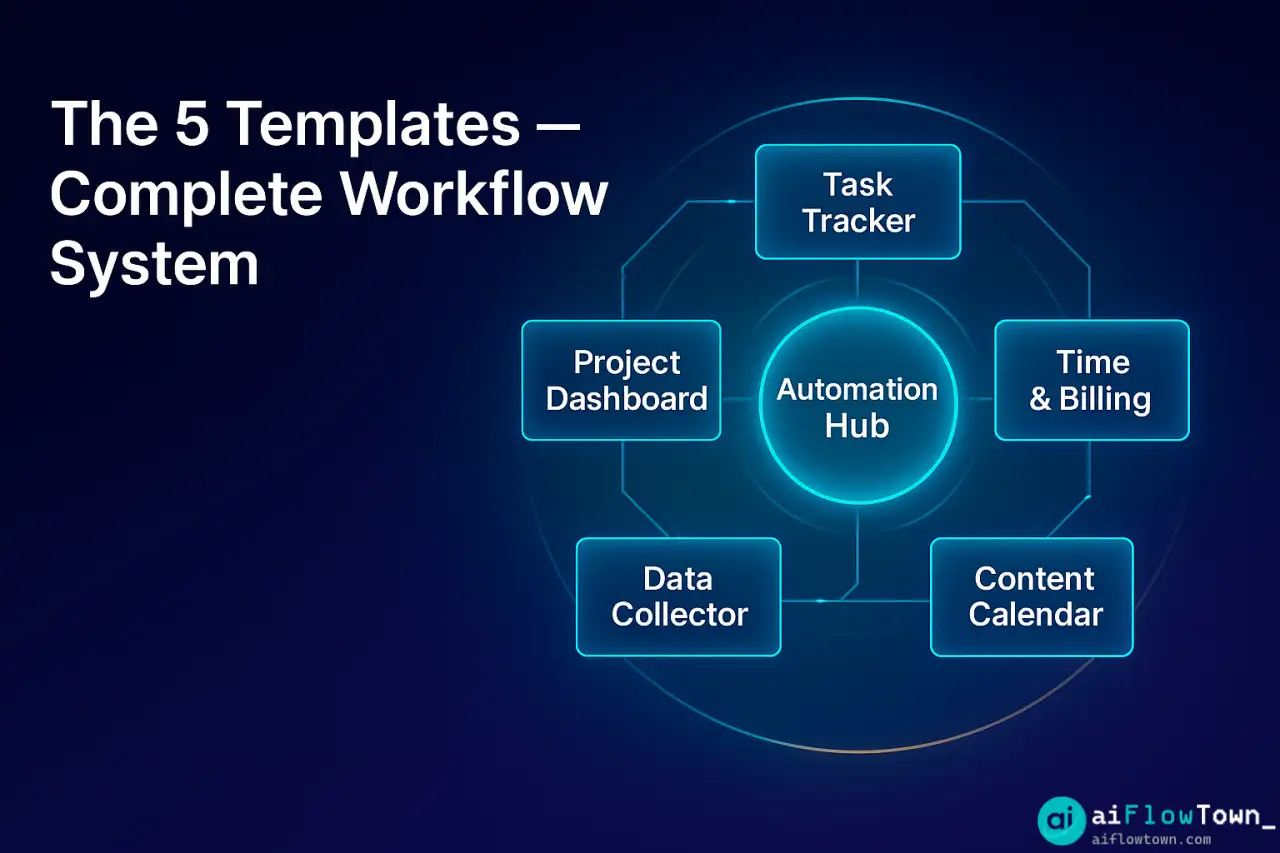
Template 1: Smart Task Tracker with Auto-Prioritization
What It Does
Automatically calculates task priority based on deadline, importance, and effort. Color-codes by urgency. Tracks completion rates and time estimates vs actuals.
Key Features
| Feature | How It Works | Formula Used |
|---|---|---|
| Auto-Priority Score | Weighs deadline + importance + effort | Custom weighted formula |
| Urgency Color Coding | Red (urgent), Yellow (soon), Green (later) | Conditional formatting |
| Days Until Due | Automatically calculates from deadline | =DAYS(deadline, TODAY()) |
| Progress Tracking | Percentage complete, completion date | Checkboxes + date stamps |
| Time Analytics | Estimated vs actual hours | SUM and AVERAGE formulas |
Template Structure
Sheet 1: Active Tasks
Columns: Task | Priority | Deadline | Days Left | Importance (1-5) |
         Effort (hours) | Status | Assigned To | Auto-Priority Score

Sheet 2: Completed Archive
Automatically moves completed tasks here
Tracks: Completion date, Time taken, Accuracy of estimate

Sheet 3: Analytics Dashboard
Charts showing:
- Tasks by priority
- Completion rate over time
- Estimation accuracy
- Person-by-person productivity
Automation Features
- Priority score auto-calculates when you enter deadline/importance/effort
- Color coding updates automatically as deadlines approach
- Completed tasks auto-archive to separate sheet
- Weekly summary email (via Google Apps Script, optional)
- Dashboard charts update in real-time
Setup time: 5 minutes (make a copy, customize columns)
Best for: Personal task management, small team projects
Skill required: Basic spreadsheet knowledge
This demonstrates workflow tracking spreadsheet templates power for task management. For more templates, visit templates and resources.
Template 2: Time Tracking & Client Billing Automation
What It Does
Logs time entries, automatically calculates billable hours, generates client invoices, and tracks project profitability.
Template Structure
Sheet 1: Time Log
Columns: Date | Client | Project | Task Description | Start Time |
         End Time | Duration (auto-calc) | Billable? | Hourly Rate |
         Amount (auto-calc)

Sheet 2: Client Summary
Auto-generates summary per client:
- Total hours (billable + non-billable)
- Total amount owed
- Breakdown by project
- Invoice-ready format

Sheet 3: Project Profitability
Tracks:
- Budgeted hours vs actual
- Revenue vs time cost
- Profit margin per project
- Which projects are over/under budget
Automation Magic
Auto-Calculations:

Duration Formula:
=TEXT(End_Time - Start_Time, "h:mm")

Billable Amount:
=IF(Billable="Yes", Duration * Hourly_Rate, 0)

Client Total:
=SUMIF(Time_Log!B:B, Client_Name, Time_Log!J:J)

Conditional Formatting:
- Unbillable time highlighted in yellow
- Over-budget projects in red
- High-value clients in green
Add-On: Invoice Generator
Simple Apps Script button that:
- Filters time entries by client and date range
- Generates formatted invoice in new sheet
- Calculates subtotal, tax, total
- Creates PDF and emails to client (optional)
Setup time: 10 minutes (copy template, enter your rates)
Best for: Freelancers, consultants, agencies
Advanced feature: One-click invoice generation (requires enabling Apps Script)
Template 3: Project Dashboard with Status Automation
What It Does
Manages multiple projects, auto-updates status based on task completion, flags blockers, and provides executive overview.
| View | What It Shows | Updates |
|---|---|---|
| Project List | All projects with health status | Auto based on task % |
| Task Breakdown | Tasks per project with owners | Manual entry |
| Timeline View | Gantt-style project timeline | Auto from dates |
| Risk Register | Blockers and issues | Flagged automatically |
| Executive Summary | One-page overview for leadership | Auto-generated |
Status Automation Logic
Project Health Score (auto-calculated):

=IF(Tasks_Complete/Total_Tasks > 0.8, "On Track",
   IF(Days_Until_Deadline < 7, "At Risk", IF(Blockers > 0, "Blocked", "In Progress")))

Visual Indicators:
✅ Green: >80% complete, no blockers
⚠️ Yellow: 50-80% complete or approaching deadline
 Red: <50% complete + deadline close, or has blockers
⏸️ Gray: On hold or waiting on dependencies
Automatic Alerts
Optional Apps Script sends weekly email to stakeholders when:
- Project status changes to “At Risk” or “Blocked”
- Deadline within 7 days and <80% complete
- New blocker added to risk register
- Weekly summary of all project statuses
Setup time: 15 minutes (customize projects and tasks)
Best for: Project managers, team leads, multi-project tracking using no-code automation with google sheets approach.
Team size: Works for 1-20 people
Template 4: Automated Data Collection & Reporting
What It Does
Collects data from Google Forms, automatically processes and categorizes it, generates weekly reports and visualizations.
Use Cases
- Customer feedback collection and analysis
- Team status updates aggregation
- Survey results processing
- Lead capture and qualification
- Bug/issue tracking and categorization
How It Works
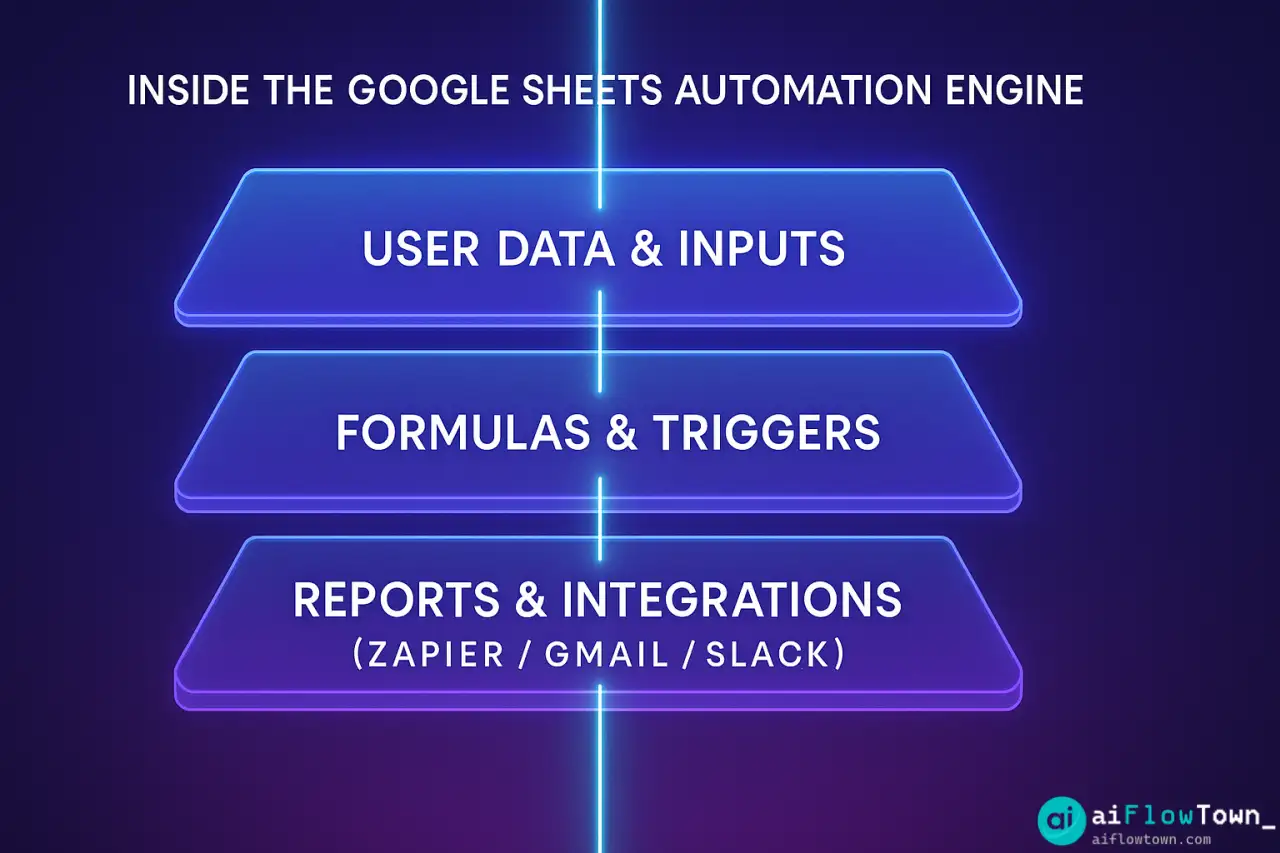
Step 1: Google Form → Sheet 1 (Raw Data)
Form responses auto-populate spreadsheet

Step 2: Sheet 2 (Processed Data)
Formulas automatically:
- Categorize responses (using keywords or rules)
- Calculate sentiment scores (for text responses)
- Assign priority levels
- Tag and label entries
- Timestamp and organize

Step 3: Sheet 3 (Dashboard)
Auto-updating charts and summary tables:
- Response trends over time
- Category breakdowns
- Priority distribution
- Key metrics and KPIs

Step 4: Auto-Report (Apps Script)
Weekly summary email with:
- Total responses this week
- Key insights
- Urgent items flagged
- Dashboard snapshot
Example: Customer Feedback Automation
Form collects: Name, Email, Feedback Type, Message, Rating
Sheet auto-processes:
– Categorizes feedback (Bug/Feature/Question) based on keywords
– Assigns priority (High if rating ≤2, Medium if 3, Low if ≥4)
– Extracts sentiment (Positive/Neutral/Negative from text)
– Flags urgent issues (Low rating + certain keywords)Dashboard shows: Weekly feedback volume, category distribution, average rating trend, urgent issues needing attention
– Feedback Processing Flow –
Setup time: 20 minutes (create form, connect to sheet, set up processing)
Best for: Data collection workflows, feedback management, survey analysis using productivity templates for task management principles.
Skill required: Intermediate (formulas + basic Apps Script)
For more workflow ideas, check AI workflows.
Template 5: Content Calendar with Publishing Automation
What It Does
Plans content across platforms, tracks status, automates reminders, and generates publishing checklists.
Template Structure
Sheet 1: Content Pipeline
Columns: Content Title | Type (Blog/Social/Video) | Platform |
         Publish Date | Status | Assigned To | Priority |
         Keywords | Draft Link | Published URL

Sheet 2: Editorial Calendar (Month View)
Visual calendar showing what publishes when
Color-coded by content type and platform

Sheet 3: Performance Tracking
Post-publication metrics:
- Views, engagement, conversions
- Best performing content types
- Publishing frequency analysis

Sheet 4: Idea Backlog
Content ideas awaiting scheduling
Auto-sorted by priority score
Automation Features
- Reminder emails 3 days before publish date
- Status auto-updates based on publish date (Past Due if not published)
- Publishing checklist generates automatically per content type
- Weekly planning view highlights next week’s content
- Performance data pulls from Google Analytics (via add-on)
Status Automation
Auto-Status Formula:

=IF(Published_URL<>"", "Published",
   IF(AND(Status="Scheduled", Publish_Date < TODAY()), "PAST DUE",
   IF(Publish_Date - TODAY() <= 3, "Due Soon",
   Status)))

Conditional Formatting:
- Past Due: Red background, bold
- Due Soon: Yellow background
- Published: Green text
- Draft: Normal
Setup time: 10 minutes (copy, enter your content pipeline)
Best for: Content creators, marketing teams, social media managers
Integrations: Works with Buffer, Hootsuite via Zapier for auto-scheduling
Getting Started: Implementation Guide
Step 1: Choose Your Template (5 minutes)
- Identify your biggest workflow pain point
- Pick matching template from above
- Make a copy to your Google Drive
Step 2: Customize (10-20 minutes)
- Rename columns to match your terminology
- Adjust formulas for your specific calculations
- Modify conditional formatting colors to preference
- Add/remove columns based on your needs
- Set up data validation (dropdowns) for consistency
Step 3: Populate with Data (30 minutes)
- Enter current tasks/projects/data
- Test automations work correctly
- Verify formulas calculate as expected
- Share with team if collaborative
Step 4: Enable Advanced Features (Optional, 15 minutes)
- Install recommended Add-ons (listed in template)
- Enable Apps Scripts for email notifications
- Connect to Zapier for external tool integration
- Set up automatic backup (File → Version history → See version history)
Advanced: Connecting Templates to Other Tools
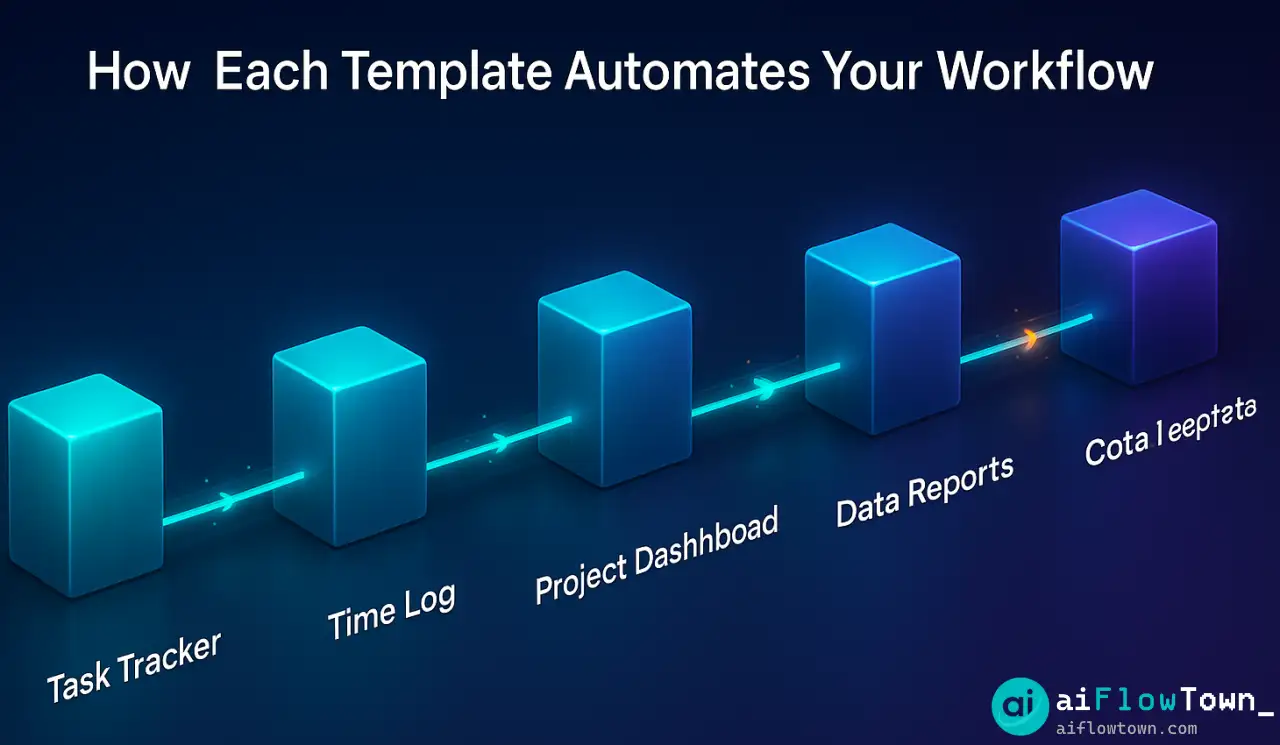
Zapier Integrations
Connect your Google Sheets templates to:
- Slack: Post updates when sheet changes
- Gmail: Send emails based on sheet triggers
- Trello/Asana: Create cards/tasks from sheet rows
- Google Calendar: Add events from deadlines
- Airtable: Sync data bidirectionally
This creates automated google sheets for business workflows without coding using AI automation tools for beginners.
Common Zap Examples
Zap 1: Task Reminder
Trigger: New row in Task Tracker with deadline within 3 days
Action: Send Slack message to assigned person

Zap 2: Client Invoice Alert
Trigger: Client total in Time Tracking exceeds $X
Action: Send email reminder to create invoice

Zap 3: Content Publishing
Trigger: Content Calendar shows "Ready to Publish"
Action: Create draft in WordPress or post to Buffer

Zap 4: Project Status Update
Trigger: Project Dashboard status changes to "At Risk"
Action: Post in Slack channel + email project manager
❓ FAQ
Are these templates really free?
Yes, completely free. Google Sheets is free, templates are free to copy and modify. Optional costs: Zapier for integrations ($20/mo), premium Add-ons (most are free). Core functionality works 100% free. You own your copy, use forever.
Do I need to know coding?
No for basic use—templates work out-of-box with built-in formulas. Intermediate spreadsheet skills helpful for customization. Advanced features (email alerts, complex automation) use Apps Script, but templates include pre-written scripts you just enable, no coding required.
Can teams use these collaboratively?
Yes, Google Sheets designed for collaboration. Share template with team (View/Comment/Edit permissions). Multiple people can work simultaneously. Track changes via version history. Set up protected ranges so people can’t accidentally break formulas. Works great for 2-20 person teams.
Do templates work on mobile?
Yes, via Google Sheets mobile app (iOS/Android). All formulas and automations work. Mobile experience better for viewing/light editing than heavy data entry. Complex dashboards harder to navigate on small screens. Best workflow: heavy setup on desktop, quick updates on mobile.
Can I modify templates for my needs?
Absolutely—that’s the point. These are starting frameworks, not rigid tools. Add columns, change formulas, adjust automation logic, combine multiple templates. Templates are yours to customize completely. Save customized version as your own template for future projects.
Final Thoughts
These automation template solutions prove you don’t need expensive software to automate workflows. Google Sheets, with smart formulas and simple scripts, handles task tracking, time logging, project management, data processing, and content planning—all free and highly customizable.
Start with one template addressing your biggest workflow pain. Use it for two weeks, customize as you discover what you actually need versus what you thought you’d need. Once one template becomes indispensable, add another. Build your automation stack gradually based on real workflow needs.
The best automation is automation you actually use. These templates work because they’re simple, free, accessible, and flexible. Copy one today, customize it tomorrow, save hours every week forever.
Next: Take your sheets to the next level by connecting them to AI tools using our guide to complete AI workflow automation.
⚠️ Reminder: Even the smartest tools / AI can miss small details or make mistakes. Always double-check your work before presenting or publishing it - a quick review can save hours later.