
Why Notion Needs Recurring Task Automation
Notion doesn’t have native recurring tasks. You can’t set “every Monday at 9am, create this task.” You either create them manually each time or use workarounds that break.
This gap wastes time. Creating the same task repeatedly takes mental energy—not much, but it compounds. Miss one week and the pattern breaks.
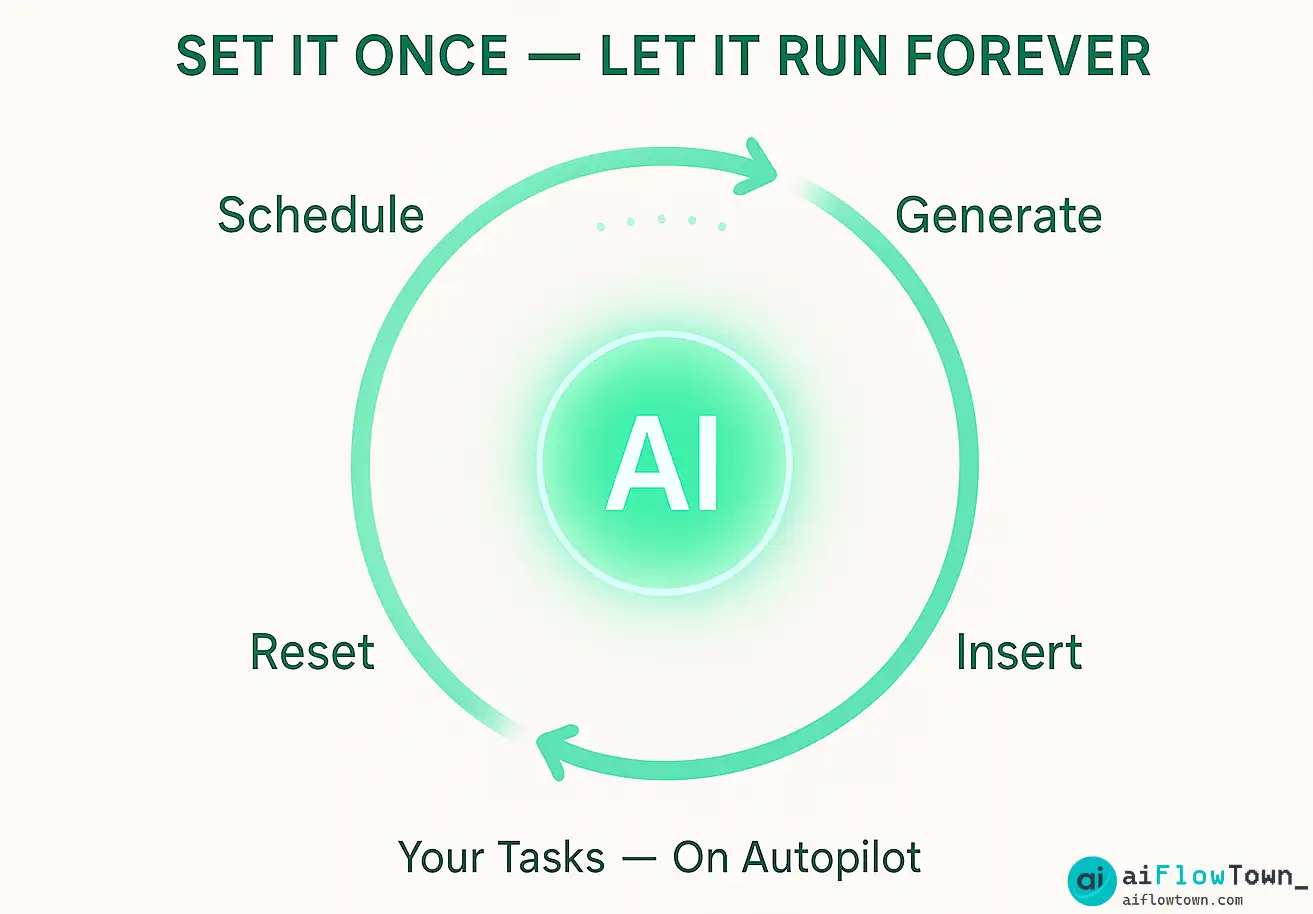
AI automation fixes this. Connect Notion to tools that create tasks on schedule, with all properties set correctly, in the right database. You configure once, it runs forever.
Three Ways to Automate Notion Recurring Tasks
Method 1: Zapier + Schedule (Easiest)
Best for: Simple recurring tasks, weekly or monthly patterns, no complex logic.
Setup time: 10 minutes per task type.
Cost: Free tier works for up to 5 task types.
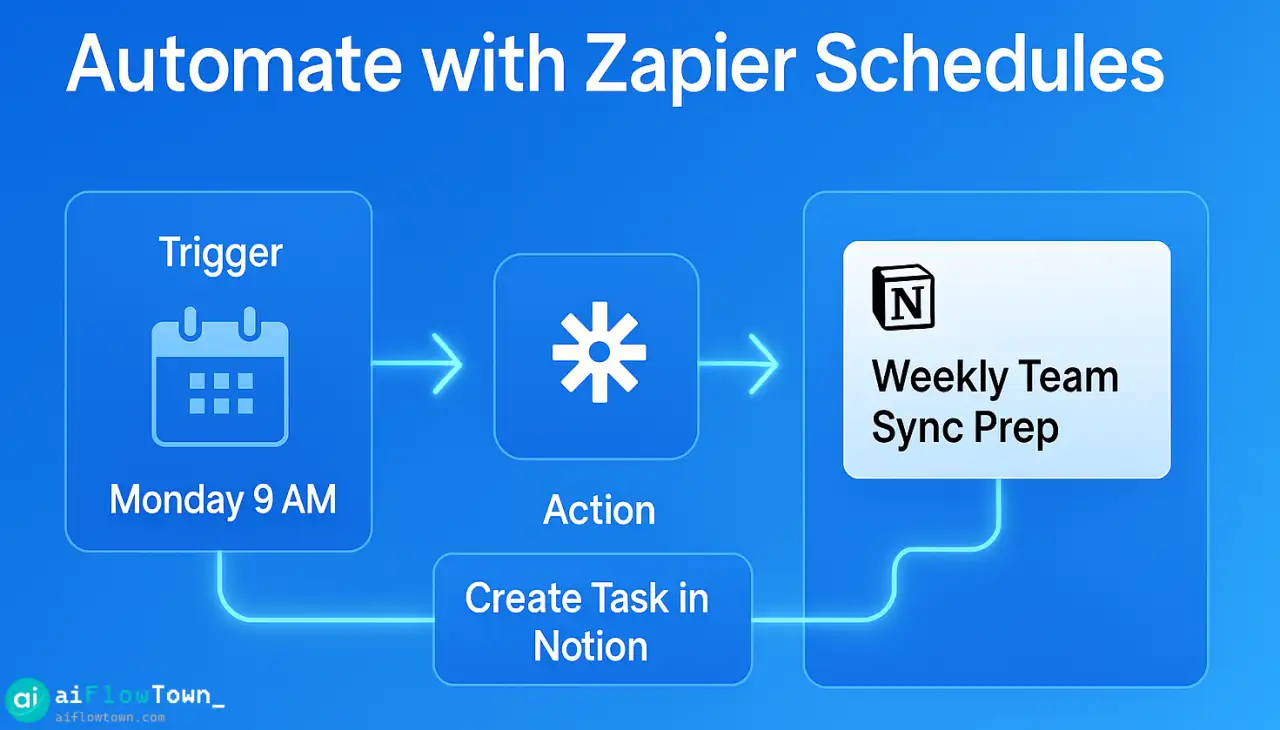
How it works: Zapier triggers on schedule (every Monday 9am, first of month, etc.) and creates new Notion database entries automatically.
Method 2: Make.com + Advanced Scheduling (Most Powerful)
Best for: Complex patterns, conditional logic, multiple task types.
Setup time: 20–30 minutes per workflow.
Cost: Free tier handles moderate usage.
How it works: Make (formerly Integromat) offers more flexible scheduling and can handle “if/then” logic for task creation.
Method 3: AI + Database Templates (Most Flexible)
Best for: Variable recurring tasks, context-aware creation, smart scheduling.
Setup time: 15 minutes + AI configuration.
Cost: Depends on AI tool used.
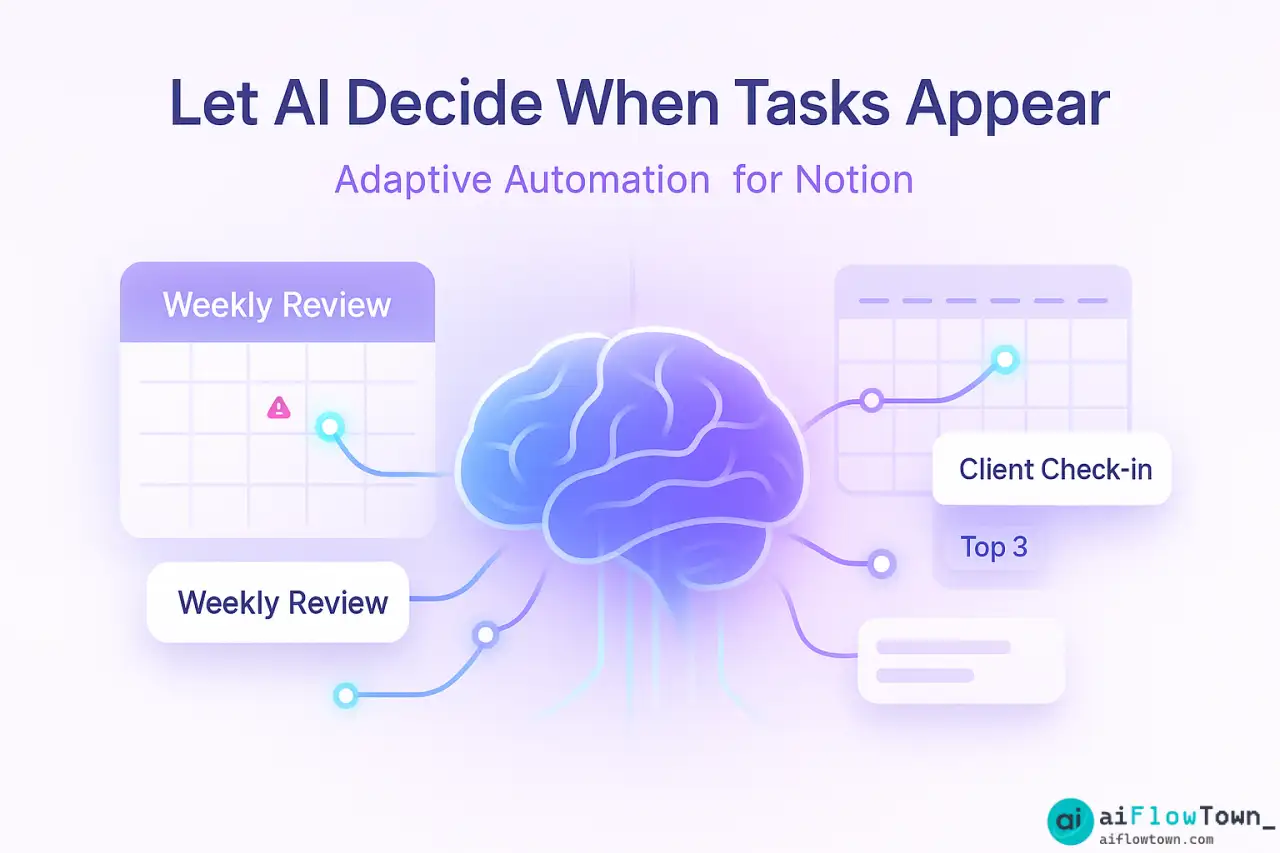
How it works: AI analyzes your calendar or workload and creates tasks at optimal times, adjusting based on your actual schedule.
For more automation strategies, check our AI workflows guide.
Step-by-Step: Zapier Recurring Tasks
Preparation
1. Create your Notion database
- Add these properties minimum: Name (title), Due Date (date), Status (select)
- Optional: Priority, Category, Assignee
2. Get your Notion integration token
- Go to notion.so/my-integrations
- Create new integration
- Copy the token
- Share your database with the integration
Building the Zap
Step 1: Trigger – Schedule by Zapier
Trigger: Schedule by Zapier
Frequency: Every Week (or your pattern)
Day: Monday (or your choice)
Time: 9:00 AM
Step 2: Action – Create Notion Database Item
Action: Create Database Item in Notion
Database: [Select your task database]
Properties:
- Name: "Weekly Team Sync Prep"
- Due Date: [Current date + 2 days]
- Status: "To Do"
- Priority: "High"
Step 3: Test and Enable
- Run test to verify task creates correctly
- Check Notion database for test entry
- Turn on Zap
That’s it. Every Monday at 9am, this task appears in your database automatically.
Common Patterns
Daily standup prep: Trigger every weekday 8:30am
Monthly invoicing: Trigger first day of month
Quarterly planning: Trigger first Monday of Jan/Apr/Jul/Oct
Weekly review: Trigger every Friday 4pm
Biweekly 1-on-1s: Trigger every other Monday
Step-by-Step: Make.com Advanced Automation
Why Use Make Over Zapier
Make handles complexity better:
- Multiple conditions (“if X then create task A, else create task B”)
- Batch operations (create 5 different tasks at once)
- Complex date calculations
- Data transformation before task creation
Building a Make Scenario
1. Add Schedule Module
Module: Schedule
Pattern: Every Monday, 9:00 AM
Timezone: Your timezone
2. Add Router (for multiple task types)
Router splits flow into multiple paths
Each path = different task type
3. Add Notion Modules (one per path)
Path 1: Weekly Planning Task
Path 2: Team Sync Prep Task
Path 3: Client Follow-up Task
All trigger same time, different properties
4. Advanced: Add Filters
Filter: Only create if Status ≠ "Done"
Prevents duplicates if you didn't complete last week's task
This creates multiple recurring tasks with one trigger.
Step-by-Step: AI-Powered Smart Recurring Tasks
What Makes This “Smart”
Instead of rigid schedules, AI creates tasks based on:
- Your actual calendar availability
- Workload patterns
- Task completion history
- Priority shifts
Example: Instead of “every Monday 9am,” AI creates your planning task when you actually have 90 minutes free that week.
Setup with Reclaim AI
Option 1: Reclaim → Notion
- Create habits in Reclaim (their name for recurring tasks)
- Connect Reclaim to Notion via Zapier
- When Reclaim schedules the habit, Zapier creates Notion task
- Notion task includes scheduled time from Reclaim
This adapts scheduling automatically based on your calendar.
Option 2: Motion + Notion Sync
- Use Motion for AI task scheduling
- Export completed Motion tasks to Notion as record
- Motion handles the smart scheduling, Notion stores the history
For Motion workflows, explore our AI productivity prompts guide.
Notion Database Templates for Recurring Tasks
Basic Recurring Task Database
Properties needed:
| Property | Type | Purpose |
|---|---|---|
| Name | Title | Task description |
| Due Date | Date | When task should be done |
| Status | Select | To Do / In Progress / Done |
| Recurrence | Select | Daily / Weekly / Monthly / Quarterly |
| Auto-created | Checkbox | Distinguish automation vs manual |
| Last Created | Date | Track creation date |
Advanced Recurring Task Database
Add these for better automation:
Category: Work / Personal / Client / Team
Priority: High / Medium / Low
Estimated Time: Number (hours)
Assignee: Person (for team tasks)
Template Link: Relation (link to template docs)
Completion Notes: Text (what you learned)
These properties let your automation set more context per task.
Common Automation Problems (And Fixes)
Problem: Duplicate Tasks Creating
Cause: Automation runs but previous task not marked done.
Fix: Add filter in automation: “Only create if Status ≠ Done”
Or use unique identifiers: Add “Week of [date]” to task name so you can spot duplicates.
Problem: Wrong Schedule Timing
Cause: Timezone mismatch or daylight saving confusion.
Fix: Always set timezone explicitly in automation tool. Test during daylight saving transition weeks.
Problem: Some Tasks Don’t Create
Cause: Automation tool hit rate limit or Notion integration disconnected.
Fix: Check automation run history. Reconnect Notion integration if needed. Upgrade automation plan if hitting limits.
Problem: Properties Not Populating
Cause: Property names changed in Notion or automation mapping outdated.
Fix: Re-map properties in automation. Use exact property names (case-sensitive). Don’t rename Notion properties after automation setup.
Best Practices for Notion Recurring Tasks
Start simple. Automate one task type first. Verify it works for 2 weeks. Then add more.
Use clear naming. “Weekly Planning – [Date]” is better than just “Planning.” You can spot patterns and duplicates.
Archive completed tasks. Don’t let database fill with done tasks. Archive monthly to keep views clean.
Set notification reminders. Notion can email when tasks are created. Use this for critical recurring tasks.
Review automation monthly. Are tasks still relevant? Is timing optimal? Adjust as your workflow changes.
Document your setup. Create a Notion page explaining which automations run and how to modify them. Future you will thank present you.
For complete workflow strategies, explore our AI automation tools for beginners guide.
Real Automation Examples
Weekly Review Automation
Trigger: Every Friday 3pm
Creates: “Weekly Review” task in Notion
- Due date: Today (Friday)
- Status: To Do
- Template linked: Review checklist page
- Category: Planning
Result: Never forget weekly review. Shows up at perfect time to wrap the week.
Monthly Client Check-ins
Trigger: First Monday of each month 10am
Creates: Multiple tasks (one per client)
- Task 1: “Check in with Client A”
- Task 2: “Check in with Client B”
- Task 3: “Check in with Client C”
- All due: End of week
- All assigned: You
- Template: Client check-in questions
Result: Proactive client relationships without remembering manually.
Personal Habit Tracking
Trigger: Every day 6am
Creates: Daily habit checklist
- Exercise (checkbox)
- Read 30 min (checkbox)
- Plan tomorrow (checkbox)
- Due: Today
- Rolls over incomplete items
Result: Consistent habit tracking without manual task creation.
❓ FAQ
Does this require paid Notion?
No. Notion’s free plan supports database automation via API. You need paid plans for Zapier or Make if you exceed their free tiers (typically 5–10 automations on free).
⏱️ How long does setup take?
10–15 minutes per recurring task type with Zapier. Budget 30 minutes for your first one while learning. Once you understand the pattern, additional tasks take 5 minutes each.
What if I need to skip one week?
Task will still create automatically. Just mark it “Done” or delete it that week. The automation continues next cycle. You can also pause automations temporarily in Zapier/Make.
Can I trigger tasks from mobile?
Not directly. Automations run on schedule or events, not manual triggers. For manual recurring task creation, use Notion templates instead. Save template, duplicate when needed.
Can tasks adapt to my schedule?
Yes, with AI tools like Reclaim. They analyze your calendar and create tasks when you have availability. Basic Zapier/Make automations use fixed schedules only.
Final Thoughts
Notion recurring tasks aren’t native, but automation makes them better than native options. You get flexibility, AI-powered scheduling, and the ability to adapt as your workflow changes.
Start with one recurring task. Your weekly review or monthly planning. Get that working smoothly. Then add your next most annoying manual task. Build your automation library incrementally.
The goal isn’t automating everything. It’s automating the repetitive so you can focus on the variable. Your weekly planning task should appear automatically. Your actual planning requires your brain.
Set it up once. Let it run forever. Reclaim those minutes you’ve been wasting on task recreation.
Ready to automate your complete Notion workflow? Discover advanced strategies with our guide to the 15 best AI productivity tools that integrate with Notion seamlessly.
⚠️ Reminder: Even the smartest tools / AI can miss small details or make mistakes. Always double-check your work before presenting or publishing it - a quick review can save hours later.